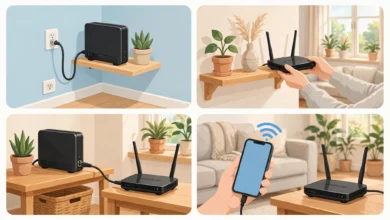
How to Extend Wi-Fi Range in a Multi-Story House
Extend Wi-Fi range in a multi-story house using mesh, access points and smarter placement, plus the legal limits on boosters that got companies fined.

Extend Wi-Fi Range in a Multi-Story House: 10 Proven Fixes for Frustrating Dead Zones
Introduction
Trying to extend Wi-Fi range in a multi-story house can feel like a never-ending project. The router sits downstairs where the internet line comes in, the living room gets great speeds, and everything above it slowly falls apart. Bedrooms upstairs buffer. The rooftop room or top-floor office barely connects. The basement or ground-floor shop might as well be offline.
This isn’t bad luck. Floors and ceilings are some of the toughest obstacles Wi-Fi has to deal with, especially in homes built with concrete slabs and steel reinforcement, which is common across South Asia, the Middle East and much of Europe. Add a few thick walls, a staircase in the wrong spot and a dozen neighboring networks, and the signal that leaves your router may be a weak fraction of itself by the time it reaches the second floor.
The good news is that you can fix this properly, often without spending much. This guide explains why Wi-Fi struggles between floors and then walks through ten proven fixes, from free changes like router placement to mesh systems, wired access points and MoCA or powerline links. You’ll also see where the legal line sits. Some “long-range” hacks and high-power gear break radio rules, and companies have been fined for it. By the end, you’ll know which setup suits your home and budget, and how to get strong Wi-Fi on every floor the right way.
Why Wi-Fi Struggles in a Multi-Story House
Before you spend money to extend Wi-Fi range, it helps to understand what’s actually blocking the signal. Once you know the cause, the right fix becomes much more obvious.
Floors and Ceilings Block More Than Walls
Wi-Fi signals weaken every time they pass through a solid surface. Floors are usually the worst offenders. A concrete slab with steel rebar can absorb and reflect a large share of the signal. Wooden floors with drywall ceilings are easier, but still add loss, especially when there’s ductwork, plumbing or insulation in between. Signals traveling diagonally through a floor pass through even more material than those going straight up.
Routers Are Designed to Spread Sideways
Most home routers use antennas that send signals out horizontally, in a shape a bit like a flattened doughnut. That’s great for a single-level apartment but poor for vertical coverage. A router on a ground-floor shelf spends much of its energy covering the ground floor and the yard, not the rooms directly above.
5 GHz vs. 2.4 GHz Across Floors
Modern routers use more than one band:
- 2.4 GHz band: travels farther and passes through floors better, but it’s slower and more crowded.
- 5 GHz band: much faster but loses strength quickly through walls and floors.
- 6 GHz band (Wi-Fi 6E and Wi-Fi 7): very fast with little interference, but has the shortest reach of all.
This is why your phone upstairs may cling to a slow 2.4 GHz connection, or drop the fast 5 GHz signal entirely.
Common Problems That Make Things Worse
- Router in a corner, cabinet or under the stairs. The signal is wasted on outside walls or trapped behind obstacles.
- Metal and water. Refrigerators, mirrors, metal doors, water tanks and aquariums all block Wi-Fi.
- Old routers. Older Wi-Fi standards handle distance and crowded areas far less efficiently than Wi-Fi 6 or newer.
- Too many devices. Smart TVs, cameras and phones all compete for airtime, and devices with weak signals slow down the whole network.
- Neighbor networks. In dense neighborhoods, dozens of nearby networks fight for the same channels.
How to Map Your Wi-Fi Dead Zones
Before choosing a fix, find out exactly where the problems are. Walk through each floor with your phone and run a quick speed test in every room. Free analyzer apps can also show signal strength in numbers. As a rough guide:


- Better than -60 dBm: strong.
- -60 to -70 dBm: usable.
- Weaker than -70 dBm: likely to struggle.
Write down the results on a simple sketch of each floor. Those Wi-Fi dead zones will tell you where new equipment needs to go.
10 Proven Ways to Extend Wi-Fi Range in a Multi-Story House
The fixes below run roughly from cheapest to most involved. Start at the top. Many homes only need the first few steps, while larger or concrete-heavy houses usually need one of the later options to properly extend Wi-Fi range to every floor.
1. Move Your Router to a Better Spot
Router placement is the single cheapest way to extend Wi-Fi range. Ideally, the router should sit:
- Near the center of the house, both side to side and top to bottom.
- Raised up, on a high shelf or mounted on a wall, not on the floor.
- In the open, not inside a cabinet, behind a TV or under the stairs.
- Away from microwaves, mirrors, water tanks and large metal objects.
In a three-story house, the best spot is often the middle floor, even if that means running a cable from where the internet line enters. In a two-story house, a high spot on the ground floor near the staircase often works well, since staircases act as open channels between levels.
2. Adjust the Antennas
If your router has external antennas, don’t leave them all pointing straight up. Antennas send signal out to the sides of the antenna, not from the tip. Setting one antenna vertical and another horizontal, or angling them at about 45 degrees, can noticeably improve coverage on the floor above. It’s a free way to extend Wi-Fi range, and it takes a minute.
3. Update Firmware and Tune Settings
Log into your router’s app or admin page and:
- Install the latest firmware for stability and security fixes.
- Turn on band steering if available, so devices pick the best band automatically.
- Choose a less crowded channel, or set channel selection to automatic.
- Make sure older devices aren’t forcing the whole network into slower legacy modes.
These tweaks won’t work miracles through concrete, but they help you extend Wi-Fi range using the equipment you already have.
4. Upgrade to a Modern Router
If your router is more than four or five years old, upgrading can boost Wi-Fi signal upstairs on its own. Routers with Wi-Fi 6, Wi-Fi 6E or Wi-Fi 7 handle many devices better, use beamforming to aim signal at devices, and stay faster at longer distances. Look for a model that supports mesh expansion, so you can add more units later.
5. Install a Mesh Wi-Fi System
For most multi-story homes, a mesh Wi-Fi system is the best all-round answer. Mesh uses two or more units that work together as one network with one name and password. Your devices move between them automatically as you walk around the house.
Tips for placing mesh units in a multi-story house:
- Put one unit on each floor, roughly stacked near the center of the house.
- Keep each unit within good range of the next, usually no more than one floor and a room or two apart.
- Avoid hiding units in cupboards or behind furniture.
- Use the app’s placement guide, which often shows signal quality between units.
If you want to extend Wi-Fi range across three or more floors, a tri-band mesh system, which has a separate radio for communication between units, usually performs better than a dual-band one.
6. Use Ethernet Backhaul Wherever Possible
Mesh units and extenders need to talk to each other. When they do this over Wi-Fi, part of the speed is lost at every hop, and concrete floors make that link weak. Connecting units with a cable, known as Ethernet backhaul, fixes this. Each unit gets a full-speed connection to the main router and uses its wireless radios only for your devices.
If your house already has network cabling, use it to extend Wi-Fi range at full speed. If not, running a single cable up a stairwell, through a cable duct or alongside existing wiring is often worth the effort.
7. Add a Wired Access Point on Each Floor
An access point is a device that creates Wi-Fi from a wired connection. With a cable running to each floor, a ceiling-mounted or wall-mounted access point gives you strong, stable coverage, much like an office building. This is the most reliable way to extend Wi-Fi range in large concrete homes, home offices and families with heavy streaming or gaming use. Many mesh systems can work this way too.
8. Try MoCA or Powerline When Cables Aren’t an Option
If you can’t run new Ethernet cable, you can still extend Wi-Fi range using wiring that’s already in the walls:
- MoCA adapters send network data over existing coaxial TV cables. They’re fast and very stable, ideal if your home has cable TV points on each floor.
- Powerline adapters send data over your home’s electrical wiring. Results vary widely depending on wiring age, circuits and electrical noise, but they can work well enough to connect a mesh unit or access point upstairs.
Test a powerline kit before relying on it, and buy from a seller with a good return policy.
9. Use a Wi-Fi Extender (Carefully)
A basic Wi-Fi extender is the cheapest way to extend Wi-Fi range to a single problem room. It picks up your router’s signal and rebroadcasts it. The catch is that a wireless extender loses speed because it has to receive and transmit on the same radio, and it often creates a second network name.
To get the best results:
- Place it halfway between the router and the dead zone, not inside the dead zone.
- Choose a model that supports the same Wi-Fi generation as your router.
- Use an extender with an Ethernet port, and connect it with a cable if you can.
Extenders are fine for one weak bedroom. For a whole floor or a full house, mesh or access points are a better investment.
10. Wire Fixed Devices and Reduce Wi-Fi Load
Every device you take off Wi-Fi frees up airtime for the rest. Plug in smart TVs, desktop computers, game consoles and work laptops with Ethernet where possible. Disconnect devices you no longer use, and turn on quality-of-service settings to prioritize video calls or work traffic. This doesn’t increase coverage directly, but it makes the coverage you have feel much faster on every floor.
How to Extend Wi-Fi Range Legally: Lessons From Real Cases
When people get frustrated with weak signal upstairs, some reach for shortcuts: high-gain antenna kits, cheap “long-range” amplifiers, firmware hacks that unlock extra transmit power, or simply logging into a neighbor’s network. It’s worth knowing why these are risky. Wi-Fi uses shared, unlicensed radio spectrum, and it only works because everyone follows the same power and frequency rules. Break them and you can interfere with other people’s connections, and sometimes with critical systems.
Case 1: TP-Link’s Power Setting (2016)
In 2016, the FCC found that some TP-Link routers sold in the US let users change a country code setting that pushed transmit power on the 2.4 GHz band above the legal limit. TP-Link paid a $200,000 settlement, halted sales of non-compliant units, sent out a software update removing the setting, and agreed to a compliance program. As part of the deal, it also committed to work with open-source developers so users could still install third-party firmware, as long as safeguards kept radios within legal limits. See the FCC’s announcement of the TP-Link settlement for the full terms.
Lesson: a hidden “more power” setting may look like a free upgrade, but if it breaks power rules, it isn’t legal to use, even on your own router.
Case 2: Wireless Equipment Interfering With Airport Weather Radar
Part of the 5 GHz Wi-Fi band is shared with Terminal Doppler Weather Radar systems at airports, which help pilots avoid dangerous wind shear. Wi-Fi equipment must detect radar and move off those channels automatically, using a feature called Dynamic Frequency Selection (DFS).
When equipment ignores those rules, the consequences are serious. In 2013, the FCC fined wireless internet provider Towerstream $202,000 after finding its equipment had interfered with weather radar near several airports. Commentators noted that this was one in a series of cases, and that the FCC had previously cracked down on illegally modified transmitters causing the same problem. You can read CommLawBlog’s analysis of the Towerstream radar case for background. In 2020, the FCC proposed $25,000 fines against two Puerto Rico providers whose equipment interfered with the FAA weather radar in San Juan.
Lesson: disabling DFS, forcing restricted channels or using modified outdoor gear isn’t a harmless tweak. It can disrupt aviation safety systems and lead to real penalties.
Case 3: Using a Neighbor’s Wi-Fi Instead of Fixing Your Own
In apartment buildings and closely built houses, it can be tempting to connect upstairs devices to a neighbor’s stronger signal, especially if their network is open or the password is easy to guess. In many countries, accessing someone else’s network without permission is treated as unauthorized computer access, and people have faced charges for it. Even where enforcement is rare, it’s ethically the same as using someone’s electricity without asking, and it exposes your own devices to a network you don’t control.
Lesson: the honest fix is to improve your own coverage, or come to a clear, agreed arrangement with the network’s owner.
Practical Rules to Stay Legal
To extend Wi-Fi range safely and legally, stick to these guidelines:
- Buy certified equipment from known brands and authorized sellers. In the US, look for FCC certification. In Pakistan, check that devices have PTA type approval.
- Never change your router’s country or region setting to unlock higher power or extra channels.
- Avoid unbranded amplifiers and “long-range” kits that promise huge power increases.
- Leave DFS and power limits alone in advanced settings or third-party firmware.
- Stick to approved antennas. Swapping in a high-gain antenna can push a device past its certified limits.
- Secure your own network with WPA2 or WPA3 so others can’t use it without permission.
When you extend Wi-Fi range with legal gear placed well, it will almost always outperform an illegal power boost anyway. More power from the router doesn’t help if your phone upstairs can’t send a strong enough signal back.
Best Setup to Extend Wi-Fi Range by House Type
There’s no single answer that suits every home. The best way to extend Wi-Fi range depends on how many floors you have, what the house is built from, and whether you can run cables. Use this table as a starting point:
| House type | Recommended setup | Rough budget |
|---|---|---|
| Two floors, wood or light construction | Better router placement plus one mesh unit or extender upstairs | Low |
| Two floors, concrete slab | Dual-band or tri-band mesh, one unit per floor, wired backhaul if possible | Medium |
| Three or more floors, concrete | One mesh unit or access point per floor, connected by Ethernet or MoCA | Medium to high |
| Basement or ground-floor shop plus upper floors | Main router on the middle floor, wired access point or mesh unit at each end | Medium |
| Rented home, no new cables allowed | Mesh system with wireless backhaul, or powerline-based mesh | Medium |
| Home office or heavy gaming upstairs | Wired access point or Ethernet run straight to the desk | Medium |
Questions to Ask Before You Buy
- How big is each floor? Mesh kits list coverage in square feet or meters, but concrete floors cut real coverage significantly. Plan for one unit per floor.
- Where does the internet line enter? If it’s in a corner or the basement, plan a cable to move the main router to a central spot.
- Can you run even one cable? A single wired link between floors improves almost any setup.
- How many devices do you have? Large households benefit most from Wi-Fi 6 or newer.
- Does your provider supply the router? Ask whether you can put it in bridge mode and use your own mesh system as the main network.
A Simple Plan for a Typical Three-Story House
Here’s how a common setup might look in practice:
- Move the main router or first mesh unit to the middle floor, near the stairwell, using a cable from where the internet line enters.
- Place a second unit on the top floor, roughly above the first.
- Place a third unit on the ground floor or basement, roughly below the first.
- Connect the units with Ethernet or MoCA if you can. If not, check the app to confirm a strong link between each unit.
- Run a speed test in every room, then fine-tune placement until each floor has solid coverage.
This approach, three units stacked through the middle of the house, is one of the most reliable ways to extend Wi-Fi range in a multi-story home without a professional installer.
Maintaining Good Coverage Over Time
- Keep firmware updated on every unit.
- Recheck placement after renovations or moving large furniture.
- Replace your main router or mesh system every four to six years as Wi-Fi standards improve.
- Review connected devices and remove ones you no longer use.
A little upkeep keeps your Wi-Fi in a multi-story house fast long after the initial setup.
Conclusion
To extend Wi-Fi range in a multi-story house, start by understanding why the signal fails: floors and ceilings, especially concrete, absorb far more Wi-Fi than walls, routers spread signal sideways rather than up, and the fast 5 GHz and 6 GHz bands fade quickly between levels. Free fixes like central, raised router placement, adjusted antennas and updated firmware come first, followed by a modern router, a mesh Wi-Fi system with one unit per floor, Ethernet or MoCA backhaul, wired access points, or a carefully placed extender for a single room. Stay on the right side of the rules while you do it: TP-Link’s $200,000 FCC settlement over a power-boosting setting and the fines against providers whose equipment interfered with airport weather radar show that illegal power hacks and modified gear carry real consequences, and using a neighbor’s network without permission is never the answer. Map your dead zones, pick the setup that matches your house, connect units with cable wherever you can, and you’ll extend Wi-Fi range to every floor reliably and legally.