Top Reasons Your Internet Disconnects Randomly and How to Fix It
Internet disconnects randomly? See the real causes, from old routers and Wi-Fi interference to illegal jammers, plus clear fixes that keep you online.
Internet Disconnects Randomly? 9 Proven Fixes for Frustrating Drops
Introduction
When your internet disconnects randomly, it rarely happens at a convenient time. It drops in the middle of a client call, right before you hit submit on an online form, or ten minutes into a movie. Then it comes back on its own, which makes the whole thing harder to pin down. Was it the router? The provider? Something in your house?
The frustrating part is that a dropping connection can have a dozen different causes, and most of them look the same from your side of the screen. An aging router, a crowded Wi-Fi channel, a loose cable, an outdated driver or a problem on your provider’s line can all produce the same symptom. Less often, the cause is something deliberate: a neighbor using an illegal jammer, a hotel blocking personal hotspots, or malware sitting quietly on your router.
This guide takes a practical, honest look at why your internet keeps disconnecting. We’ll go through the everyday technical causes first, then cover real cases where companies and individuals broke the law by interfering with people’s connections, and what those cases mean for you. After that, you’ll get a step-by-step way to diagnose the problem and nine proven fixes, starting with the free and simple ones. By the end, you should know exactly where to look and what to try before you spend money on new equipment or another call to support.
Top Reasons Your Internet Disconnects Randomly
Most of the time, when your internet disconnects randomly, the cause is ordinary and fixable. The trick is figuring out which layer is failing: your device, your Wi-Fi, your router and modem, or your provider’s network. Here are the most common culprits, roughly in order of how often they cause trouble.
1. An Old or Overheating Router
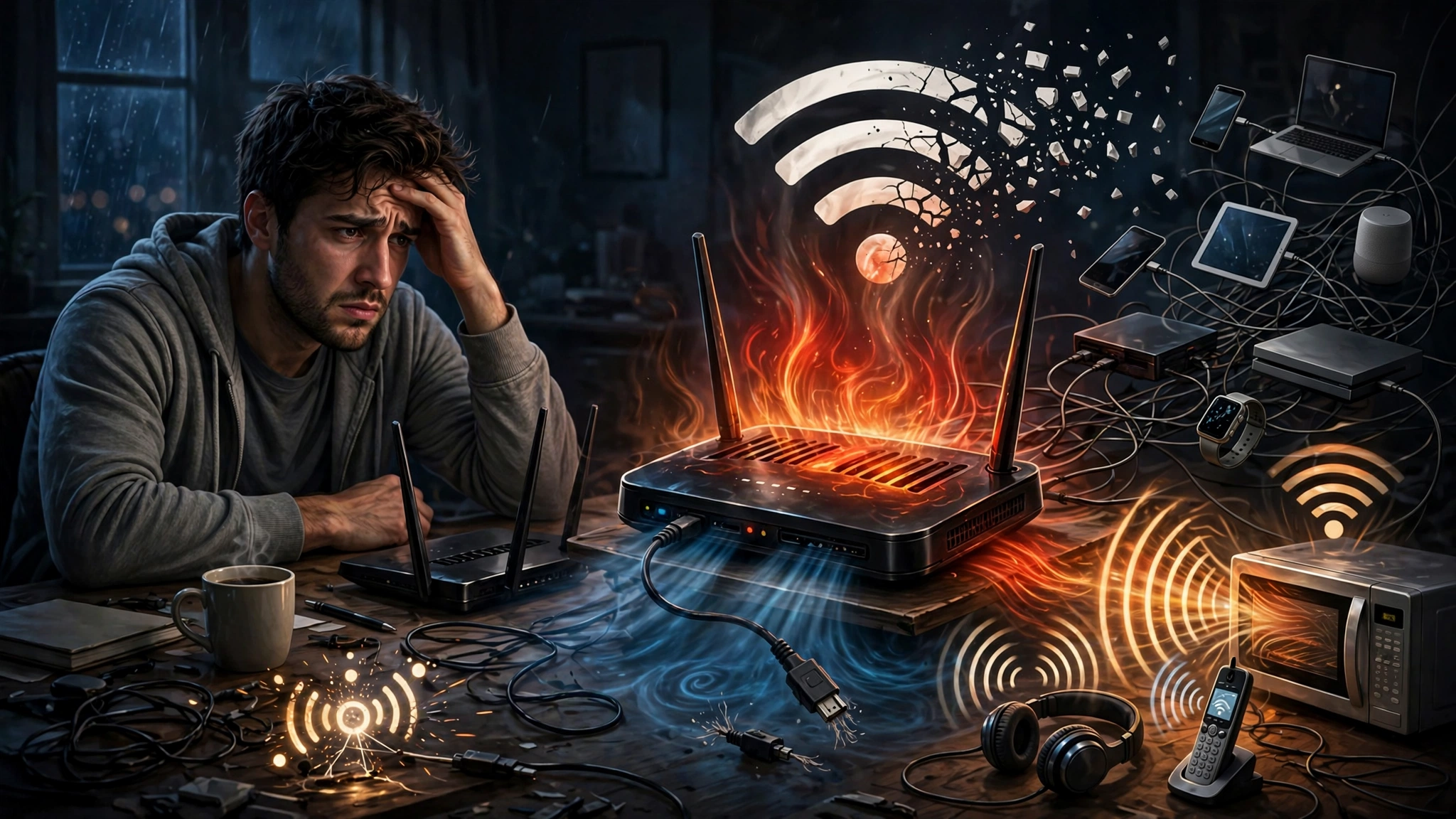
Routers are small computers that run around the clock, often for years without a break. Over time, memory fills up, firmware gets outdated and components wear out. Heat makes it worse. A router stuffed inside a cabinet or sitting on top of a warm cable box can overheat and restart itself without warning.
Signs this is your problem:
- The router’s lights blink or go dark right when the connection drops.
- Every device in the house loses the connection at the same time.
- The router feels hot to the touch.
- The unit is more than four or five years old.
If your router keeps disconnecting and restarting on its own, hardware age is one of the first things to suspect.
2. Wi-Fi Interference and Weak Signal
Wi-Fi interference is one of the biggest reasons your WiFi keeps dropping while a wired connection stays solid. Wi-Fi uses radio signals, and those signals compete with everything else in the air.
Common sources of interference include:


- Neighboring networks on the same channel, which is very common in apartments.
- Household devices like microwaves, cordless phones, baby monitors and Bluetooth speakers, which share the 2.4 GHz band.
- Physical barriers such as concrete walls, metal doors, mirrors and fish tanks.
- Distance. The farther you are from the router, the weaker and less stable the signal strength becomes.
A quick test: if your phone drops in the bedroom but stays connected next to the router, you’re dealing with coverage, not a broken connection.
3. Loose or Damaged Cables
It sounds too simple, but a cable that’s half-unplugged, bent or chewed by a pet can cause an unstable internet connection that comes and goes. Coaxial cables, phone lines and Ethernet cables all wear out. Splitters on cable lines are a common weak point too, especially cheap ones added years ago.
4. Problems on Your ISP’s Side
Sometimes your internet disconnects randomly because of something you can’t see or touch. Providers deal with outages, maintenance work, overloaded neighborhood equipment and damaged lines outside your home. Weather plays a part too. Heavy rain and wind can affect outdoor cables and connections.
Clues that the problem is with your provider:
- Your modem’s “online” or “internet” light goes off, not just the Wi-Fi light.
- Neighbors on the same provider report the same issue.
- The drops happen at similar times every day, often in busy evening hours.
- Your provider’s outage page or app shows an issue in your area.
5. Outdated Drivers and Device Settings
If only one laptop or PC keeps losing the connection, the problem is probably on that device. An outdated network adapter driver is a classic cause on Windows machines. Power-saving settings can also turn the Wi-Fi adapter off to save battery, which makes it look like your internet disconnects randomly.
Other device-level causes include:
- VPN apps that drop and take the connection with them.
- Security software that blocks or resets network traffic.
- Saved network profiles that have become corrupted.
- Wrong DNS settings, which can make it look like the internet is down when only name lookups are failing.
6. Too Many Connected Devices
The average home now has phones, laptops, smart TVs, speakers, cameras, doorbells and plugs all sharing one router. Cheaper routers can only handle a limited number of active connections. When that limit is reached, devices get kicked off and your internet disconnects randomly for whoever joined last. If your internet keeps disconnecting mostly in the evening when everyone is home, this could be the reason.
7. IP Address Conflicts and DHCP Issues
Your router hands out addresses to every device on the network. If two devices end up with the same address, or the router’s address pool runs out, one or both will lose the connection. This often shows up as a device that says “connected, no internet.”
When Your Internet Disconnects Randomly Because Someone Broke the Law
In most homes, when the internet disconnects randomly, nobody is to blame. But not always. There’s a real history of businesses and individuals deliberately cutting off other people’s connections, and of criminals taking over home routers. These cases are rare compared to everyday tech problems, but they’re worth knowing about. They show what’s possible, what’s illegal, and why some of the standard fixes in this guide matter more than they seem.
Case 1: Marriott Blocked Guests’ Personal Hotspots (2014)
At the Gaylord Opryland Hotel and Convention Center in Nashville, guests and exhibitors kept losing their personal mobile hotspots. It wasn’t bad luck. The FCC found that hotel staff, under Marriott’s management, had used features of a Wi-Fi monitoring system to knock guest-created hotspots offline. At the same time, the hotel was charging exhibitors and attendees between $250 and $1,000 per device to use its own Wi-Fi.
The investigation started after a single attendee complained in 2013. In October 2014, Marriott agreed to pay a $600,000 civil penalty and stop the practice. The FCC said the blocking violated Section 333 of the Communications Act, which bans willful interference with authorized radio communications. You can read the FCC’s official announcement of the Marriott Wi-Fi blocking settlement for the full details.
What it means for you: if your hotspot or Wi-Fi drops only inside a specific hotel, venue or conference center, while working fine everywhere else, it may not be your device.
Case 2: Smart City and Convention Center Wi-Fi (2015)
A year later, the FCC went after Smart City Holdings, a company that provided internet services at convention centers. Investigators found it had blocked visitors’ personal hotspots, pushing them toward paid on-site Wi-Fi. The company agreed to pay $750,000. Together with the Marriott case, it sent a clear message: businesses can’t sabotage your connection to sell you their own.
Case 3: The Florida Driver With a Cell Phone Jammer (2016)
A man in Florida used an illegal jamming device in his car for about two years, reportedly to stop other drivers from using their phones during his daily commute. The jammer didn’t just block texting. It disrupted cell signals along a busy highway, including police communications. Once investigators tracked him down, the FCC proposed a $48,000 fine.
Why it matters: jammers are illegal to sell, buy or use in the US and many other countries, yet cheap ones still circulate online. If your mobile data or Wi-Fi drops at the same spot, at the same time, every day, interference from a nearby device is at least worth considering.
Case 4: VPNFilter Malware on Home Routers (2018)
In May 2018, security researchers at Cisco Talos revealed a piece of malware called VPNFilter that had infected more than 500,000 routers and storage devices in at least 54 countries. Affected brands included Linksys, MikroTik, Netgear and TP-Link. The malware could spy on traffic, block connections and even permanently disable the router with a single command. US officials linked it to a state-backed hacking group, and the FBI urged everyone with a home or small office router to reboot it.
The Cisco Talos research report on VPNFilter explains how the infection worked. The key takeaway was that every affected device had known security holes that had already been patched by updates.
What it means for you: router malware can cause crashes, restarts and dropped connections. An old router that’s never been updated is both slower and less safe.
Case 5: The Mirai Botnet (2016)
The Mirai botnet took over hundreds of thousands of poorly secured smart devices, like cameras and home routers, mostly by logging in with factory default passwords. Its operators used those devices to launch huge attacks that knocked major websites offline for millions of people. The people behind it later pleaded guilty to federal charges in the US.
Infected devices often run slowly and hog bandwidth, and they can make home networks unstable. Changing default passwords is one of the simplest ways to make sure your devices never become part of something like this.
Case 6: Unauthorized Wi-Fi Use
Sometimes the cause is closer to home. If your network has a weak password or none at all, other people may be using it without permission. Extra users eat bandwidth and can push older routers past their limits, so your internet disconnects randomly at busy times. In many countries, accessing someone else’s network without permission is illegal, and people have faced charges for it. Securing your network protects you and keeps everyone on the right side of the law.
A Word on Ethics
You’ll find guides and gadgets online that promise to “kick” other users off a network, block a neighbor’s Wi-Fi or jam signals in a room. Don’t use them, even to test your own setup. Jamming and deauthentication attacks are illegal in many countries, they can disrupt emergency calls, and as the cases above show, regulators do follow up. The right response when your internet disconnects randomly is to fix your own equipment and report real interference to your provider or telecom regulator.
How to Diagnose Why Your Internet Disconnects Randomly
Before you start changing settings, spend ten minutes narrowing down where the problem lives. Fixing the wrong layer wastes time, and support calls go much faster when you can describe exactly what’s happening.
- Check if it’s one device or all of them. If only one laptop drops, focus on that device. If everything drops at once, look at the router, modem or provider.
- Compare Wi-Fi with a wired connection. Plug a computer into the router with an Ethernet cable. If the wired connection stays stable while Wi-Fi drops, the problem is wireless coverage or interference.
- Watch the lights. When the connection fails, note which lights on the modem and router change. A dead “internet” or “online” light usually points to the provider or the line coming into your home.
- Note the timing. Notice when your internet disconnects randomly. Is it the same time each day, when the microwave runs, or when everyone gets home? Patterns are the best clues you have.
- Run a few tests. Use a speed test and a simple ping test to a reliable address. Repeated timeouts confirm the drops and give you evidence to share with support.
- Check for outages. Look at your provider’s website, app or social media pages before taking anything apart.
Keep a short log with dates, times and what you were doing. It sounds tedious, but it turns a vague complaint into something a technician can act on.
9 Proven Fixes When Your Internet Disconnects Randomly
Start at the top. The first fixes are free and take a few minutes, and they solve the problem more often than you’d expect.
Fix 1: Restart Your Modem and Router the Right Way
A proper modem reset clears memory, renews your connection with the provider and stops many temporary glitches.
- Unplug both the modem and the router from power.
- Wait at least 30 seconds.
- Plug the modem back in and wait until its lights settle, usually one to two minutes.
- Plug the router back in and give it another minute or two.
If a restart helps for a few days and then your internet disconnects randomly again, that’s a sign of aging hardware or outdated firmware.
Fix 2: Update Router Firmware
A router firmware update fixes bugs, improves stability and closes security holes like the ones VPNFilter used. Log into your router’s admin page or app and look for an update option. Many newer routers can update automatically, so turn that on if it’s available. If your router hasn’t received an update in years, the maker may have stopped supporting it, and that alone is a common reason the internet disconnects randomly.
Fix 3: Move the Router and Reduce Interference
Placement matters more than most people think. Put your router:
- In a central, open spot, ideally raised on a shelf.
- Away from microwaves, cordless phone bases, fish tanks and thick walls.
- Out of closed cabinets where heat builds up.
If your WiFi keeps dropping in one part of the house only, better placement alone can fix it.
Fix 4: Change the Wi-Fi Channel or Band
In crowded buildings, many routers fight over the same channel. Log into your router and try a different channel, or let it choose automatically. Also connect closer devices to the 5 GHz band, which is less crowded and less affected by household electronics. The 2.4 GHz band reaches farther, so it’s still useful for devices at a distance.
Fix 5: Check and Replace Cables
Inspect every cable between the wall and your devices. Tighten coaxial connectors by hand, reseat Ethernet plugs until they click, and replace anything frayed, kinked or chewed. Remove unnecessary splitters on cable lines. A new cable costs very little and rules out a surprisingly common reason your internet disconnects randomly.
Fix 6: Update Network Drivers and Device Settings
If one computer is the problem, update its network adapter driver from the manufacturer’s website or through your operating system’s update tool. On Windows, open the adapter’s power management settings and turn off the option that lets the computer switch it off to save power. Forgetting the Wi-Fi network and reconnecting can also clear a corrupted profile.
Fix 7: Change Your DNS Settings
If it looks like your internet disconnects randomly, yet the connection icon still shows you’re online, your provider’s DNS servers may be the weak link. Switching to a well-known public DNS service, such as Cloudflare or Google, often makes browsing more reliable. You can change this on a single device or for your whole home in the router settings.
Fix 8: Secure Your Network
This fix improves both stability and safety:
- Change the router’s default admin password.
- Use WPA2 or WPA3 security with a strong Wi-Fi password.
- Check the list of connected devices and remove any you don’t recognize.
- Turn off remote management and WPS if you don’t use them.
A locked-down router keeps freeloaders off your bandwidth and makes it far harder for malware like Mirai or VPNFilter to get in.
Fix 9: Upgrade Equipment or Call Your ISP
If you’ve tried everything above and your internet disconnects randomly anyway, it’s time to look at bigger changes:
- Replace an old router. A modern router, or a mesh Wi-Fi system for larger homes, can handle more devices and cover more space.
- Ask your provider to check the line. Share your log and test results. Ask them to check signal levels and send a technician if needed.
- Ask about a replacement modem. If you rent one from your ISP, it may be outdated, and many providers will swap it for free.
- Consider switching providers if outages are frequent and support doesn’t fix them.
Preventing Future Disconnections
Once your connection is stable, a few habits keep it that way:
- Restart your router every month or two.
- Turn on automatic firmware updates.
- Keep the router cool and in an open space.
- Review connected devices every few months.
- Replace your router roughly every four to five years.
- Keep your provider’s support number and outage page bookmarked.
Small maintenance steps like these mean you’ll rarely have to wonder why your internet keeps disconnecting in the first place.
Conclusion
When your internet disconnects randomly, the cause is usually something ordinary: an aging or overheating router, Wi-Fi interference, a worn cable, an outdated driver, too many devices or trouble on your provider’s line. Occasionally it’s something deliberate, and real cases prove it, from Marriott paying $600,000 for blocking guests’ hotspots and Smart City paying $750,000 for the same practice, to a Florida driver fined for jamming phones and the VPNFilter malware that infected more than 500,000 routers. The way forward is the same in almost every case: figure out whether the problem is one device or the whole network, restart and update your equipment, improve router placement and channels, replace bad cables, secure your network, and bring clear evidence to your provider if the drops continue. Follow those steps in order and you’ll fix most situations where your internet disconnects randomly without spending money, and you’ll know exactly when an upgrade or a technician visit is truly needed.