How to Set Up a Home Wi-Fi Network Step by Step
Set up a home Wi-Fi network step by step, from placing the router to securing it with WPA3, with real cases showing why weak setups often get hacked
Set Up a Home Wi-Fi Network Step by Step: 10 Easy Steps to a Secure, Lightning-Fast Connection in 2026
Introduction
Set up a home Wi-Fi network the right way once, and you will save yourself months of buffering, dropped calls and “why is the internet so slow?” arguments at dinner. Most people never really set up their Wi-Fi at all. The ISP technician plugs in a router, writes a password on a slip of paper, and leaves. That router then sits in a corner for years with the factory admin password, old firmware and a network name that tells every passerby exactly which company installed it.
It usually works well enough, until it does not. Upstairs rooms get weak signal, the neighbor’s kids somehow know your password, or the connection keeps dropping during load shedding. Worse, an unsecured router can quietly become part of someone else’s crime. In 2018, the FBI urged owners of home and small office routers worldwide to reboot their devices after malware called VPNFilter infected an estimated 500,000 routers in 54 countries, many of them with weak or default logins.
The good news is that a solid, secure home network does not need technical training. It needs a clear plan and about an hour of your time. This guide walks you through every step, from choosing where to put the router to locking it down with WPA3 encryption, setting up a guest network, and fixing common problems. It also covers the real risks in Pakistan, including Wi-Fi theft, unlicensed ISPs and illegal signal boosters, so your network stays fast, legal and safe.
What You Need Before You Set Up a Home Wi-Fi Network
Before you start, gather the equipment and understand a few basic terms. It makes every later step faster.
Equipment checklist
- An active internet connection from a licensed provider, such as fiber, DSL or a 4G/5G home device.
- The ISP’s terminal device. For fiber, this is an ONT (Optical Network Terminal). For DSL, it is a modem. Many ISPs supply a combined modem-router.
- A Wi-Fi router or mesh system. The ISP’s router is fine for a small flat. Larger homes usually need a better router or a mesh kit.
- Ethernet cables. At least one to connect the router to the ONT or modem, plus extras for a desktop, smart TV or second access point.
- A phone or laptop to configure the router through a browser or app.
- A small UPS for the router and ONT, highly recommended where power cuts are common.
Key terms in plain language
| Term | What it means |
|---|---|
| SSID | The Wi-Fi network name you see on your phone |
| WPA2 / WPA3 | Security standards that encrypt your Wi-Fi traffic. WPA3 is newer and stronger |
| 2.4 GHz band | Slower but reaches farther and passes through walls better |
| 5 GHz band | Faster but shorter range |
| Admin panel | The router’s settings page, opened through a browser or app |
| Firmware | The router’s built-in software, which needs updates like your phone |
| DHCP | The feature that automatically gives each device an address on your network |
| Mesh | Several units working together as one Wi-Fi network across a large home |
Information to keep handy
Write down or photograph the label on the bottom of your router. It usually shows the default Wi-Fi name, default Wi-Fi password, admin address (such as 192.168.0.1 or 192.168.1.1, or an app name) and default admin login. You will need these once, and then you will change them.
How to Set Up a Home Wi-Fi Network in 10 Easy Steps
Follow these steps in order. Each one builds on the last, and skipping the security steps is the most common mistake people make.
Step 1: Choose a licensed internet provider
Your Wi-Fi can only be as reliable as the connection behind it. Pick a provider that holds a valid PTA license and serves your exact address. Ask neighbors about evening speeds and how quickly faults get fixed. Avoid cheap “cable net” offers from operators you cannot find on PTA’s official list, since those can be shut down without warning.
Step 2: Pick the right spot for the router
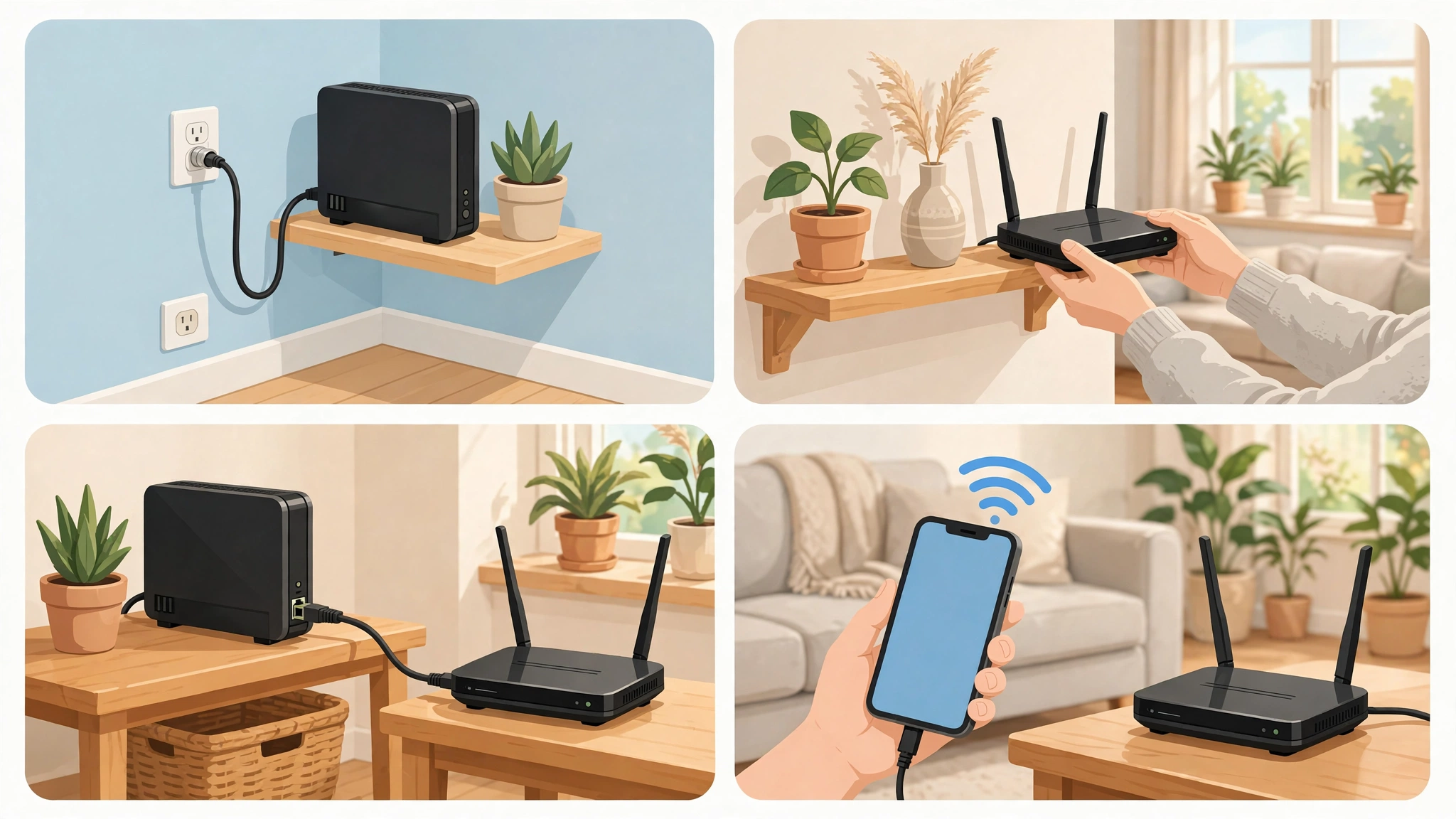
Placement matters more than most people think. The ideal spot is central, raised and open.
- Place the router near the middle of the house, not in a corner room.
- Keep it at chest height or higher, on a shelf rather than the floor.
- Avoid cupboards, metal cabinets, water tanks, mirrors and microwaves.
- In a multi-storey home, the ground or first floor near the stairwell often works best.
If the ONT or modem is in a bad spot, run a longer Ethernet cable to a better position for the router.


Step 3: Connect the hardware
- Switch everything off.
- Connect one Ethernet cable from the ONT or modem’s LAN port to the router’s WAN or Internet port, usually a different color.
- Power on the ONT or modem first and wait about two minutes for its lights to settle.
- Power on the router and wait another two minutes.
If your ISP gave you a single combined modem-router, you can skip the cable and go straight to the next step.
Step 4: Log in to the router’s admin panel
Connect your phone or laptop to the default Wi-Fi network shown on the router label, or plug in a laptop with an Ethernet cable. Then open a browser and type the admin address from the label, or open the brand’s app, such as TP-Link Tether, Deco, Tenda WiFi or Huawei AI Life. Sign in with the default admin details.
Step 5: Run the quick setup wizard
Most routers start a setup wizard. It will ask how your internet connects:
- Dynamic IP / DHCP: Common for fiber when the ONT handles the login. Usually works automatically.
- PPPoE: Common for DSL and some fiber connections. You need the username and password from your ISP.
- Static IP: Rare for homes. Your ISP will provide the details if needed.
If you are unsure, call your ISP’s helpline and ask which connection type and login details to use.
Step 6: Change the admin password immediately
This is the single most important security step. Default admin passwords like “admin” are publicly known and are exactly what botnets try first. Choose a long, unique password and store it somewhere safe.
Step 7: Name your network and choose WPA3 security
Pick a new Wi-Fi network name (SSID). Avoid your house number, family name or ISP name, since these make your home easy to identify. Then set security to WPA3-Personal, or WPA2/WPA3 mixed mode if older devices cannot connect. Never choose “Open” or old WEP. Use a Wi-Fi password of at least 12 characters, mixing words and numbers.
Step 8: Configure the bands
Modern routers broadcast on both 2.4 GHz and 5 GHz. You can either:
- Combine them under one name with band steering, so devices pick the best band automatically, or
- Keep separate names, for example “Home” and “Home-5G”, if you want manual control.
For most families, one combined name is simplest. Smart plugs and some cameras only support 2.4 GHz, so make sure it stays enabled.
Step 9: Update the firmware
Check the admin panel or app for a firmware update and install it. Turn on automatic updates if available. Many large router hacks, including VPNFilter, exploited known flaws that updates had already fixed.
Step 10: Connect devices and test
Reconnect your phones, laptops, smart TVs and other devices to the new network. Then run a speed test near the router and in the farthest rooms. If far rooms are weak, adjust the router position or consider a mesh system or wired access point.
Security Settings to Check When You Set Up a Home Wi-Fi Network
The basic setup gets you online. These extra settings keep strangers, malware and freeloaders out. Most take less than a minute each.
Turn off WPS
WPS (Wi-Fi Protected Setup) lets devices connect with a button press or an 8-digit PIN. The PIN method has a long history of weaknesses that let attackers guess it. Unless you really need it, switch WPS off in the wireless settings.
Disable remote management
Remote management lets someone change router settings from outside your home. Unless your ISP specifically needs it, turn it off. The FBI’s VPNFilter warning specifically advised owners to disable remote management settings and use strong passwords.
Set up a guest network
Create a separate guest Wi-Fi network for visitors, domestic staff, drivers and tutors. Guests get internet access but cannot see your laptops, printers, cameras or storage drives. You can change the guest password regularly without disturbing your own devices.
Turn off UPnP if you do not need it
UPnP lets apps open ports on your router automatically. It is convenient for some gaming consoles, but it can also be abused by malware. If nobody in the house needs it, disable it.
Use parental controls and schedules
Most modern routers and mesh apps let you set screen time limits, block adult sites and pause internet for specific devices. This is useful for children’s tablets and helps keep online classes free of distractions.
Check connected devices regularly
Once a month, open the app or admin panel and look at the list of connected devices. If you see names you do not recognize, change your Wi-Fi password and kick them off.
Secure your smart devices
CCTV cameras, smart TVs and smart plugs are part of your network too. Change their default passwords and update their firmware. Older cameras and DVRs with factory logins are among the most commonly hijacked devices worldwide. If a device no longer gets updates, consider replacing it or moving it to the guest network.
Real Cases That Show Why You Should Set Up a Home Wi-Fi Network Securely
It is easy to think nobody cares about one family’s router. The cases below show otherwise. Weak home networks are useful to criminals, and illegal shortcuts can leave you without internet overnight.
VPNFilter: half a million hijacked routers
In May 2018, the FBI asked owners of home and small office routers around the world to reboot their devices. Malware called VPNFilter had infected an estimated 500,000 routers in 54 countries, including models from Linksys, MikroTik, Netgear and TP-Link. It could collect information, block traffic and even make routers unusable. Researchers at Cisco noted that most targeted devices had known public exploits or default credentials, which made them easy to break into, as Krebs on Security reported. The fix the authorities recommended was simple: reboot, update firmware, disable remote management and change default passwords. Those are exactly the steps in this guide.
Mirai: when default passwords took down major websites
In 2016, the Mirai botnet scanned the internet for cameras, DVRs and routers still using factory usernames and passwords. It enslaved hundreds of thousands of them and used their combined traffic to knock major websites offline. Owners usually had no idea their devices were involved. Changing default passwords on every device is what keeps your home out of the next Mirai.
Wi-Fi theft and unauthorized access
In Pakistani neighborhoods, sharing a password with one neighbor often turns into half the street using your connection. Others go further and use cracking apps to break into weak networks. Accessing someone else’s network or device without permission is an offense under Pakistan’s Prevention of Electronic Crimes Act (PECA) 2016. More practically, anyone on your network can slow your connection and, on a poorly secured network, potentially see shared files and devices. A strong WPA3 password and a guest network solve most of this.
Unlicensed ISPs and “cable net” setups
PTA and FIA have repeatedly raided unlicensed internet providers operating in residential areas. In June 2023, raids in Lahore and Kot Addu led to three arrests and the seizure of operational internet setups, according to an Similar raids in Sargodha, Toba Tek Singh and on Lahore’s Walton Road seized routers and ONTs. When a provider is shut down, every connected home loses service instantly, with no refund and no one to call. PTA advises the public to use only licensed operators.
Illegal mobile signal boosters
When indoor mobile signal is weak, some families buy cheap boosters from the market. Unless they are PTA type approved, these devices are illegal because they interfere with operators’ licensed spectrum. In December 2024, PTA and the FIA Cyber Crime Circle raided a Karachi retailer and seized 25 illegal booster sets. A legal alternative is Wi-Fi calling, which runs voice calls over the home network you have just set up.
What these cases teach
Almost every incident above comes back to the same few failures: default passwords, outdated firmware, open remote access, or choosing an illegal shortcut because it looked cheaper. A properly configured network from a licensed provider avoids all of them.
Troubleshooting Common Home Wi-Fi Problems
Even a well-planned network runs into problems. Here are the most common ones and how to fix them.
Connected to Wi-Fi but no internet
- Check the ONT or modem lights. A red LOS light on a fiber ONT usually means a fiber fault on the ISP’s side.
- Restart the ONT or modem first, then the router.
- Confirm the WAN cable is in the router’s WAN or Internet port.
- If you use PPPoE, check that the username and password were entered correctly.
- If nothing works, call your ISP and ask them to check the line.
Slow speed in some rooms
- Move the router to a more central, open spot.
- Connect to 5 GHz near the router and 2.4 GHz farther away.
- Add a mesh unit or a wired access point for distant floors.
- Avoid cheap plug-in range extenders that halve the speed. Mesh systems usually perform better.
Wi-Fi keeps disconnecting
- Update router firmware and device software.
- Change the Wi-Fi channel if many neighboring networks are on the same one. Most apps have an auto-optimize option.
- Check the power adapter and use a UPS. Voltage drops often cause random restarts.
Forgot the Wi-Fi or admin password
If you cannot get into the admin panel, press and hold the router’s reset button for about 10 seconds with a pin. The router returns to factory settings, and you will need to repeat the setup steps, including changing the admin password again.
Strange devices on the network
Change the Wi-Fi password straight away, check that WPS is off, and confirm security is set to WPA3 or WPA2/WPA3. If the router supports it, block unknown devices by their MAC address.
Tips to Set Up a Home Wi-Fi Network in Pakistani Homes
Generic guides often miss conditions that are normal here. These tips fill that gap.
Plan for load shedding
Put the ONT or modem and the main router on a small UPS. A basic unit can keep them running for a couple of hours, which is enough for most outages. If your home has a solar or inverter backup circuit, connect the networking equipment to it as well.
Deal with concrete and multiple floors
Brick walls and concrete roof slabs weaken Wi-Fi far more than the drywall used in many other countries. In double and triple-storey houses, a single router rarely covers everything. Use a mesh Wi-Fi system with one unit per floor, or run an Ethernet cable up the stairwell to a second access point. Many new houses are pre-wired for CCTV or LAN, and those cables can often be reused.
Take control of the ISP’s router
ISP-supplied routers often have the provider’s default admin password, and some ISPs keep remote access open for support. Ask your ISP for the admin login so you can change the Wi-Fi password and settings yourself. If they will not allow full control, put your own router behind theirs and use it for your home Wi-Fi.
Protect against voltage swings
Cheap power adapters fail quickly with unstable voltage. Use a stabilizer or a surge-protected extension board, and replace adapters only with the correct voltage and amperage rating.
Keep staff and visitors on the guest network
Drivers, guards, domestic staff and visiting relatives often need Wi-Fi. Give them the guest network rather than your main password. It protects your devices and lets you change their access without disturbing the family’s phones and laptops.
Conclusion
When you set up a home Wi-Fi network step by step instead of trusting the default installation, you get faster speeds, fewer dropouts and a network that strangers cannot easily misuse. The process is straightforward: choose a licensed provider, place the router centrally, connect the hardware, log in, change the admin password, rename the network, switch on WPA3, configure the bands, update the firmware and test every room. Extra settings like disabling WPS and remote management, adding a guest network and checking connected devices close the gaps attackers rely on. Real cases make the stakes clear, from the 500,000 routers hijacked by VPNFilter and the default-password devices recruited by Mirai to PTA and FIA raids on unlicensed ISPs and illegal signal boosters in Pakistan. Take an hour to set up a home Wi-Fi network properly, add a UPS and a mesh unit if your house needs them, and your connection will stay fast, legal and secure for years.