How to Transfer Data From an Old Phone to a New One Safely
Transfer data from old phone to new phone safely with step-by-step methods for Android and iPhone, plus how to wipe your old device before selling.
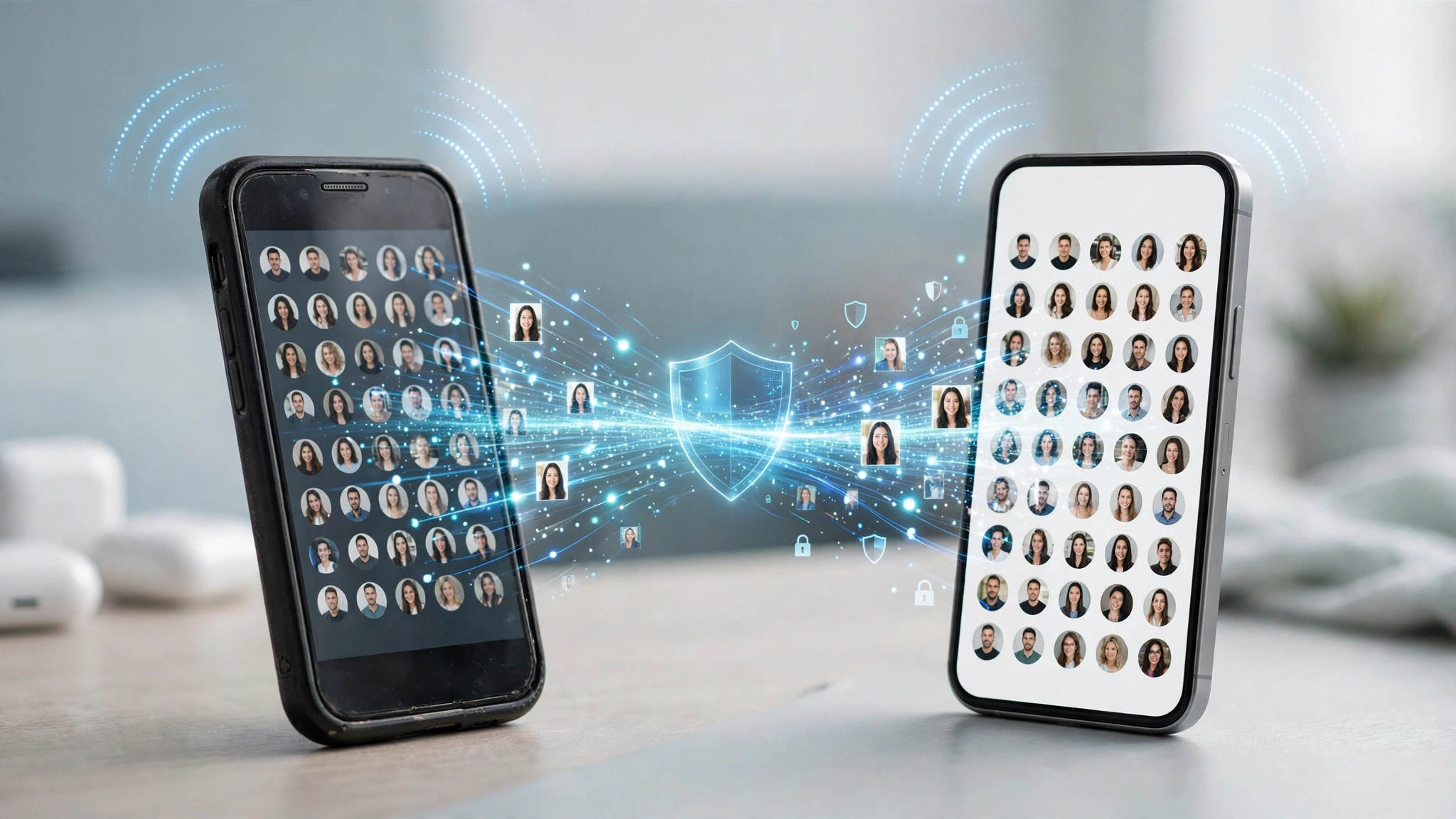
How to Transfer Data From an Old Phone to a New One Safely
Introduction
Transfer data from old phone to new phone the right way, and the switch feels almost effortless. Your photos, contacts, chats and apps appear on the new screen, and you get on with your day. Do it carelessly, and you can lose years of memories, get locked out of your bank app, or hand a stranger the keys to your private life when you sell the old handset.
Most people focus on the first half of the job, getting everything onto the new phone. The second half gets ignored. Old phones are sold, traded in, passed to relatives, or dropped at repair shops with photos, saved passwords, and logged-in accounts still on them. Security researchers have bought used phones online and recovered tens of thousands of personal photos and messages. Repair technicians have been caught leaking customers’ private pictures. Criminals have used leftover data for blackmail and fraud.
This guide covers the whole process honestly. You will find out what to prepare before you start, the safest phone data transfer methods for Android and iPhone, how to move WhatsApp chats without losing them, and how to wipe and hand over your old device so nothing comes back to haunt you. We also look at real cases where leftover data was abused, because those stories explain why each step matters. Follow along and your phone switch will be both smooth and secure.
Before You Transfer Data From Old Phone to New Phone
The smoothest switches are planned. Ten minutes of preparation before you transfer data from old phone to new phone prevents most of the disasters people run into, such as missing chats, lost authenticator codes, or a locked bank app. The seven steps in this guide start here.
Step 1: Make a Full Backup First
Never rely on the transfer alone. Transfers sometimes fail halfway, and if something goes wrong while you are also resetting the old phone, you can lose everything. Create a backup you can fall back on:
- Android: Go to Settings, then Google, then Backup, and run a backup to your Google account. Samsung users can also use Samsung Cloud or Smart Switch on a computer.
- iPhone: Back up to iCloud from Settings, then your name, then iCloud, then iCloud Backup. You can also make a full backup to a computer using Finder on a Mac or the Apple Devices app on Windows.
- Photos and videos: Confirm that Google Photos, iCloud Photos, or your chosen service has finished uploading. Large libraries can take hours.
If you want an offline copy, connect the phone to a computer and copy your camera folder and important documents manually.
Step 2: Secure Your Accounts and Two-Factor Codes
This step catches more people than any other. Two-factor authentication (2FA) apps such as Google Authenticator and Microsoft Authenticator store codes on the device. If you wipe the old phone before moving them, you can get locked out of email, social media, and work accounts.
- Make sure you know the passwords for your Google account or Apple ID, email, and banking apps.
- Move authenticator codes using the app’s built-in transfer or cloud backup option.
- Save backup codes for important accounts somewhere safe offline.
- Check that your phone number is up to date on accounts that send SMS codes.
Step 3: Prepare Both Phones
- Charge both phones to at least 50%, ideally keep them plugged in.
- Update both phones to the latest software version.
- Connect to a trusted, private Wi-Fi network. Avoid public Wi-Fi in cafes or malls during the transfer.
- Keep your SIM card and the SIM tool handy.
- Free up storage on the new phone if it is smaller than the old one.
What to Collect Before the Switch
| Item | Why it matters |
|---|---|
| Google account or Apple ID password | Needed to restore backups and turn off device locks |
| Phone screen lock PIN | Needed to approve the transfer and decrypt backups |
| WhatsApp backup and phone number | Chats are tied to your number and backup |
| Banking app login details | Most banking apps must be reactivated on a new device |
| Authenticator backup or recovery codes | Prevents being locked out of accounts |
Step 4: Choose the Right Phone Data Transfer Method
The safest way to transfer data from old phone to new phone is almost always the official tool built by Apple, Google, or your phone’s manufacturer. These tools run during setup, encrypt the transfer, and do not hand your data to an unknown third party. Pick the method that matches your switch.
Android to Android
When you turn on a new Android phone, the setup screen offers to copy apps and data from your old phone.

- Turn on the new phone and connect to Wi-Fi.
- When asked to copy apps and data, choose your old Android phone as the source.
- Connect the two phones with a USB-C cable if possible. A cable is faster and more reliable than wireless.
- Unlock the old phone and approve the transfer.
- Select what to copy: apps, contacts, messages, photos, call history, and settings.
Many brands also have their own tools. Samsung Smart Switch is the best known, and brands such as Xiaomi, Oppo, Vivo and Realme include clone or migration apps. Use them only if they come preinstalled or from the official app store.
iPhone to iPhone
Apple’s Quick Start is the easiest option. Place your old iPhone next to the new one, follow the prompts, and scan the animation that appears. You can transfer directly from the old phone or restore from an iCloud backup. Apple explains the full process in its guide to using Quick Start to transfer data to a new iPhone.
Android to iPhone
Apple offers a free Move to iOS app on the Google Play Store. During iPhone setup, choose to move data from Android, then enter the code shown on the iPhone into the app on your Android phone. According to Apple’s official guide on moving from Android to iPhone, you can transfer data wirelessly by placing the phones near each other, and newer iPhones also offer a transfer option without the app. Contacts, messages, photos, mail accounts and calendars move across. Apps do not transfer directly, so you will need to reinstall them from the App Store.
iPhone to Android
New Android phones can copy data from an iPhone during setup, usually with a cable. Google also provides a Switch to Android app for iPhone users. Before switching, turn off iMessage and FaceTime on the iPhone, or messages from other iPhone users may not reach your new number.
Moving WhatsApp Chats
WhatsApp chats are among the most valuable data people own, and also the easiest to lose.
- Same platform (Android to Android or iPhone to iPhone): WhatsApp offers a chat transfer feature using a QR code between the two phones, or you can restore from your Google Drive or iCloud backup.
- Across platforms: WhatsApp supports moving chats from Android to iPhone through the Move to iOS process, and from iPhone to Android during the Android setup. Follow WhatsApp’s official instructions closely.
- Never install unofficial “WhatsApp transfer” or “WhatsApp backup” apps from websites or social media links. These are a common way to spread malware and steal accounts.
Avoid Risky Third-Party Transfer Apps
There are many paid and free transfer tools online. Some are legitimate, but fake ones request unnecessary permissions, upload your data to unknown servers, or install malware. If an official option exists, use it. If you must use a third-party tool, download it only from the official app store or the developer’s verified site, and check its reviews and permissions.
Step 5: Check That Everything Arrived
Do not wipe the old phone yet. Spend a day using the new phone and confirm the following:
- Contacts and call history are complete
- Photos and videos opened correctly, including older albums
- WhatsApp and other chat histories are present
- Banking and payment apps are reactivated and working
- Authenticator codes work on the new phone
- Email, calendar, and notes are syncing
- Important documents and downloads are saved
Only when everything checks out should you move on to clearing the old device.
Real Cases: What Happens When Old Phone Data Falls Into the Wrong Hands
These cases are not meant to scare you. They show why the final steps of a safe phone data transfer, signing out and wiping the old device properly, are not optional.
40,000 Photos Recovered From “Wiped” Phones
In 2014, security company Avast bought 20 used Android phones on eBay. The sellers had wiped them using the factory reset instructions. Using off-the-shelf forensic software, Avast still recovered more than 40,000 photos, plus emails, text messages, contact details and, in some cases, the identities of the sellers. According to Avast’s own announcement of the research, the recovered data included more than 1,500 family photos of children and a completed loan application.
In fairness, this study involved older Android phones. Modern Android phones and all recent iPhones encrypt storage by default, which makes a proper factory reset far more effective today. But the lesson still stands: if you skip encryption, use an old device, or simply forget to reset, your data can survive.
Repair Technicians Who Leaked a Customer’s Private Photos
In 2016, a 21-year-old university student in Oregon sent her iPhone to Apple for repair. While it was at a facility run by Apple contractor Pegatron in California, two technicians posted 10 explicit photos and a private video from her phone to her own Facebook account, making it look like she had uploaded them herself. She found out only when friends saw the posts.
The technicians were fired, and Apple later paid her a multimillion-dollar settlement, details of which became public in 2021 through a separate legal dispute. The case shows that even authorized repair centers are not automatically safe for unprotected data.
Stolen Phones and the Black Market in Pakistan
In Pakistan, stolen phones are often given new IMEI numbers and resold. Police and the PTA have repeatedly raided shops involved in IMEI tampering, and in 2017 police arrested a gang of nine who changed IMEI numbers on stolen phones for as little as Rs. 500 each. A phone that ends up in these hands with your accounts still signed in can expose your WhatsApp, email, photos and banking apps.
Fake Backup and Transfer Apps
Criminals know that people switching phones are looking for help moving their data. Unofficial “WhatsApp backup,” “phone clone,” and “data recovery” apps shared through links and unofficial websites have been used to deliver malware and steal account access. Sticking to official tools, as described in Step 4, avoids this risk.
What These Cases Teach Us
- Deleting files is not the same as wiping a phone.
- Encryption plus a proper factory reset is your strongest protection.
- Remove sensitive content or back it up and wipe before handing a phone to anyone, including repair shops.
- Signed-in accounts on a lost or sold phone are a bigger risk than the phone itself.
Step 6: Sign Out and Remove Device Locks
Once you have transferred data from old phone to new phone and confirmed everything works, start cutting the old device’s ties to your accounts. Do this before the factory reset.
On Android
- Remove your Google account from Settings, then Accounts (or Passwords and Accounts). This also disables Factory Reset Protection, which would otherwise lock the next owner out.
- Remove any Samsung or other brand accounts.
- Sign out of WhatsApp, banking apps, and social media where possible.
- Unpair smartwatches, earbuds, and other Bluetooth devices.
On iPhone
- Unpair your Apple Watch first, which also backs it up.
- Go to Settings, then your name, and tap Sign Out. Enter your Apple ID password to turn off Find My and Activation Lock.
- If you are switching to Android, deregister iMessage so texts reach your new phone.
Remove the Old Phone From Your Accounts
Open your Google account or Apple ID device list on the new phone or a computer and remove the old device. Also check WhatsApp’s linked devices, banking apps, and email apps for any old sessions, and log them out.
Step 7: Wipe the Old Phone Properly
Now it is time to erase the old handset completely.
Check Encryption
Most Android phones from recent years and every modern iPhone encrypt storage automatically. On older Android phones, check under Settings, then Security, and enable encryption before resetting if the option exists. Encryption means that after a reset, any leftover data is unreadable.
Run the Factory Reset
- Android: Settings, then System (or General Management), then Reset, then Erase all data (factory reset).
- iPhone: Settings, then General, then Transfer or Reset iPhone, then Erase All Content and Settings.
Remove Physical Storage
Take out your SIM card and any microSD card. Memory cards are not always wiped by a factory reset. Either keep them or format them separately.
Confirm the Reset
After the reset, the phone should show the initial setup screen. It should not ask for your account details. If it does, Factory Reset Protection or Activation Lock is still on, and you need to remove the device from your account online.
Common Mistakes to Avoid
- Wiping the old phone before checking the new one. Always use both for a day or two first.
- Forgetting authenticator apps. This is the most common cause of being locked out after a switch.
- Using public Wi-Fi for transfers. Use your home network or a cable.
- Downloading unofficial transfer apps from links or random websites.
- Handing an unwiped phone to a repair shop or buyer. If you need to repair the old phone before selling, back it up and remove sensitive content first.
- Selling with accounts still signed in. The next owner may be locked out, or worse, gain access to your data.
- Throwing old phones away. Recycle through official brand or retailer programs after wiping, rather than dumping devices with your data still on them.
Conclusion
To transfer data from old phone to new phone safely, treat the switch as a seven-step job rather than a quick copy: back up everything first, secure your passwords and authenticator codes, prepare both phones, use official tools such as Android’s built-in transfer, Samsung Smart Switch, Apple’s Quick Start or the Move to iOS app, confirm that everything arrived, sign out and remove device locks, and finally wipe the old handset with encryption on and the SIM and memory card removed. Real cases show what happens when those last steps are skipped, from the 40,000 photos Avast recovered from 20 “wiped” phones bought on eBay, to repair technicians who posted a student’s private photos online, to stolen phones in Pakistan that get new IMEI numbers and resold with owners’ data at risk. Take your time, avoid unofficial transfer apps, and never hand over a phone that still holds your accounts, and your new phone will start fresh while your old one leaves nothing behind.