How to Set Up Parental Controls on Your Home Internet
Parental controls on home internet made simple: router filters, family DNS, device settings and app limits to keep children safe online in Pakistan.
Parental Controls on Home Internet: 9 Easy Steps to Keep Your Family Safe
Introduction
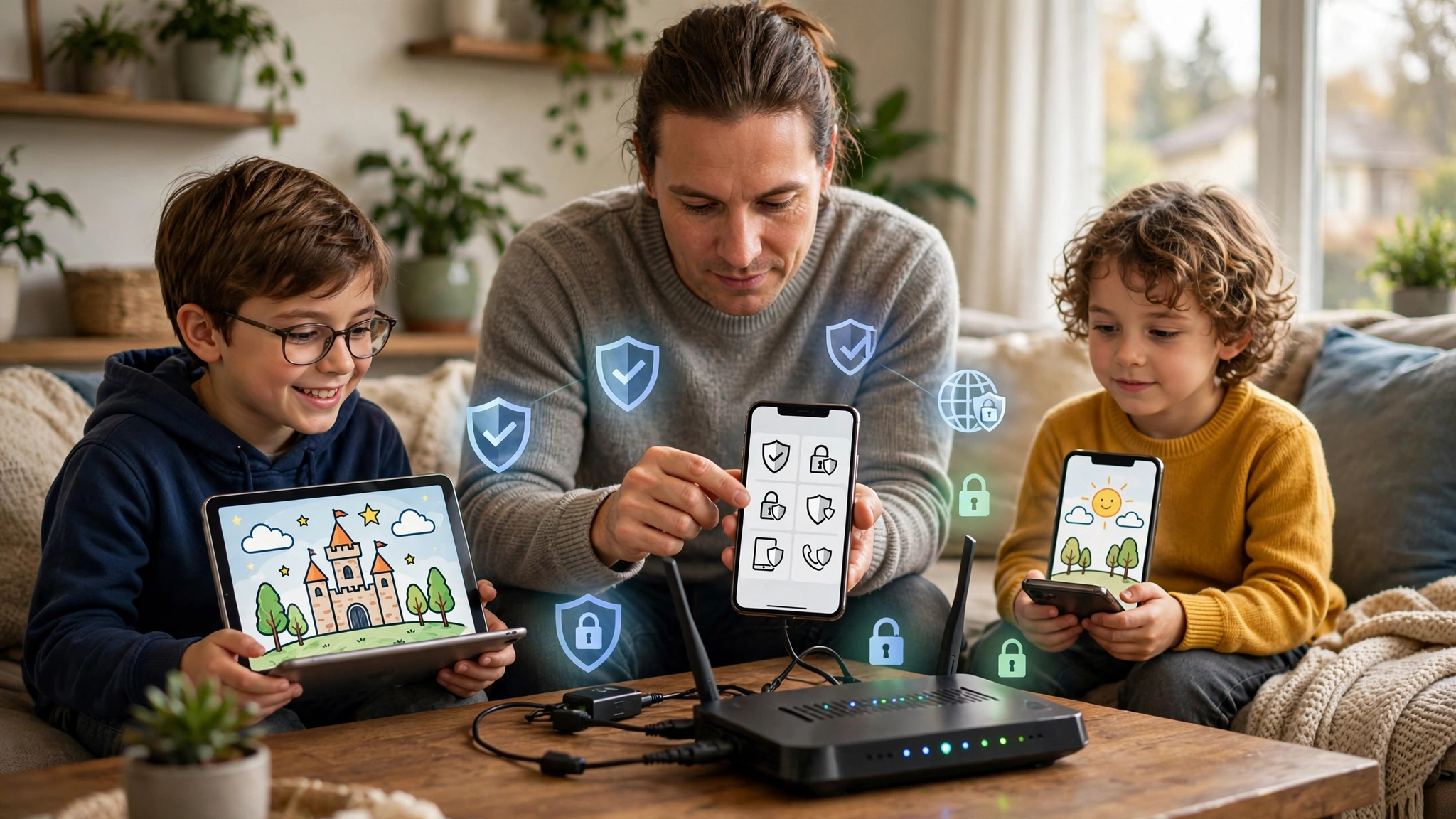
Parental controls on home internet sound technical, but they are really about one simple goal: making the internet in your house a little safer for the children who use it. In most Pakistani homes, one Wi-Fi connection now serves everyone, from a five-year-old watching cartoons to a teenager on Instagram and a grandparent forwarding WhatsApp videos. Without any controls, every one of those devices has the same open door to the whole internet.
The risks are real. Pakistan’s National Cyber Crime Investigation Agency (NCCIA) has uncovered networks that used fake social media identities to trap and blackmail children, and has arrested people for sharing illegal material in WhatsApp groups. Scam call centers have targeted families with fake prizes and OTP fraud. Many of these cases started on an ordinary phone, on an ordinary home connection.
The good news is that you do not need to be an IT expert. Most of the tools you need are free and already built into your router, your phone and the apps your children use. This guide walks you through nine practical steps, starting with the router that every device connects to, then moving to phones, laptops, YouTube, social media and games. It also explains the common ways children get around controls, how to adjust settings as they grow, and where the ethical and legal lines sit, so that protecting your kids never turns into spying on them.
Why Parental Controls on Home Internet Matter
It is tempting to think online risks only happen to other families. Cases investigated in Pakistan show how ordinary the starting point usually is. The details below are kept brief and non-graphic; the aim is to show the patterns that controls are meant to interrupt.
What Real Cases Show
- Fake profiles and blackmail. In February 2026, the NCCIA arrested a man in Rawalpindi accused of trapping and blackmailing minors through fake social media identities. The contact began in apps that many children use every day.
- Money first, then exploitation. In Muzaffargarh, the NCCIA uncovered a network that allegedly used a so-called children’s club as a front, gave children money, and then blackmailed them. More than 50 victims were identified after tips from international partners.
- Illegal material in group chats. NCCIA teams in Lahore and Faisalabad have arrested people for storing and sharing child sexual abuse material, including through WhatsApp groups. Children added to unknown groups can be exposed to content no child should see.
- Scams aimed at families. In one Lahore crackdown, the NCCIA raided seven illegal call centers and arrested 281 people. Children who share a parent’s OTP or click a fake prize link can empty a mobile wallet in minutes.
After a recent operation, NCCIA Punjab’s director publicly urged parents to monitor their children’s online activities, promote safe social media use, and report suspicious activity or blackmail quickly.
What Controls Can and Cannot Do
Be realistic about what technology achieves. Internet filtering and screen time limits can:
- Block most adult, gambling and malware websites.
- Stop strangers from adding your child to group chats or sending direct messages.
- Limit late-night use and prevent unapproved apps and purchases.
They cannot:
- Catch every harmful message, especially from someone the child already trusts.
- Work on a friend’s phone, a school computer, or mobile data you do not control.
- Replace a child who feels safe telling you when something goes wrong.
That is why the steps below combine technical settings with conversation. Controls buy time and reduce exposure. Trust handles what the filters miss.
The Layered Approach to Parental Controls on Home Internet
No single setting protects a child completely. The most reliable way to set up parental controls on home internet is in layers, so that if one fails, another still works. Think of it like the security of a house: a gate, a locked door, and a family that talks to each other.


- Network layer (the router). Settings here apply to every device on your home Wi-Fi, including smart TVs, gaming consoles and guests’ phones. This is your broad safety net.
- Device layer (phones, tablets, laptops). Built-in tools like Google Family Link, Apple Screen Time and Microsoft Family Safety follow the device even when it leaves the house or switches to mobile data.
- App layer (YouTube, TikTok, WhatsApp, games). Each app has its own privacy and safety settings that close the gaps the first two layers miss, such as who can message your child.
- People layer (conversation and rules). Family rules, open conversations and a promise of support rather than punishment handle everything the technology cannot.
The nine steps below follow this order: steps 1 to 3 cover the network, 4 to 6 cover devices, and 7 to 9 cover apps and games. The people layer runs through all of them.
Steps 1 to 3: Set Up Parental Controls on Home Internet at the Router
The router is the one device every phone, laptop and TV in your house connects to, which makes it the best place to start.
Step 1: Secure Your Router First
Controls are useless if a child can simply log into the router and switch them off. Before anything else:
- Find the router’s admin address, usually printed on a sticker underneath (often 192.168.0.1, 192.168.1.1, or an address like tplinkwifi.net).
- Log in and change the default admin password to something only adults know. Many routers supplied by ISPs still use “admin” or a password printed on the box.
- Change the Wi-Fi password too, and use WPA2 or WPA3 security.
- Update the firmware, or turn on automatic updates if available.
- If your ISP manages the router, ask their support line whether you can access the admin panel or whether they offer a family filtering option.
Step 2: Turn On the Router’s Built-In Parental Controls
Most modern routers and mesh systems have a router parental controls section. The exact menus differ, but the process is similar. On TP-Link routers with HomeCare, for example, TP-Link’s official HomeCare parental controls guide walks through these steps:
- Log into the router and open the Parental Controls section.
- Create a profile for each child, for example “Ali” or “Kids.”
- Add that child’s devices to the profile. Devices are usually listed by name or by a code called a MAC address.
- Choose a filter level, such as Child, Pre-teen or Teen, and add or remove categories like adult content, gambling or social media.
- Set daily time limits and a bedtime schedule that pauses internet access at night.
- Save and test by trying to open a blocked site from the child’s device.
TP-Link Deco, Mercusys Halo and many other mesh systems offer similar controls through their mobile apps, which is often easier than the web panel.
Step 3: Switch to a Family-Safe DNS Service
Every time a device opens a website, it asks a DNS server to find it. Family DNS services simply refuse to find adult and malicious sites. Changing the DNS on your router applies the filter to every device on your Wi-Fi, and it costs nothing.
Popular free options include:
- Cloudflare 1.1.1.1 for Families: 1.1.1.3 and 1.0.0.3 block malware and adult content. See Cloudflare’s family DNS page for details.
- OpenDNS FamilyShield: 208.67.222.123 and 208.67.220.123 block adult content automatically.
- CleanBrowsing Family Filter: 185.228.168.168 and 185.228.169.168 block adult content and enforce safe search on major search engines.
To apply one, open your router’s Internet or WAN settings, find the DNS fields, replace the ISP’s addresses with the family DNS addresses, and save. Some ISP routers lock this setting. In that case, you can set family DNS on each device instead, or add your own router or mesh system behind the ISP device.
Steps 4 to 6: Device-Level Controls That Travel With Your Child
Router settings stop working the moment a phone switches to 4G or connects to a friend’s Wi-Fi. Device-level controls fill that gap, because they stay on the phone wherever it goes.
Step 4: Android Phones and Tablets With Google Family Link
Most children in Pakistan use Android phones, so Google Family Link is the most useful free tool for many families.
- Install the Google Family Link app on your own phone.
- Create a Google account for your child, or link their existing account if they are under 13 (supervision options for older teens depend on their agreement).
- Follow the prompts on the child’s phone to connect it to your account.
- Set app approval so that new downloads from the Play Store need your OK.
- Set daily screen time limits and a bedtime lock.
- Turn on content filters for Chrome and Google Search, and set Play Store content ratings by age.
- Turn on location sharing if you want to see where the device is.
Step 5: iPhones and iPads With Screen Time
Apple devices have controls built into the Settings app under Screen Time.
- Set up Family Sharing and add your child’s Apple account.
- In Screen Time, turn on Downtime for night hours and App Limits for categories like social media and games.
- Under Content and Privacy Restrictions, limit explicit content, web content and app store age ratings.
- Turn on Ask to Buy so purchases need your approval.
- Set a Screen Time passcode that your child does not know.
Step 6: Laptops, Smart TVs and Consoles
Many families forget about devices other than phones.
- Windows laptops and PCs: Microsoft Family Safety lets you create a child account with web filtering for the Edge browser, screen time limits and activity reports. Make sure your child uses a standard account, not an administrator account.
- MacBooks: The same Screen Time settings used on iPhones are available in System Settings.
- Smart TVs and Android TV boxes: Set a PIN for app installs and purchases, and use YouTube Kids or a supervised YouTube profile on the TV.
- Gaming consoles: PlayStation, Xbox and Nintendo all have family settings for age ratings, spending limits, online chat and play time. Set these up from the parent account.
Once device controls are in place, your parental controls on home internet keep working even when the device leaves the house.
Steps 7 to 9: App, Search and Game Settings
The last layer of parental controls on home internet sits inside the apps themselves. These settings matter because most real-world harm to children happens through messages, comments and group chats, not just websites.
Step 7: Lock Down Search and YouTube
- Google SafeSearch: Turn on SafeSearch in the Google app and browser. When the child’s account is supervised through Family Link, SafeSearch is applied automatically.
- YouTube Kids: For children under about 9, YouTube Kids offers a separate, curated app with age-based content levels and the option to approve channels yourself.
- Supervised YouTube or Restricted Mode: For older children, a supervised YouTube account or Restricted Mode filters out much of the mature content. It is not perfect, so keep an eye on what is being watched, especially on the shared TV.
- Turn off autoplay where possible, since one harmless video can lead to dozens of increasingly unsuitable ones.
Step 8: Social Media and Messaging Settings
This is where the patterns in real cases, fake profiles, strangers and group chats, are most directly blocked.
- WhatsApp: Go to Settings, then Privacy, then Groups, and set who can add your child to groups to “My Contacts” or a narrower list. This one change stops strangers from dropping a child into unknown groups. Also set profile photo and last seen to contacts only.
- TikTok: Use Family Pairing to link your account with your teen’s, set screen time, restrict direct messages and filter content.
- Instagram: Accounts for younger teens should be private. Use Instagram’s supervision tools to see time spent and who your teen follows, and limit who can message or tag them.
- Snapchat: The Family Center lets parents see who their teen is chatting with, without reading the messages. Turn off location sharing on Snap Map.
- Facebook and Messenger: Keep profiles private and limit who can send friend requests and messages.
Remember that most of these platforms require users to be at least 13. For younger children, the safest setting is simply not having an account.
Step 9: Games and In-App Purchases
Online games are popular with Pakistani children, and many include chat features and in-game purchases.
- PUBG Mobile and Free Fire: Check chat and voice settings, and make sure purchases go through an account protected by your approval. Teach children that “free UC” or “free diamonds” offers asking for passwords or codes are scams.
- Roblox: Set a parental PIN, limit chat to friends or turn it off, and set spending limits in the parental controls.
- App stores: Require approval for every purchase through Family Link or Ask to Buy, and never save a parent’s card or mobile wallet on a child’s device.
These settings protect both your child’s safety and your bank balance.
Adjusting Parental Controls on Home Internet by Age
Controls that suit a six-year-old will frustrate a sixteen-year-old, and controls that suit a sixteen-year-old leave a six-year-old exposed. A good rule is to start strict and loosen gradually as children show they can handle more freedom.
| Age group | Network and device settings | Apps and content | Supervision style |
|---|---|---|---|
| Under 8 | Strict router filter, family DNS, device locked to approved apps | YouTube Kids only, no social media, no online chat in games | Use devices in shared rooms with an adult nearby |
| 8 to 12 | Router filter and family DNS, app approval, bedtime lock | Supervised YouTube, games with chat off or friends only, no social media accounts | Regular check-ins and agreed family rules |
| 13 to 15 | Family DNS, screen time limits, app approval for new downloads | Private social accounts with family pairing tools, WhatsApp group restrictions | Open conversations, agreed limits, occasional reviews together |
| 16 to 17 | Family DNS for malware and adult content, lighter time limits | More independence with privacy settings checked together | Trust-based, focused on judgment, scams and blackmail awareness |
Explain the Why
Children accept rules more easily when they understand them. Instead of simply blocking things, explain that the settings are there because some adults online pretend to be children, and because scammers target young people. Older teens in particular respond better when they are part of setting the rules rather than having them imposed.
Common Gaps in Parental Controls and How to Close Them
Children are curious and often more comfortable with technology than their parents. It helps to know the most common ways controls stop working, so you can close the gaps calmly instead of reacting with anger.
Mobile Data
Router filters and family DNS only apply on your Wi-Fi. If your child has a SIM with a data package, those settings are bypassed. Device-level controls like Family Link and Screen Time are the answer here, along with limiting mobile data packages for younger children.
VPN and Proxy Apps
Free VPN apps can route traffic around filters. Requiring approval for every new app download is the simplest way to stop this. If a VPN app appears on a child’s phone, treat it as a reason to talk, not just a reason to punish. Many free VPNs also carry malware and harvest data, which is a good point to explain.
Unknown or Spare Devices
Old phones, a sibling’s tablet, or a borrowed laptop may not have controls at all. Keep track of devices in the house and set up controls on every one that a child uses, including hand-me-downs.
Changed Settings or Factory Resets
If a child knows the router password or the device passcode, they can switch controls off. This is why Step 1, securing the router admin password, and setting a separate Screen Time passcode matter so much. Most control apps also notify parents if supervision is removed.
Friends and Shared Spaces
No setting covers a friend’s phone or a cyber café. This is where conversation does the real work. A child who knows why the rules exist, and who trusts that they can come to you without being shamed, is far safer than one who is only fenced in by software.
Review Regularly
Apps change their settings often, and children grow fast. Set a reminder every three months to check your router, device and app settings, and to talk with your children about what is working and what feels unfair.
Ethics and the Law: Protection, Not Spying
The same technology that protects children can be misused to control or spy on adults. It is worth being clear about where the lines are.
Monitoring Children Is Different From Spying on Adults
Parents and guardians have a responsibility to protect minors, and supervision tools like Family Link and Screen Time are designed for exactly that. Secretly installing tracking or message-reading apps on a spouse’s, sibling’s, employee’s or adult child’s phone is a completely different matter. Pakistan’s Prevention of Electronic Crimes Act (PECA) 2016 criminalizes unauthorized access to information systems and includes cyberstalking provisions that cover monitoring a person’s online activity without their consent. So-called stalkerware sold as “parental control” software is often used this way, and using it on an adult can expose you to criminal charges.
Respect Teen Privacy
Teenagers need some privacy to grow into responsible adults. Reading every private message in secret tends to backfire: when teens discover it, they often move to hidden accounts or a friend’s phone, where you have no visibility at all. Being open about what you monitor, and why, keeps trust intact and makes it more likely they will come to you when something goes wrong.
Protect Children’s Data Too
Parents are not just gatekeepers, they are also sources of risk. Avoid posting children’s photos with school uniforms, home locations or daily routines visible on public accounts, and be careful which apps you give access to your child’s information.
When Something Goes Wrong
If controls fail and your child is threatened, blackmailed or exposed to illegal material:
- Stay calm and reassure your child that they are not in trouble.
- Do not pay or negotiate with anyone making threats.
- Save screenshots, usernames, numbers and links as evidence.
- Report the account on the platform.
- Contact the NCCIA cybercrime helpline at 1799, or the nearest NCCIA office. In Punjab, a dedicated cell now handles cases involving women and children.
Conclusion
Parental controls on home internet work best as layers rather than a single switch: start by securing the router’s admin password and firmware, turn on the router’s built-in filters and bedtime schedules, and switch to a free family DNS service such as Cloudflare for Families, OpenDNS FamilyShield or CleanBrowsing; then add device-level tools like Google Family Link, Apple Screen Time and Microsoft Family Safety so protection follows the phone onto mobile data; and finally tighten app settings by turning on SafeSearch and YouTube Kids or supervised YouTube, restricting who can add your child to WhatsApp groups, using TikTok Family Pairing and Instagram supervision, and locking down game chat and purchases. Real cases in Pakistan, from fake profiles used to blackmail children in Rawalpindi to exploitation networks in Muzaffargarh and illegal material shared in group chats, show why these steps matter, but no filter replaces a child who trusts you, so adjust settings as children grow, close common gaps like mobile data and VPN apps, respect teenagers’ privacy, never use monitoring tools to spy on adults, and report threats or blackmail to the NCCIA helpline 1799.