How to Check Your Internet Speed and What’s Considered Good
Check your internet speed in minutes with free tools, understand download, upload and ping results, and find out what counts as a good speed in 2026.
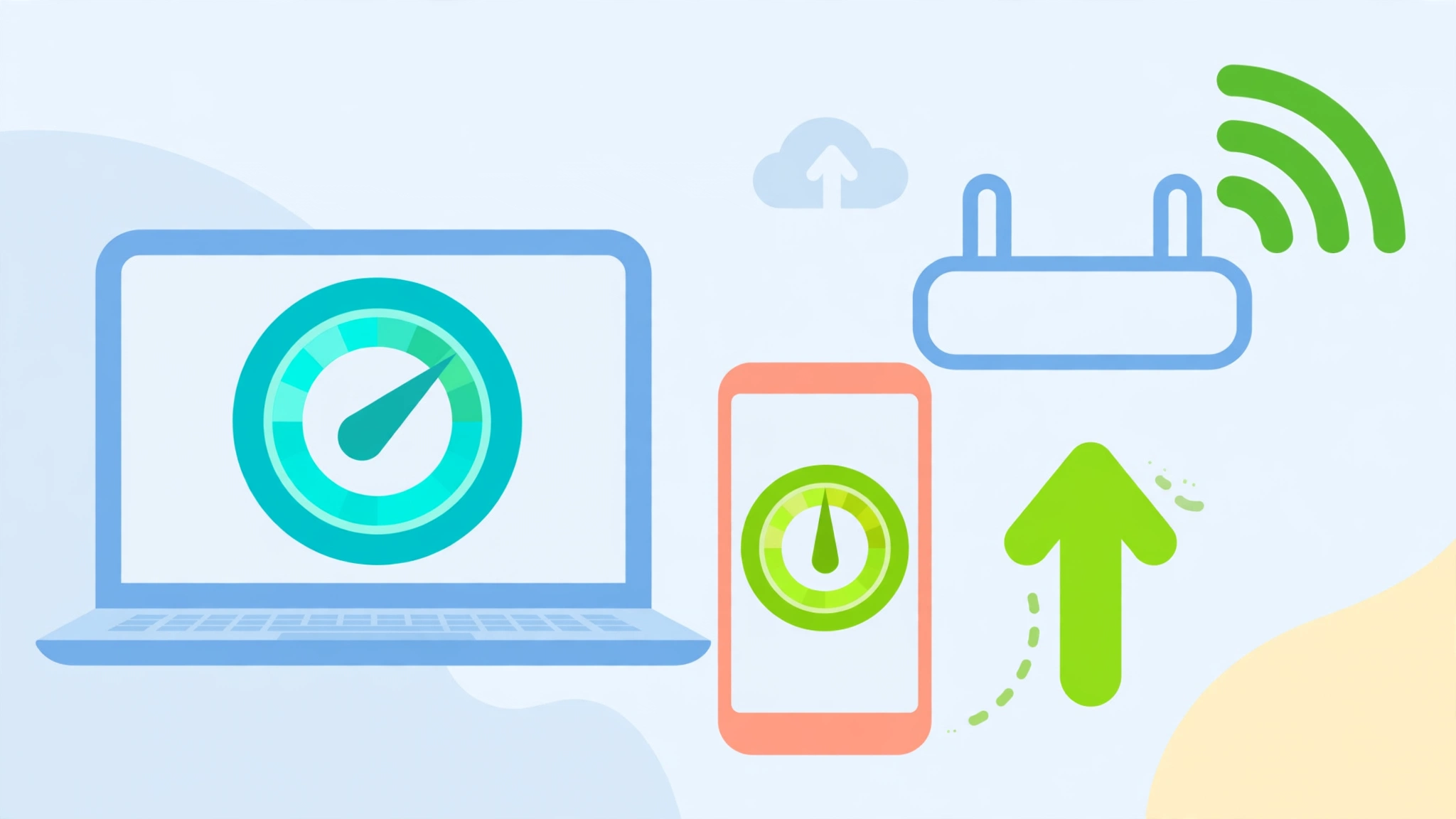
How to Check Your Internet Speed: 7 Proven Steps and What’s Considered Good in 2026
Introduction
Check your internet speed once and you might be surprised by what you find. Plenty of people pay for a 300 Mbps plan and quietly live with 60 Mbps because they never thought to look. Others blame their provider for slow Netflix when the real problem is a router stuck behind the TV.
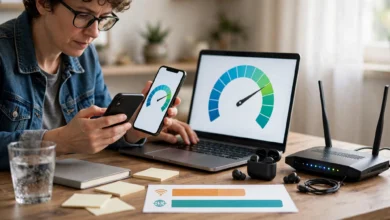
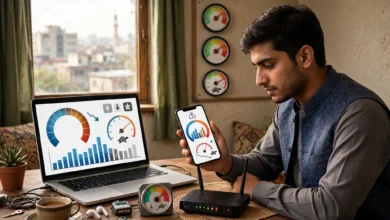
The good news is that running an internet speed test takes about 30 seconds and costs nothing. The harder part is reading the result correctly. A download number on its own tells you very little. You also need to understand upload speed, ping and latency, and jitter, and you need to know what a good internet speed looks like for the way you actually use the connection.
This guide walks through all of it in plain language. You will see how to test properly so the numbers mean something, what speeds are reasonable for streaming, gaming, video calls and working from home, and why your results may not match the number printed on your bill.
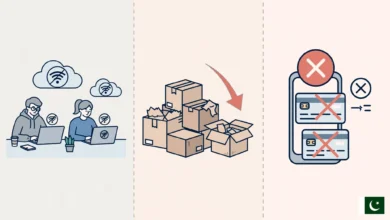
We will also look at something most speed guides skip: real cases where internet providers were taken to court or fined for promising speeds they did not deliver. Those cases matter because they show exactly why your own test results are worth saving. By the end, you will know how to measure your connection, judge it fairly, and do something useful with what you find.
What Your Internet Speed Test Is Actually Measuring
Before you check your internet speed, it helps to know what the numbers on the screen mean. Most tests report four or five figures, and each one affects a different part of your online life.
Download Speed
Download speed is how fast data travels from the internet to your device. It is measured in megabits per second (Mbps). This is the number that matters most for streaming video, loading websites, downloading games and pulling files from cloud storage. When people say their internet is “fast,” this is usually what they mean.
Upload Speed
Upload speed is the reverse: how fast data leaves your device. It matters for video calls, sending large email attachments, backing up photos, livestreaming and online gaming. Many cable and DSL plans give you far less upload than download, so a 200 Mbps plan might only offer 10 or 20 Mbps up. If your Zoom video freezes while everyone else looks fine, weak upload is often the reason.
Ping and Latency
Ping (also called latency) is the time it takes for a small piece of data to travel to a server and back, measured in milliseconds (ms). Lower is better. Latency is why a connection with huge download numbers can still feel sluggish in online games or on calls. A 500 Mbps connection with 120 ms ping will feel worse in a competitive shooter than a 50 Mbps connection with 15 ms ping.

Jitter and Packet Loss
Jitter measures how much your ping varies from moment to moment. High jitter causes choppy audio and robotic voices on calls. Packet loss is the share of data that never arrives at all. Even 1 to 2 percent packet loss can make video calls stutter and games feel unplayable.
A Quick Note on Mbps vs MBps
Internet plans use megabits (Mb). File sizes and download managers usually show megabytes (MB). One byte equals eight bits, so a 100 Mbps connection downloads at roughly 12.5 MB per second at best. This mix-up alone causes a lot of people to think their connection is eight times slower than it really is.
How to Check Your Internet Speed in 7 Steps
A single test run from a crowded Wi-Fi network at 9 p.m. tells you almost nothing. If you want results you can trust, and possibly show to your provider, follow these steps.
- Find your plan speed first. Look at your bill or account page and write down the advertised download and upload speeds. You need a target to compare against.
- Pause everything else. Stop downloads, cloud backups, game updates and streaming on every device in the house. Other traffic eats into your result.
- Use a wired Ethernet connection if you can. Plug a laptop directly into the router with a cable. This removes Wi-Fi from the equation and shows what is actually reaching your home.
- Disconnect from any VPN. A VPN routes your traffic through another server, which almost always lowers your numbers.
- Run the test on two different tools. Each service uses different servers and methods, so comparing two gives you a more honest picture.
- Test at different times of day. Run tests in the morning, afternoon and evening peak (roughly 7 to 11 p.m.) over several days. Speeds that collapse only at night often point to network congestion on the provider’s side.
- Save every result. Take screenshots or use the tool’s history feature. Note the date, time, device and whether you were wired or on Wi-Fi.
Best Free Tools to Run an Internet Speed Test
These are the most widely used and reliable options:
- Speedtest by Ookla (speedtest.net): The most popular tool. It shows download, upload, ping and jitter, and keeps a history if you create a free account.
- Fast.com: Run by Netflix. It loads instantly and is good for checking streaming performance. Click “Show more info” to see upload and latency.
- Cloudflare Speed Test: Gives a detailed breakdown, including latency under load and packet loss, which most tools hide.
- M-Lab (Measurement Lab): The open-source test that appears when you search “speed test” on Google. Its data is publicly available to researchers, which is useful if you care about transparency. More on how it works at Measurement Lab’s official site.
- Your provider’s own test: Worth running for comparison, but do not rely on it alone. ISPs often host test servers inside their own network, which can make results look better than your real-world experience.
How to Check Your Internet Speed on a Phone
On mobile, install the Speedtest app or open fast.com in your browser. Run one test on Wi-Fi and one on mobile data, standing in the room where you usually use the phone. If Wi-Fi is much slower than mobile data at home, your router placement or Wi-Fi setup is likely the issue rather than your plan.
Wi-Fi Speed Test vs Wired Test
A Wi-Fi speed test measures your plan plus your router, walls, distance and interference. A wired test measures mainly your plan. If wired results are close to what you pay for but Wi-Fi is not, the fix is inside your home, not with your provider. It is common to lose 30 to 50 percent of your speed over Wi-Fi in a room two walls away from the router.
What Is Considered a Good Internet Speed in 2026?
A good internet speed for most households today is at least 100 Mbps download and 20 Mbps upload. That is the official broadband speed benchmark the US Federal Communications Commission adopted in March 2024, replacing the old 25/3 Mbps standard that many websites still quote. The FCC also set a long-term goal of 1 Gbps down and 500 Mbps up. You can read how the FCC thinks about speed needs in its Broadband Speed Guide.
That said, “good” depends on what you do online and how many people share the connection.
Recommended Speeds by Activity
| Activity | Minimum download | Comfortable download | Upload that helps |
|---|---|---|---|
| Email, browsing, social media | 5 Mbps | 10 to 25 Mbps | 3 Mbps |
| HD streaming (1080p) | 5 Mbps | 10 to 15 Mbps | Not critical |
| 4K streaming | 25 Mbps | 35 to 50 Mbps | Not critical |
| HD video calls (Zoom, Teams) | 3 to 4 Mbps | 10 Mbps | 3 to 5 Mbps |
| Online gaming | 10 Mbps | 25 to 50 Mbps | 5 Mbps |
| Livestreaming on Twitch or YouTube | 10 Mbps | 25 Mbps | 10 to 20 Mbps |
| Large file uploads, cloud backup | 25 Mbps | 100 Mbps or more | 20 Mbps or more |
These figures are per activity. If two people stream 4K while a third is on a video call, add them together.
Good Internet Speed by Household Size
- 1 to 2 people, light use: 50 to 100 Mbps is usually plenty.
- 3 to 4 people, regular streaming and remote work: 200 to 300 Mbps gives breathing room.
- 5 or more people, heavy gaming, 4K streaming and smart home devices: 500 Mbps to 1 Gbps keeps things smooth.
- Anyone who works from home with frequent video calls: pay attention to upload. Aim for at least 20 Mbps up, and more if you share large files.
What Counts as Good Ping, Jitter and Packet Loss
Speed is only half the story. Use these rough guides when you check your internet speed results:
- Ping: under 20 ms is excellent, 20 to 50 ms is good, 50 to 100 ms is fine for most things but noticeable in games, and over 100 ms will feel laggy.
- Jitter: under 30 ms is good for calls and gaming.
- Packet loss: should be 0 percent. Anything consistently above 1 percent is worth reporting to your provider.
Why Your Speed Test Results Don’t Match Your Plan
It is normal for results to fall a little short of the advertised number. Most providers sell speeds as “up to” a figure, and network overhead alone takes 5 to 10 percent. A 100 Mbps plan that tests at 90 to 95 Mbps over Ethernet is working as expected. A plan that regularly tests at 40 Mbps is not.
Here are the most common reasons for a gap:
- Wi-Fi limits. Distance, walls, floors, microwaves and neighbouring networks all reduce speed. Older devices may only support Wi-Fi 4 or 5, which caps what they can receive.
- Old hardware. A router or modem that is five or more years old may not handle modern plan speeds. Some laptops still have 100 Mbps Ethernet ports, which can never show a faster result.
- Peak-hour congestion. In the evening, everyone in your area is streaming. If your speed drops sharply only at night, your provider’s local network may be oversubscribed.
- ISP throttling. Some providers deliberately slow certain traffic (like video) or slow users who pass a data threshold. This is often buried in the fine print.
- Background activity. Cloud backups, system updates and other people’s devices quietly use bandwidth while you test.
- Server distance. Testing against a server on the other side of the world will show higher ping and lower speeds. Most tools pick a nearby server automatically, but it is worth checking.
- Malware. Infected devices can use your connection in the background without you knowing.
The point of testing properly (wired, at multiple times, on more than one tool) is to separate these causes. If wired tests at quiet hours are fine but evenings collapse, that points to the provider. If wired is fine but Wi-Fi is poor all day, that points to your home setup.
When Providers Broke the Rules: Real Cases About Internet Speed
It is easy to assume that the speed on your bill is roughly what you get. History says otherwise. Regulators in several countries have found providers advertising speeds they knew they could not deliver. These cases are a big reason why it pays to check your internet speed regularly and keep records.
Charter Spectrum and the New York Attorney General (2018)
In 2018, Charter Communications, which runs Spectrum and had taken over Time Warner Cable, agreed to a $174.2 million settlement with the New York Attorney General. It was described at the time as the largest settlement ever paid by an internet provider in a US consumer protection case. The investigation alleged that the company advertised speeds it knew its network could not reliably deliver, and that it leased customers older modems and routers that were not capable of reaching the speeds they were paying for. Customers received refunds and free service upgrades as part of the deal.
The practical lesson: if your equipment is old and your provider supplied it, ask whether it actually supports your plan’s top speed.
AT&T and “Unlimited” Data Throttling (2019)
The US Federal Trade Commission sued AT&T in 2014, alleging that the company sold “unlimited” mobile data plans and then slowed down customers who used too much data, in some cases by 80 to 90 percent. The FTC said customers were not clearly told about these limits. AT&T settled in 2019 and agreed to pay $60 million, which went to refunds for affected customers.
The lesson here is that ISP throttling can hide behind attractive marketing words. A speed test run after heavy use compared with one run at the start of your billing cycle can reveal it.
Frontier and Slow DSL Speeds (2021 to 2022)
In 2021, the FTC and several state law enforcement partners sued Frontier Communications. They alleged that the company advertised DSL speeds that many customers never received, while charging them for the faster tiers. Frontier settled in 2022 under an order that bars misleading speed claims and requires it to deliver the speeds it advertises, along with payments to state authorities.
Australia’s NBN Speed Refunds (2017 to 2018)
Australia’s consumer watchdog, the ACCC, pushed major providers including Telstra, Optus and TPG to offer refunds to tens of thousands of customers on the National Broadband Network. Many had been sold high-speed plans that their physical line could never reach. The ACCC also introduced guidance requiring providers to advertise typical evening speeds rather than vague “up to” figures.
A Case That Was Not Illegal but Still Matters
In 2018, a California fire department said Verizon had slowed its data connection during a major wildfire after the department exceeded its plan’s data limit. Verizon said this was a customer service mistake and did not break the law, and it later changed its policy for first responders. The case shows that even legal throttling can cause real harm, and that you need to understand the limits in your own contract.
Watch Out for Fake Speed Test Scams
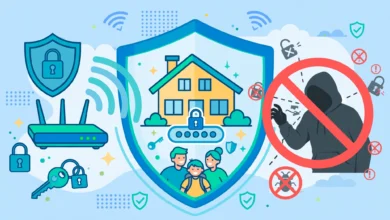
Criminals also exploit people’s worries about slow internet. Fake speed test pages and pop-ups sometimes claim your connection is “dangerously slow” and push you to download a so-called booster or call a fake support number. These tools can install malware or lead to remote-access scams. Stick to well-known tools like the ones listed above, and never give remote access to someone who contacted you first.
How to Use Your Speed Test Results With Your Provider
Once you have a week or two of results, you are in a much stronger position than someone who calls support and says “my internet is slow.” Here is how to use your data fairly and effectively.
- Compare like with like. Use wired results for complaints about plan speed. Wi-Fi results mostly show problems inside your home.
- Show a pattern, not a single bad test. Ten results across different days and times carry far more weight than one screenshot.
- Ask specific questions. Ask whether there is a known outage, whether your modem supports your plan speed, and whether your line can physically reach the advertised speed.
- Request a technician or equipment swap if wired results stay well below your plan.
- Ask for a credit or a cheaper plan. If you pay for 500 Mbps and consistently get 150, it is reasonable to ask for a partial refund or a move to a tier that matches what you actually receive.
- Escalate to your regulator if the provider will not help. In the US that is the FCC or FTC; most other countries have a telecom regulator or consumer protection body that accepts complaints.
Keep It Honest
This whole approach only works if your evidence is real. Editing screenshots, deliberately testing on a broken device, or running tests while saturating your own connection to fake a slow result is dishonest, and using doctored evidence to claim refunds can count as fraud. It also undermines genuine complaints from other customers. Test fairly, report what you actually see, and let the data speak.
Simple Ways to Improve Your Internet Speed
If testing shows the problem is in your home rather than with your provider, these fixes often help:
- Restart your modem and router. It sounds basic, but it clears memory issues and often restores lost speed.
- Improve router placement. Put it high, central and in the open, away from thick walls, metal objects and microwaves.
- Use Ethernet for fixed devices. Gaming consoles, smart TVs and desktop computers benefit most from a cable.
- Switch to the 5 GHz or 6 GHz band. These are faster than 2.4 GHz over shorter distances, though 2.4 GHz reaches further.
- Upgrade old equipment. A Wi-Fi 6 or Wi-Fi 7 router can make a noticeable difference with modern devices.
- Try a mesh system if you have a large or multi-floor home with dead zones.
- Update firmware and scan for malware. Both can quietly drag performance down.
- Limit background traffic. Schedule backups and updates for overnight.
After each change, run another internet speed test so you know whether it actually helped.
Frequently Asked Questions
How often should I check my internet speed?
Once a month is enough for most people. Test more often if you notice slowdowns, after changing equipment, or when building evidence for a complaint.
Is 100 Mbps a good internet speed?
Yes, for most small to medium households. It matches the current FCC broadband benchmark and handles several HD streams, video calls and gaming at once. Larger households with heavy 4K use may want more.
Why is my upload speed so much lower than my download speed?
Cable and DSL networks are designed to give more capacity to downloads because that is what most people use. Fiber plans often offer equal, or symmetrical, upload and download speeds.
Does a VPN slow down my internet speed?
Usually yes, by anywhere from a little to a lot, depending on the VPN server’s distance and load. Turn it off when testing your real connection speed.
Conclusion
Knowing how to check your internet speed properly turns a vague feeling that “the internet is slow” into clear evidence you can act on. Test over a wired connection, use more than one tool, repeat at different times of day, and save your results. Judge them against today’s benchmark of 100 Mbps down and 20 Mbps up, while paying equal attention to upload speed, ping, jitter and packet loss, since those decide how calls and games actually feel. If your home setup is the weak point, simple changes like moving the router or using Ethernet can fix a lot. If the provider is the problem, the Charter, AT&T and Frontier cases show that regulators take false speed promises seriously, and honest, well-documented test results are the strongest tool an ordinary customer has.