Top Screen Recording Apps for Tutorials and Reviews
Screen recording apps for tutorials and reviews compared, from free OBS Studio to Camtasia and Loom, plus the legal and ethical rules creators must follow.
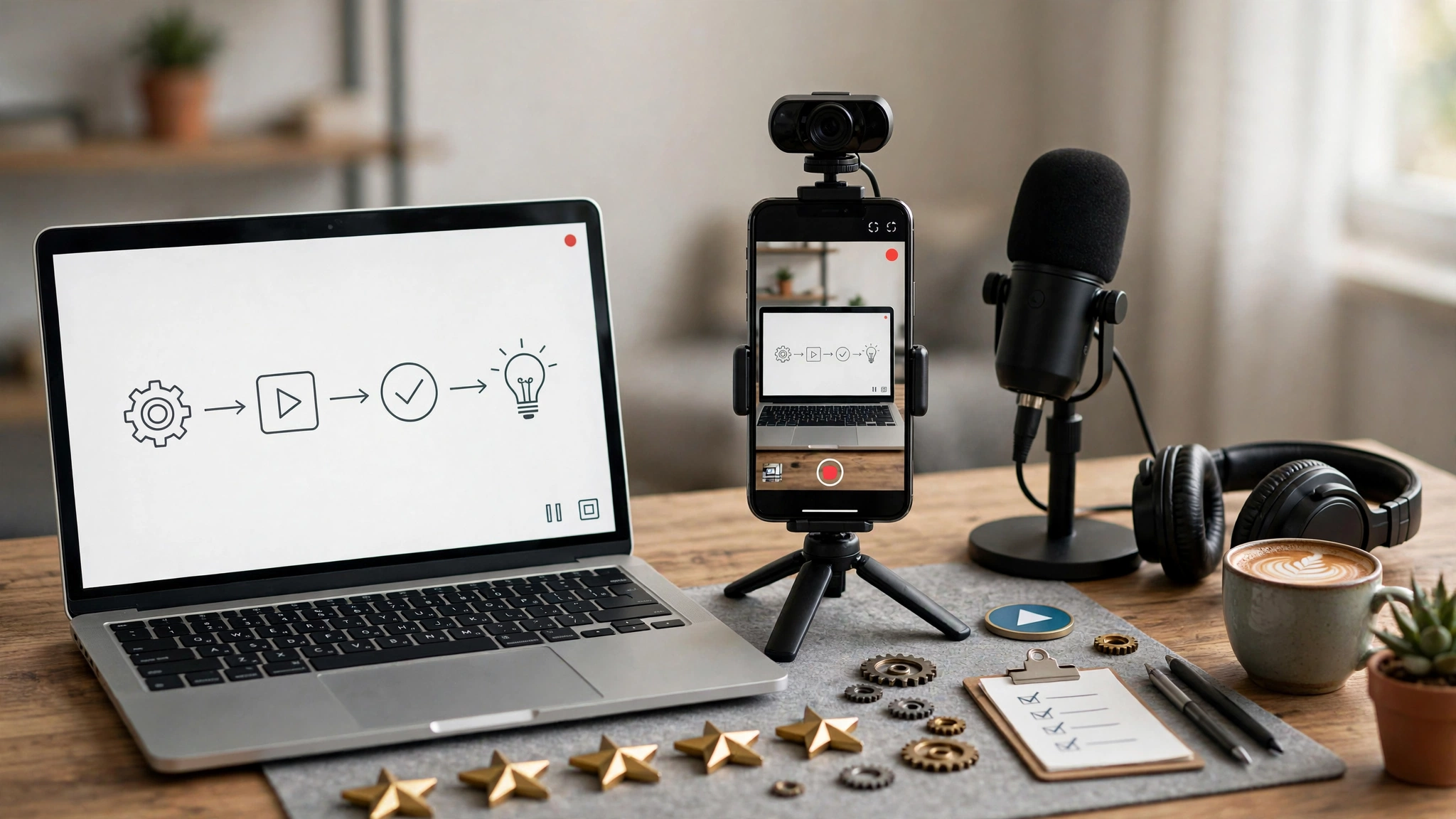
Screen Recording Apps: 9 Best Picks for Effortless Tutorials and Reviews in 2026
Introduction
Screen recording apps have quietly become some of the most useful tools on any computer. Teachers use them to explain spreadsheets, developers use them to walk through code, and reviewers use them to show exactly how a product behaves instead of just describing it. A good screen recording can replace a 40-minute meeting, a ten-page manual or a confusing support email.
The problem is choice. There are hundreds of options, from free tools like OBS Studio to polished paid editors like Camtasia and quick-share tools like Loom. Many “best of” lists online are written by the companies selling the software, so the top pick often looks suspiciously like the author’s own product. That makes it hard to know what actually fits your work.
This guide compares the best screen recording apps for tutorials and reviews based on what really matters: recording quality, editing, ease of use, pricing and platform support. You will also find practical tips for making recordings people actually finish watching.
There is a second side to this topic that most roundups skip. Screen recording has been used to pirate films, secretly record private calls and capture customer data without consent. Some of those cases ended in lawsuits, settlements and criminal charges. Knowing where those lines are protects you, your audience and your channel, and it makes your tutorials and reviews more trustworthy in the long run.
What to Look for in Screen Recording Apps
Before comparing specific tools, it helps to know which features actually matter. Most screen recording apps can capture your screen. The differences show up in audio, editing, sharing and limits on the free plan.
Recording quality and frame rate
For software tutorials, 1080p at 30 frames per second is usually plenty. For gaming reviews or anything with fast motion, look for 60 fps support. Higher resolutions like 4K look sharp but create huge files, so only use them when the detail matters.
Audio: microphone and system sound
Bad audio ruins good video faster than anything else. The best screen recording apps let you capture your microphone and system audio on separate tracks, so you can lower background music without touching your voice. Noise reduction is a big plus if you record in a normal room rather than a studio.
Webcam overlay
A small webcam overlay in the corner makes tutorials and reviews feel more personal. Viewers trust a face more than a disembodied voice, especially in product reviews.
Built-in video editing
Some tools only record. Others include a timeline editor for cutting mistakes, adding zoom effects, callouts and captions. If you publish often, built-in video editing saves hours compared to exporting into a separate editor.


Watermarks and time limits
Many free plans add a logo or cap recordings at a few minutes. If you need a free screen recorder with no watermark, OBS Studio and the tools built into your operating system are the safest bets.
Sharing and export options
Cloud-based screen recording apps generate a shareable link the moment you stop recording. Desktop tools export MP4 or MOV files you upload yourself. Pick based on whether your audience is a team inbox or a YouTube channel.
The 9 Best Screen Recording Apps for Tutorials and Reviews
These picks cover free and paid options across Windows, Mac and the browser. Prices change often, so check each vendor’s site before you buy.
| App | Platforms | Best for | Price model |
|---|---|---|---|
| OBS Studio | Windows, Mac, Linux | Free, unlimited, advanced recording | Free, open source |
| Camtasia | Windows, Mac | Polished tutorials and courses | Paid subscription |
| Loom | Browser, desktop, mobile | Quick shareable explainers | Free plan with limits, paid tiers |
| Screen Studio | Mac | Slick product demos and reviews | Paid |
| ScreenFlow | Mac | Long Mac tutorials | Paid |
| Descript | Windows, Mac | Editing by transcript | Free plan, paid tiers |
| ScreenPal | Windows, Mac, browser | Classroom and quick tutorials | Free plan, low-cost paid |
| Bandicam | Windows, Mac | Gameplay and long recordings | Free with watermark, paid license |
| Built-in recorders | Windows, Mac, iOS, Android | Fast, no-install captures | Free |
1. OBS Studio: best free screen recorder
OBS Studio is the go-to free screen recorder for creators who want full control. It has no watermark, no time limit and supports scenes, so you can switch between full screen, webcam and a picture-in-picture layout mid-recording. The learning curve is real, but there are endless guides online. Download it only from the official OBS Studio website to avoid bundled malware from copycat sites.
2. Camtasia: best for polished tutorials
Camtasia from TechSmith combines a recorder with a full timeline editor. Cursor highlighting, zoom-and-pan, quizzes and captions make it a favorite for training teams and online course creators. It is now subscription-based and not cheap, but if you publish tutorials every week, the time saved usually pays for it.
3. Loom: best for quick shareable videos
Loom turns a recording into a link in seconds, which is perfect for team explainers, bug reports and client walkthroughs. Atlassian bought Loom in 2023, and the free plan has recording limits, so heavy users will need a paid tier. It is less suited to edited YouTube reviews.
4. Screen Studio: best for Mac product demos
Screen Studio automatically adds smooth zooms, cursor animation and clean backgrounds. It makes app reviews and SaaS demos look professionally edited with almost no effort. It is Mac only and paid.
5. ScreenFlow: best for long Mac tutorials
ScreenFlow is a mature Mac recorder and editor that handles long tutorials and course videos well, including multi-track audio and iPhone screen capture over a cable.
6. Descript: best for editing by text
Descript transcribes your recording and lets you edit the video by deleting words in the transcript. Filler-word removal and automatic captions make it great for talking-head reviews and tutorials with lots of narration.
7. ScreenPal: best for teachers and beginners
ScreenPal (formerly Screencast-O-Matic) is simple, affordable and popular in schools. The free plan covers short recordings, and the paid plans add editing and hosting.
8. Bandicam: best for gameplay recording
Bandicam is lightweight and handles high frame rates well, which makes it a common choice for game reviews on Windows. The free version adds a watermark, so you will want the paid license for published work.
9. Built-in screen recorders
You may not need to install anything. Windows has Snipping Tool video capture and Xbox Game Bar, Mac has the Screenshot toolbar (Shift + Command + 5), and both iPhone and Android include a screen recorder in their quick settings. These built-in screen recording apps are free and watermark-free, though editing is basic.
Choosing Screen Recording Apps by Use Case
There is no single winner. The right pick depends on what you make, who watches it and how much time you want to spend editing.
Best screen recording apps for tutorials
Tutorials need clarity more than flash. Look for cursor highlighting, zoom effects and easy cutting of mistakes.
- Online courses and training: Camtasia or ScreenFlow, because chapters, captions and quizzes matter.
- Quick how-to videos for a team: Loom, since a link is faster than a file.
- Classroom lessons: ScreenPal, which teachers find simple and affordable.
- Free and unlimited: OBS Studio, if you are willing to learn the settings.
Best screen recording apps for reviews
Product reviews need a mix of screen footage, webcam and sometimes gameplay. Viewers want to see real behavior, not marketing screenshots.
- Software and app reviews: Screen Studio on Mac or Camtasia on Windows for clean zooms.
- Game reviews: OBS Studio or Bandicam for high frame rates.
- Talking-head reviews: Descript, which makes cleaning up narration fast.
Best screen recording apps for mobile
For phone tutorials and app reviews, start with the built-in recorder on iOS or Android. It is free and reliable. If you need a cleaner look, record the phone through a Mac with ScreenFlow or QuickTime over a cable, then edit on the desktop.
Free vs paid screen recording apps
Free screen recording apps like OBS Studio and the built-in tools are enough for many creators. Paid tools mainly buy you time: faster editing, automatic effects and cloud hosting. A simple rule is to start free, publish ten videos, and only pay once you know which editing step slows you down most.
How to Get Better Results From Screen Recording Apps
Even the best screen recording apps cannot save a messy recording. These habits make a bigger difference than any feature list.
Prepare before you hit record
- Write a short outline. Three to five points keeps tutorials focused and reviews honest.
- Clean your screen. Close unrelated tabs, hide the desktop and turn on Do Not Disturb so private messages do not pop up on camera.
- Use a test account. Never record real customer data, passwords or banking details. Use demo accounts and sample files instead.
- Check audio levels. Record ten seconds and play it back before the real take.
While recording
- Move the mouse slowly and pause on important clicks so viewers can follow.
- Increase interface zoom or font size so text stays readable on phones.
- Speak as if explaining to one friend, not a crowd.
- If you make a mistake, pause for two seconds and repeat the sentence. It makes editing much easier.
After recording
- Cut dead air and long loading screens.
- Add captions, since many people watch with the sound off and captions help accessibility.
- Blur any personal information you missed, such as email addresses or notifications.
- Export at the platform’s recommended settings, usually 1080p MP4 for YouTube.
Extra tips for honest reviews
Show the product doing real tasks, including the parts that do not work well. Viewers spot overly polished reviews quickly, and balanced reviews build trust that lasts longer than a single sponsorship.
Ethics and the Law: When Screen Recording Crosses the Line
Screen recording apps are neutral tools, but how you use them is not. Real cases show that recording without consent, copying protected content or hiding paid promotions can lead to lawsuits, fines and even criminal charges.
Recording people without consent
- The Linda Tripp tapes (1997 to 1999). Linda Tripp secretly recorded phone calls with Monica Lewinsky. The recordings became central to a US presidential scandal, and Tripp was later indicted under Maryland’s wiretapping law, which requires all parties to agree to a recording. The charges were eventually dropped, but the case made recording consent laws widely known.
- Sextortion schemes. Law enforcement agencies, including the FBI, have repeatedly warned about criminals who secretly screen record private video calls and then use the footage for blackmail. This is a serious crime in almost every country.
The practical rule: before you record a video call, interview or meeting for a tutorial or review, tell everyone and get clear agreement. Several US states, including California, require consent from every person on the call, and laws such as the EU’s GDPR and Pakistan’s Prevention of Electronic Crimes Act 2016 also protect people against having their images or data recorded and shared without permission.
Recording customer screens in secret
In 2019, TechCrunch reported that several popular iPhone apps, including ones from major airlines, hotel booking sites and retailers, used a “session replay” service called Glassbox to record users’ screens as they tapped through the app. Users were not clearly told, and some sensitive data was not properly masked. Apple responded by telling developers to remove the code or disclose it. If you build software, never record user screens without a clear privacy notice and consent.
Piracy and copyrighted content
Screen capture has long been used to rip movies, TV shows and pay-per-view sports. Around the 2017 Mayweather vs McGregor fight, rights holders went to court to shut down sites streaming pirated copies. In the US, recording films in theaters has been a federal crime since the Family Entertainment and Copyright Act of 2005. Screen recording a paid streaming service to re-upload it is copyright infringement, whatever app you use.
Reviews are different. Showing short clips to comment on or criticize a work can count as fair use. In 2017, YouTubers Ethan and Hila Klein won a US case (Hosseinzadeh v. Klein) where the court found their commentary video was fair use. Fair use depends on the facts, so read the U.S. Copyright Office’s fair use guidance before building a review around someone else’s footage.
Hidden sponsorships in reviews
In 2016, the US Federal Trade Commission settled with Warner Bros. after the company paid YouTube influencers, including PewDiePie, to post positive gameplay videos of Middle-earth: Shadow of Mordor without clear disclosure. The FTC has since tightened its rules, and in 2024 it finalized a rule against fake and paid reviews that are not disclosed. If a company gives you money, free products or affiliate commissions, say so clearly at the start of the video. The FTC’s Endorsement Guides FAQ explains exactly what counts as a proper FTC disclosure.
A simple ethics checklist
- Record only your own screen, or screens you have permission to capture.
- Get consent before recording calls, meetings or other people.
- Blur private data, including your own.
- Use copyrighted clips only briefly and only to comment, teach or criticize.
- Disclose sponsorships, free products and affiliate links clearly.
Frequently Asked Questions About Screen Recording Apps
Which screen recording apps are free with no watermark?
OBS Studio, Xbox Game Bar and Snipping Tool on Windows, the Mac Screenshot toolbar and the built-in iPhone and Android recorders are all free screen recording apps with no watermark.
What is the best screen recording app for YouTube tutorials?
For most YouTubers, OBS Studio is the best free choice and Camtasia is the best paid choice. Mac users who want polished zoom effects often prefer Screen Studio or ScreenFlow.
Can screen recording apps capture system audio?
Most desktop screen recording apps can, including OBS Studio, Camtasia, Bandicam and ScreenFlow. Mobile recorders usually capture app audio, but some apps block it for copyright reasons.
Is it legal to use screen recording apps on video calls?
It depends on where you and the other people are. Many places require everyone’s consent. The safe approach is to announce the recording and get agreement before you start.
Can I use screen recording apps to record Netflix or paid streams?
Most streaming services block screen capture, and recording them to share or re-upload is copyright infringement. Short clips for commentary may qualify as fair use, but full scenes or episodes will not.
Conclusion
The best screen recording apps for tutorials and reviews are the ones that match how you work: OBS Studio for free and unlimited recording, Camtasia and ScreenFlow for polished courses, Loom for fast shareable explainers, Screen Studio for slick Mac demos, Descript for narration-heavy edits, ScreenPal for classrooms, Bandicam for gameplay and the built-in tools when you just need something quick, but the software is only half the job, because preparation, clear audio and honest presentation matter just as much, and the cases of Linda Tripp’s secret recordings, the Glassbox app scandal, pay-per-view piracy and Warner Bros.’ undisclosed influencer deal all show that recording without consent, copying protected content or hiding sponsorships can cost far more than any app subscription, so pick the tool that fits your workflow, record only what you have the right to record, disclose your relationships with brands and your tutorials and reviews will earn the kind of trust that keeps viewers coming back.