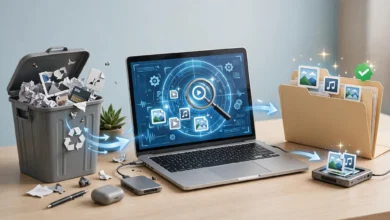
How to Speed Up a Slow Windows Laptop Using Free Tools
Slow Windows laptop fixes using free built-in and trusted tools, plus fake cleaner scam cases so you speed up your PC without risking your data.
Slow Windows Laptop? 12 Proven Free Ways to Make It Fast Again in 2026
Introduction
A slow Windows laptop can make a simple task feel like a test of patience. You press the power button and wait. You open a browser and wait again. A video call stutters, the fan roars, and the cursor spins for no obvious reason. It is tempting to assume the laptop is simply old and needs replacing.
In most cases, it does not. Laptops usually slow down because of things that build up over time: too many programs launching at startup, a nearly full drive, outdated drivers, background apps you forgot you installed, or hidden malware. Windows already includes free tools to fix most of these, and a handful of trusted free utilities can handle the rest.
The risk is in where people look for help. Search for ways to speed up your PC and you will find adverts for “PC optimizers” and “registry cleaners” that promise miracles. Some of these tools have been caught scaring users with fake warnings to sell useless repairs, and US regulators have forced several companies behind them to pay millions of dollars. Fake tech support callers use the same fear to get remote access to people’s computers.
This guide sticks to methods that are free, safe, and honest. It shows you how to find out what is actually slowing your laptop, how to fix it with built-in Windows tools and reputable free software, when a cheap hardware upgrade makes more sense, and how to spot the scams. Most fixes take less than ten minutes.
What Top-Ranking Guides on a Slow Windows Laptop Miss
I reviewed the pages ranking for “speed up slow Windows laptop” and “how to speed up Windows 11” in October 2026, including guides from Tom’s Guide, Laptop Mag, ITPro, and several smaller tech blogs. They agree on the basics: update Windows, trim startup apps, change the power mode, free up storage, and turn off visual effects.
What they tend to skip:
- How to diagnose the actual cause before changing random settings
- Which free third-party tools are trustworthy and which are scareware
- Real enforcement cases against fake “PC optimizer” companies
- The Windows 10 end-of-support deadline and what it means for older laptops
- Some smaller blogs end by promoting their own “cleaner” app, which is exactly the problem
Primary keyword
- slow Windows laptop (focus keyword)
Secondary and LSI keywords used in this article
- speed up Windows 11
- startup programs
- Task Manager
- free up disk space
- Storage Sense
- PC optimizer scam
- malware scan
- SSD upgrade
- laptop performance
- tech support scam
Why Your Slow Windows Laptop Is Struggling: Diagnose First
Changing settings at random rarely works. Spend five minutes finding the real bottleneck, and the right fix becomes obvious.
Common causes of poor laptop performance
- Too many startup programs loading every time you switch on
- A nearly full drive, especially below 10 to 15% free space
- An old hard disk drive (HDD) instead of a solid-state drive (SSD)
- Too little RAM, often 4 GB on older or budget laptops
- Browser overload, with dozens of tabs and extensions
- Malware or adware running quietly in the background
- Overheating, where dust and worn thermal paste force the processor to slow itself down
- Outdated drivers or pending updates
Fix 1: Use Task Manager to find the culprit
Task Manager is the most useful free diagnostic tool on your laptop. Press Ctrl + Shift + Esc to open it, then open the Processes tab and click the column headers to sort.
- CPU near 100% for long periods points to a heavy program, a stuck process, or malware.
- Memory above 85 to 90% means you are running out of RAM, so Windows swaps to the much slower disk.
- Disk stuck at 100% on an older laptop usually means a slow hard drive is the bottleneck.
- Unknown process names using lots of resources deserve a quick search on Microsoft’s site or a reputable security forum.
The Performance tab also shows your drive type (SSD or HDD), how much RAM you have, and how much is in use. Write these down. They decide which fixes below will help most.


Fix 2: Restart properly
It sounds too simple, but many laptops are never fully restarted. Fast Startup and sleep mode mean Windows can run for weeks without a fresh start, letting memory leaks and stuck processes build up. Use Start, then Power, then Restart at least once a week.
Built-In Windows Fixes for a Slow Windows Laptop
These fixes use tools already on your laptop. They are free, safe, and reversible.
Fix 3: Disable unnecessary startup programs
Many apps add themselves to startup without asking: chat apps, game launchers, cloud sync tools, printer utilities, and update checkers. Each one slows boot time and keeps using memory.
- Open Settings, then Apps, then Startup (or use the Startup apps tab in Task Manager).
- Sort by Startup impact.
- Turn off anything you do not need the moment you log in.
Keep your antivirus, touchpad or audio drivers, and cloud backup if you rely on it. Everything else can usually wait until you open it yourself.
Fix 4: Install Windows and driver updates
Updates fix bugs, close security holes, and sometimes improve laptop performance. Go to Settings, then Windows Update, and install everything available, including optional driver updates. For graphics and chipset drivers, use your laptop maker’s official support app or website, such as Dell SupportAssist, Lenovo Vantage, or HP Support Assistant.
Fix 5: Choose the right power mode
Windows often defaults to a balanced or battery-saving mode on laptops. Open Settings, then System, then Power and battery, and set Power mode to Best performance while plugged in. Expect slightly shorter battery life in exchange for a snappier feel.
Fix 6: Reduce visual effects
Animations and transparency look nice but cost resources on older hardware.
- Go to Settings, then Accessibility, then Visual effects, and turn off Transparency and Animation effects.
- For more control, search for “Adjust the appearance and performance of Windows” and pick Adjust for best performance, then re-enable Smooth edges of screen fonts so text stays readable.
Fix 7: Remove apps and browser extensions you do not use
Open Settings, then Apps, then Installed apps. Sort by size or install date and uninstall trial antivirus suites, old games, manufacturer bloatware, and anything you do not recognise as needed. Then open your browser’s extensions page and remove extensions you no longer use, since each one consumes memory in every tab. Turning on your browser’s memory saver or efficiency mode also helps a slow Windows laptop with limited RAM.
Free Up Disk Space on a Slow Windows Laptop
Windows needs free space for updates, temporary files, and virtual memory. When the main drive gets close to full, everything slows down.
Fix 8: Use Storage Sense and Disk Cleanup
Storage Sense is built into Windows 10 and 11. Open Settings, then System, then Storage.
- Turn on Storage Sense so Windows deletes temporary files and old Recycle Bin items automatically.
- Open Cleanup recommendations to see large files, unused apps, and files already synced to the cloud.
- Click Temporary files and remove items such as Windows Update cleanup and delivery optimisation files. Check the Downloads box carefully, since it may contain files you still need.
The older Disk Cleanup tool still works too. Search for it, choose your C: drive, and click Clean up system files to remove leftover update files that can take several gigabytes.
Find what is really using your space
Windows does not always make it clear which folders are huge. Free, reputable tools such as WizTree and WinDirStat show a visual map of your drive so you can spot a forgotten video folder or an old phone backup in seconds. Download them only from their official websites.
Move, do not just delete
- Move photos and videos to an external drive or a cloud service you trust
- Use OneDrive Files On-Demand, Google Drive streaming, or similar features so files stay online until you open them
- Empty the Recycle Bin when you are done
What to avoid
Do not delete files from the Windows, Program Files, or System32 folders by hand, and do not use “registry cleaners.” Microsoft’s support policy on registry cleaning utilities says it does not support them and warns the damage may require reinstalling Windows. Any space gained is tiny compared with the risk.
Trusted Free Tools to Speed Up a Slow Windows Laptop
A few free third-party and Microsoft tools go further than Settings. All of these are reputable, but download them only from the developer’s official site or the Microsoft Store.
Fix 9: Run a proper malware scan
Malware, adware, and cryptocurrency miners can eat CPU and memory quietly. Start with what you already have:
- Open Windows Security, then Virus and threat protection, then Scan options.
- Run a Full scan, and if anything suspicious remains, run the Microsoft Defender Offline scan, which restarts the laptop and scans before Windows loads.
- For a second opinion, the free version of Malwarebytes can scan on demand alongside Defender.
One good antivirus is enough. Running two real-time antivirus products at once can make a laptop slower, not safer.
Fix 10: Use Autoruns to see everything that starts with Windows
Autoruns is a free tool from Microsoft’s own Sysinternals suite. It shows far more than the Startup tab: scheduled tasks, services, browser add-ons, and drivers that load automatically. It is powerful, so be careful:
- Untick an entry to disable it rather than deleting it, so you can undo the change
- Use the option to hide Microsoft entries, so you only see third-party items
- Leave anything you do not understand alone
Fix 11: Check your drive’s health
A failing drive makes a laptop crawl before it dies. CrystalDiskInfo is a free tool that reads the drive’s built-in health data and labels it Good, Caution, or Bad. If you see Caution or Bad, back up your files immediately.
Microsoft PC Manager
Microsoft also offers a free PC Manager app through the Microsoft Store in many regions, with one-click cleanup, startup management, and storage tools. It is a safer choice than unknown “booster” apps because it comes from Microsoft itself.
Tools to avoid
- Anything advertised as a “PC booster,” “driver updater,” or “registry fixer” through pop-ups
- Tools that show a long list of “critical errors” and then ask for payment to fix them
- Software bundled inside other free downloads
- Any “cracked” or “pro unlocked” version of a cleaning tool
The next sections explain why these warnings matter.
When Free Software Fixes Are Not Enough
Sometimes a slow Windows laptop is limited by hardware or by an operating system that has reached the end of its life. Here is how to tell, and what to do.
Fix 12: Upgrade to an SSD or add RAM
If Task Manager showed Disk stuck at 100% and your drive type is HDD, an SSD upgrade is the single biggest improvement you can make. Boot times often drop from minutes to seconds, and apps open several times faster. Many laptops from the last decade can take a 2.5-inch SATA SSD or an M.2 drive, and free cloning tools from drive makers can copy your existing Windows installation across.
If Memory was regularly above 85 to 90%, more RAM helps, but only if your laptop has a free slot or replaceable memory. Many thin laptops have RAM soldered to the board. Check your exact model on the manufacturer’s site before buying anything.
Clean the cooling system
Dust blocks vents and makes the processor throttle, which feels like the laptop suddenly slowing down under load. Blowing compressed air through the vents while the laptop is off helps. Opening the case or replacing thermal paste is best left to a repair shop if you are not comfortable doing it.
The Windows 10 reality in 2026
Windows 10 reached end of support on 14 October 2025. Microsoft offered home users one extra year of security patches through the consumer Extended Security Updates programme, and that ended on 13 October 2026 (Microsoft Q&A answer on the ESU end date). Microsoft has said Defender antivirus definitions will keep updating on Windows 10 until 2028, but the operating system itself no longer gets security fixes.
That matters for speed as well as safety. An unpatched laptop is easier to infect, and infections slow everything down. Your options:
- Upgrade to Windows 11 for free if your laptop meets the requirements. Check in Settings, then Windows Update.
- Try a lightweight free operating system such as Linux Mint or ChromeOS Flex on older laptops that cannot run Windows 11. Test from a USB stick first and back up your files.
- Replace the laptop if it is very old and already slow on basic tasks after the fixes above.
A note on “Windows 11 bypass” tricks
You will find guides that force Windows 11 onto unsupported hardware. They can work, but Microsoft warns such devices may not get updates and are not supported. Avoid downloading modified Windows ISO files from unofficial sites, since these have been used to hide malware.
Fake PC Optimizers and Tech Support Scams: Real Cases
People with a slow Windows laptop are exactly who scammers look for. They are frustrated, not always technical, and willing to pay for a quick fix. These cases show how the tricks work.
Case 1: Restoro and Reimage pay $26 million
In March 2024, two Cyprus-based companies, Restoro and Reimage, agreed to pay $26 million to settle US Federal Trade Commission charges. According to the FTC, they used fake Microsoft Windows pop-ups claiming computers were infected, then ran “scans” that found serious problems no matter how healthy the computer actually was. Victims, many of them older people, were pushed to buy repair software and then upsold expensive remote “technician” sessions (FTC press release on the Restoro and Reimage settlement). FTC investigators confirmed this by scanning a known clean computer and still being told it had problems. In 2025, the FTC sent refunds to more than 730,000 people.
Case 2: A store’s free “PC Health Check”
In 2019, the FTC said Office Depot and its tech partner Support.com used a free “PC Health Check” program in stores that told customers their computers had malware symptoms, regardless of actual results, to sell repair services. The companies paid a combined $35 million to settle. A trusted brand name did not make the scan honest.
Case 3: A cleaning tool that shipped malware
In 2017, attackers broke into the build system behind CCleaner, one of the most popular PC cleaning tools. For about a month, the official download contained hidden malware, and more than two million people installed it. A second-stage attack targeted specific tech companies. This was not the cleaner’s intended behaviour, but it shows that even mainstream “optimizers” add risk to your laptop.
Case 4: Antivirus that sold browsing data
In 2024, the FTC ordered Avast to pay $16.5 million and banned it from selling browsing data for advertising, after finding that a subsidiary had sold detailed browsing information collected through its security software. Free security and cleanup tools still need to make money somehow, so read who you are trusting.
Case 5: The fake “Microsoft” phone call
The most common tech support scam is a phone call or pop-up claiming to be Microsoft. The scammer asks you to install remote access software, then “finds” problems and demands payment, sometimes in gift cards. Some go on to steal banking details. Microsoft does not make unsolicited calls about your computer, and real pop-ups never include a phone number to call.
How to recognise a PC optimizer scam
- A pop-up or ad says your PC has hundreds of “errors” or is “infected”
- A free scan always finds problems but fixing them costs money
- You are urged to act immediately to avoid damage
- Someone asks for remote access, gift cards, or cryptocurrency
- The software is hard to uninstall afterwards
If you already paid, contact your bank, uninstall any remote access tool, change important passwords from a different device, and report it to your national consumer protection or cybercrime agency.
A Safe Routine to Keep Your Slow Windows Laptop Fast
Once your laptop is running well, a short routine keeps it that way. None of these steps needs paid software.
Weekly (five minutes)
- Restart the laptop fully at least once
- Close browser tabs you are not using, or let memory saver handle them
- Install any pending Windows updates
Monthly (15 minutes)
- Check Task Manager’s Startup tab for new entries and disable the ones you do not need.
- Let Storage Sense clean temporary files, and check that at least 15% of your drive is free.
- Run a quick malware scan with Windows Security.
- Uninstall apps you have not used in a month.
- Check your laptop maker’s support app for driver and BIOS updates.
Every six months
- Run CrystalDiskInfo to confirm your drive is healthy
- Blow dust out of the vents with the laptop switched off
- Back up important files to an external drive or trusted cloud service
- Review installed browser extensions and remove anything unfamiliar
Ethical and safe habits
- Use licensed software only. Cracked programs and “activators” are a common source of malware and a frequent reason laptops slow down.
- Do not let strangers remote into your laptop. Only allow remote access from a repair service you contacted yourself.
- If you fix other people’s laptops, explain what you changed and never install tools that collect their data or show ads.
- At work, follow IT policy. Disabling security software or company services to gain speed can break rules and expose company data.
Follow this routine and most laptops stay responsive for years, often well beyond the point where people assume they need replacing.
Slow Windows Laptop FAQs
Why is my new laptop already slow?
New laptops often ship with trial software and manufacturer extras that launch at startup. Remove what you do not need, install all updates, and set the power mode to Best performance.
Do PC cleaner apps really speed up a slow Windows laptop?
Rarely. Windows’ own Storage Sense, Startup settings, and Windows Security do the useful parts for free. Many paid cleaners exaggerate problems, as the FTC cases above show.
Will resetting Windows fix a slow Windows laptop?
Often, yes. Settings, then System, then Recovery, then Reset this PC gives you a clean Windows install. Back up first, since you will need to reinstall your apps.
Is it worth upgrading an old laptop?
If it has a hard drive and can run Windows 11, an SSD upgrade is usually worth it. If it cannot run Windows 11 and is very old, a lightweight Linux system or a replacement may make more sense.
Conclusion
A slow Windows laptop rarely needs replacing or paid software: start by using Task Manager to find the real bottleneck, then restart properly, trim startup programs, install updates, choose the right power mode, reduce visual effects, remove unused apps and extensions, free up disk space with Storage Sense and Disk Cleanup, scan for malware with Windows Security, review hidden startup items with Autoruns, check drive health with CrystalDiskInfo, and consider an SSD or RAM upgrade when hardware is the limit. With Windows 10 consumer security updates now ended, moving to Windows 11 or a lightweight free operating system also protects your speed and safety. Real cases, from the $26 million Restoro and Reimage settlement and Office Depot’s misleading “PC Health Check” to the compromised CCleaner download and Avast’s data sales, show that fake optimizers and tech support scammers prey on frustrated users, so stick to built-in tools and reputable free software, download only from official sources, never give remote access to unsolicited callers, and follow a simple monthly routine to keep your laptop fast for years.