How to Extend Your Laptop’s Battery Life With Simple Settings
Extend laptop battery life with simple Windows and Mac settings, smart charging habits and safe battery choices, backed by real-world cases and data.
Extend Laptop Battery Life: 15 Best Simple Settings That Actually Work in 2026
Introduction
Extend laptop battery life by a few hours a day, and add a year or two to the battery’s overall lifespan, without buying anything. That is what a handful of built-in settings can do, and most people never touch them.
Battery life is usually the first thing that disappoints after you buy a laptop. The box promised all-day use, but by mid-afternoon you are hunting for an outlet. Some of that gap is marketing, since advertised figures come from light, controlled tests. Most of it, though, comes from settings that favor performance and brightness over endurance, plus apps running quietly in the background.
There are two separate goals here, and it helps to keep them apart. The first is runtime: how long you last on a single charge today. The second is battery health: how much capacity your battery keeps after two or three years of charging. Different settings help each one.
This guide walks through both, with clear steps for Windows 11, macOS and ChromeOS. Because this is a reality-focused guide, we also cover the darker history around batteries, from companies fined for managing batteries without telling customers to a criminal case involving millions of dollars in counterfeit laptop batteries that could catch fire. By the end you will know which settings to change, which myths to ignore, and how to replace a worn battery safely when the time comes.
Why Laptop Batteries Wear Out (and Why Settings Help)
Every laptop uses a lithium-ion battery, and every lithium-ion battery slowly loses capacity. Three things speed that up more than anything else:
- Heat: high temperatures accelerate the chemical wear inside the cells. A laptop working hard on a blanket or in a hot car ages faster.
- Sitting at 100%: keeping a battery full for weeks while plugged in stresses it, especially when it is also warm.
- Deep discharges: regularly running the battery down to zero adds wear compared with shallower top-ups.
Each full charge-and-drain counts toward the battery cycle count. Most modern laptop batteries are designed to keep around 80% of their original capacity for several hundred cycles, and good habits stretch that further. Settings help on both fronts: they cut power use so you need fewer cycles, and newer charge-limit features keep the battery out of its most stressful state.
The Dark Side of Battery Management: Real Cases
Battery tricks are not only a user problem. Companies and criminals have both crossed the line, and knowing these cases helps you make better decisions.
When battery management was kept secret
In 2016 and 2017, Apple pushed software updates that slowed some older iPhones to prevent sudden shutdowns from aging batteries, without clearly telling users. The fallout lasted years. In 2020, Apple agreed to pay up to $500 million to settle a US class action, paid a €25 million fine in France for failing to inform consumers, and agreed to a $113 million settlement with 34 US states and the District of Columbia, which said the company had made misrepresentations about batteries and updates. Apple settled without admitting wrongdoing.
The case involved phones, not laptops, but it changed the whole industry. Today Windows laptops, MacBooks and Chromebooks show battery health openly, and charge-management features are switches you control. The lesson: use those tools, and treat any device or app that manages your battery in secret with suspicion.

Millions in counterfeit laptop batteries
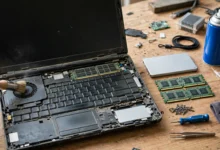
The most direct danger is fake replacement batteries. Federal prosecutors in Los Angeles charged Zoulin Cai with running a scheme that sold counterfeit laptop batteries carrying fake Apple, Dell, HP and Toshiba trademarks, and fake UL safety marks, through eBay and Amazon. Prosecutors said the operation took in at least $23.8 million between 2014 and 2019, that the batteries often lacked essential internal safeguards, and that one buyer’s laptop started smoking and nearly caught fire after installation. A 2019 warehouse raid found about 44,000 batteries and 175,000 labels. Cai pleaded guilty and was sentenced to five years in federal prison and ordered to pay $9.2 million in restitution.
The shipments were sometimes disguised by covering trademarks with black tape so customs inspections would miss them. In other words, a “genuine OEM” listing with a low price can be exactly what it looks like: a fake.
Battery saver apps that do more harm than good
Third-party “battery booster” and “cleaner” apps have a long history of overpromising, showing aggressive ads or collecting data. On a modern laptop, the operating system already manages power better than they can. The settings in this guide are built in, free and safe.
Windows Settings to Extend Laptop Battery Life
These steps are for Windows 11. Menu names can shift slightly between updates, but all of them live under Settings > System.
1. Switch the power mode to Best power efficiency
Go to Settings > System > Power & battery > Power mode, and choose Best power efficiency when on battery. This tells the processor to favor efficiency over bursts of speed. For writing, browsing and video calls, most people will not notice any slowdown.
2. Turn on Energy saver early
Windows 11’s battery saver mode, now called Energy saver on recent versions, cuts background activity, lowers brightness and limits some visual effects. By default it switches on at 20%. Raise that threshold to 30% or 40% in Power & battery if you often run low, or turn it on manually at the start of a long day away from outlets.
3. Lower screen brightness and use adaptive brightness
The display is usually the single biggest power drain. Dropping screen brightness from 100% to around 50% to 60% can add noticeable runtime. Under Settings > System > Display, turn on the option to change brightness automatically based on lighting or content if your laptop supports it. Dark mode helps a little on OLED screens and barely at all on standard LCDs.
4. Reduce the refresh rate on battery
Many newer laptops have 120Hz or higher screens, which look smooth but use more power. Under Display > Advanced display, choose 60Hz, or select a dynamic refresh rate option if available, which lowers the rate automatically when nothing is moving.
5. Find and limit power-hungry apps
Go to Power & battery > Battery usage to see which apps used the most power over the last 24 hours or 7 days. Browsers with dozens of tabs, chat apps, game launchers and cloud sync tools are common culprits. Close what you are not using, and for apps that run in the background, open their settings and turn off background activity.
6. Trim startup apps
Under Settings > Apps > Startup, switch off anything that does not need to run the moment you log in. Fewer background apps means less processor activity and longer battery life all day.
7. Shorten screen and sleep timeouts
In Power & battery > Screen, sleep & hibernate timeouts, set the screen to turn off after 2 to 3 minutes on battery and sleep after 5 to 10 minutes. A laptop left awake on a desk during a lecture break quietly burns a surprising amount of charge.
8. Turn on your laptop maker’s charge limit
This is the most important setting for long-term battery health, and it lives in your manufacturer’s app rather than Windows itself. Look for a charge limit or battery care option in Lenovo Vantage, Dell Power Manager or Dell Optimizer, HP’s battery health settings, MyASUS, or Acer Care Center. Setting a cap of around 80% is ideal if your laptop stays plugged in most of the day. Lift the limit to 100% the night before a long trip.
Bonus: Generate a Windows battery report
Open Command Prompt and type powercfg /batteryreport. Windows saves a battery report showing your battery’s design capacity, current full-charge capacity and cycle history. Comparing the two capacity numbers tells you how much wear your battery has, which is useful before deciding whether settings or a replacement will help more.
Mac and Chromebook Settings to Extend Laptop Battery Life
MacBooks with Apple silicon are already efficient, but a few switches still make a clear difference. Chromebooks have their own simple options too.
9. Use Low Power Mode on your MacBook
Open System Settings > Battery and set Low Power Mode to “Only on Battery” or “Always.” It reduces system activity and display brightness slightly. For everyday work the difference in speed is small, and the gain in runtime can be meaningful on long days.
10. Keep Optimized Battery Charging on
In System Settings > Battery, click the info button next to Battery Health and make sure optimized battery charging is turned on. Your Mac learns your routine and waits at 80% until shortly before you usually unplug. This protects long-term battery health with no effort. The same screen shows your battery’s health status and maximum capacity.
11. Check the Energy tab in Activity Monitor
Open Activity Monitor and click the Energy tab to see which apps use the most power. Browsers with many tabs, video calls and some cross-platform apps tend to top the list. Safari is usually more power efficient than other browsers on a Mac, so consider it for long sessions on battery. Also lower keyboard backlight brightness and set the display to sleep after a few minutes.
12. Turn on Battery Saver and adaptive charging on a Chromebook
On ChromeOS, open Quick Settings and switch on Battery Saver when you need extra time. Under Settings > System preferences > Power, look for adaptive charging, which works like Apple’s optimized charging by holding the battery at 80% until you are likely to unplug. Availability depends on your Chromebook model and ChromeOS version.
Universal Habits That Improve Laptop Battery Health
These work on any laptop and cost nothing.
13. Keep your laptop cool
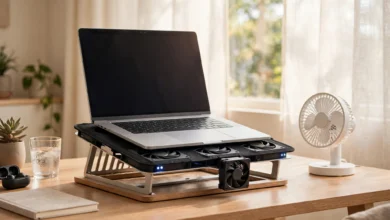
Heat is the battery’s worst enemy. Use your laptop on a hard, flat surface rather than a bed or cushion, keep vents clear, and never leave it in a hot car. If it gets very warm while charging and gaming at the same time, give it a break or use a stand to improve airflow.
14. Charge between roughly 20% and 80% when you can
You do not need to obsess over numbers, but avoiding regular drops to zero and long periods at 100% reduces wear. If your laptop has a charge limit, it handles the top end for you. Modern batteries do not need full “calibration” drains, despite old advice.
15. Cut wireless and accessory drain, and keep software updated
Turn off Bluetooth when you are not using wireless accessories, unplug USB devices you do not need, and switch to airplane mode on flights or in exam rooms with no Wi-Fi. Install operating system, driver and BIOS or firmware updates, since makers often release power management fixes. These small steps add up to real laptop battery life tips that last for years.
Quick Reference: Settings That Extend Laptop Battery Life
Brightness, power mode and charge limits give the biggest returns for the least effort.
| Setting or habit | Helps runtime today | Helps long-term health | Where to find it |
|---|---|---|---|
| Power mode or Low Power Mode | Yes | Slightly | Windows Power & battery; Mac Battery settings |
| Energy saver or Battery Saver | Yes | No | Windows Power & battery; ChromeOS Quick Settings |
| Lower brightness | Yes, a lot | Slightly (less heat) | Display settings |
| 60Hz or dynamic refresh rate | Yes | No | Windows Advanced display |
| Limit background and startup apps | Yes | Slightly | Battery usage, Startup apps, Activity Monitor |
| Short screen and sleep timeouts | Yes | No | Power or Lock Screen settings |
| Charge limit or optimized charging | No | Yes, a lot | Maker’s app; Mac Battery Health; ChromeOS Power |
| Keep it cool | Slightly | Yes, a lot | Habit |
| Bluetooth off, accessories unplugged | Yes | No | Quick Settings or Control Center |
| OS and firmware updates | Often | Sometimes | Windows Update, Software Update |
Battery Myths to Ignore
- “Always drain to 0% before charging.” That applied to old nickel batteries. With lithium-ion, frequent deep drains add wear.
- “Leaving it plugged in will destroy the battery.” Modern laptops stop charging when full. The real issue is sitting at 100% while hot, which a charge limit solves.
- “Any charger with the right plug is fine.” Underpowered or counterfeit chargers can charge slowly, overheat or damage the laptop. Use the original or a reputable USB-C charger with enough wattage.
- “Battery booster apps add hours.” Built-in settings do the real work. Extra apps often add background load instead.
When to Replace Your Battery, and How to Do It Safely
Settings cannot restore lost capacity. Consider a replacement when your battery health drops below about 80% and runtime no longer gets you through your day, or immediately if you notice any of these warning signs:
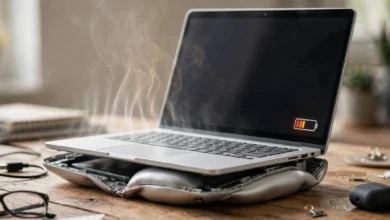
- The battery or case is swelling, the trackpad lifts, or the lid no longer closes flat.
- The laptop gets unusually hot near the battery or smells of chemicals.
- It shuts down suddenly at 20% or 30% charge.
A swollen battery is a fire risk. Stop using and charging the laptop and get it serviced.
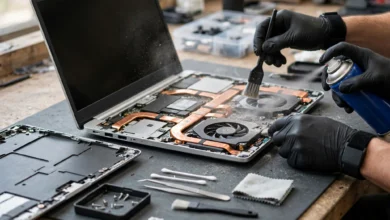
To replace safely, use the manufacturer or an authorized service provider where possible, or buy a genuine part from the maker’s own parts store. If you go third party, choose an established repair brand with real reviews and clear safety certifications. As the counterfeit battery case above shows, a cheap listing labeled “genuine OEM” with a brand logo and safety marks can still be a fake that lacks basic protections. Recycle the old battery at an electronics drop-off point, never in household trash.
Conclusion
You can extend laptop battery life both today and over the years with settings that are already on your machine: on Windows, switch to the most efficient power mode, turn on Energy saver earlier, lower brightness and refresh rate, trim background and startup apps, shorten sleep timers and enable your maker’s charge limit; on a Mac or Chromebook, use Low Power Mode or Battery Saver, keep optimized or adaptive charging on and check which apps drain the most power; and everywhere, keep the laptop cool, avoid constant deep drains and long stretches at 100%, cut wireless drain and install updates, while ignoring old myths and booster apps; the real-world cases behind this advice, from Apple’s battery throttling settlements and €25 million French fine to a $23.8 million counterfeit laptop battery scheme that ended in a five-year prison sentence, show why you should rely on transparent built-in tools and buy any replacement battery only from the manufacturer or a trusted authorized source.