How to Set Up Dual Monitors for Better Productivity
Dual monitor setup made simple: the right cables, Windows and Mac settings, ergonomic layouts, and the privacy and legal pitfalls of remote work.
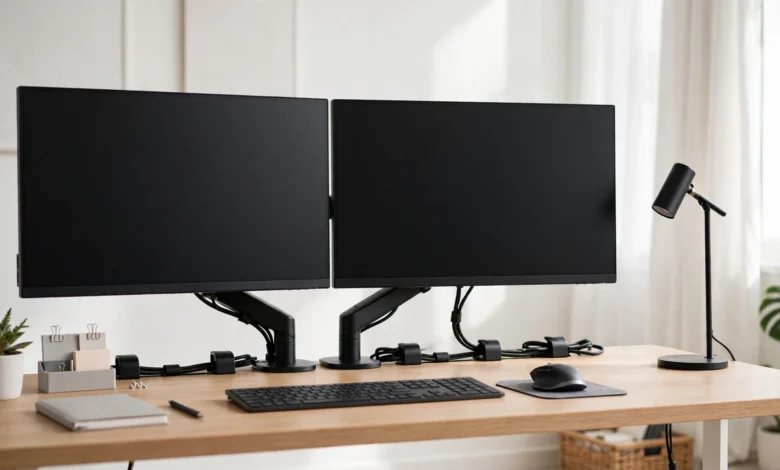
Dual Monitor Setup: 10 Simple Steps for Better Productivity in 2026
Introduction
A dual monitor setup is one of the cheapest productivity upgrades you can make. With a second screen, you can keep research open while you write, watch a meeting while you take notes, or compare two spreadsheets side by side without constantly switching windows. Many people who try it never go back.
Setting it up is usually simple, but small details trip people up. Not every laptop can drive two external screens. The wrong cable can lock you to a blurry 30Hz picture. MacBooks with base chips have limits that surprise owners. And a poorly arranged desk can turn a productivity boost into neck pain within a week.
There is also a side to the two-screen life that most guides skip. Dual monitors are now standard for remote work, and remote work has raised real legal questions. A Dutch court ordered a US company to pay about €75,000 after it fired a worker for refusing to keep his webcam on all day. A New York state employee was charged with grand larceny after allegedly working a second full-time job while on the clock remotely. And sharing the wrong screen on a video call has exposed private data more than once.
This guide walks you through what you need, ten simple setup steps for Windows and Mac, ergonomic and productivity layouts, the real cases worth knowing, and fixes for common problems.
What You Need for a Dual Monitor Setup
Before buying anything, check what your computer can actually support. Five minutes here saves a return trip to the shop.
Check your laptop or PC’s video outputs
Look at the ports on your computer and match them to these common types:
- HDMI: the most common port on laptops and monitors. HDMI 2.0 or newer handles 4K at 60Hz.
- DisplayPort: common on desktop graphics cards and business monitors; excellent for high resolutions and refresh rates.
- USB-C with DisplayPort Alt Mode: many USB-C ports can carry video. Look for a small DisplayPort logo or check the spec sheet, because some USB-C ports only carry data and charging.
- Thunderbolt 3, 4 or 5 and USB4: carry video, data and power together, and can often drive two displays through a single cable and dock.
A desktop PC with a dedicated graphics card usually supports three or four monitors. On laptops, the limits vary more, so check the manufacturer’s specs for “number of external displays supported.”
Know the Mac limits
Apple’s laptops with base-level chips have historically supported fewer external displays than Pro and Max models, and some only support a second external screen with the lid closed. Check Apple’s tech specs page for your exact model before buying a second monitor. If your Mac does not natively support two external displays, a DisplayLink-based dock can add more screens using software, though it is less ideal for gaming or fast video.
Choose the right monitors
- Match sizes and resolutions if you can. Two identical monitors make dragging windows between them seamless.
- 24 to 27 inches is the sweet spot for most desks. A 27-inch 1440p monitor is a strong all-round choice; 4K suits designers and video editors.
- Use your laptop as the second screen if budget is tight. One external monitor plus your laptop display is already a dual monitor setup.
- Look for adjustable stands or VESA mounts so you can set the right height.
Pick the right cables and docks
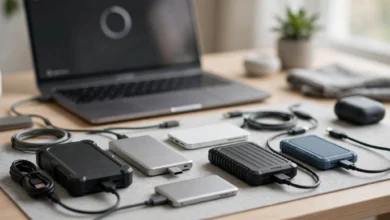
Use cables rated for your resolution and refresh rate. For 4K at 60Hz over HDMI, look for a certified Premium High Speed or Ultra High Speed HDMI cable. If your laptop has limited ports, a USB-C or Thunderbolt dock can connect two monitors, a keyboard, mouse, Ethernet and charging through one cable. Buy cables and docks from reputable brands; cheap uncertified cables are a common cause of flickering and blank screens.


A quick shopping checklist
- Confirm how many external displays your computer supports.
- Note which video ports you have.
- Choose one or two monitors with matching size and resolution where possible.
- Buy the correct cables or a compatible dock from a reputable brand.
- Consider a dual monitor arm to free desk space and fine-tune height.
How to Set Up Dual Monitors: 10 Simple Steps
These steps cover Windows 11 and macOS. Menu names can vary slightly between versions.
Step 1: Position the monitors before connecting
Place the monitors where they will live. Put your main screen directly in front of you, and the second screen beside it, angled slightly inward. If you use them equally, center the gap between them in front of you instead.
Step 2: Connect the cables
Plug each monitor into power, then connect it to your computer with the right cable or through your dock. On desktops with a graphics card, plug monitors into the graphics card’s ports, not the motherboard’s, or they may not work.
Step 3: Turn everything on and select the input
Power on both monitors. If a screen shows “No signal,” use its menu buttons to select the correct input source, such as HDMI 1 or DisplayPort.
Step 4: Open display settings
- Windows 11: right-click the desktop and choose Display settings, or go to Settings > System > Display.
- macOS: open System Settings > Displays.
Your computer should detect both screens. If one is missing, click Detect under Multiple displays on Windows, or check cables and inputs.
Step 5: Choose Extend these displays
On Windows, under Multiple displays, choose Extend these displays. This gives you one large desktop spread across both screens. Duplicate shows the same image on both, which is mainly useful for presentations. On a Mac, make sure “Use as” is set to Extended display rather than Mirror.
Step 6: Arrange the screens to match your desk
In display settings, drag the screen icons so they match where the monitors physically sit, including height differences. This makes your mouse move naturally from one screen to the other. Click Identify on Windows to see which number belongs to which monitor.
Step 7: Set your main display
Choose the monitor directly in front of you as the main display. On Windows, select it and tick Make this my main display. On a Mac, drag the white menu bar to that screen in the arrangement view. The taskbar or menu bar and new windows will appear there by default.
Step 8: Fix resolution, scaling and refresh rate
Set each monitor to its native resolution, usually marked Recommended. Adjust scaling so text looks similar in size on both screens, often 100% to 150% on Windows. Then open Advanced display settings and choose the highest refresh rate your monitor supports, such as 75Hz, 120Hz or 144Hz, for smoother scrolling.
Step 9: Configure the taskbar and window snapping
On Windows, go to Settings > Personalization > Taskbar > Taskbar behaviors and decide whether the taskbar appears on all displays. Use Snap Layouts (Windows key + Z) to tile windows quickly, and Windows key + Shift + Left or Right arrow to move a window between screens. On a Mac, use Mission Control and Stage Manager, or a window manager app, to organize windows across displays.
Step 10: Calibrate colors and brightness
Match brightness and color between screens so your eyes do not adjust every time you look across. Use each monitor’s built-in presets, the Windows Calibrate display color tool, or macOS Display Calibrator. For photo or design work, a hardware calibrator gives the most accurate results.
That is it. Your dual monitor setup is ready. The next section makes it comfortable for long days.
Ergonomics: Make Your Dual Monitor Setup Comfortable
Two screens can mean twice the neck strain if they are badly placed. These rules keep long days comfortable.
Height and distance
The top of each screen should sit at or slightly below eye level, so you look slightly down at the middle of the screen. Place monitors about an arm’s length away, roughly 50 to 75 cm. The US Occupational Safety and Health Administration’s computer workstation guidance recommends this kind of setup to reduce strain on the neck, eyes and shoulders.
Placement for how you work
- One main screen, one secondary: put the main monitor directly in front of you and the second to one side, angled toward you. Turn your body, not just your neck, when you use it for long periods.
- Both used equally: place the two monitors so the point where they meet sits directly in front of your nose, both angled inward in a gentle curve.
- Laptop plus monitor: raise the laptop on a stand so its screen is level with the external monitor, and use an external keyboard and mouse.
Reduce eye strain
- Match brightness between screens and to the room light.
- Follow the 20-20-20 rule: every 20 minutes, look at something about 20 feet (6 metres) away for 20 seconds.
- Turn on Night Light on Windows or Night Shift on macOS in the evening.
- Keep screens free of glare from windows and lamps.
Use a monitor arm
A dual monitor arm clamps to the desk edge, frees space, and makes it easy to set exact height and angle for each screen. Check the weight and size limits, and make sure your monitors have VESA mounting holes.
Smart Layouts That Boost Productivity With Dual Monitors
The screen is only useful if you organize it. These layouts work for common jobs.
- Writers and students: document on the main screen, research, sources or notes on the second.
- Programmers: code editor on the main screen; browser, documentation or terminal on the second.
- Analysts and finance: main spreadsheet in front; dashboards, email or a reference sheet beside it.
- Designers and video editors: canvas or timeline on the main screen; tools, assets and preview on the second.
- Remote workers: video call and chat on the secondary screen, so your main screen stays free for the work being discussed.
Two habits make the biggest difference. First, keep distractions like email and social media off your main screen. Second, use keyboard shortcuts to move windows between screens instead of dragging, which saves seconds hundreds of times a day.
The Reality of Remote Work on Two Screens: Legal and Ethical Cases
Most people set up dual monitors to work from home. That world comes with legal lines on both sides, for employers and employees. These cases show where those lines have been drawn.
When employer monitoring went too far
In 2022, a court in the Netherlands ruled against Chetu, a Florida-based software company, after it fired a Dutch remote telemarketer who refused to keep his webcam on for an entire workday while his screen was also being monitored. The employee had written that being watched by camera for nine hours a day felt like an invasion of his privacy. According to Fortune’s report on the ruling, the court found the dismissal unfair and ordered the company to pay about €75,000, including back wages, unused vacation days and a €50,000 compensation award, citing the right to respect for private life.
Rules on employee monitoring vary widely. In the EU and UK, data protection law requires monitoring to be necessary, proportionate and transparent. In many US states, employers have broader rights but must still follow wiretapping and notice laws in some places.
What it means for you: if you work from home, ask your employer what monitoring software is installed and what it records. If you manage remote staff, use clear written policies and proportionate tools. Measuring output usually works better than watching people.
When employees crossed the line: “overemployment” fraud
Two monitors and a laptop make it technically easy to run two remote jobs at once. Doing it secretly on paid time can be a crime. In October 2025, New York authorities charged Mehul Goswami, a remote state IT employee, with second-degree grand larceny. According to the New York State Inspector General’s office, he is accused of working for a contractor at another company while on the clock for his state job, between March 2022 and September 2025, taking more than $50,000 from taxpayers. He has not been convicted, and the charges are allegations.
What it means for you: holding a second job is not illegal in itself, but working it during hours another employer is paying for, or breaking an exclusivity clause, can lead to firing, lawsuits or criminal charges, especially in government roles. Read your contract and disclose outside work where required.
Privacy slips on the second screen
With two screens, it is easy to share the wrong one on a video call, exposing private chats, client data or passwords. Sharing a single application window instead of your entire screen, closing unrelated tabs and turning on Do Not Disturb before presenting prevents most accidents. In shared offices or co-working spaces, a privacy filter on your monitor helps stop people nearby from reading sensitive information.
Counterfeit cables and adapters
Cheap, uncertified HDMI and USB-C cables and adapters are widely sold online with fake certification claims. At best they cause flickering, blank screens or low refresh rates; at worst, poorly made USB-C cables and power adapters can damage ports. Buy from reputable brands and look for genuine certification labels, such as the HDMI certification label that can be verified with the official scanning app.
Troubleshooting Common Dual Monitor Setup Problems
Most issues come down to cables, inputs, drivers or hardware limits.
| Problem | Likely cause | Fix |
|---|---|---|
| Second monitor shows “No signal” | Wrong input or loose cable | Select the correct input on the monitor; reseat or swap the cable |
| Computer does not detect the monitor | Port does not carry video, or driver issue | Use a video-capable port; click Detect; update graphics drivers |
| Only one external screen works on a MacBook | Chip supports limited external displays | Check Apple specs; try lid-closed mode or a DisplayLink dock |
| Screens are mirrored, not extended | Display mode set to Duplicate | Choose Extend these displays (Windows) or Extended display (Mac) |
| Blurry or wrong-sized text | Non-native resolution or mismatched scaling | Set native resolution; adjust scaling on each screen |
| Choppy movement, stuck at 30Hz or 60Hz | Old cable or port, or refresh rate setting | Use HDMI 2.0+ or DisplayPort; raise refresh rate in advanced settings |
| Flickering or random blackouts | Faulty or uncertified cable or dock | Replace with a certified cable from a reputable brand |
| Mouse moves to the wrong screen edge | Arrangement does not match the desk | Drag display icons to match physical positions |
Conclusion
A dual monitor setup is one of the simplest ways to work faster and with less frustration: check how many external displays your laptop or PC supports and which video ports it has, choose matching monitors and certified cables or a reliable dock, connect and power everything, select Extend these displays, arrange the screens to match your desk, set a main display, fix resolution, scaling and refresh rate, configure the taskbar and window snapping, and calibrate color and brightness, then place both screens at eye level and arm’s length and organize them with layouts suited to your work; because most two-screen desks now support remote work, it also pays to know the legal realities, from a Dutch court awarding about €75,000 to a worker fired for refusing all-day webcam monitoring to a New York state employee charged with grand larceny over an alleged secret second job, and to share screens carefully and avoid counterfeit cables so your productivity gains do not come with privacy, legal or hardware problems.