How to Choose a Laptop for Students on a Budget
Budget laptop for students guide: real specs, honest prices, and lessons from past laptop scams so you buy a reliable machine without overspending.

Budget Laptop for Students: 9 Smart Tips to Choose the Best One in 2026
Introduction
A budget laptop for students is probably the most important thing you will buy for school, and also one of the easiest to get wrong. You have a fixed amount of money, a list of courses that each seem to want something different, and a market full of spec sheets that look almost identical. On top of that, every sale banner promises you are saving a fortune.
Most buying guides stop at the specs. They tell you to get 8GB of RAM and an SSD, and that advice is fine as far as it goes. What they skip is the part that actually costs students money: inflated discounts, sellers who take payment and never ship, laptops that turn out to be stolen, and “free” software that comes with legal and security risks.
This guide covers both sides. First, how to work out what you really need, which specs matter, and where your money goes furthest. Then, a look at real cases where buyers were misled or defrauded, including a court-ordered penalty against a major laptop brand and federal cases against online laptop sellers who never delivered. Knowing how those schemes worked makes them much easier to spot.
By the end, you should be able to pick an affordable student laptop that handles your coursework, lasts through your degree, and comes from a seller you can actually hold accountable if something goes wrong.
Tip 1: Set a Realistic Budget Before You Shop
The first step in choosing a budget laptop for students has nothing to do with specs. It is deciding how much you can spend, in total, before you look at a single listing. If you start browsing first, you will anchor on whatever the shiniest model costs and work backward from there.
Most manufacturer guides put a sensible student budget somewhere around $400 to $800. That range is a reasonable guide, but your number should come from your own situation, not a blog post.
Count the total cost, not the sticker price
The laptop is only part of what you pay. When you set your budget, include:
- Accessories: a charger replacement down the line, a sleeve or bag, and maybe a mouse
- Software: check whether your school provides Microsoft 365 or other tools for free before paying for anything
- Protection: an extended warranty or accidental damage cover, if the base warranty is short
- Taxes and shipping: these can add a noticeable amount, especially on imports
A laptop that looks $60 cheaper online can end up costing more once you add a bag, a year of software, and shipping.

Match the budget to your course
A cheap laptop for college students in a literature program and one for an architecture student are not the same machine. Before you settle on a number, check your department’s website or ask a senior student what software you will actually run.
- Writing, research, and online classes: almost any modern affordable student laptop will do. Spend the savings on battery life and a good keyboard.
- Business, data, and programming: you want more RAM and a stronger processor, since spreadsheets, IDEs, and many browser tabs add up quickly.
- Design, video, engineering, and architecture: these courses may require specific software and a dedicated graphics card. Here, stretching the budget or buying a higher-tier refurbished machine is often smarter than buying a weak new one.
Being honest about your needs keeps you from overspending on power you will never use, and from underspending on a machine that cannot open your assigned software in week three.
Budget Laptop for Students: The Specs That Actually Matter
Once you know your budget, the spec sheet becomes much less intimidating. You do not need to understand every line. You need to understand the five or six that decide whether a budget laptop for students feels fast in year three or painfully slow in month six.
| Spec | Minimum for most students | Better if you can afford it |
|---|---|---|
| Processor | Recent Intel Core i3, AMD Ryzen 3, or equivalent | Core i5, Ryzen 5, or Apple M-series |
| RAM | 8GB | 16GB |
| Storage | 256GB SSD | 512GB SSD |
| Battery | 6 to 8 hours real use | 10 hours or more |
| Display | 13 to 15 inch, Full HD (1920×1080) | IPS panel, decent brightness |
| Weight | Under 2kg | Around 1.3 to 1.5kg |
Tip 2: Do not overpay for the processor
The processor is where marketing works hardest. For notes, essays, research, and video calls, a current entry or mid-level chip is plenty. The generation matters more than the tier: a recent Core i3 or Ryzen 3 often beats a Core i5 that is five years old. When comparing listings, look up the exact model number rather than trusting the “i5” label on its own.
Tip 3: Treat 8GB of RAM as the floor
8GB RAM is the minimum for a smooth experience today. Modern browsers and video call apps eat memory fast. If your course involves programming, data work, or any creative software, 16GB is worth stretching for. Also check whether the RAM is soldered. On many thin laptops it is, which means you cannot upgrade later, so buy what you need now.
Tip 4: Always choose SSD storage
SSD storage is not optional anymore. A laptop with a traditional hard drive will feel slow from day one, no matter what the processor is. 256GB is workable if you use cloud storage for files, but 512GB gives you breathing room for software and coursework. Be wary of listings that advertise a large “storage” figure without saying whether it is an SSD.
Tip 5: Check battery life, screen, and build quality
Students carry their laptops everywhere, so the physical side matters as much as the internals.
- Battery life: manufacturer claims are usually measured under ideal conditions. Look for independent reviews that test real use, and aim for at least six to eight hours.
- Display: Full HD resolution is the baseline. Skip 1366×768 screens if you can, since text looks fuzzy and you will be reading on it for hours.
- Keyboard and trackpad: you will type tens of thousands of words. If possible, try the keyboard in a store before buying online.
- Ports: make sure you have at least one USB-A port or are ready to buy a small adapter, plus a headphone jack for lectures and calls.
- Build: a slightly heavier laptop with a sturdy hinge often outlives a thin one with a flexing lid.
Getting these five areas right covers most of what makes the best laptop for students on a budget. Everything else is a nice extra.
Tip 6: Pick the Right Operating System for Your Course
The operating system decides which software you can run, so it should be settled before you compare models. Here is how the three main options stack up for a budget laptop for students.
Windows
Windows laptops offer the widest range of prices and the broadest software support. If your course uses specialist programs for engineering, statistics, or accounting, they almost always run on Windows. The downside is that the cheapest Windows machines often cut corners on build quality and come loaded with trial software you will want to remove.
macOS
MacBooks are rarely the cheapest option up front, but they tend to hold their value and last a long time. Education pricing and certified refurbished units can bring them within reach. Check first that every program your course requires has a Mac version.
ChromeOS
Chromebooks are often the cheapest route to a usable machine. They boot fast, have long battery life, and work well for writing, research, and web-based coursework. The catch is that many desktop programs will not run on them. In the Chromebook vs Windows debate, the Chromebook wins only if your course lives almost entirely in the browser.
Check your course requirements first
The safest move is simple: email your department or check the course handbook for minimum requirements. Some programs publish them, and a few even list approved models. Five minutes of checking can save you from buying a laptop that cannot run your exam software.
Tip 7: Decide Between New, Refurbished, and Used
Where you buy matters almost as much as what you buy. The same money can get you a basic new machine, a much better refurbished laptop, or a used one with no protection at all.
| Option | Typical savings | Warranty | Main risk |
|---|---|---|---|
| New from brand or major retailer | None to moderate during sales | Full manufacturer warranty | Inflated “was” prices |
| Certified refurbished | Often significant | Usually 90 days to 1 year | Cosmetic wear, older model |
| Used from a private seller | Highest | None | Theft, hidden damage, non-delivery |
Buying new
A new budget laptop for students gives you a full warranty and a clean history. It is the lowest-risk choice if you buy directly from the manufacturer or a well-known retailer. The trap is treating every sale price as a real saving, which we cover in the next section.
Buying certified refurbished
Certified refurbished laptops are returned or ex-lease machines that have been tested, repaired if needed, and resold with a warranty. Business-grade models like ThinkPads, Latitudes, and EliteBooks are common here, and they are often better built than new consumer laptops at the same price. Buy from the manufacturer’s own refurbished store or a reputable refurbisher that states the warranty in writing.
Buying used
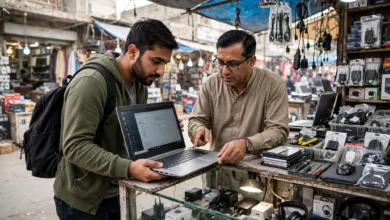
Used laptops from private sellers can be great value, but they carry the most risk. You have no warranty, no return policy, and no guarantee the seller actually owns the device. If you go this route, meet in person in a public place, test the machine fully before paying, and never send money for a laptop you have not seen.
Tip 8: Learn From Real Laptop Scams and Illegal Practices
This is the part most buying guides leave out. Students are a common target because they are price-sensitive, often buying online, and sometimes buying their first expensive device alone. The cases below are real, and each one teaches a specific lesson.
Case 1: Inflated discounts from a major brand
In August 2023, Australia’s Federal Court ordered Dell Australia to pay a $10 million penalty for misleading customers about discounts on add-on monitors sold alongside laptops and desktops. Dell admitted that the monitors were not actually sold at the higher “strikethrough” price for most of the relevant period, so the advertised savings were overstated. More than 5,300 monitors were sold this way. You can read the details in the ACCC’s official media release on the Dell penalty.
The lesson: a crossed-out price is a claim, not a fact. Before you trust a “save 30%” badge, check the item’s price history on a price tracker or compare it across two or three other stores. If nobody else ever sold it at the “original” price, the discount is probably not real.
Case 2: Online sellers who took the money and never shipped
In 1998, the US Federal Trade Commission went to court against a Florida seller named Craig Lee Hare, who listed new and used computers on online auction sites. According to the FTC’s press release on the case, winning bidders paid as much as $1,450 per computer and received neither a computer nor a refund. A judge froze his assets, and he was later permanently barred from selling goods online.
A few years later, in 2002, the FTC charged another seller, Brian Silverman, who sold laptops through auction sites including eBay under several business names. He accepted only cash, checks, or money orders, and in many cases failed to deliver the laptops or refund buyers. Some victims waited months for refunds that only came after repeated complaints.
The lesson: the payment method tells you a lot. Sellers who insist on bank transfers, money orders, gift cards, or crypto are asking you to give up your protection. Pay by credit card or through a platform’s built-in checkout, where chargebacks and buyer protection exist.
Case 3: Stolen laptops on resale marketplaces
Stolen laptops regularly turn up on classified sites and social media marketplaces, often priced well below market. Beyond the moral problem, buying stolen goods knowingly is a crime in most countries, and even an innocent buyer can lose the device if police recover it. A locked laptop may also be useless: Apple’s Activation Lock and similar tools mean a stolen machine may never be fully yours.
The lesson: ask for the original receipt or proof of purchase, check that the serial number on the device matches the paperwork, and make sure the seller signs out of all accounts and resets the laptop in front of you.
Case 4: Cracked software and fake “lifetime licenses”
It is tempting to save money by installing pirated copies of Windows, Office, or design software. Using unlicensed software violates copyright law, and cracked installers are a well-known way to spread malware, which can steal passwords or lock your files right before a deadline. Cheap “lifetime license” keys sold on random websites are often resold, stolen, or revoked later.
The lesson: check what your university provides for free first. Many schools give students Microsoft 365, and companies like Adobe and Autodesk offer education plans. Free, legal alternatives such as LibreOffice cover most everyday needs.
Red flags to watch for
- A price far below every other seller for the same model
- Pressure to pay quickly or “before someone else does”
- Payment only by bank transfer, gift card, money order, or crypto
- No physical address, no return policy, or a website created very recently
- A used laptop with no receipt, no box, or a seller who cannot unlock it
- Software offered as “pre-activated” or with a suspiciously cheap license key
Avoiding online shopping scams is part of choosing a budget laptop for students. A great deal from a seller you cannot trust is not a deal at all.
Tip 9: Use Legitimate Student Discounts and Protect Your Purchase
The honest ways to save on a budget laptop for students are usually better than the risky ones.
Where real savings come from
- Student discount programs: Apple, Dell, HP, Lenovo, Microsoft, and Samsung all run education stores or student pricing. These are verified through your school email or a service like UNiDAYS, so the discount is real.
- Back-to-school sales: prices often dip in the months before a new academic year. Combined with education pricing, this is often the best time to buy.
- Manufacturer refurbished stores: these combine lower prices with a proper warranty.
- University stores and schemes: some universities run laptop loan, lease, or hardship programs. Ask your student services office before spending your own money.
Check the laptop warranty and return policy
A laptop warranty is what separates a bad week from a lost semester. Before you pay, confirm how long the warranty lasts, whether it covers accidental damage, and whether repairs happen locally or require shipping the laptop away. Read the return policy too. A 14 or 30 day return window lets you test the machine properly and send it back if something is wrong.
Your final buying checklist
- Set a total budget, including accessories and software
- Confirmed your course’s software and minimum requirements
- At least 8GB RAM and an SSD
- Full HD screen and real-world battery life of six hours or more
- Compared the price across at least three sellers or checked price history
- Buying from a seller with a physical address and return policy
- Paying by credit card or protected checkout
- Warranty length and coverage confirmed in writing
- For used laptops: receipt seen, serial number checked, device reset in front of you
- Legal software sorted through your school or free alternatives
If every box is ticked, you are very likely holding the best laptop for students on a budget that your money can buy.
Conclusion
Choosing a budget laptop for students comes down to three things: knowing what your course really needs, putting your money into the specs that matter (a modern processor, at least 8GB of RAM, an SSD, a Full HD screen, and real battery life), and buying from a seller you can hold accountable. The cases of Dell Australia’s inflated discounts and the FTC actions against online laptop sellers who never delivered show that the biggest risks are often not technical at all, so check price histories, pay with protected methods, verify used devices, and stick to legal software through your school, and you will end up with an affordable student laptop that carries you through your degree without costly surprises.