Best Free Screen Sharing Apps for Remote Meetings
Free screen sharing apps compared for remote meetings, with the security settings that matter and the Zoombombing and remote-access scams to avoid.
Free Screen Sharing Apps: 9 Best Proven Tools for Secure Remote Meetings in 2026
Introduction
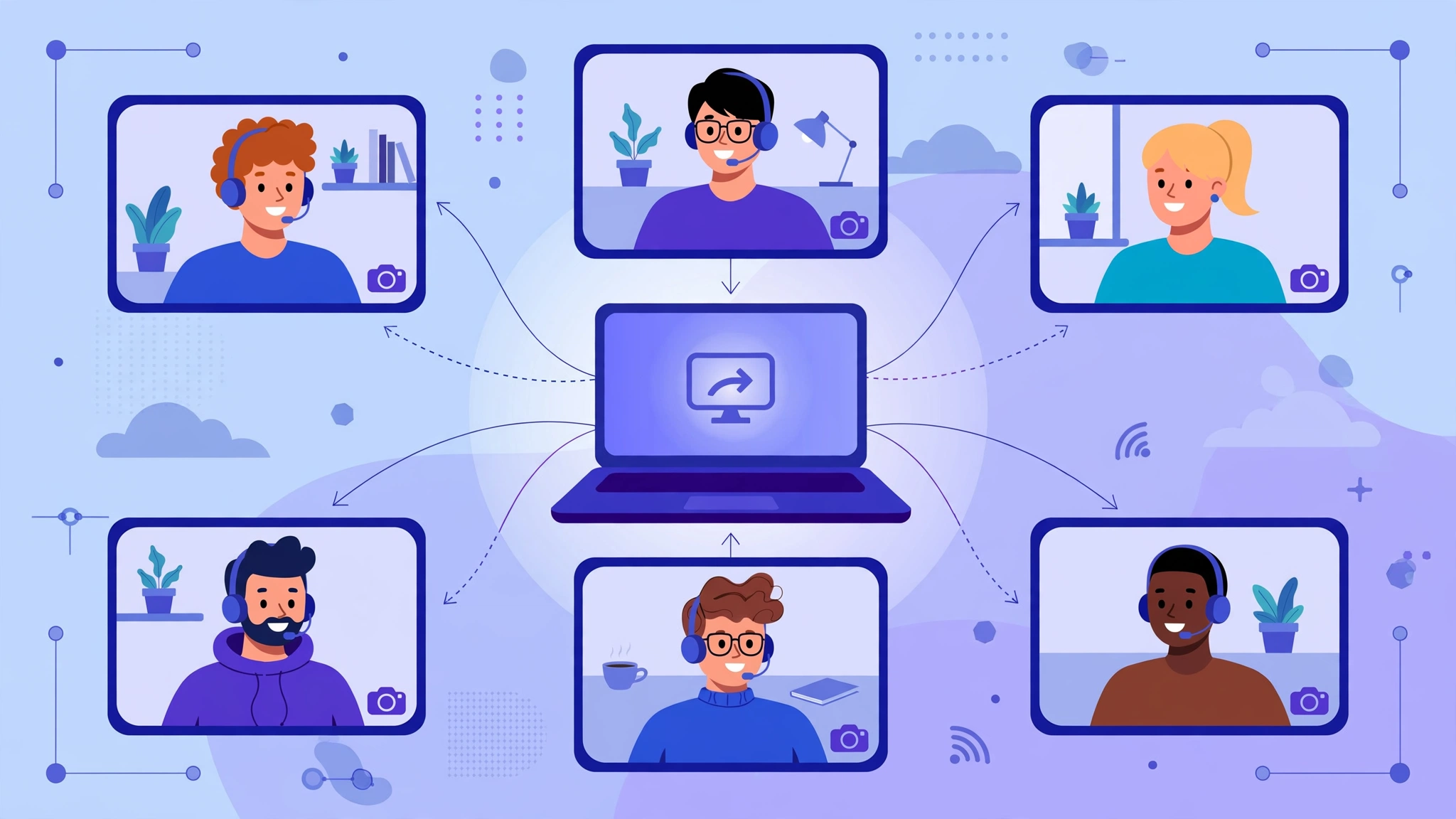
Free screen sharing apps have become as basic to work as email. Teams review slides together across cities, teachers walk students through assignments, freelancers demo websites to clients abroad, and family members help parents fix phone settings from another country. For most of these jobs, you do not need to pay anything. Google Meet, Zoom, Microsoft Teams, Jitsi Meet, and several others let you share your screen for free, with some limits.
But sharing a screen is also a way of opening a window into your computer. A careless share can expose private messages, bank tabs, or client files to everyone in a meeting. An open meeting link can let strangers walk in. And remote control tools, which let someone else move your mouse and type on your keyboard, are now one of the favorite weapons of scammers who pretend to be bank staff or tech support.
The risks are well documented. During 2020, uninvited intruders disrupted classes and church services in what became known as “Zoombombing,” prompting FBI warnings. Regulators also took action over misleading security claims by a major video meeting company. Remote-access scams continue to cost people their life savings.
This guide compares the best free screen sharing apps for remote meetings and remote support, what each free plan really offers, and where each one fits. It also gives you a practical security checklist, so you can share your screen confidently without sharing more than you intended.
Screen Sharing vs Remote Control: Know the Difference
Before choosing among free screen sharing apps, it helps to understand that “sharing your screen” can mean two very different things.
Screen Sharing in Meetings
In a video meeting, screen sharing lets other participants see your screen, a single window, or a browser tab. They can watch, but they cannot click or type on your computer. This is what you use for presentations, demos, training, and reviewing documents together.
Remote Desktop and Remote Control
Remote desktop or remote access tools let another person control your computer: move the mouse, open files, install software, and type. These tools are useful for IT support and helping family members, but they give the other person almost full power over your device. That is why scammers push victims to install them.
A simple rule: in meetings, others should only see your screen. Give remote control only to people you know and trust, and only when you started the contact yourself.


What to Look for in Free Screen Sharing Apps
Core Features
- Share a window or tab, not just the full screen, so notifications and other apps stay private.
- Share audio with your screen for videos and demos.
- Annotation tools so participants can point or draw.
- Good quality on slower internet, important in countries with patchy connections.
- Browser access so guests can join without installing software.
- Recording, if you need to share sessions later.
Free Plan Limits to Check
- Meeting time limits for group calls.
- Maximum number of participants.
- Whether recording, transcripts, or breakout rooms are included.
- Whether a sign-in is required for the host or guests.
Security and Privacy Features
- Waiting rooms or lobbies to approve who joins.
- Meeting passcodes and unique links per meeting.
- Host controls to restrict screen sharing to the host, mute participants, and remove intruders.
- Encryption, including end-to-end encryption options for sensitive meetings.
- Clear privacy policies about recordings, transcripts, and data use.
9 Best Free Screen Sharing Apps for Remote Meetings in 2026
The list is split into meeting platforms, which let others watch your screen, and remote support tools, which let a trusted person control it. Free plan limits change, so always check the current terms. Note that Microsoft retired Skype in May 2025, so older guides that recommend it are out of date.
Best Free Screen Sharing Apps for Meetings
1. Google Meet: Best for Browser-Based Meetings
Google Meet runs directly in the browser, so guests can join from a link without installing anything. Screen sharing lets you present your whole screen, one window, or a single Chrome tab with audio.
Free plan highlights: group calls up to 60 minutes with up to 100 participants, and longer one-on-one calls, using a free Google account.
Security: hosts can admit or deny people who are not invited, lock screen sharing to the host, and remove participants.
Best for: quick client calls, classes, and teams already using Gmail.
2. Zoom: Best for Familiar, Reliable Meetings
Zoom remains one of the most widely used meeting apps, with strong screen sharing, annotation, whiteboards, and remote control requests inside meetings.
Free plan highlights: meetings up to 40 minutes with up to 100 participants on the Basic plan.
Security: waiting rooms, passcodes, host-only screen sharing, and optional end-to-end encryption.
Best for: clients and partners who already know Zoom and need polished presentation tools.
3. Microsoft Teams (Free): Best for Office Users
The free version of Microsoft Teams includes video calls, chat, and screen sharing, and it integrates with Outlook and Microsoft accounts.
Free plan highlights: group meetings up to 60 minutes with up to 100 participants.
Security: lobby controls, presenter roles, and the ability to restrict who can share.
Best for: freelancers and small groups who work with Microsoft Office.
4. Jitsi Meet: Best Open-Source Option
Jitsi Meet is free and open source. You can use the public meet.jit.si service in a browser or host it yourself on your own server for full control over data.
Free plan highlights: no fixed meeting time limit on the public service, and no payment required. Moderators may need to sign in to start a meeting.
Security: meeting passwords, lobby mode, and end-to-end encryption options, plus self-hosting for organizations that want their own infrastructure.
Best for: privacy-focused users, NGOs, and technical teams.
5. Webex Free: Best for Enterprise-Style Features
Cisco Webex offers a free plan with screen sharing, whiteboarding, and noise removal.
Free plan highlights: meetings up to 40 minutes with up to 100 participants.
Best for: users working with organizations that already rely on Webex.
6. Discord: Best for Communities and Casual Groups
Discord offers free voice and video channels with screen sharing, popular with study groups, gaming communities, and open-source projects.
Best for: informal, ongoing groups that want an always-available voice room.
Keep in mind: it is not designed for formal client meetings, and stream quality on the free plan is limited compared with paid Nitro.
Best Free Remote Support Tools (Use With Care)
These tools let a trusted person control your computer. They are excellent for helping family or getting IT support from your own company, but they are also the tools scammers most often ask victims to install. Use them only when you started the contact and know who is on the other end.
7. Chrome Remote Desktop: Best Free Option for Family Help
Chrome Remote Desktop is free from Google and works through the Chrome browser on Windows, Mac, Linux, and ChromeOS. For one-time help, the person being helped generates a temporary access code and reads it to the helper.
Why users like it: free, simple, and tied to a Google account.
Safety tip: the access code expires and each session needs your approval. Never read a code to someone who called you unexpectedly.
8. AnyDesk: Best Lightweight Remote Access
AnyDesk is a fast remote desktop tool with a free license for personal, non-commercial use.
Why users like it: works well on slower connections and supports many platforms.
Safety tip: AnyDesk is frequently named in remote-access scams. Never install it because a caller, pop-up, or message tells you to. Commercial use requires a paid license.
9. TeamViewer: Best Known Remote Support Tool
TeamViewer offers free use for personal purposes, with remote control, file transfer, and meeting features.
Why users like it: mature, widely supported, and familiar to IT staff.
Safety tip: the free version is for personal use only, and like AnyDesk it is often abused by scammers. Close the session immediately if anything feels wrong.
Quick Comparison of Free Screen Sharing Apps
| App | Type | Free group meeting limit | Install needed for guests | Best for |
|---|---|---|---|---|
| Google Meet | Meeting | 60 minutes, 100 people | No, browser | Quick browser meetings |
| Zoom | Meeting | 40 minutes, 100 people | Optional, browser works | Polished presentations |
| Microsoft Teams (Free) | Meeting | 60 minutes, 100 people | Optional, browser works | Office users |
| Jitsi Meet | Meeting | No fixed limit on public service | No, browser | Privacy and self-hosting |
| Webex Free | Meeting | 40 minutes, 100 people | Optional | Enterprise partners |
| Discord | Community calls | Ongoing channels | App or browser | Study and community groups |
| Chrome Remote Desktop | Remote control | Not a meeting tool | Chrome | Helping family |
| AnyDesk | Remote control | Personal use free | Yes | Personal remote access |
| TeamViewer | Remote control | Personal use free | Yes | Personal IT help |
Reality Check: Zoombombing, False Security Claims, and Remote-Access Scams
Free screen sharing apps are safe when used carefully. The cases below show what happens when meeting links are left open, when companies overstate security, and when criminals use remote access tools against ordinary people.
Zoombombing During the 2020 Lockdowns
When schools, offices, and religious groups moved online in early 2020, intruders began joining public or poorly protected meetings and sharing offensive images, hate speech, and explicit content on screen. The practice became known as Zoombombing. The FBI issued public warnings, and US prosecutors said disrupting meetings this way could lead to criminal charges.
Part of the problem was default settings at the time, which allowed any participant to share their screen. Zoom responded by turning on waiting rooms and passcodes by default and moving screen sharing to host-only for many accounts.
The lesson: never post meeting links publicly, use waiting rooms and passcodes, and restrict screen sharing to the host unless others truly need it.
Zoom’s Settlements Over Encryption and Data Sharing
In November 2020, Zoom settled with the US Federal Trade Commission over claims that it had misled users about the strength of its encryption. The FTC said Zoom had advertised end-to-end encryption while its own servers held the keys needed to access meeting content. The settlement required security improvements and banned privacy and security misrepresentations, but did not include payments to users.
In 2021, Zoom agreed to pay $85 million to settle a class-action lawsuit over the encryption claims, data sharing with third parties, and Zoombombing, as Verdict reported. Zoom has since added true end-to-end encryption as an option.
The lesson: read what “encryption” actually means in an app, and turn on end-to-end encryption for sensitive meetings when it is available.
Phantom Hacker and Tech Support Scams
Remote access tools are at the center of one of the most damaging scams today. In a 2023 public service announcement, the FBI’s Internet Crime Complaint Center warned of “Phantom Hacker” scams, in which criminals pose as tech support, bank staff, and government officials. Victims are told their computer or bank account has been hacked, then directed to download software that gives the scammer remote access. The scammers then persuade victims to move their savings to “safe” accounts they control.
The FBI reported more than 19,000 tech support scam complaints in the first half of 2023 alone, with estimated losses of over $542 million. Nearly half of the victims were over 60, and they accounted for 66% of the losses.
The lesson: never install remote access software because someone contacted you first, and never let anyone view your banking screen during a remote session.
Accidental Oversharing
Not every incident is a crime. Many people have shared their entire screen and exposed private chats, email previews, salary sheets, or client documents to a meeting. Some have been recorded doing so. In work settings, this can breach confidentiality agreements or data protection rules.
The lesson: share a single window or tab, close unrelated apps, and turn on Do Not Disturb before presenting.
What These Cases Teach
- Treat meeting links like keys, and protect them with waiting rooms and passcodes.
- Keep screen sharing host-only by default.
- Verify security claims and enable end-to-end encryption for sensitive calls.
- Never install remote access tools at a stranger’s request.
- Share only what the meeting needs to see.
Secure Screen Sharing Checklist for Remote Meetings
Use this checklist before, during, and after meetings, whichever of the free screen sharing apps you choose.
Before the Meeting
- Create a unique meeting link instead of reusing a personal room for every call.
- Turn on the waiting room or lobby and set a passcode.
- Send the link privately by email or direct message, never on public social media.
- Set screen sharing to host-only unless others need to present.
- Update the app to get the latest security fixes.
- Prepare your screen: close unrelated tabs and apps, hide desktop files, and clear notifications.
- Turn on Do Not Disturb or focus mode so private messages do not pop up.
During the Meeting
- Share a window or tab, not the entire screen, whenever possible.
- Check what others see using the app’s preview before you start presenting.
- Admit only people you recognize, and ask unknown names to identify themselves.
- Lock the meeting once everyone has joined.
- Remove and report disruptive participants immediately.
- Stop sharing before switching to anything private, such as email or banking.
- Announce and get consent before recording, which is also a legal requirement in many places.
After the Meeting
- End the meeting for everyone rather than leaving it open.
- Store recordings securely and share them only with people who need them.
- Delete recordings and transcripts you no longer need.
Rules for Remote Control Sessions
- Only you should initiate the contact, by calling your own IT department or a family member you know.
- Never install remote software because of a pop-up, unexpected call, SMS, or email.
- Watch the whole session, and end it immediately if the helper opens your banking, email, or files unrelated to the problem.
- Uninstall or disable remote access tools after use, or set them to require your approval every time.
- If you were scammed, disconnect from the internet, contact your bank right away, change passwords from a different device, and report the incident to the police or national cybercrime authority.
Screen Sharing Etiquette for Professional Meetings
Good etiquette also protects privacy and saves time:
- Increase font size and zoom so viewers on phones can read your screen.
- Use presenter mode for slides so notes stay private.
- Mute notification sounds and close music apps.
- Ask before taking remote control of someone else’s screen during a meeting.
- Avoid sharing documents that contain other people’s personal data unless everyone in the meeting is authorized to see it.
FAQs About Free Screen Sharing Apps
What is the best free screen sharing app for meetings?
Google Meet is a strong all-round choice because it runs in the browser and allows 60-minute group calls for free. Zoom and Microsoft Teams are also popular, and Jitsi Meet is the best open-source option.
Which free screen sharing app has no time limit?
The public Jitsi Meet service does not set a fixed meeting time limit. Most other free plans limit group meetings to 40 or 60 minutes.
Is screen sharing safe?
Yes, when you use waiting rooms, passcodes, host-only sharing, and share a single window instead of your whole screen. The main risks come from open meeting links and accidental oversharing.
What is the difference between screen sharing and remote desktop?
Screen sharing lets others see your screen. Remote desktop lets someone control your computer. Give remote control only to people you know, and only when you started the contact.
What should I do if a caller asks me to install AnyDesk or TeamViewer?
Hang up. Legitimate banks and government agencies do not ask you to install remote access software. If you are worried about your account, call the official number on your card or statement.
Conclusion
Free screen sharing apps make remote meetings, training, and support easy and affordable, with Google Meet, Zoom, Microsoft Teams, Jitsi Meet, Webex Free, and Discord covering meetings, and Chrome Remote Desktop, AnyDesk, and TeamViewer covering trusted remote support. The right choice depends on meeting length, guest access, and privacy needs, but the same security habits apply to all of them: unique links, waiting rooms, passcodes, host-only sharing, sharing a single window, and careful handling of recordings. The cases covered here, from Zoombombing during the 2020 lockdowns and Zoom’s FTC and $85 million settlements over encryption claims to the Phantom Hacker scams that the FBI linked to more than $542 million in tech support fraud losses in just six months, show that convenience without caution can be costly. Choose the tool that fits your meeting, lock it down before you start, share only what others need to see, and never hand remote control to someone who contacted you first.
free screen sharing apps, best free screen sharing app, screen sharing for remote meetings, free video conferencing with screen share, Google Meet screen sharing, Zoom free plan limit, Jitsi Meet free, remote desktop software free, secure screen sharing tips, Zoombombing prevention