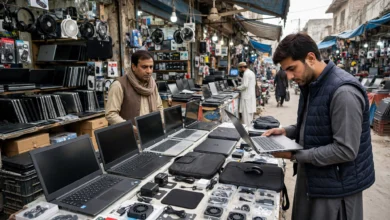
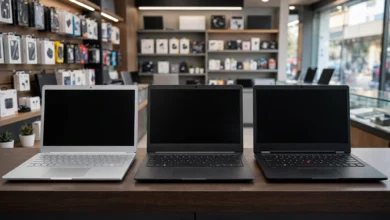
How to Check a Used Laptop Before Buying in Pakistan
Check essential factors before buying a used laptop in Pakistan, including battery health, components, SSD, ports, condition, performance, and service history.
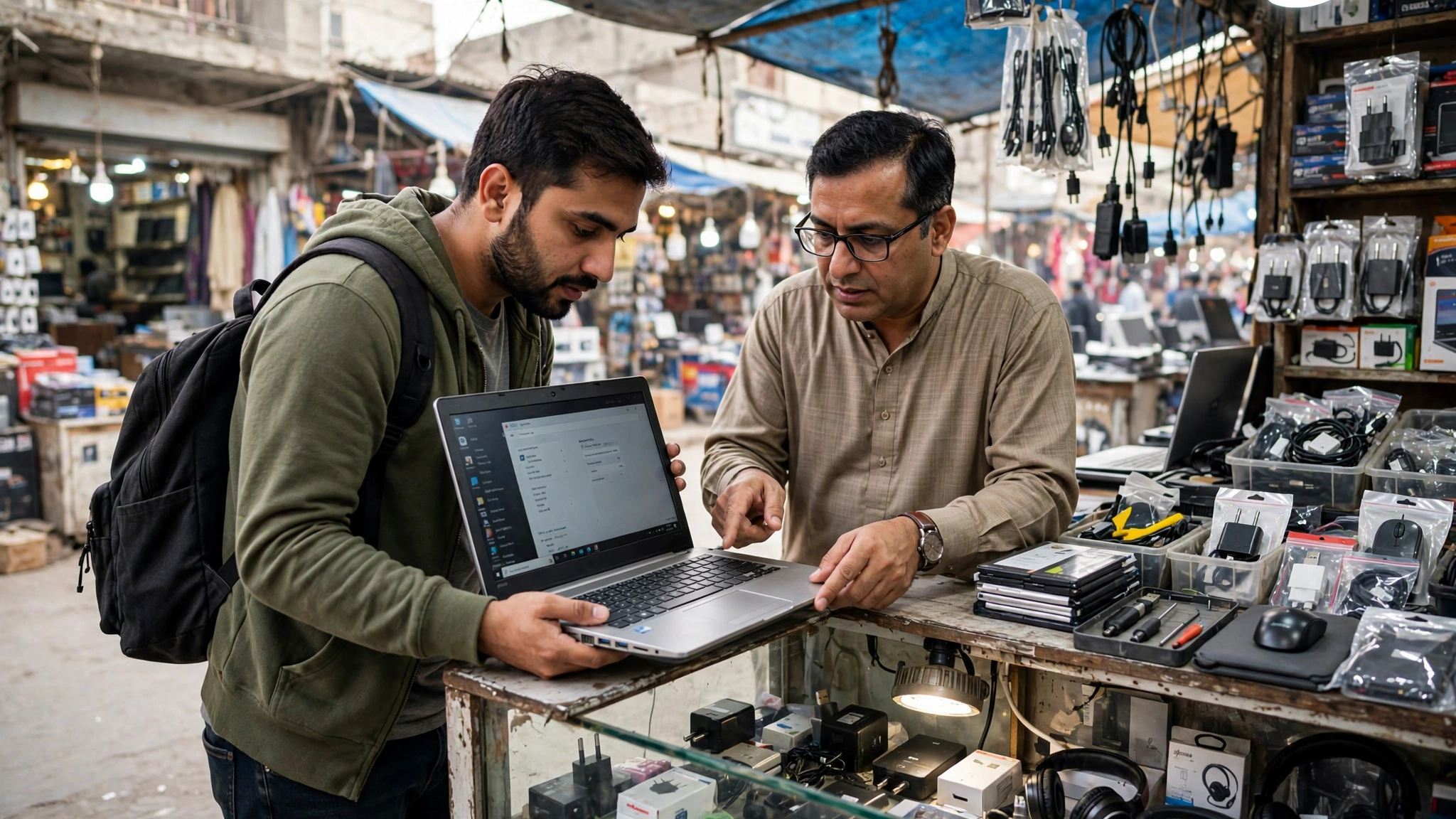
Getting a second-hand laptop in Pakistan will make one save a lot of money. This is particularly true when one needs a high-end laptop for studies, work or any other purpose. The issue with this is that even if the two laptops have the same model and specifications, their condition may differ significantly.
One could be running perfectly good battery with genuine components and no problems at all with services records. The other one might look very similar but with poor battery, a fixed motherboard, a problematic SSD drive or even some broken ports.
It is for that reason that purchasing a used laptop must never be made just by looking at its looks, processor and price.
The thing is that an inspection doesn’t require any technical skills. You just need to know what to look for and what questions to ask.
This guide will tell you about the things Pakistani people must check before buying a used laptop.
Confirm the Exact Laptop Model First
One of the typical errors which buyers commit while purchasing a laptop is to inquire whether it is Core i5, Core i7 or Ryzen.
This alone is insufficient data.
A seller might list an item as:
Core i5, 8GB RAM, 256GB SSD,


but there could be several generations of core i5 processors available, and their efficiency could vary quite a bit.
When you go to purchase it, ask the seller for the full model’s name.
For instance, there would be a significant difference in a Dell Latitude 5480, Latitude 5490 and Latitude 5410 despite being identical as 14-inch laptops.
Same goes for HP EliteBook and Lenovo ThinkPad series.
The exact model helps you verify:
- processor generation
- screen size
- available ports
- RAM upgrade options
- storage type
- battery specifications
- release year
- replacement part availability
Once you know the exact model, it becomes much easier to judge whether the asking price makes sense.
Check the Processor Generation, Not Just Core i5 or Core i7
Processor branding often causes confusion in the used-laptop market.
Most consumers tend to think that a computer with Core i7 is superior to one with Core i5. But this is not necessarily the case.
Sometimes, a Core i5 with more recent generation is superior to an outdated Core i7 due to improvements in processor architecture and efficiency.
Before buying, open:
Settings → System → About
or use Task Manager to confirm the installed processor.
Look up the processor’s model number on the Internet to determine its generation.
For Intel processors, the model number itself should be helpful. Examples include:
– Intel Core i5-8250U: 8th-gen processor
– Intel Core i5-10210U: 10th-gen processor
– Intel Core i5-1135G7: 11th-gen processor
The generation of the processor is important since it determines performance, efficiency, OS compatibility, and longevity of use.
Don’t pay a premium just because it says “Core i7” on it.
One may also pay attention to processor suffixes since they indicate which kind of chip is being used. The U-series processors are made for power-saving laptops and thus provide longer battery life, which makes them prevalent in business and student laptops. The H-series processors are intended for higher performance; hence, they are more common in gaming and workstation laptops. At the same time, they require more power and heat dissipation. F-series processors do not have graphics and are typically used only in desktop computers, therefore, rarely seen in laptops. K-series processors are unlocked and meant for overclocking and are mostly used in desktops. All these characteristics mean that when comparing second-hand laptops, their generation and precise model become far more important than just Core i5 or i7.
Verify the RAM
For general study, office work, browsing and online meetings, 8GB RAM is a practical starting point.
However, do not assume the seller’s description is correct.
Open:
Task Manager → Performance → Memory
and confirm the installed RAM.
Also check whether the laptop has one RAM module or multiple modules and whether the memory can be upgraded.
Some thin laptops have soldered RAM that cannot be replaced. This won’t be an issue if the installed amount is sufficient for you, but you must know this prior to purchase.
If you intend to use virtual machines, development environments, extensive spreadsheets, designing applications, or multitasking tasks, you might need 16GB RAM at some point in the future.
Check the SSD Carefully
An SSD makes a major difference to everyday laptop performance.
A machine with a good SSD should boot quickly, launch programs smoothly and feel responsive during normal use.
But SSDs also wear overtime.
First, confirm the storage capacity through Windows.
Then use a drive health utility capable of reading SMART information.
Look for:
- overall health status
- temperature
- warning indicators
- available capacity
- read/write errors
- abnormal wear
A laptop may appear fast during a short demonstration even if the SSD has problems developing in the background.
If possible, copy a reasonably large file between folders and watch whether transfer speed remains stable.
Unusual freezing, very slow transfers or repeated disk errors should be investigated before purchase.
Test Battery Health and Real Runtime
Battery condition is one of the biggest differences between used laptops.
Two identical laptops can provide completely different battery life depending on age, charge cycles and previous use.
Do not rely only on the Windows battery percentage.
A battery may show 100% charge but still have heavily reduced capacity.
Windows can generate a battery report using Command Prompt:
powercfg /batteryreport
The report normally shows figures such as:
- design capacity
- full charge capacity
- usage history
- estimated battery life
Compare the current full charge capacity with the original design capacity.
Also test the laptop while disconnected from the charger.
Watch for:
- sudden battery percentage drops
- unexpected shutdowns
- battery stuck at one percentage
- charger disconnecting intermittently
- very rapid discharge
Real battery runtime will always depend on brightness, processor load, Wi-Fi use and background applications, so treat any exact battery-hour claim carefully.
Inspect the Display
Display problems can be expensive and irritating.
Use a plain white background, then black, red, green and blue backgrounds if possible.
Look for:
- dead pixels
- stuck pixels
- bright spots
- dark patches
- flickering
- vertical or horizontal lines
- backlight bleeding
- pressure marks
Slowly move the lid backward and forward.
If the display flickers when the hinge moves, there may be a loose cable or another display-related problem.
For touchscreen models, test the full surface rather than tapping only one area.
Open Paint or another simple drawing application and drag your finger across different parts of the screen.
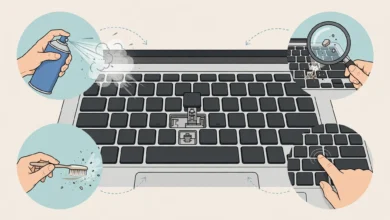
Test Every Keyboard Key
A keyboard can look perfectly clean while still having faulty keys.
Open Notepad and press every key individually.
Pay particular attention to:
- Enter
- Space
- Backspace
- Shift
- Ctrl
- function keys
- arrow keys
Also check whether any key:
- types twice
- works intermittently
- feels unusually hard
- remains stuck
- produces the wrong character
If the laptop has keyboard backlighting, test that too.
Typing a full paragraph is often more useful than pressing a few keys quickly because intermittent keyboard problems may only appear during normal typing.
Test the Touchpad and Pointing Devices
Move the cursor around the entire screen using the touchpad.
Check:
- left click
- right click
- scrolling
- two-finger gestures
- drag and drop
- physical touchpad buttons, if present
Some ThinkPad models also include TrackPoint. Test it separately if you plan to use it.
Cursor jumping, random clicks or dead areas on the touchpad may indicate wear or damage.
Check Every Port Individually
Never assume a port works because it looks clean.
Bring a USB flash drive if possible and test every USB port.
Also test relevant ports such as:
- USB-A
- USB-C
- HDMI
- DisplayPort
- Ethernet
- headphone jack
- SD card reader
- charging port
For USB-C laptops, confirm whether the USB-C port supports charging, video output, data transfer or only some of these functions.
A physically damaged port may still appear normal from the outside.
Test Wi-Fi, Bluetooth, Camera and Audio
Connect the laptop to Wi-Fi and browse normally.
Check whether the connection remains stable.
Then test Bluetooth using earphones, a phone or another device if available.
Open the camera application and test:
- webcam
- microphone
- speakers
A faulty microphone or webcam often goes unnoticed until the buyer attends the first online class or video meeting.
Plug headphones into the audio jack as well.
Look for Signs of Previous Repair
Previous repairs do not automatically make a laptop bad, but buyers should know what they are purchasing.
Inspect the bottom of the laptop carefully.
Possible warning signs include:
- damaged screw heads
- missing screws
- uneven gaps between panels
- broken clips
- unusual adhesive
- badly fitted covers
- mismatched components
- visible heat marks
If you are comfortable opening the bottom cover, inspect the internal condition.
Look for signs of liquid exposure, corrosion, excessive dust and motherboard repair.
Board-level repair can be difficult for an ordinary buyer to identify, so this is one area where seller transparency becomes particularly important.
Ask directly whether the motherboard has ever been repaired.
Check Hinges and Physical Condition
Open and close the lid slowly.
The movement should feel controlled.
Look for:
- cracked hinge mounts
- loose hinges
- unusual clicking sounds
- display movement while typing
- separated plastic around the hinge area
Then inspect the body.
Used laptops naturally develop scratches and signs of use, but cosmetic wear should be distinguished from structural damage.
Check the:
- palm rest
- bottom cover
- screen bezel
- corners
- rubber feet
- keyboard deck
A small scratch usually has little effect on performance. A damaged hinge or cracked chassis can become a much bigger problem.
Test Cooling and Performance Under Load
A laptop that performs well for two minutes may behave very differently after twenty minutes.
Run several applications together.
For example:
- open multiple browser tabs
- play a high-resolution video
- open Office applications
- transfer a file
- run a basic benchmark or stress test if available
Listen to the fan.
Watch for:
- excessive heat
- freezing
- random restarts
- sudden shutdowns
- graphical glitches
- unusually loud fan noise
- major performance drops
Used laptops with cooling problems may appear perfectly normal when first switched on.
Heat-related problems often become visible only after the machine has been working for some time.
Check BIOS and Security Locks
Restart the laptop and enter the BIOS or UEFI settings.
Confirm that the machine is not protected by an unknown BIOS password.
Corporate laptops can sometimes retain management or security settings from previous organizations.
You should also verify:
- serial number
- service tag
- processor
- RAM
- storage
- boot settings
A BIOS password you do not control can become a serious inconvenience later.
Do Not Treat Cosmetic Grade as a Technical Guarantee
Terms such as A grade, A+ grade and B grade are widely used in the used device market.
Buyers should understand what these grades describe.
In many cases, grading mainly reflects cosmetic condition.
A laptop may look extremely clean while still having:
- weak battery health
- previous repair history
- poor SSD health
- faulty ports
- cooling issues
Likewise, a laptop with minor scratches may have excellent internal condition.
Treat cosmetic grade as one part of the evaluation, not the final decision.
Confirm the Checking Period or Warranty Before Paying
Before making payment, ask the seller what happens if you discover a fault later.
Important questions include:
- Is there a checking period?
- How long is it?
- Which faults are covered?
- Are battery issues included?
- What happens if the laptop does not match the advertised specifications?
- Is replacement offered?
- Is a refund possible?
- How should a problem be reported?
Do not wait until after the purchase to ask these questions.
Written terms are much better than verbal promises.
Verify the Seller
Seller verification is particularly important when buying online.
Check whether the business provides:
- a real business address
- working phone number
- recent customer reviews
- clear product photographs
- proper specifications
- checking or return terms
- an invoice or purchase record
Ask for current photographs or a video of the actual laptop if you are buying remotely.
Do not rely only on generic images copied from the internet.
Businesses that regularly sell used laptops should be able to explain their testing process clearly. For example, buyers can review how Pakistani retailer LapBazar.pk presents its used-laptop range and purchasing information when comparing seller transparency.
Be Careful With Deals That Are Far Below Market Price
A very low price can be attractive, but it should make you inspect the laptop more carefully rather than buy faster.
A heavily discounted laptop may have:
- damaged battery
- replaced display
- repaired motherboard
- missing charger
- faulty keyboard
- damaged body
- BIOS lock
- storage problems
There are genuine bargains in the used market, but price should make sense relative to the model, generation, condition and configuration.
Compare several listings before making a decision.
A Practical 15-Minute Used Laptop Test
If you have limited time in a shop, use this order:
- Confirm model and processor generation.
- Check RAM and SSD capacity.
- Inspect the body and hinges.
- Test the display.
- Type using every keyboard section.
- Test touchpad and buttons.
- Connect Wi-Fi.
- Test camera, microphone and speakers.
- Plug something into every available port.
- Disconnect the charger and observe the battery.
- Check SSD health.
- Run the laptop under load for several minutes.
- Restart and check the BIOS.
- Confirm serial number.
- Ask for writing checking and warranty conditions.
Such an approach will not reveal all the defects that might occur in the future, but it decreases the risk of buying a laptop that clearly has a problem that the seller has not noticed.
Conclusion
Purchasing a secondhand laptop in Pakistan may be a good choice, as it will allow you to acquire a device with better parameters than those of a new one.
The main point is that you need to evaluate a particular laptop, not its model only. Take enough time to test the laptop before paying. Ask the seller direct questions. Confirm the return or checking terms in advance. If something feels inconsistent between the advertised specifications and the machine in front of you, verify it before making the purchase.
A clean exterior is useful, but a stable, properly tested laptop is far more important.
Final Thoughts
Purchasing a used laptop in Pakistan could be a prudent decision to acquire improved specs or business-class laptops without having to pay the premium cost of a brand new one.
What is most important is that you evaluate the laptop as an entity rather than its name.
Processor generation, RAM and SSD specs are important but so are the battery, display, keyboard, ports, cooling, the physical state of the laptop, and its service record.
Spend sufficient time testing the laptop before you decide to make payment. Pose questions directly to the seller. Ensure that your refund or testing rights are clear beforehand. In case you notice inconsistency between the advertised specs and the actual laptop, verify that first.
A good exterior may help, but a stable and properly tested laptop is more valuable.
Safdar Munir represents LapBazar.pk, a Rawalpindi-based used laptop and tablet retailer. He contributes practical buying advice based on common questions Pakistani customers ask when comparing used laptops, specifications and condition.