How to Check If a Used Laptop Is in Good Condition Before Buying
Used laptop checklist with 15 practical tests for battery, screen, storage, and ownership, plus real fraud cases so you buy a sound machine with confidence.
Used Laptop Checklist: 15 Essential Checks Before Buying to Avoid a Costly Mistake
Introduction
A good used laptop checklist is the difference between a great deal and an expensive paperweight. Buying second hand can get you a business-grade ThinkPad, Latitude, or MacBook for a fraction of its original price, and plenty of used laptops still have years of life left in them. The catch is that you usually get one chance to inspect the machine, often in a few minutes, with a seller waiting.
Most problems with used laptops are not obvious. A battery can look fine until it dies after 40 minutes. A screen can hide a dead pixel in one corner. A hard drive can be close to failure, and RAM or storage can be swapped for smaller parts. Then there are the problems no hardware test will catch: a laptop that was stolen, one that is still locked to the previous owner’s account, or one that came into the country without duty paid.
This guide gives you 15 checks in the order you will actually do them, from researching the listing to testing the hardware and confirming ownership. Most need only a USB drive and a few free tools.
We also look at real cases where buyers lost money: sellers who took payment for computers and never delivered, large seizures of smuggled laptops, and studies showing how often personal data is left behind on secondhand drives. Each case points to a specific check that would have protected the buyer.
Used Laptop Checklist Part 1: Before You Meet the Seller
The first three checks happen before you see the laptop. They filter out bad deals and scams early, which saves you time and risk.
Check 1: Research the exact model
Ask for the full model number, not just “Dell i7” or “HP gaming laptop.” With the exact model, you can look up:
- The original specs, so you know what processor, RAM, storage, and screen it should have
- Common faults for that model, such as weak hinges or failing batteries
- Whether RAM and storage are upgradeable or soldered
- Independent reviews of performance and build quality
This also tells you whether the seller’s description is accurate. A listing that claims specs the model was never sold with is a warning sign.
Check 2: Sanity-check the price
Compare the asking price with several other listings for the same model and similar condition. A price slightly below market is normal for a quick sale. A price far below everyone else usually means something is wrong: hidden damage, a stolen device, smuggled stock, or a seller who does not plan to deliver at all.
Check 3: Vet the seller
Before you commit, find out who you are dealing with:

- Shops: check for a physical address, reviews, and a written return or checking warranty
- Individuals: check their marketplace history and ratings, and ask why they are selling
- Social media sellers: be extra careful, since accounts can be created and deleted in minutes
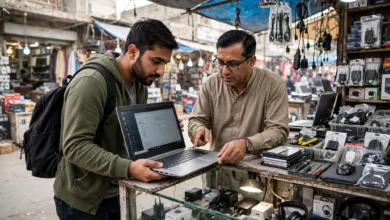
Ask for the original receipt, box, and charger up front. Honest sellers usually have at least some of these. Also ask if you can test the laptop properly, including plugging in a USB drive. A seller who refuses any testing is telling you something.
The golden rule: never pay in advance for a laptop you have not seen and tested. Several of the real cases later in this article started exactly that way.
Used Laptop Checklist Part 2: Physical Inspection
Before you turn the laptop on, spend a few minutes looking at it closely, in good light. Physical damage often explains problems that show up later.
Check 4: Body, hinges, and screws
- Case: look for cracks, dents, and bent corners, especially near the hinges and ports. A dent often means the laptop was dropped.
- Hinges: open and close the lid several times. It should move smoothly and hold its position at any angle. Loose or creaking hinges are expensive to fix on many models.
- Screws: check the bottom panel. Missing, stripped, or mismatched screws mean the laptop has been opened, possibly to swap parts.
- Warranty stickers and seals: broken seals are not always a problem, but ask why it was opened.
- Smell and residue: a burnt smell or sticky residue around the keyboard can point to overheating or a liquid spill.
Check 5: Keyboard and touchpad
Type a full sentence and press every key at least once. Open Notepad or use an online keyboard tester so you can see that each key registers. Check that the backlight works if the model has one. Then test the touchpad: move the cursor across the full surface, click, right-click, and try scrolling and gestures. Shiny, worn keys tell you the laptop has been used heavily, which is useful when judging the price.
Check 6: Screen condition
Before testing for dead pixels, simply look at the screen when it is off and on:
- Scratches, pressure marks, or keyboard imprints on the panel
- Yellow or dark patches along the edges, called backlight bleed
- Flickering when you move the lid, which can mean a damaged display cable
- Dim or uneven brightness
We cover the full dead pixel test in the next section.
Check 7: Charger and battery swelling
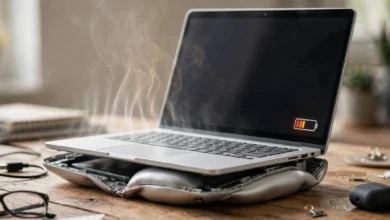
Check that the charger is the right wattage for the model, ideally original, and not frayed or taped. A cheap replacement charger is not a dealbreaker, but it should be reflected in the price. Also look at the bottom of the laptop and the gap around the touchpad. A bulging case or a touchpad that sits higher than normal can mean a swollen battery, which is a safety risk and should be replaced immediately.
Used Laptop Checklist Part 3: Hardware and Software Tests
Now turn it on. Ideally, bring a USB drive with portable versions of a few free tools so you do not need to install anything. Allow at least 20 to 30 minutes for these tests.
Check 8: Verify the real specs
Never rely on stickers or the listing. Check what is actually inside:
- Windows: open Settings > System > About for the processor and RAM, and Device Manager for the graphics card. A free tool like HWiNFO or CPU-Z gives full details, including RAM speed and storage model.
- Mac: open the Apple menu > About This Mac, then System Information for full details.
Compare everything with the specs you researched in Check 1. Smaller RAM, a cheaper SSD, or a different GPU than advertised is a common trick with used laptops.
Check 9: Battery health
The battery is the part most likely to be worn out, and replacements can cost a lot.
- Windows: open Command Prompt and run
powercfg /batteryreport. It creates a report showing the battery’s design capacity and its current full charge capacity. If the full charge capacity is below about 70% of the design capacity, expect noticeably shorter battery life and factor in a replacement. - Mac: hold the Option key and open System Information, then check Power for the cycle count and condition. Compare the cycle count with Apple’s rating for that model.
Also unplug the charger and use the laptop for a few minutes to check that it does not shut down suddenly or drop percentage quickly.
Check 10: Storage health
A failing drive can lose all your files without warning. Run CrystalDiskInfo on Windows to see the drive’s health status, power-on hours, and for SSDs, the percentage of life used. A “Caution” or “Bad” status is a reason to walk away or negotiate a replacement. On Macs, Disk Utility’s First Aid gives a basic check.
Check 11: Display, ports, and everything else
Run a dead pixel test by opening full-screen pages of solid red, green, blue, white, and black. Many free websites do this. Stuck or dead pixels stand out clearly on solid colors.
Then test every function you will use:
- Every USB port, using your USB drive or a mouse
- HDMI or USB-C video output, if you can connect to a display
- Headphone jack, speakers, and microphone
- Webcam
- Wi-Fi and Bluetooth, by connecting to a hotspot from your phone
- Card reader, if it has one
- Charging port, wiggling the cable gently to check for a loose connection
Check 12: Stress test and temperatures
Many faults only show up under load. Run a CPU benchmark such as Cinebench for 10 minutes, and play a video or game if it is a gaming laptop. Watch temperatures with HWiNFO.
- Sustained CPU temperatures in the mid 90s °C or higher, or sudden shutdowns, suggest clogged fans, dried thermal paste, or a cooling fault
- Loud grinding or rattling fans need replacement soon
- Crashes, blue screens, or graphical glitches under load are serious red flags
A laptop that passes a short stress test is far less likely to surprise you a week later.
Used Laptop Checklist Part 4: Ownership, Legal, and Security Checks
A laptop can pass every hardware test and still be a bad buy. These checks protect you from losing the laptop, your money, or your data, and the real cases below show why each one matters.
Check 13: Confirm ownership and that it is unlocked
- Serial number: compare the serial on the bottom of the laptop, in the BIOS or system information, and on any box or receipt. They should all match.
- Warranty lookup: enter the serial on the manufacturer’s warranty website. It shows the exact model, original configuration, and sometimes the country of sale. A mismatch with the seller’s story is a red flag.
- Account locks: on a Mac, make sure the seller has signed out of their Apple ID and turned off Find My, so Activation Lock is off. On Windows, check that you can create your own account and that the laptop is not tied to the seller’s Microsoft account.
- BIOS password: restart and enter the BIOS setup. A BIOS or supervisor password the seller cannot remove can lock you out of key settings and is common on stolen business laptops.
- Company management: ex-corporate laptops can still be enrolled in a company’s remote management system. Watch for messages like “This device is managed by your organization” during setup. A managed laptop can be locked or wiped remotely by its original owner.
Real case: computers paid for and never delivered
In 1998, the US Federal Trade Commission went to court against a Florida seller, Craig Lee Hare, who listed new and used computers on online auction sites. According to the FTC’s press release on the case, buyers paid as much as $1,450 per computer and received neither a computer nor a refund. A judge froze his assets, and he was later permanently barred from selling online. In 2002, the FTC charged another seller, Brian Silverman, who sold laptops through eBay and other auction sites, accepted only cash, checks, or money orders, and in many cases failed to deliver or refund.
The lesson: physical inspection and payment only on collection would have stopped both scams cold.
Real case: smuggled laptops on the open market
In Pakistan, the FBR’s Directorate of Intelligence and Investigation (Customs) in Karachi seized 3,600 smuggled laptops, along with other goods, from a compound in Malir after drivers could not show documents for legal import. Details are in the FBR press release on the seizure. Customs teams also routinely seize laptops from passenger luggage at Karachi, Lahore, and Islamabad airports.
The lesson: smuggled and stolen laptops look exactly like legitimate ones. They can be confiscated, and they rarely come with usable local warranty. A receipt, matching serial numbers, and a seller with a traceable identity are your best protection.
Check 14: Make sure the old owner’s data is gone, and wipe it anyway
Used computers often arrive with the previous owner’s files still on them, or recoverable with free tools. A UK Information Commissioner’s Office study found that about 11% of secondhand hard drives it examined contained recoverable personal information. A later study by the University of Hertfordshire, commissioned by Comparitech, found that 59% of used hard drives bought from online marketplaces and shops were not properly wiped. You can read the details in Comparitech’s report on data left on used hard drives.
This matters for you in two ways. Ethically, if you find someone else’s files, do not open or keep them; ask the seller to wipe the laptop. Practically, leftover software can include malware, keyloggers, or remote access tools.
What to do:
- Ask the seller to reset the laptop in front of you, or confirm it has been reset
- After buying, do a full clean install of Windows or macOS from the official source
- Change any passwords you enter before the reinstall
- Never install pirated software to “save money” on a used laptop, since cracked programs are a common way to spread malware
Used Laptop Checklist Part 5: Payment, Paperwork, and After You Buy
Check 15: Pay safely and get it in writing
Once the laptop passes your tests, close the deal in a way that protects you:
- Pay on collection, in person, after testing. Avoid advance bank transfers, gift cards, or crypto to people you do not know.
- Use protected payment when buying online, such as a platform’s built-in checkout or a credit card.
- Get a written receipt with the date, price, model, serial number, the seller’s name and contact details, and any warranty promised.
- Ask for a checking warranty. Reputable shops usually offer a few days to a month to return or exchange a used laptop if a fault appears.
- Meet in a safe, public place, ideally somewhere with power outlets so you can run your tests, or at the seller’s shop.
Negotiate based on what you found
Your test results are leverage. A worn battery, a missing original charger, cosmetic damage, or a drive with high usage are all fair reasons to ask for a lower price. Be honest and specific: “The battery is at 62% of its design capacity, so I’ll need to replace it” is more persuasive than “Can you do better?”
What to do in the first week
- Do a clean install of the operating system from the official source
- Update the BIOS, drivers, and system software
- Run the stress test again at home for a longer period
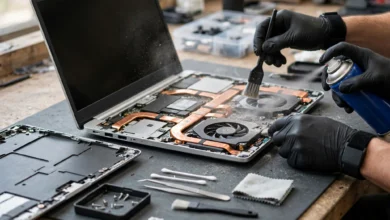
- Clean the fans and vents, or have a technician replace the thermal paste on older machines
- Register the laptop in your name with the manufacturer if possible
- Set up backups from day one
Printable used laptop checklist
- Exact model researched; specs, common faults, and fair price known
- Seller vetted; receipt, box, or proof of purchase available
- Body, hinges, screws, and seals inspected
- Every key and the touchpad tested
- Screen checked for scratches, bleed, flicker, and dead pixels
- Charger correct and battery not swollen
- Real specs verified with HWiNFO or system information
- Battery health checked (report or cycle count)
- Storage health checked with CrystalDiskInfo or Disk Utility
- All ports, camera, speakers, mic, Wi-Fi, and Bluetooth tested
- Stress test passed without crashes or overheating
- Serial numbers match and warranty lookup is consistent
- No Activation Lock, BIOS password, or company management
- Laptop reset and previous owner’s data removed
- Paid safely, with a written receipt and checking warranty
Conclusion
A thorough used laptop checklist turns a risky purchase into a smart one: research the exact model and a fair price, vet the seller, inspect the body, hinges, keyboard, screen, and charger, then verify the real specs and test battery health, storage health, every port, and performance under load before confirming that serial numbers match, the laptop is free of Activation Lock, BIOS passwords, and company management, and the previous owner’s data is gone. Real cases like the FTC actions against sellers who took payment for computers and never delivered, the FBR’s seizure of 3,600 smuggled laptops in Karachi, and studies showing that many secondhand drives still hold their owners’ personal files all point to the same habits, so never pay before you test, insist on a written receipt and a checking warranty, reinstall the operating system yourself, and walk away from any deal that feels rushed or too good to be true.