How to Choose Safe Browser Extensions and Avoid Malware
Safe browser extensions start with smart choices. Check permissions, developers, and updates, and see cases of hijacked add-ons that spied on users.
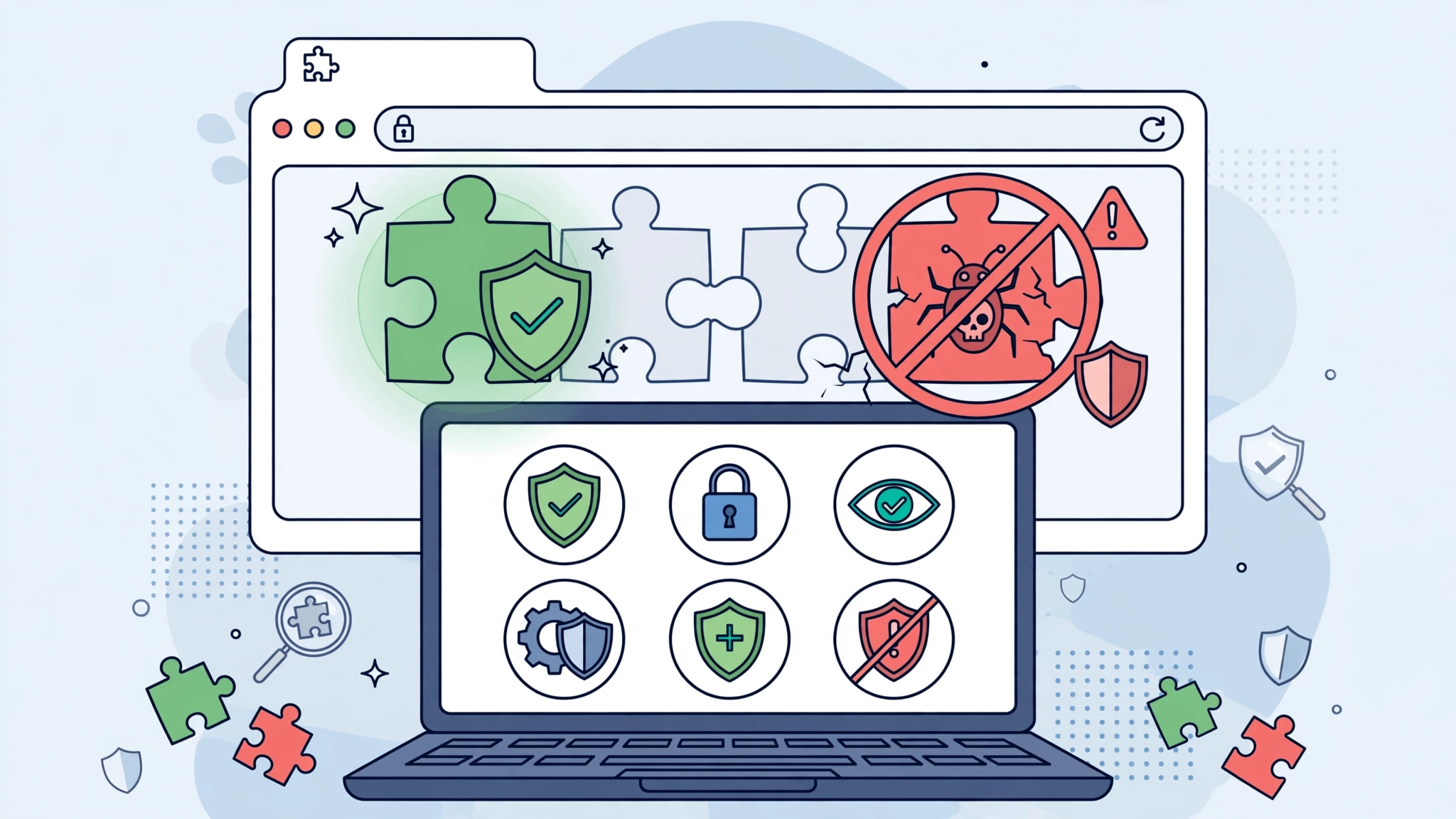
Safe Browser Extensions: 10 Proven Rules to Choose Wisely and Avoid Malware in 2026
Introduction
Safe browser extensions can make the web faster, cleaner, and more useful. Ad blockers, password managers, grammar checkers, translators, and tab managers save time every day. But an extension also runs inside the place where you check email, do online banking, log in to work tools, and shop. Give the wrong add-on too much access, and it can read pages, capture what you type, steal login sessions, or quietly track every site you visit.
This is not a theoretical risk. Popular extensions have been bought by new owners and turned into spyware. Legitimate developers have had their accounts hijacked, and malicious updates were pushed automatically to hundreds of thousands of users overnight. In one campaign at the end of 2024, security researchers linked at least 35 compromised Chrome extensions to roughly 2.6 million users. Most of those people did nothing wrong except trust an app they already had.
The good news is that a few simple habits remove most of the risk. Checking who made an extension, what permissions it asks for, how it makes money, and how it has changed over time tells you a lot. Regular audits catch the rest.
This guide explains how browser extensions work, ten practical rules for choosing them, real cases where add-ons were sold, hijacked, or used to spy on users, and step-by-step instructions to review and remove risky extensions in Chrome, Edge, Firefox, and Safari. The aim is simple: keep the tools that help you, and drop the ones that put your data and accounts at risk.
How Browser Extensions Work and Why Safe Browser Extensions Matter
A browser extension is a small program that adds features to Chrome, Edge, Firefox, Safari, Brave, Opera, and other browsers. It can change how pages look, add buttons, fill forms, block content, or connect to an outside service.
Permissions Decide What an Extension Can Do
When you install an extension, the browser shows the permissions it requests. These are the keys to your browsing:
- “Read and change all your data on all websites” lets the extension see and modify every page you visit, including email, banking, and work apps. This is the most powerful and most abused permission.
- Access to specific sites limits the extension to named domains, which is much safer.
- Read your browsing history reveals every site you have visited.
- Manage downloads, clipboard access, and cookies can expose files, copied passwords, and login sessions.
- Communicate with cooperating native applications lets the extension talk to software installed on your computer.
Some extensions genuinely need broad access. An ad blocker, password manager, or grammar checker has to work on every site. The question is whether you trust the developer enough to give it that access.
Automatic Updates Are a Double-Edged Sword
Extensions update silently in the background. That is good for security fixes, but it also means a trusted extension can change behavior overnight if the developer’s account is hijacked or the extension is sold. You approved the developer once, and every future update inherits that trust.


Why Extensions Become Malware
Most malicious extensions fall into a few patterns:
- Built to be malicious: fake versions of popular tools, often with copied names and logos.
- Sold to a new owner: a popular free extension is bought, and the new owner adds tracking, ads, or data theft.
- Hijacked developer account: attackers phish a developer and push a malicious update.
- Data monetization: the extension works as promised but quietly sells browsing data.
- Affiliate or ad abuse: the extension changes links, inserts ads, or claims commissions without clear disclosure.
Manifest V3 and Store Reviews Help, but Do Not Eliminate Risk
Chrome’s move to Manifest V3 limits some risky behaviors, such as loading remote code, and browser stores review submissions. Still, reviews cannot catch everything, and many cases below passed review before being discovered.
10 Proven Rules to Choose Safe Browser Extensions
Use these rules every time you install something new, and when reviewing what you already have.
Rule 1: Install Only From Official Stores
Use the Chrome Web Store, Microsoft Edge Add-ons, Firefox Add-ons, or the Mac App Store for Safari. Avoid extensions offered as downloads on random websites, pop-ups, or “your browser needs this update” messages. Sideloaded extensions skip store checks and are a common malware route.
Rule 2: Check the Developer, Not Just the Name
Scammers copy names and logos of popular tools. Before installing:
- Confirm the developer name matches the official company or project.
- Look for a real website, privacy policy, and contact address.
- Prefer extensions linked from the official product website, such as a password manager’s own download page.
- Look for verification badges where the store offers them, while remembering that badges are not a guarantee.
Rule 3: Read the Permissions Carefully
Ask whether each permission makes sense for the feature. A color picker does not need your browsing history. A screenshot tool does not need to manage downloads and read every site all the time. If an extension asks for far more than its job requires, skip it.
Rule 4: Limit Site Access When You Can
Chrome and Edge let you change site access to On click or On specific sites instead of On all sites. Firefox and Safari offer similar controls. This one setting reduces damage if an extension ever turns bad.
Rule 5: Understand How It Makes Money
Good developers have to earn a living. Check whether the extension is paid, open source, supported by donations, or backed by a company. A free extension with millions of users and no clear business model may be making money from your data or traffic.
Rule 6: Read Recent Reviews, Not Just the Rating
Sort reviews by newest. A sudden wave of complaints about ads, redirects, new permissions, or a changed owner is a strong warning sign. Old five-star ratings can hide a recent problem.
Rule 7: Check Update History and Ownership Changes
Look at the last updated date and the developer name over time. An extension that has not been updated in years may break or contain old vulnerabilities. A sudden change of developer, especially for a popular free tool, deserves a closer look.
Rule 8: Prefer Fewer, Well-Known Extensions
Every extension adds risk. Keep only the ones you use regularly. Many features, like PDF viewing, translation, password saving, and basic tracking protection, are now built into modern browsers.
Rule 9: Be Extra Careful With Shopping, VPN, and AI Extensions
Coupon finders, free VPNs, and AI helper extensions often request broad access and have been involved in data collection or affiliate abuse. Choose established providers, and avoid unknown “AI assistant” add-ons that ask to read every page.
Rule 10: Separate Sensitive Browsing
Use a separate browser profile with no extensions, or only essential ones, for banking, government services, and work admin accounts. That way, even a compromised extension in your everyday profile cannot see your most sensitive sessions.
Reality Check: Extensions That Were Hijacked, Sold, or Used to Spy
These cases show how even popular and trusted add-ons have turned against their users. In most of them, people did nothing wrong except keep an extension they had installed long before.
The 2024 Chrome Extension Hijacking Campaign
On December 24, 2024, an employee at Cyberhaven, a data security company, fell for a phishing email that pretended to come from Chrome Web Store developer support. The attackers used that access to publish a malicious version of Cyberhaven’s Chrome extension, which had about 400,000 users. According to SOCRadar’s analysis, the malicious version was live for less than 24 hours on December 25 and 26 before a clean update replaced it.
Researchers then found the same technique had been used against many other developers. At least 35 extensions were compromised in the wider campaign, affecting an estimated 2.6 million users. Reports said the malicious code aimed to steal cookies, session tokens, and data from Facebook advertising accounts.
The lesson: a trusted developer can be hijacked. Limit site access, remove extensions you rarely use, and keep sensitive accounts in a separate browser profile.
The Great Suspender: Sold, Then Flagged as Malware
The Great Suspender was a popular open-source extension that put inactive tabs to sleep, with around two million users. Its original developer sold it in June 2020 to an unidentified buyer. New versions followed, and investigators found added code that could load and run remote scripts. Microsoft blocked it in Edge in November 2020, and in February 2021 Google removed it from the Chrome Web Store and disabled it for users, flagging it as malware, as Security Affairs reported.
The lesson: a change of ownership can turn a beloved tool into a risk. Watch for new developer names, new permissions, and sudden changes in behavior.
Ad Blockers That Stole Cookies
In 2020, two Chrome ad-blocking extensions, Nano Adblocker and Nano Defender, were sold to new developers. Users soon reported that updates were collecting data and abusing logged-in sessions, and Google removed both from the Chrome Web Store. It was a reminder that even privacy tools can be repurposed.
DataSpii: Extensions Leaking Browsing Data
In 2019, security researcher Sam Jadali documented a data leak he called DataSpii, in which several browser extensions collected browsing activity from millions of users. The data, which included links to private documents and internal company pages, ended up for sale through an analytics service. The affected extensions were removed after the findings were published.
The lesson: some extensions work exactly as advertised while quietly harvesting your data. Read privacy policies and be wary of free tools with no clear business model.
What These Cases Teach
- Extensions you installed years ago can change without warning.
- Popular and highly rated does not mean permanently safe.
- Ownership changes and new permissions are major warning signs.
- Limiting site access and using fewer extensions reduces damage when something goes wrong.
- Keep banking and work accounts in a profile with minimal or no extensions.
How to Audit Your Extensions and Keep Only Safe Browser Extensions
Set a reminder to review your extensions every few months. It takes about ten minutes.
Step-by-Step Extension Audit
- List everything installed. Open your browser’s extensions page and write down or screenshot what you see.
- Remove anything you do not recognize or have not used in the last month.
- Check each remaining extension’s developer and store page for ownership changes and recent reviews.
- Review permissions and site access. Switch broad extensions to “On click” or specific sites where possible.
- Check for duplicates. You rarely need two ad blockers or two grammar tools.
- Update your browser so you have the latest security fixes and store protections.
- Change passwords and sign out of sessions if you removed an extension that turned out to be malicious, starting with email, banking, and social media.
Chrome
- Go to chrome://extensions or Menu > Extensions > Manage Extensions.
- Click Details on any extension to see permissions and set Site access.
- Click Remove to uninstall.
- Check Settings > Privacy and security > Safety Check for warnings about harmful extensions.
Microsoft Edge
- Go to edge://extensions.
- Use Details to review permissions and site access.
- Click Remove to uninstall, and review any extensions Edge has turned off for safety.
Firefox
- Go to about:addons or Menu > Add-ons and themes.
- Open an add-on and check the Permissions tab.
- Click the three-dot menu and choose Remove.
- Prefer add-ons marked as Recommended by Mozilla when available.
Safari on Mac
- Open Safari > Settings > Extensions.
- Select an extension to see what it can access, and set website permissions.
- Uncheck to disable, or click Uninstall.
Warning Signs an Extension Has Gone Bad
- New ads, pop-ups, or redirects on sites that never had them.
- Your default search engine or homepage changes without your action.
- Unusual login alerts or logged-out sessions on social media and email.
- The extension suddenly asks for new permissions after an update.
- The browser shows a warning that an extension may be harmful or was turned off.
If you see these signs, remove the extension, clear cookies for important sites, change passwords, and enable two-factor authentication.
Extra Layers of Protection Against Extension Malware
Choosing safe browser extensions is the first layer. These habits add more protection:
- Turn on enhanced browser protection. Chrome’s Enhanced Safe Browsing and similar features in Edge and Firefox warn about risky sites, downloads, and extensions.
- Use two-factor authentication on email, banking, social media, and work accounts, ideally with an authenticator app or passkey. Stolen cookies can still be dangerous, but strong sign-in protections limit what attackers can do.
- Sign out of sensitive sites when you finish, and avoid staying logged in to banking on shared devices.
- Keep your operating system and security software updated.
- Use a password manager from a reputable company, installed from its official website or store link.
- Report suspicious extensions through the browser store’s report option so others are protected.
The UK National Cyber Security Centre’s guidance on securing your devices is a clear, practical reference for these everyday habits.
Safe Browser Extensions for Businesses and Families
For Businesses
Companies are a prime target, as the 2024 campaign against extension developers showed. IT teams should:
- Use browser management tools to allow only approved extensions.
- Block extensions that request broad access to all sites unless reviewed.
- Keep an inventory of extensions on company devices and review it regularly.
- Train staff to recognize phishing aimed at developer and admin accounts.
- Protect any company-published extensions with strong account security and multiple reviewers for releases.
For Families
- Use separate browser profiles for children, with only essential, well-known extensions.
- Disable the ability to install extensions on children’s profiles where your browser or parental controls allow it.
- Explain to children that “free game boosters,” “video downloaders,” and “skin unlockers” are common traps.
Ethical Responsibilities for Extension Developers
Developers hold a lot of trust. Ethical practice means:
- Request only the permissions you need, and explain why in the store listing.
- Never sell an extension without telling users, and think carefully about who you sell it to. A sale to an unknown buyer can turn your users into victims.
- Be transparent about data collection and monetization, and get clear consent before collecting browsing data.
- Protect your developer account with strong two-factor authentication, and be suspicious of urgent policy emails asking you to grant app access.
- Respond quickly to security reports and tell users what happened if something goes wrong.
FAQs About Safe Browser Extensions
How do I know if a browser extension is safe?
Check that it comes from an official store, the developer is a known company or project, the permissions match its purpose, recent reviews are positive, and it has a clear privacy policy and business model.
Can browser extensions steal passwords?
Yes. An extension with access to all websites can read what appears on pages and, in some cases, capture form input or session cookies. That is why limiting site access and using a password manager from a trusted company matter.
Are extensions from the Chrome Web Store always safe?
No. Store reviews catch many problems, but extensions have been compromised after approval, sold to new owners, or hijacked through developer accounts.
How many browser extensions should I have?
As few as possible. Keep only extensions you use regularly and remove the rest.
What should I do if I installed a malicious extension?
Remove it immediately, clear cookies for important sites, change passwords starting with email and banking, sign out of other sessions, turn on two-factor authentication, and run a security scan.
Conclusion
Safe browser extensions come down to a few consistent habits: install only from official stores, verify the developer, read permissions carefully, limit site access, understand how the extension makes money, check recent reviews and ownership changes, keep the number of add-ons small, take extra care with shopping, VPN, and AI extensions, and keep banking and work accounts in a separate profile. The cases covered here, from the 2024 phishing campaign that hijacked at least 35 Chrome extensions used by about 2.6 million people and The Great Suspender being sold and flagged as malware to the Nano ad blockers and the DataSpii leak, show that even trusted, popular tools can turn against their users without warning. Audit your extensions every few months, remove anything you do not need, protect your accounts with two-factor authentication, and treat every new permission as a question worth asking, and you can keep the convenience of extensions without handing over your data.