Best Apps to Edit Photos Like a Professional for Free
Free photo editing apps can deliver pro results. Compare 10 legal tools, a simple editing workflow, and the piracy and fake photo cases to avoid.
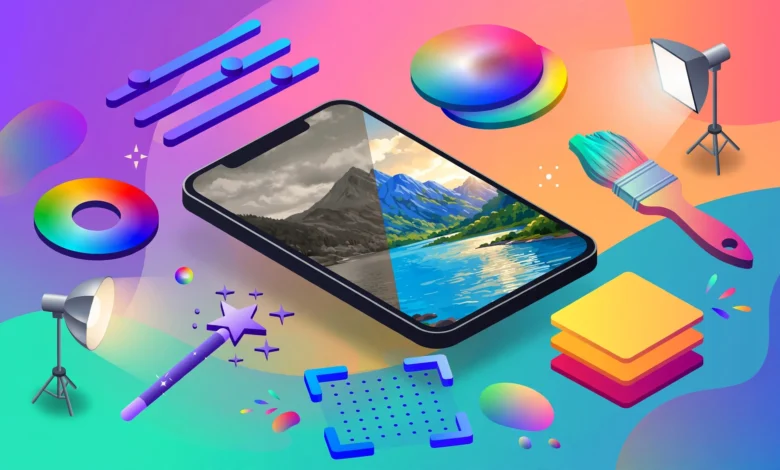
Free Photo Editing Apps: 10 Best Tools to Edit Like a Pro (Ultimate 2026 Guide)
Introduction
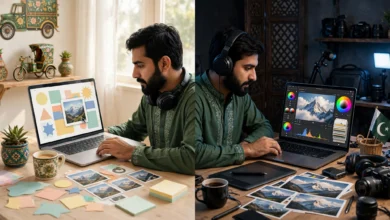
Free photo editing apps have reached a point where the gap between “free” and “professional” is mostly about skill, not software. A decade ago, serious editing meant paying for Photoshop or Lightroom, or downloading a cracked copy and hoping nothing went wrong. Today, tools like Snapseed, GIMP, Darktable, and Photopea handle RAW files, layers, masks, and color grading without costing anything.
That shift matters, because the old shortcuts came with real problems. Cracked editing software has long been a favorite way to spread malware. Stock photo watermarks get stripped and reused in ways that have ended up in court. And heavily doctored photos have cost photographers their careers and pushed some countries to pass laws on retouched images.
This guide covers the best free photo editing apps for phones, desktops, and browsers, what each one does well, and where it falls short. You will also get a simple workflow that professionals actually use, plus a clear look at the ethical and legal lines around photo editing: what is fine, what crosses into deception, and what can get you sued.
Whether you are editing product shots for a small business, building a photography portfolio, or just want your phone photos to look sharper, you do not need pirated software to get professional results. You need the right free tool, a bit of practice, and a sense of where honest editing ends.
What Makes Free Photo Editing Apps Feel Professional?
A lot of apps call themselves “pro” because they have a hundred filters. Filters are not what separates professional editing from casual editing. Control is. Here are the features that actually matter when choosing a professional photo editor.
RAW File Support
RAW files keep far more detail than JPEGs, especially in shadows and highlights. If you shoot on a DSLR, mirrorless camera, or a phone with a RAW or ProRAW mode, an editor that opens RAW gives you much more room to fix exposure and color.
Non-Destructive Editing
Non-destructive editing means your original file is never overwritten. Every change is stored as an instruction you can undo or adjust later. Lightroom, Snapseed, and Darktable all work this way, which is a big reason professionals trust them.
Selective Adjustments and Masks
Professional edits are rarely applied to the whole photo. You brighten a face, darken a sky, or sharpen just the eyes. Look for brushes, gradients, and masks, including AI subject or sky selection.


Layers and Retouching Tools
For composites, product cleanup, or removing distractions, you need layers, healing tools, and clone stamps. This is where GIMP and Photopea stand out among free photo editors.
Color Control and Export Options
Curves, HSL sliders, and white balance control are the core of good color work. On the export side, check that the app saves at full resolution without forcing a watermark, and that it supports formats like JPEG, PNG, and TIFF.
The 10 Best Free Photo Editing Apps to Edit Like a Pro
The list is split by where you edit. The first four are free photo editing apps for Android and iPhone. The last six run on a computer or in a browser.
Best Free Photo Editing Apps for Mobile
1. Snapseed: Best Completely Free Mobile Editor
Snapseed is made by Google and has stayed free with no ads and no watermark for years. It opens RAW files, edits non-destructively, and includes a selective tool that lets you tap a spot and adjust just that area.
Standout tools: Curves, Healing, Selective, Brush, Perspective, and a “Stacks” panel that lets you revisit any earlier edit.
Best for: anyone who wants serious mobile editing without paying anything at all.
Limitation: no layers in the traditional sense, so complex composites are harder.
2. Adobe Lightroom Mobile: Best for Color and Presets
The free version of Lightroom Mobile gives you the same core sliders professionals use on desktop: exposure, contrast, highlights, shadows, curves, HSL color mixing, and white balance. Presets you create can be reused across hundreds of photos, which is how many Instagram photographers get a consistent look.
Best for: consistent color grading and editing batches of photos.
Limitation: some advanced tools, such as certain AI masks and healing features, sit behind a paid subscription. Check what is free in your version before you rely on a feature.
3. Adobe Photoshop Express: Best for Quick Fixes
Photoshop Express is a lighter, mobile-focused app from Adobe. It handles blemish removal, background cleanup, collages, and one-tap fixes well.
Best for: quick retouching on social media photos and product shots.
Limitation: like Lightroom, the most powerful tools are often premium.
4. VSCO: Best for Film-Style Looks
VSCO built its reputation on subtle, film-inspired presets. The free tier includes a smaller set of presets plus standard adjustment tools.
Best for: creators who want a natural, understated aesthetic.
Limitation: most of the presets and advanced tools are in the paid membership.
Best Free Photo Editing Software for Desktop and Browser
5. GIMP: Best Free Photoshop Alternative
GIMP is open-source software that has been around since the 1990s. It offers layers, masks, healing and clone tools, curves, and support for plugins. Version 3, released in 2025, brought non-destructive filters and a more modern interface.
Best for: retouching, composites, and anyone who wants a free Photoshop alternative on Windows, Mac, or Linux.
Limitation: the interface takes time to learn, especially if you are used to Adobe shortcuts.
6. Darktable: Best Free Lightroom Alternative
Darktable is a free, open-source RAW editor and photo organizer. It handles RAW processing, masks, color grading, and batch editing, and it never touches your original files.
Best for: photographers who shoot RAW and want a Lightroom-style workflow without a subscription.
Limitation: a steep learning curve and many modules that can feel overwhelming at first.
7. RawTherapee: Best for Detailed RAW Processing
RawTherapee is another open-source RAW editor, known for strong demosaicing, noise reduction, and detailed color control.
Best for: photographers who want maximum quality from each RAW file.
Limitation: it is a processor, not a full photo library manager.
8. Photopea: Best Browser-Based Editor
Photopea runs entirely in your browser and looks and works a lot like Photoshop. It opens PSD files, supports layers and adjustment layers, and needs no installation. The free version is supported by ads.
Best for: quick layered edits on any computer, including school or office machines where you cannot install software.
Limitation: very large files can slow down in the browser.
9. Canva: Best for Social Media Graphics
Canva is more of a design tool than a pure photo editor, but its free plan includes filters, adjustments, cropping, and templates for posts, thumbnails, and banners.
Best for: small businesses and creators who need edited photos inside finished designs.
Limitation: fine retouching tools are limited, and features like one-click background removal are on the paid plan.
10. Pixlr: Best Lightweight Online Editor
Pixlr offers browser-based editors with layers, AI tools, and quick fixes. The free version has daily limits on some AI features and shows ads.
Best for: fast edits when you do not need a full desktop program.
Quick Comparison of the Best Free Photo Editing Apps
| App | Platform | RAW support | Layers | Best for |
|---|---|---|---|---|
| Snapseed | Android, iOS | Yes | No | Fully free mobile editing |
| Lightroom Mobile | Android, iOS | Yes | No | Color grading and presets |
| Photoshop Express | Android, iOS | Limited | Limited | Quick retouching |
| VSCO | Android, iOS | Yes | No | Film-style looks |
| GIMP | Windows, Mac, Linux | Via plugins | Yes | Photoshop-style retouching |
| Darktable | Windows, Mac, Linux | Yes | Masks | Lightroom-style RAW workflow |
| RawTherapee | Windows, Mac, Linux | Yes | No | Detailed RAW processing |
| Photopea | Browser | Yes | Yes | Editing anywhere |
| Canva | Browser, mobile | No | Yes | Social media designs |
| Pixlr | Browser | Limited | Yes | Quick online edits |
Reality Check: Illegal and Unethical Photo Editing Shortcuts
With this many free photo editing apps available, there is little reason to cut corners. Still, people do, and the past is full of examples of how it goes wrong. These cases fall into three groups: pirated software, misuse of other people’s images, and deceptive edits.
Cracked Photoshop and Lightroom
Searching for “Photoshop free download full version” is one of the most common ways people end up with malware. Cracked installers and “activators” are a favorite delivery method for password stealers, crypto miners, and ransomware, because users are told to switch off their antivirus before running them.
The risks are concrete:
- Saved browser passwords, banking logins, and social media accounts can be stolen.
- Client files on the same computer can be exposed, which is a serious problem if you edit for businesses.
- Using unlicensed software for commercial work is copyright infringement, and companies have faced audits and settlements over it.
The irony is that GIMP, Darktable, and Photopea now cover most of what people pirate Photoshop and Lightroom to do.
Removing Watermarks From Stock Photos
AI tools have made watermark removal almost effortless, and some apps even advertise it. Using those tools on photos you do not own is a different matter. In the United States, the DMCA makes it illegal to remove copyright management information, such as a watermark or photo credit, in order to hide infringement, with statutory damages that can reach $25,000 per violation on top of normal copyright damages.
Courts take this seriously. In Murphy v. Millennium Radio Group (2011), a US appeals court held that cropping a photographer’s credit off an image before posting it online could count as removing copyright management information. The photo itself was ordinary. The lawsuit was not.
If you want a stock image, license it or use properly licensed free sources like Unsplash or Pexels, and follow their terms.
Doctored News Photos
In 2006, Reuters cut ties with freelance photographer Adnan Hajj after it emerged that he had digitally added and darkened smoke in a photo of Beirut after an airstrike. Reuters pulled hundreds of his images from its archive. A few clicks with a clone tool ended a career and damaged trust in war coverage.
A more recent example: in March 2024, major photo agencies including AP and Reuters withdrew an official family photo released by Kensington Palace after spotting signs of manipulation. The Princess of Wales later said she had edited it herself. Nothing illegal happened, but the episode showed how quickly an undisclosed edit can turn into a global trust problem.
Undisclosed Body Retouching in Ads
Some countries now regulate this directly. Since October 2017, France has required commercial photos to carry the label “photographie retouchée” when a model’s body shape has been digitally made thinner or thicker. As Fieldfisher explains, breaking the rule can mean a fine of €37,500 or up to 30% of the advertising spend. Norway passed a similar disclosure rule for paid ads, including influencer posts, in 2022.
Fake and Non-Consensual Image Edits
The most serious misuse is editing real people into fake, sexual, or humiliating images. Many countries now treat this as a crime, and in the US, the federal TAKE IT DOWN Act of 2025 made publishing non-consensual intimate images, including AI-generated ones, a federal offense. No editing app, free or paid, makes that legal.
What These Cases Teach
- Pirated software can cost more than a subscription once malware gets involved.
- A watermark or credit line is legal information, not decoration.
- Editing for looks is normal. Editing to mislead is where trouble starts.
- Commercial images of people may need disclosure depending on the country.
- Consent comes first whenever a real person is in the photo.
How to Edit Photos Like a Professional Using Free Photo Editing Apps
The tool matters less than the order you work in. Most professional editors follow roughly the same sequence, whether they use Lightroom, Snapseed, or Darktable.
A Simple Pro Editing Workflow
- Start with the best file. Shoot in RAW if your camera or phone allows it, and pick the sharpest frame before editing.
- Crop and straighten. Fix tilted horizons and tighten the composition first, so later adjustments are based on the final frame.
- Set white balance. Get skin tones and neutral colors right before touching anything else.
- Adjust exposure and contrast. Use highlights, shadows, whites, and blacks to recover detail, then add contrast gently.
- Refine color. Use HSL or color mixing to tone down distracting colors and bring out the ones that matter.
- Make local adjustments. Brighten faces, darken skies, or add clarity to one subject using brushes or masks.
- Retouch carefully. Remove dust spots, temporary blemishes, and small distractions. Leave permanent features alone unless the person asks.
- Sharpen and reduce noise. Do this near the end and check at 100% zoom.
- Export for the destination. Use the right size and format for print, web, or social media, and keep your original files.
Common Mistakes That Make Edits Look Amateur
- Pushing saturation and clarity too far, which creates halos and plastic-looking skin.
- Using one heavy filter on every photo regardless of the lighting.
- Over-smoothing faces until pores and texture disappear.
- Forgetting to check edits on a different screen, especially a phone.
Ethical Photo Editing Rules Worth Following
Good editing improves a photo without lying about it. A few practical rules keep you on the right side of both ethics and the law:
- Own or license every image you edit for public or commercial use.
- Never remove watermarks or credits from images you do not own.
- Disclose significant retouching in ads where local law requires it, and consider doing so anyway for body edits.
- Do not alter news, documentary, or evidence photos beyond basic exposure and color correction.
- Get consent before editing and publishing photos of identifiable people, especially for sensitive edits.
- Label AI-generated or heavily composited images so viewers know what they are looking at.
If you edit for clients, you can also check the National Press Photographers Association code of ethics, which sets a clear standard for what counts as honest editing in journalism.
FAQs About Free Photo Editing Apps
What is the best free photo editing app with no watermark?
Snapseed is fully free on mobile with no watermark and no ads. On desktop, GIMP and Darktable are free and open source with no watermark.
Can free photo editing apps really match Photoshop?
For most photography work, yes. GIMP and Photopea handle layers and retouching, while Darktable and RawTherapee cover RAW editing. Photoshop still leads in some advanced AI and professional print features.
Is it illegal to use cracked Photoshop?
Using unlicensed software is copyright infringement in most countries, and cracked installers are a common source of malware.
Is it legal to remove a watermark with an app?
Only on images you own or have rights to. Removing watermarks or credits from other people’s photos can break copyright law, including the DMCA in the US.
Do I need to disclose that a photo is edited?
Normal edits like exposure and color usually do not need disclosure. Body-altering retouching in ads may legally require a label in places like France and Norway, and news photos should never be materially altered.
Conclusion
Free photo editing apps like Snapseed, Lightroom Mobile, Photoshop Express, VSCO, GIMP, Darktable, RawTherapee, Photopea, Canva, and Pixlr now give anyone the tools to edit photos at a professional level, as long as they learn the basics of RAW editing, non-destructive adjustments, local edits, and careful retouching. The cases covered here, from malware hidden in cracked Photoshop downloads and lawsuits over removed photo credits to Reuters dropping a photographer over a doctored war image and France fining undisclosed body retouching, all point to the same lesson: the software is no longer the barrier, honesty is. Pick the free app that fits your device and goals, follow a simple workflow, respect other people’s images and the people in your photos, and your edits will look professional and stay on the right side of the law.