Top Signs Your Laptop Battery Needs Replacement
Laptop battery replacement signs explained: swelling, fast drain, and sudden shutdowns, plus real recall and counterfeit cases so you replace it safely.
Laptop Battery Replacement: 9 Warning Signs You Should Never Ignore
introduction
Laptop battery replacement is one of those jobs most people put off until the laptop dies in the middle of something important. That is understandable. Batteries wear out slowly, and the early signs are easy to blame on a busy day, a heavy app, or an old charger.
Every laptop battery is a consumable part. Lithium-ion cells lose capacity a little with every charge cycle, and heat speeds that up. After a few years of daily use, most batteries hold noticeably less charge than they did on day one. That alone is normal. What matters is knowing when wear has turned into a real problem, and when it has turned into a safety risk.
This guide covers nine warning signs, from shorter runtimes and sudden shutdowns to a swollen battery pushing up the touchpad. It also shows you how to check your battery’s health in a few minutes on Windows and Mac, so you can make the decision with data instead of guesswork.
There is a serious side to this topic too. Major laptop makers have recalled millions of batteries over fire risks, and customs agencies regularly seize counterfeit batteries that skip safety standards entirely. We look at real cases, what they mean for you, and how to choose a genuine replacement, use it safely, and dispose of the old one responsibly.
9 Signs You Need a Laptop Battery Replacement
Some of these signs mean your battery is simply worn and replacement can wait a little. Others mean you should stop using it today. They are listed roughly from least to most urgent.
1. Battery life has dropped sharply
The most common sign is the simplest: the laptop no longer lasts as long as it used to. If a machine that once ran six hours now manages two, the battery has lost a large share of its capacity. Some drop is normal over time. A sudden or steep fall, especially in a year or two, points to a worn or faulty battery.
2. The percentage jumps or drops suddenly
Watch the battery indicator. If it falls from 40% to 10% in a few minutes, or sits at one number and then jumps, the battery’s cells are aging unevenly or its gauge is no longer accurate. A recalibration sometimes helps, but on an old battery, this usually signals the end is near.
3. The laptop shuts down without warning
A laptop that turns off at 20% or 30% with no low-battery warning is a classic sign. Under load, a worn battery cannot deliver enough power, and the voltage drops below what the laptop needs. This can cause lost work and, over time, file corruption.


4. It only works when plugged in
If your laptop dies the moment you unplug the charger, the battery is effectively dead. You can keep using it plugged in for a while, but a completely dead battery can still be unsafe if it has started to swell.
5. It takes forever to charge, or will not charge at all
Very slow charging, charging that stops at a low percentage, or a “plugged in, not charging” message that will not go away can all point to a failing battery. Check the charger and port first, since a faulty adapter or loose connection can cause the same symptoms.
6. Your operating system warns you
Some versions of Windows, and many manufacturers’ own utilities from Dell, HP, and Lenovo, show a warning such as “Consider replacing your battery.” On a Mac, System Settings may show a battery condition of “Service Recommended.” These warnings are based on the battery’s own health data, so take them seriously.
7. The cycle count is high
Every full charge and discharge adds to the battery’s cycle count. Most modern laptop batteries are designed for several hundred to around 1,000 cycles before they lose a significant share of capacity. Apple publishes cycle limits for its models. A high cycle count combined with any of the other signs is a strong case for laptop battery replacement.
8. The laptop runs unusually hot near the battery
Some warmth is normal. But if the area around the battery gets very hot during light use or charging, something may be wrong with the cells or charging circuit. Excess heat speeds up battery wear and, in rare cases, can lead to more serious failure.
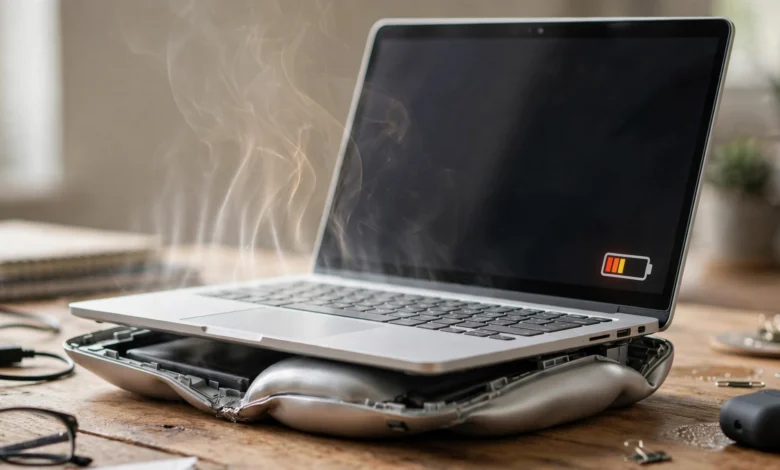
9. The battery is swelling: stop using it
A swollen laptop battery is the most urgent sign. Look for:
- A touchpad that sits higher than usual, or clicks poorly
- A bottom panel that bulges or rocks on a flat table
- A gap opening up between the keyboard and the case
- A screen that no longer closes flat
Swelling is caused by gas building up inside damaged cells. It is a fire risk. Shut the laptop down, unplug it, do not charge it, and do not press on or puncture the battery. Take it to an authorized service center or a qualified technician as soon as possible.
How to Check Laptop Battery Health Before Deciding
Before you pay for a laptop battery replacement, check the numbers. It takes a few minutes and tells you exactly how worn your battery is.
On Windows: the battery report
- Right-click the Start button and open Terminal or Command Prompt.
- Type
powercfg /batteryreportand press Enter. - Windows saves an HTML file and shows its location, usually in your user folder.
- Open the file in a browser.
Look at three numbers in the report:
- Design capacity: how much energy the battery held when new
- Full charge capacity: how much it holds now
- Cycle count: how many charge cycles it has completed (not every laptop reports this)
Divide full charge capacity by design capacity to get the battery’s health as a percentage. As a rough guide:
| Health | What it means |
|---|---|
| 80% or more | Normal wear, no action needed |
| 60% to 80% | Noticeably shorter runtime; plan a replacement if it bothers you |
| Below 60% | Significant wear; replacement is usually worth it |
The “Battery life estimates” section at the bottom also shows how long the battery lasted on average over time, which helps you see how fast it is declining.
On Mac: System Settings and System Information
- Open System Settings > Battery, then click the info button next to Battery Health. It shows the maximum capacity and whether the condition is Normal or Service Recommended.
- For the cycle count, hold the Option key, click the Apple menu, choose System Information, and select Power.
Compare the cycle count with Apple’s published limit for your model. Most recent MacBooks are rated for 1,000 cycles.
Manufacturer tools
Dell, HP, and Lenovo all provide their own utilities, such as Dell’s battery health tools, HP Support Assistant, and Lenovo Vantage. These often show battery health more clearly and may include a diagnostic test. Many business laptops also have a battery test in the BIOS or startup diagnostics.
Rule out other causes first
Battery drain is not always the battery’s fault. Before replacing it, check for:
- Apps or browser tabs using a lot of CPU in the background
- A faulty charger or loose charging port
- High screen brightness and power-hungry settings
- Outdated BIOS or drivers, which sometimes affect charging behavior
If the battery report shows healthy capacity but battery life is poor, the problem is likely software or settings, not the battery.
Battery Safety: Real Recalls and Counterfeit Cases
Lithium-ion batteries store a lot of energy in a small space. Made well and treated well, they are safe. Made badly, damaged, or faked, they can overheat and catch fire. These real cases show why the source of your replacement battery matters as much as the decision to replace it.
Case 1: Millions of laptop batteries recalled in 2006
In 2006, faulty battery cells made by Sony led to one of the largest recalls in consumer electronics. Dell alone recalled about 4 million notebook battery packs, and other laptop makers, including Apple, HP, Lenovo, and Toshiba, ran their own recalls. Reports of laptops overheating and catching fire drove the action.
Case 2: Repeat recalls by HP, Toshiba, and Dell
The problems did not end there. In October 2008, the US Consumer Product Safety Commission announced another recall of Sony-made lithium-ion batteries used in HP, Toshiba, and Dell notebooks. The CPSC reported 19 incidents of overheating, including 17 reports of flames or fire, and two consumers suffered minor burns. The CPSC’s official recall notice told owners to remove the battery immediately and request a free replacement. It also notes that federal law prohibits anyone from selling products subject to a recall. In 2009, HP recalled about 70,000 more notebook batteries after reports of batteries overheating and rupturing.
The lesson: if your laptop has a battery problem, search your model and battery part number on the manufacturer’s recall page. A recalled battery is usually replaced free of charge, and old recalled batteries still turn up in second-hand listings, where selling them is illegal in the US.
Case 3: Counterfeit batteries seized at the border
Fake batteries are a steady target for customs officers. US Customs and Border Protection says that in fiscal year 2014 alone it seized counterfeit batteries with a total retail value of nearly $12 million, as noted in CBP’s consumer safety advisory on counterfeit batteries. US immigration and customs agencies later launched “Operation Surge Protector,” an effort aimed at counterfeit electronics, with products containing lithium-ion batteries as a key focus. In another case, CBP officers in San Juan, Puerto Rico, seized 1,072 rechargeable backup batteries carrying a counterfeit Underwriters Laboratories safety mark. They were not laptop batteries, but the trick of faking a trusted safety logo is the same.
The lesson: a fake safety logo is easy to print. Counterfeit batteries often skip the protection circuits that stop a cell from overcharging or overheating, and some contain fewer or lower-quality cells than their label claims.
Case 4: The grey area of third-party batteries
Not every non-original battery is counterfeit, and the line is not always clear. In 2018, CBP seized a shipment of 20 Apple laptop batteries headed to the New York repair shop run by well-known right-to-repair advocate Louis Rossmann, on the grounds that they were counterfeit. Rossmann disputed the claim. The case shows how hard it can be, even for professionals, to source parts that are both genuine and affordable, and why buyers should rely on reputable sellers rather than the cheapest listing.
Warning signs of a fake or unsafe battery
- A price far below the manufacturer’s or reputable sellers’ prices
- Missing or blurry safety marks, logos, and part numbers
- Capacity claims much higher than the original battery (for example, double the watt-hours)
- A noticeably lighter weight than the original
- No warranty, no brand name, or a seller with no track record
- The laptop reports the battery as unknown, or charges it poorly
Laptop Battery Replacement Options: What to Choose
Once you have decided to replace the battery, you have three main routes. Each has trade-offs in cost, safety, and convenience.
| Option | Cost | Safety and quality | Best for |
|---|---|---|---|
| Official service center | Highest | Genuine part, fitted and tested, usually with warranty | Newer laptops, MacBooks, laptops still under warranty |
| Genuine OEM battery, self-installed | Medium | Genuine part; risk depends on your skill | Business laptops with easy access, confident DIYers |
| Reputable third-party battery | Lowest | Varies widely; choose brands with safety certification and warranty | Older laptops where official parts are hard to find |
Option 1: Official or authorized service
This is the safest choice, especially for thin laptops where the battery is glued or screwed deep inside, and for MacBooks. You get a genuine OEM battery, it is installed properly, and the repair usually comes with its own warranty. If your laptop is still under warranty or covered by a recall, the replacement may be free.
Option 2: Genuine battery, installed yourself
Many business laptops, such as some ThinkPad, Latitude, and EliteBook models, make battery access fairly easy. You can buy the official part from the manufacturer’s parts store or an authorized reseller. Match the exact part number printed on your old battery or listed in the service manual. Follow the manufacturer’s guide, disconnect power first, and never pry at a swollen battery with metal tools.
Option 3: A reputable third-party battery
For older laptops, genuine batteries can be hard to find or overpriced. A well-made third-party battery can be a reasonable option if you are careful:
- Buy from established sellers with clear return policies and warranties
- Check reviews from verified buyers who used it in your exact model
- Look for safety certification marks and a stated capacity close to the original
- Avoid listings that promise much higher capacity than the original
Laptop battery replacement cost
Prices vary widely by brand and model. As a general guide, third-party batteries for common laptops are the cheapest, genuine batteries cost more, and an authorized service center visit costs the most because it includes labor. For MacBooks and laptops with glued batteries, professional replacement is usually worth the extra cost for safety alone.
Replace or upgrade the laptop?
A new battery makes sense if the rest of the laptop still meets your needs. If the laptop is very old, slow, or has other faults, compare the battery cost with the price of a newer machine. A good rule of thumb: if the repair costs more than about a third of the laptop’s current value and other parts are also aging, it may be time to upgrade instead.
Make Your New Battery Last, and Dispose of the Old One Safely
Habits that extend battery life
A new battery will age too, but good habits slow that down noticeably:
- Avoid heat. Heat is the biggest enemy of lithium-ion cells. Do not leave the laptop in a hot car or in direct sun, and do not use it on beds or pillows that block vents.
- Use charge limits. Many laptops let you cap charging at around 80% when you mostly work plugged in. Look for this in Lenovo Vantage, Dell Power Manager, MyASUS, HP’s BIOS settings, or Optimized Battery Charging on a Mac.
- Avoid regular deep drains. You do not need to run the battery to 0%. Partial charges are better for modern batteries.
- Store it half-charged. If you will not use the laptop for weeks, leave it at around 50% in a cool place.
- Use the right charger. A genuine or certified charger matches the voltage and safety features your laptop expects.
- Keep software updated. BIOS and power management updates sometimes improve charging behavior.
What to do with the old battery
Never throw a laptop battery in household trash. Lithium-ion batteries can start fires in garbage trucks and waste facilities if they are crushed or punctured.
- Tape the terminals with non-conductive tape to prevent short circuits.
- Keep a swollen battery in a cool, non-flammable place, away from anything that can burn, until you can drop it off.
- Return it to the service center that replaced it, a manufacturer take-back program, an electronics retailer’s collection point, or a certified e-waste recycler.
- Do not sell or give away a damaged or recalled battery.
Responsible e-waste recycling recovers valuable materials like cobalt and lithium, and keeps toxic substances out of landfills. In places with limited formal recycling, ask authorized service centers whether they take back old batteries.
Conclusion
The clearest signs you need a laptop battery replacement are sharply shorter battery life, sudden percentage drops or shutdowns, a laptop that only runs when plugged in, slow or failed charging, system health warnings, a high cycle count, unusual heat, and, most urgently, a swelling battery that should be taken out of use right away, and a quick Windows battery report or Mac battery health check will confirm how worn the battery really is before you spend money. Real recalls of millions of laptop batteries, CPSC warnings about overheating and fires, and customs seizures of counterfeit batteries with fake safety marks show that where your replacement comes from matters as much as when you replace it, so check your model against recall lists, choose a genuine or well-certified battery from a reputable seller or authorized service center, protect the new battery from heat and constant full charges, and recycle the old one safely instead of throwing it away.