How to Choose Between SSD and HDD for Your Next Laptop
SSD vs HDD for laptop buyers in 2026: real speed, battery and price differences, plus the fake drive scams to avoid before you choose your next laptop.
SSD vs HDD for Laptop: 7 Honest TruthHelp You Choose the Best Drive in 2026
Introduction
SSD vs HDD for laptop sounds like a question with an obvious answer in 2026. Solid state drives are faster, lighter and tougher, and almost every new laptop ships with one. So why does it still trip people up?
Because the real choices are messier than “SSD good, HDD bad.” Budget laptops sometimes use slow eMMC storage and call it an SSD. Some cheap SSDs drop to hard-drive speeds once you copy a big file. Used and refurbished laptops, which more people are buying as prices rise, still come with old spinning hard drives. And the AI boom has pushed flash memory prices up so sharply that a 2TB laptop SSD now costs far more than it did two years ago, making a large hard drive tempting again for storing files.
There is also a darker side. Counterfeit SSDs that copy famous models down to the box and label have been turning up in stores, and some are convincing enough to pass a quick speed test. Storage makers themselves have faced lawsuits over drive technology they did not clearly disclose.
This guide gives you a clear answer for your situation. We explain how each drive works, compare them on the things you will actually notice, walk through real fraud and disclosure cases, and finish with a simple checklist for buying a laptop or an upgrade without getting burned.
How SSDs and HDDs Actually Work
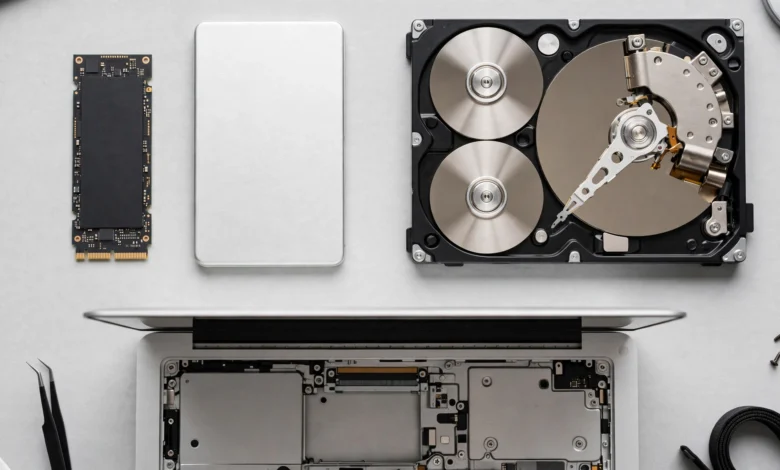
A hard disk drive (HDD) stores data on spinning magnetic platters, read by a tiny arm that moves across them, a bit like a record player. A solid state drive (SSD) stores data on flash memory chips with no moving parts at all. That one difference explains nearly everything else in the SSD vs HDD for laptop debate.
SSDs in laptops come in a few forms:
- NVMe SSD: a small M.2 stick that talks to the processor over PCIe. It is the fastest and most common type in laptops today.
- SATA SSD: either a 2.5-inch drive or an M.2 stick using the older SATA connection. Much faster than a hard drive, but slower than NVMe.
- eMMC storage: soldered flash memory found in very cheap laptops and Chromebooks. It is technically flash, but it performs closer to a fast memory card than a real SSD.
Hard drives in laptops are almost always 2.5-inch models spinning at 5,400 RPM, which is slower than the desktop drives most speed comparisons use.
7 Honest Truths About SSD vs HDD for Laptop Buyers
1. Speed is the difference you feel every day
An NVMe SSD can read data many times faster than a laptop hard drive, and, more importantly, it finds small files almost instantly. In daily use that means a boot time of seconds instead of a minute or more, apps that open right away, and no stuttering when Windows updates in the background. If you have only ever used a hard drive laptop, an SSD feels like a new computer.
2. SSDs help battery life and weight, but modestly
With no motor spinning, an SSD uses less power and runs silent and cool. The battery life gain is real but usually modest, since the screen and processor use far more power. The bigger benefit is that SSDs allow thinner, lighter laptop designs.

3. SSDs survive drops that kill hard drives
A laptop gets carried, bumped and dropped. A hard drive’s read arm hovers a hair’s width above a spinning platter, and a knock while it is running can cause permanent damage. An SSD has no moving parts, so the same knock usually does nothing. For a machine that travels, this alone settles the SSD or HDD for laptop question.
4. Hard drives still win on cost per terabyte
This is where things changed recently. AI data centers have been buying flash memory in huge volumes, and consumer SSD prices rose sharply through 2025 and 2026. Hard drives also got pricier, but they remain much cheaper per terabyte. If you need several terabytes for videos or photos, a hard drive (usually external) is still the sensible place to keep them.
5. Not every SSD is a good SSD
The word “SSD” on a spec sheet hides huge differences. Budget drives often skip DRAM cache and use QLC flash, which stores more bits per cell but writes slowly once its fast cache fills up. In everyday browsing you will not notice. Copy a 50GB video folder, though, and some cheap drives slow to near hard-drive speeds. Understanding QLC vs TLC and DRAM-less SSD labels helps you avoid paying SSD prices for disappointing performance.
6. Not every hard drive is the same either
Many 2.5-inch laptop hard drives use SMR (shingled magnetic recording), which overlaps data tracks to fit more in. It works fine for occasional storage but slows down badly with heavy rewriting. Makers were not always upfront about it, which led to the lawsuit described in the next section.
7. Lifespan worries about SSDs are mostly outdated
Early SSDs had a reputation for wearing out. Modern drives are rated for hundreds of terabytes written, which is far more than a typical laptop user writes in a decade. The bigger risks today are sudden failure and counterfeits, not slow wear, which is why backups matter on any drive.
Real Cases: Fakes, Fraud and Fine Print in Laptop Storage
Spec sheets assume everyone is honest. These cases show why you should verify instead, especially if you plan a laptop SSD upgrade or buy a used machine.
Counterfeit Samsung SSDs that pass a quick test
The Samsung 990 Pro is one of the most popular NVMe drives for laptop upgrades, which makes it a favorite of counterfeiters. In March 2026, Japanese outlet Akiba PC Hotline! took apart a fake 990 Pro with packaging and labels that were nearly identical to the real thing. Inside was a cheaper Maxio controller with no DRAM instead of Samsung’s own hardware. As TechRadar reported, it showed the correct capacity and scored close to genuine in quick benchmarks, then fell far behind during long file copies.
Other cases were cruder. A buyer in Europe received two fake 990 Pro drives from a seller in Austria with a blue circuit board instead of Samsung’s black one and a Realtek controller inside. Samsung responded by urging buyers to purchase only from its own store or authorized distributors and to check drives with Samsung Magician. The problem became common enough that the free tool CrystalDiskInfo added a visible “FAKE” warning for certain counterfeit Samsung drives in May 2026.
Selling counterfeit branded goods is illegal in almost every country, but sellers often vanish and reopen under new names. The burden of checking falls on the buyer.
Undisclosed hard drive technology and a $2.7 million settlement
In 2020, buyers discovered that Western Digital had quietly switched some WD Red drives, marketed for NAS and RAID use, to SMR recording, which performs poorly in exactly those setups. A class action followed, alleging false advertising. Western Digital agreed to a $2.7 million settlement covering US buyers of the affected drives, and, according to court filings, agreed to clearly disclose the recording technology on packaging and product pages going forward. Settlements are not admissions of wrongdoing, but the case changed how the industry labels drives.
That matters for laptops because many 2.5-inch laptop hard drives also use SMR. Years later, data recovery firms reported unusually high failure rates in some SMR models, and Western Digital said it was reviewing the reports.
Swapped and downgraded drives in used laptops
The used laptop market has its own tricks. Common ones include:
- Drive swaps: the original NVMe SSD is pulled and sold separately, then replaced with a cheap DRAM-less or second-hand drive before the laptop is resold.
- Hard drive passed off as SSD: listings say “fast storage” or “500GB SSD” when the laptop actually has a spinning drive or a tiny SSD plus a hard drive.
- eMMC sold as SSD: budget laptops with soldered 64GB or 128GB eMMC described simply as “SSD,” which is technically misleading.
- Reset health data: drives with thousands of hours of use whose health counters have been wiped to look new, the same trick exposed in the 2025 used hard drive scandal.
None of these require advanced skills, which is why they are common. The checks in the next sections catch most of them.
SSD vs HDD for Laptop: Which Should You Choose?
For the laptop’s main drive, choose an SSD. The real decisions are which SSD, how much capacity, and where to keep everything else.
Students and everyday users
A 512GB NVMe SSD is the sweet spot for most people. It holds Windows or macOS, your apps and a reasonable amount of files with room to spare. Pair it with cloud storage for coursework and photos. Avoid laptops with 64GB or 128GB eMMC unless you only need a browser; updates alone can fill them.
Office workers and freelancers
Go for 512GB to 1TB on a known-brand NVMe SSD with TLC flash if the listing tells you. You will feel the difference when juggling many apps, large spreadsheets and video calls. Keep client files backed up to an external drive or cloud service.
Gamers
Modern games can take 100GB or more each and load much faster from an SSD. Aim for 1TB minimum, ideally a laptop with a second M.2 slot so you can add another SSD later. A hard drive is fine for storing old games you rarely play, but not for running them.
Video editors and photographers
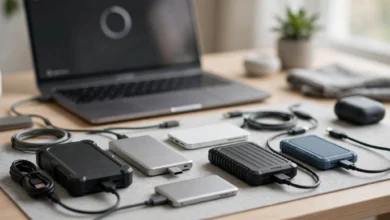
You need a fast SSD for active projects (1TB to 2TB) and a large, cheap hard drive for the archive. That archive is usually an external drive, since few modern laptops have room for a 2.5-inch hard drive inside.
Buyers of older or used laptops
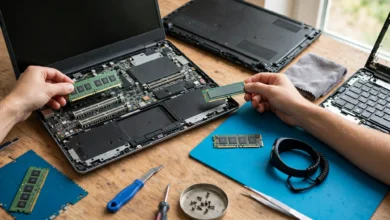
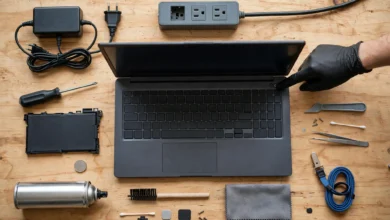
If you are buying an older laptop that still has a hard drive, budget for a laptop SSD upgrade. Swapping a 5,400 RPM drive for a SATA SSD is one of the cheapest ways to make an old machine feel new. Check whether the laptop takes a 2.5-inch SATA drive or an M.2 stick before you buy.
Is a dual drive laptop worth it?
Some larger laptops, mainly gaming and workstation models, have room for two drives. A dual drive laptop with an SSD for the system and a hard drive for storage gives you speed and space. In 2026 that setup is rare in new laptops, and an SSD plus an external hard drive achieves the same thing with more flexibility.
What about prices in 2026?
With flash memory prices high, you may be tempted by a lower-capacity SSD or a laptop with a hard drive. Our honest advice: accept a smaller SSD before you accept a hard drive as your main drive. You can add external storage cheaply later, but you cannot make a slow system drive fast.
SSD vs HDD for Laptop: Side-by-Side Comparison
An NVMe SSD wins every category except cost per terabyte.
| Factor | NVMe SSD | SATA SSD | eMMC | Laptop HDD (5,400 RPM) |
|---|---|---|---|---|
| Everyday speed | Excellent | Very good | Fair | Slow |
| Boot time | Seconds | Seconds | Slower | Often a minute or more |
| Shock resistance | High | High | High | Low |
| Noise and heat | Silent, cool | Silent, cool | Silent | Audible, warmer |
| Cost per TB | High | High | Not upgradable | Low |
| Typical capacity | 256GB to 2TB | 256GB to 2TB | 32GB to 128GB | 500GB to 2TB |
| Best use | Main drive | Upgrade for older laptops | Basic browsing only | Bulk storage, external |
How to Check a Laptop’s Drive Before You Buy
These steps take a few minutes and catch most of the problems described above.
- Read the exact model, not just “SSD.” Look for the drive type (NVMe, SATA or eMMC) and capacity in the full spec sheet. If a listing will not say, ask.
- Open Device Manager or System Information. On Windows, Device Manager under Disk drives shows the drive model; on a Mac, System Information shows it under Storage. Search the model name to confirm what it is.
- Run CrystalDiskInfo or the maker’s tool. CrystalDiskInfo shows power-on hours, health status and, for some Samsung fakes, a warning label. For Samsung drives, Samsung’s free Magician app can confirm whether the drive is genuine.
- Check power-on hours on “new” laptops. A brand-new laptop’s drive should show very few hours. Hundreds or thousands of hours means it has been used.
- Run a long copy test. Copy a large folder of 20GB or more. If speed collapses to double digits in MB/s, the drive is either very low-end or not what it claims to be.
- Buy upgrade drives from authorized sellers. Use the brand’s own store or its listed retailers. A popular SSD priced far below everyone else is the classic sign of a counterfeit.
- Keep the invoice and box. You will need them for a warranty claim, and they help prove a sale was misrepresented.
Conclusion
The SSD vs HDD for laptop decision comes down to a simple rule in 2026: put a genuine, known-brand SSD inside the laptop and keep bulk files on cheaper external storage, because SSDs are dramatically faster, quieter, tougher and better for battery life, while hard drives only win on cost per terabyte; within that rule, the details matter, since eMMC storage and cheap DRAM-less QLC drives can disappoint, rising flash prices tempt buyers toward shortcuts, and real cases from counterfeit Samsung 990 Pro drives that fool quick benchmarks to Western Digital’s $2.7 million SMR settlement show that labels cannot always be trusted, so read the exact drive model, check it with CrystalDiskInfo or the maker’s tool, look at power-on hours, run a long copy test, buy upgrades from authorized sellers and keep a backup no matter which drive you choose.