How to Diagnose and Fix Common Laptop Keyboard Issues
Laptop keyboard not working? Find out how to diagnose dead keys, sticky keys, and typing lag, then fix them safely with practical, tested steps at home.
How to Diagnose and Fix Common Laptop Keyboard Issues
Laptop keyboard problems tend to show up at the worst possible time. You’re halfway through an email, a report, or a late-night assignment, and suddenly the “E” key stops responding, the cursor jumps around, or every key you press types the wrong character. Unlike a desktop keyboard, you can’t just unplug it and grab a spare from the drawer. The keyboard is built into the machine, and that makes people nervous about what the fix will cost.
The good news is that most laptop keyboard issues are not as serious as they feel. A large share of them come from software: a bad keyboard driver, a Windows setting someone switched on by accident, or a language layout that changed after an update. Many of the hardware problems are simple too, like crumbs under a key or a loose ribbon cable.
This guide walks you through how to diagnose laptop keyboard problems step by step, so you can figure out whether you’re dealing with software or hardware before spending money. Then it covers the most common faults and how to fix laptop keyboard problems safely. There’s also a section that most repair guides skip: the security side. Keyboards have been used in real criminal cases to steal passwords and money, and knowing how that happened will help you protect yourself, especially when someone else repairs your laptop.
Grab your laptop, and let’s work through it.
Why Laptop Keyboard Problems Happen
Before you start pressing keys and changing settings, it helps to understand what’s actually going on inside your machine. A laptop keyboard is a thin membrane with contact points under each key, connected to the motherboard by a flat ribbon cable. The operating system reads signals from that connection through a driver. A failure at any point in that chain can stop keys from working.
Software Causes
Software problems are the most common and the cheapest to fix. Typical culprits include:
- Outdated or corrupted keyboard drivers, often after a Windows or macOS update
- Accessibility settings like Filter Keys or Sticky Keys turned on by accident
- Wrong keyboard layout or input language, which makes keys type the wrong symbols
- Background software conflicts, such as macro tools, gaming utilities, or remote access apps
- Malware, which can interfere with input or record what you type
Hardware Causes
Hardware faults take more effort but are still often fixable. Common causes include:
- Dust, crumbs, and pet hair trapped under keys
- Liquid spills, even small ones that dried weeks ago
- A loose or damaged ribbon cable between the laptop keyboard and the motherboard
- Worn-out key switches or broken key clips
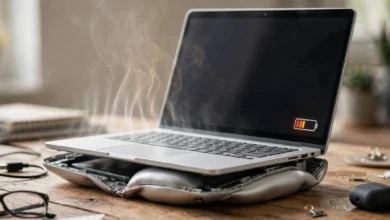
- A swollen battery pushing up from underneath the keyboard deck (this one is a safety issue, more on it below)
Knowing these two categories matters because your whole diagnosis process is about figuring out which side of the line you’re on.
How to Diagnose Laptop Keyboard Problems Step by Step
This is the most useful part of the guide. Follow these steps in order, because each one narrows down the cause.


- Restart the laptop. It sounds too simple, but a full restart (not sleep) clears stuck drivers and background processes. On Windows, hold Shift while clicking Restart to force a full reboot.
- Test the keyboard outside the operating system. Restart and press the key that opens your BIOS or UEFI setup (usually F2, F10, Del, or Esc, depending on the brand). If the laptop keyboard works in the BIOS menu, the hardware is likely fine and the problem lives in software. If it doesn’t work there either, you’re probably looking at a hardware fault.
- Use an on-screen keyboard tester. Free browser tools like keyboard testers show which keys register when pressed. This tells you exactly which keys are dead, which ones repeat, and which ones send the wrong signal.
- Plug in an external USB keyboard. If the external one works perfectly, Windows or macOS is reading input fine, and the problem is specific to the built-in laptop keyboard or its cable.
- Boot into Safe Mode. Safe Mode loads only essential drivers. If your keyboard works in Safe Mode but not in normal mode, third-party software is the likely cause.
- Look for physical clues. Check for sticky residue, keys sitting higher than others, or a keyboard deck that bulges or lifts. A raised or warped deck can point to a swollen battery.
Once you’ve done these six checks, you’ll usually know whether to keep going with software fixes or move on to cleaning and hardware repair.
Common Laptop Keyboard Issues and How to Fix Them
Here are the problems people run into most often, along with the fixes that actually work.
1. Laptop Keyboard Not Working at All
When the whole laptop keyboard not working situation hits, start with drivers.
On Windows:
- Right-click the Start button and open Device Manager.
- Expand Keyboards.
- Right-click your keyboard (often listed as “Standard PS/2 Keyboard”) and choose Uninstall device.
- Restart the laptop. Windows will reinstall the driver automatically.
If that doesn’t help, check your laptop maker’s support site for a chipset or keyboard driver update. Brands like Dell, HP, and Lenovo often release fixes there before Windows Update catches up. You can also run the built-in keyboard troubleshooter in Settings. Microsoft has a helpful overview on its official Windows support site.
On a Mac: Reset the SMC (on Intel Macs) or simply shut down for 30 seconds (on Apple silicon Macs), then check System Settings > Keyboard for anything unusual.
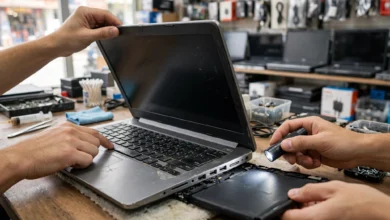
If the keyboard also failed in the BIOS test, the ribbon cable may be loose. That usually needs the bottom panel removed, which is a job for a technician unless you’re comfortable opening your machine.
2. Some Keys Not Working
When only some keys not working is the issue, the cause is usually debris or a worn contact under those specific keys.
- Turn the laptop off and unplug it.
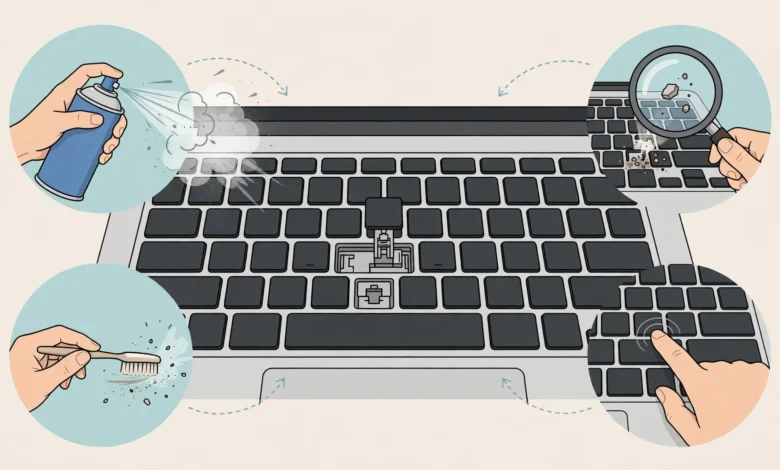
- Hold it at a 75 degree angle and use compressed air in short bursts around the affected keys.
- Rotate the laptop and spray from different directions.
- For stubborn spots, use a cotton swab lightly dampened with isopropyl alcohol (90% or higher).
If a single key has a broken clip, you can often order just that key cap and hinge for a few dollars. Sites like iFixit have model-specific repair guides and parts, which can save you from replacing the whole laptop keyboard.
3. Sticky Keys and Stuck Keys
There are two different things people call “sticky keys,” and they need different fixes.
Physically sticky keys feel gummy or slow to spring back. This almost always comes from a spill residue like soda, coffee with sugar, or juice. Clean around and under the key with isopropyl alcohol. If a key cap pops off easily on your model, remove it carefully and clean the area beneath.
The Windows Sticky Keys feature is an accessibility setting that makes modifier keys like Shift and Ctrl stay “pressed.” It switches on if you tap Shift five times. To turn it off:
- Go to Settings > Accessibility > Keyboard.
- Turn off Sticky Keys, Filter Keys, and Toggle Keys.
- Also uncheck the keyboard shortcuts that turn them on, so it doesn’t happen again.
Filter Keys deserves a special mention. It tells Windows to ignore brief keystrokes, which can make your laptop keyboard seem completely dead even though nothing is wrong with it.
4. Keyboard Typing Wrong Characters
If you press @ and get “, or your Y and Z keys have swapped, your keyboard typing wrong characters problem is almost always a layout setting.
- On Windows, go to Settings > Time & Language > Language & Region, and make sure your preferred language uses the correct keyboard layout (for example, US QWERTY).
- Remove any layouts you don’t use. Alt + Shift or Windows + Space switches between layouts, and people hit those shortcuts by accident all the time.
- On a Mac, check System Settings > Keyboard > Input Sources.
If letters type numbers instead (common on smaller laptops), Num Lock may be on. Press Fn + Num Lock or Fn + F11 depending on your model.
5. Keys Repeating or Typing on Their Own
A laptop keyboard that types random characters or repeats letters can mean a few different things:
- A stuck key that’s being held down by debris. Clean it as described above.
- Repeat rate settings set too fast. On Windows, search for “Keyboard properties” in Control Panel and adjust the repeat delay.
- Liquid damage creating short circuits between contacts. This often causes “ghost typing.”
- Malware or remote access software. If characters appear while you’re not touching the laptop at all, disconnect from the internet and run a full scan with Windows Security or a trusted antivirus.
Ghost typing that continues in the BIOS menu points to hardware. Ghost typing that only happens inside Windows points to software or malware.
6. Laptop Keyboard Lag or Delayed Input
Keyboard lag is frustrating, especially when you’re typing fast. Try these fixes:
- Close heavy background apps using Task Manager. High CPU usage slows input processing.
- Turn off Filter Keys (it adds deliberate delay).
- Update your keyboard and chipset drivers.
- Check for overheating. A laptop that throttles from heat can lag on everything, including keystrokes.
- Disable startup programs you don’t need.
If the lag only happens in one app, like a browser, the issue is that app, not your laptop keyboard.
7. Keyboard Backlight Not Working
A dead backlight is usually a setting, not a hardware failure.
- Press the backlight shortcut, usually Fn plus a key with a light icon (often F5, F9, F10, or the spacebar).
- Check your manufacturer’s control app (Lenovo Vantage, Dell Power Manager, HP Command Center, and so on). Some laptops turn the backlight off on battery or after a timeout.
- On a Mac, check System Settings > Keyboard for brightness and auto-adjust settings.
If the shortcut does nothing and no setting helps, the backlight cable may have come loose, which needs a technician.
8. Liquid Spilled on the Laptop Keyboard
A liquid spill on laptop keyboards needs quick action. What you do in the first minute matters more than anything you do later.
- Turn it off immediately by holding the power button. Don’t wait to save your work.
- Unplug the charger and remove the battery if your model allows it.
- Turn the laptop upside down in a tent shape to let liquid drain out.
- Gently blot visible liquid. Don’t shake it hard, which spreads liquid deeper.
- Let it dry for at least 48 hours. Skip the rice trick; it doesn’t pull moisture out of electronics and can leave dust inside.
Water is the least harmful. Sugary drinks, coffee, and beer leave residue that corrodes contacts over time, so even if the laptop keyboard works after drying, a professional cleaning is worth considering.
9. Keyboard Deck Lifting or Keys Feeling Uneven
If your keyboard suddenly feels raised, keys bump into each other, or the trackpad stops clicking properly, stop using the laptop and unplug it. This is a classic sign of a swollen lithium-ion battery. A swollen battery is a fire risk. Don’t press on it or try to puncture it. Take it to a qualified repair shop for safe battery replacement.
When to Replace Your Laptop Keyboard
Sometimes repair isn’t worth the effort. You should consider a full replacement if:
- Multiple keys have failed and cleaning didn’t help
- The keyboard failed the BIOS keyboard test and the ribbon cable is fine
- Liquid damage has corroded the membrane
- Keys are physically broken in several places
Replacement cost varies a lot. On many Windows laptops, the laptop keyboard is a separate part held in by clips or a few screws, and replacement parts cost anywhere from $20 to $80. On many ultrabooks and MacBooks, the keyboard is riveted to the top case, which makes replacement much more expensive.
A real example of how expensive this can get is Apple’s “butterfly” keyboard. Used in MacBooks from about 2015 to 2019, it was known for keys that stuck or repeated. Apple ran a keyboard service program, and the problem eventually led to a class action settlement of around $50 million in 2022. If you own a laptop with a known keyboard defect, always check whether the manufacturer has an extended repair program before paying out of pocket.
As a temporary solution, an external USB or Bluetooth keyboard works fine and costs very little.
The Security Side: Real Cases Where Keyboards Were Misused
Most keyboard guides stop at cleaning and drivers. But keyboards are the main way you enter passwords, bank details, and private messages, and criminals know that. Looking at real cases helps you understand the risks around your own laptop keyboard, particularly when your laptop is out of your hands or acting strangely.
The Sumitomo Mitsui Bank Keylogger Plot (2004 to 2005)
One of the best-known cases involved the London office of Japanese bank Sumitomo Mitsui. A group of criminals reportedly used keylogging methods to capture staff login credentials and attempted to transfer around £229 million out of the bank. The plot was stopped before the money moved, and arrests followed. The lesson for ordinary users is simple: whoever controls what your keyboard records can control your accounts.
The Cal State San Marcos Election Case (2012)
A university student at California State University San Marcos used a hardware keylogger on campus computers to steal the passwords of other students and staff. He used those credentials to rig a student government election in his own favor. He was caught, prosecuted, and sentenced to a year in federal prison. The case showed how small and easy to miss these devices are. Most people never think to look at the port behind a computer.
The FBI Warning About Disguised Keystroke Loggers (2015)
The FBI issued a warning to businesses about devices disguised as ordinary USB phone chargers that could secretly capture keystrokes from nearby wireless keyboards. This matters if you use an external wireless keyboard with your laptop as a workaround for a broken built-in one. Stick to keyboards from reputable brands that use encrypted connections.
Fake Tech Support Scams
Scammers often target people who search for help with computer problems, including a laptop keyboard not working. They pose as Microsoft, Apple, or “certified technicians,” then ask for remote access. Once inside, they can install software that records keystrokes or steals files. The U.S. Federal Trade Commission explains how these scams work and how to report them in its guide on spotting and avoiding tech support scams. Real companies don’t cold-call you about problems on your computer.
Privacy Abuse During Repairs
Repair privacy is a real concern too. Apple reportedly paid a multimillion-dollar settlement after technicians at a contracted repair facility posted a customer’s private photos online during a device repair. It was a phone rather than a laptop, but the principle is the same: when you hand over a device, you’re trusting the person who opens it.
How to Protect Yourself
These cases point to a few practical habits:
- Back up and log out of important accounts before sending your laptop for keyboard repair.
- Use a separate user account for the technician, or remove the need for a password altogether by asking them to test with a fresh account.
- Choose authorized or well-reviewed repair shops, and get a written quote.
- Inspect USB ports on shared or public computers for unfamiliar small devices.
- Turn on two-factor authentication, so a stolen password alone isn’t enough.
- Run a malware scan after any repair or if your keyboard starts behaving strangely.
None of this is meant to make you paranoid. It’s just the reality that the device you type passwords into deserves the same care as your wallet.
How to Prevent Laptop Keyboard Problems
A little prevention goes a long way, and most laptop keyboard issues are avoidable.
- Keep food and drinks away from your laptop, or at least use a lidded cup.
- Clean the keyboard monthly with compressed air and a soft brush.
- Use a silicone keyboard cover if you work in dusty places, but remove it before closing the lid on thin laptops, since it can press against the screen.
- Wash your hands before long typing sessions. Skin oil builds up and attracts dirt.
- Keep drivers and your operating system updated.
- Avoid slamming keys or pulling key caps unless you know your model’s clip design.
- Store your laptop in a padded sleeve to prevent pressure damage in a bag.
- Watch for battery swelling signs like an uneven deck or a lid that won’t close flat.
These habits take a few minutes a month and can add years to your laptop keyboard.
Quick Reference: Symptom and Likely Fix
| Symptom | Likely Cause | First Fix to Try |
|---|---|---|
| Whole keyboard dead | Driver or cable | Reinstall driver, test in BIOS |
| A few keys dead | Debris or worn contact | Compressed air, isopropyl alcohol |
| Keys feel gummy | Spill residue | Clean under key caps |
| Wrong characters | Layout or Num Lock | Check language and layout settings |
| Ghost typing | Stuck key, liquid, or malware | Clean, then scan for malware |
| Input lag | Filter Keys or high CPU | Turn off Filter Keys, close apps |
| Raised keyboard deck | Swollen battery | Stop using it, see a technician |
Conclusion
Most laptop keyboard problems look worse than they are, and a careful diagnosis usually points you to a simple fix. Start by restarting, testing in the BIOS, and trying an external keyboard to figure out whether the fault is in software or hardware. From there, reinstall drivers, switch off accessibility settings like Filter Keys and Sticky Keys, check your keyboard layout, and clean debris with compressed air and isopropyl alcohol. Act fast with spills, treat a lifting keyboard deck as a battery safety issue, and check for manufacturer repair programs before paying for a replacement. Finally, remember that your keyboard is where your passwords live: real cases from bank fraud to rigged elections show why you should log out before repairs, use trusted shops, ignore cold-calling “tech support,” and scan for malware when your laptop keyboard starts acting strangely.
r