How to Speed Up an Old Laptop Without Buying a New One
Want to speed up an old laptop on a budget? Try 12 simple fixes, from cleanup to an SSD, and avoid the fake optimizer scams that regulators shut down.
How to Speed Up an Old Laptop Without Buying a New One
Introduction
Speed up an old laptop the right way and you can often get two or three more good years out of it, for little or no money. That matters, because a new laptop is a big expense for most people, and the one you already own is usually not as “dead” as it feels. In many cases the hardware is fine. It is just buried under startup programs, a full hard drive, dust, and years of software clutter.
The problem is that “my laptop is slow” is also one of the most profitable fears on the internet. Fake virus pop-ups, “PC booster” apps, and phone-based tech support scams have pulled millions of dollars out of ordinary users. Some of those companies were later fined by regulators. Others were raided by police. A few were household names that people trusted.
This guide takes a practical, honest approach. You will learn why laptops slow down, which free fixes actually work, which cheap upgrades give the biggest jump in speed, and when it is time to stop spending money on an old machine. You will also see real cases of people who were scammed while trying to fix a slow computer, so you can spot the same tricks. Everything here can be done at home with built-in tools or a screwdriver, and none of it requires you to hand your laptop or bank details to a stranger.
Why Old Laptops Slow Down
Before you try to speed up an old laptop, it helps to know what is actually slowing it down. Laptops do not get slower just because they are old. They get slower because of a handful of specific, fixable problems.
Too Many Startup Programs
Every app that launches when Windows starts eats memory and processor time. Over the years, printers, chat apps, game launchers, and update tools quietly add themselves to startup. A laptop with 30 startup items can take minutes to become usable.
An Old Hard Disk Drive (HDD)
This is the biggest cause of a slow laptop. Most laptops from before about 2017 shipped with spinning hard drives. Modern Windows reads and writes to the disk constantly, and an HDD simply cannot keep up. If your disk usage sits at 100% in Task Manager, this is your bottleneck.
Not Enough RAM
A browser with a dozen tabs can easily use 3 to 4 GB of memory on its own. With only 4 GB of RAM, Windows starts swapping data to the disk, which on an HDD makes everything crawl.
Heat and Dust
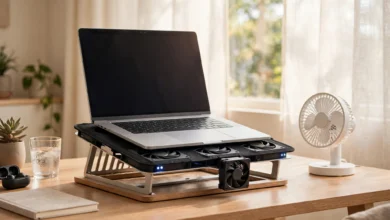
Dust blocks the fan and vents, and the thermal paste between the processor and its cooler dries out after a few years. When the chip gets too hot, it slows itself down to avoid damage. This is called thermal throttling, and it is why an old laptop can feel fine for five minutes and then turn sluggish.
Malware and Bloatware
Preinstalled trial software, browser toolbars, and actual malware all run in the background. Some malware, like hidden crypto miners, is designed to use your processor without you noticing.


A Worn Battery
When a battery degrades badly, some laptops limit performance to prevent sudden shutdowns. Power settings set to “battery saver” do the same thing.
The Reality Check: Scams Built on Slow Computers
Most articles skip this part. Anyone trying to speed up an old laptop is a target, because a slow machine makes people anxious, and anxious people click, call, and pay. Here are real cases that show how the “fix your slow PC” business has crossed into deception and crime.
1. Fake Virus Scans That Always Found Problems
Restoro and Reimage, two Cyprus-based companies, agreed to pay $26 million to settle charges from the US Federal Trade Commission. According to the FTC’s announcement, people were shown fake Windows pop-ups warning of viruses, then told to run a “scan”. The scan reported serious problems no matter how healthy the computer really was.
Victims bought software for roughly $27 to $58, and were then pushed to phone a technician who upsold more expensive “repairs”. FTC investigators even tested the scheme with a clean computer that had no issues, and it still got flagged. Many of the victims were older people. The FTC later sent out 736,375 refund payments.
Lesson: a real problem does not announce itself in a browser pop-up with a phone number.
2. A Trusted Brand That Sold Your Browsing Data
Privacy and “cleanup” tools need deep access to your system, so trust matters. In 2024, the FTC ordered Avast to pay $16.5 million and banned it from selling browsing data for advertising. The regulator said Avast collected browsing information through its extensions and antivirus software and sold it to more than 100 third parties through a subsidiary called Jumpshot, even while promising to protect users from tracking. You can read the details in Help Net Security’s report on the FTC order.
Lesson: free optimizer and security tools are paid for somehow. Read what data they collect before you install them.
3. A Cleaner App That Shipped Malware
In 2017, attackers broke into the build system behind CCleaner, one of the most popular PC cleanup tools in the world, and slipped malicious code into an official update. Millions of people installed it believing they were making their computers faster and safer. The company did not commit the crime, but the case shows that even legitimate “speed up” tools add risk you often do not need.
4. Scam Call Centres Using Tech as Cover
Phone and online fraud runs on large, organised call centres, and Pakistan has seen several raided. In August 2026, the FIA detained 258 foreign nationals after raiding an alleged scam call centre in Islamabad’s Gulberg Green, following a 2025 raid that led to 149 arrests over investment fraud. Not every centre runs tech support scams, but the playbook is similar: an urgent problem, a friendly expert, and a request for remote access or payment.
Lesson: Microsoft, HP, Dell, and Lenovo do not cold-call you about viruses. Never install remote access software because a caller asked you to.
5. Cracked Software and Fake Activators
Many people with older laptops install pirated Windows activators, “free” versions of paid optimizers, or cracked games. This is copyright infringement, and these files are a common way malware, password stealers, and crypto miners arrive. The irony is painful: the tool you installed to make your laptop faster is often the reason it got slower.
7 Free Ways to Speed Up an Old Laptop
Start here. These fixes cost nothing, use tools already built into Windows, and are often enough to speed up an old laptop noticeably. Do them in order, and restart after each big change so you can tell what helped.
Fix 1: Disable Startup Programs
- Press Ctrl + Shift + Esc to open Task Manager.
- Open the Startup apps tab.
- Sort by “Startup impact” and disable anything you do not need the moment Windows opens, such as game launchers, chat apps, and update helpers.
Keep your antivirus, touchpad, and audio drivers enabled. This single step often cuts boot time in half.
Fix 2: Uninstall Bloatware and Unused Apps
Go to Settings, then Apps, then Installed apps. Remove trial software, old games, toolbars, and anything you do not recognise and have not used in months. If you are unsure what an item is, search its exact name before deleting it.
Fix 3: Free Up Disk Space
Windows slows down badly when the system drive is nearly full. Aim to keep at least 15 to 20% of it free.
- Run Disk Cleanup (search for it in the Start menu) and tick “Clean up system files”.
- Turn on Storage Sense in Settings to delete temporary files automatically.
- Move photos and videos to an external drive or cloud storage.
Fix 4: Run a Proper Malware Scan
Use the built-in Windows Security app and run a full scan, not a quick one. If you want a second opinion, use a well-known on-demand scanner from an official website. Never use a scanner that appeared in a pop-up or an ad.
Fix 5: Update Windows and Drivers
Updates fix bugs that can cause slowdowns and, more importantly, close security holes. Install updates through Windows Update, and get drivers from your laptop maker’s official support page using your serial number. Skip third-party “driver updater” tools, which are a common source of bundled junk.
If your laptop is still on Windows 10, enrol in Microsoft’s free consumer Extended Security Updates from Windows Update. Microsoft has extended that program until October 12, 2027.
Fix 6: Adjust Power and Visual Settings
- Set the power mode to “Best performance” when plugged in.
- Search for “Adjust the appearance and performance of Windows” and choose “Adjust for best performance”. This turns off animations that old graphics chips struggle with.
- Turn off transparency effects in Settings, then Personalization, then Colors.
Fix 7: Tame Your Browser
For most people, the browser is the heaviest program they run. Remove extensions you do not use, close tabs you are not reading, and turn on your browser’s memory or efficiency mode. A lightweight browser setup can make a 4 GB laptop feel twice as fast.
A Word on “PC Optimizer” Apps
You do not need a paid optimizer or registry cleaner. Microsoft itself does not recommend registry cleaners, and the cases above show how often these tools exaggerate problems. Everything they do well, Windows can already do for free.
4 Cheap Hardware Upgrades That Speed Up an Old Laptop
If the free fixes helped but the laptop still drags, the hardware is the next stop. These upgrades cost a fraction of a new laptop and usually give the biggest jump in speed.
Fix 8: Replace the Hard Drive With an SSD
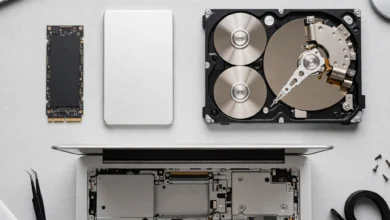
This is the single best way to speed up an old laptop. Moving from a spinning HDD to a solid state drive (SSD) can cut boot time from a couple of minutes to under 30 seconds and makes apps open almost instantly.
- Check whether your laptop takes a 2.5-inch SATA drive, an M.2 SATA drive, or an M.2 NVMe drive. Your model’s service manual or a teardown video will tell you.
- A 256 GB or 512 GB SSD is enough for most people.
- You can clone your old drive with free tools, or do a clean install of Windows, which also removes years of clutter.
Fix 9: Add More RAM
If Task Manager shows memory usage above 80% during normal use, more RAM will help. Going from 4 GB to 8 GB is a huge improvement for browsing and office work, and 16 GB is comfortable for heavier use.
Check first whether your RAM is upgradeable. Many thin laptops have memory soldered to the motherboard. Match the type (DDR3, DDR4, and so on) and speed listed in your laptop’s specifications.
Fix 10: Clean the Fans and Replace Thermal Paste
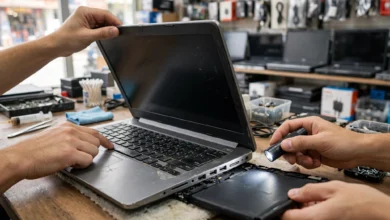
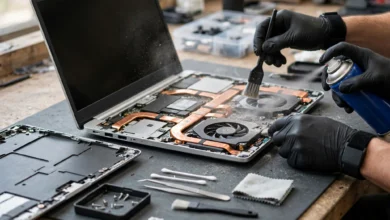
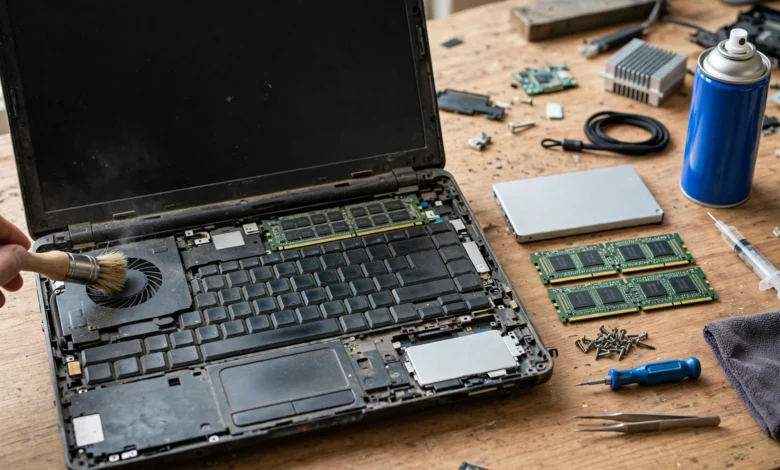
If your laptop gets hot and loud, open the bottom panel, blow out the dust with compressed air, and hold the fan still while you do it. Replacing dried thermal paste on the processor can drop temperatures noticeably and stop thermal throttling.
If you are not comfortable opening a laptop, a reputable repair shop can do this cheaply. Ask for the old parts back and a written receipt.
Fix 11: Replace a Dead Battery
A badly worn battery can cause slowdowns and random shutdowns. On Windows, run powercfg /batteryreport in Command Prompt and compare “design capacity” with “full charge capacity”. Below about 60%, a replacement is worth considering.
Buy batteries only from known sellers. Cheap counterfeit lithium batteries can swell or catch fire, and they are one of the most common fake products in the electronics trade.
Rough Upgrade Priority
| Symptom | Most likely fix | Typical impact |
|---|---|---|
| Slow boot, disk at 100% | SSD | Very high |
| Freezes with many tabs open | More RAM | High |
| Fast at first, then slows when hot | Cleaning and thermal paste | Medium to high |
| Slows or shuts down on battery | New battery | Medium |
Fix 12: Try a Lighter Operating System
Some laptops are simply too old for modern Windows. Many machines from before 2018 cannot officially run Windows 11, and Windows 10 is now on borrowed time. Instead of running an unpatched system or a pirated copy, you have legal, free options.
Option A: A Clean Windows Reinstall
If your laptop came with a valid Windows license, a fresh install from Microsoft’s official media tool removes years of clutter in one go. Back up your files first. Combined with an SSD, this alone can make a five-year-old laptop feel new.
Option B: Lightweight Linux
Free Linux distributions such as Linux Mint (Xfce edition), Lubuntu, or Zorin OS Lite run well on 4 GB of RAM and older processors. They are legal, receive security updates, and handle browsing, documents, and video calls without trouble.
Try one first by booting from a USB stick without installing anything. That way you can check Wi-Fi, sound, and the touchpad before committing.
Option C: ChromeOS Flex
Google’s free ChromeOS Flex turns older laptops into simple, browser-based machines. It is a good fit for someone who mainly uses Gmail, YouTube, and Google Docs. Check Google’s list of certified models before you install it.
When to Stop Spending Money
An honest guide also tells you when to quit. If you want to speed up an old laptop that has any of the problems below, upgrades may not be worth it.
- The processor is very old (for example, a dual-core chip from around 2012 or earlier) and struggles even with a clean system and an SSD.
- The motherboard, hinges, or screen are failing, and repairs would cost close to the price of a decent used laptop.
- RAM and storage are soldered, so you cannot upgrade either.
- You need software that the laptop simply cannot run, such as modern design or video editing tools.
A useful rule: if fixing the laptop will cost more than half the price of a good refurbished replacement, put that money toward the replacement. And when you retire the old one, wipe your data properly and recycle it through a proper e-waste channel instead of the trash.
Conclusion
You can speed up an old laptop without buying a new one by working through the problem in the right order: trim startup programs, remove bloatware, free up disk space, scan for malware with Windows Security, update from official sources, and tidy your browser, then move on to the upgrades that matter most, an SSD, more RAM, a cleaning with fresh thermal paste, and a healthy battery, before considering a clean Windows install or a lightweight system like Linux Mint or ChromeOS Flex. Just as important is what you avoid, because the slow-computer market has a real record of abuse, from the $26 million FTC settlement over Restoro and Reimage’s fake virus scans, to Avast’s $16.5 million penalty for selling browsing data, to malware hidden inside a CCleaner update and the scam call centres raided in Islamabad. Skip pop-up scanners, paid optimizers, cracked activators, and anyone who calls offering to fix your computer, and the safest way to speed up an old laptop turns out to also be the cheapest.