How to Back Up Your Phone and Laptop Data Properly
Back up your phone and laptop the right way with the 3-2-1 rule, simple step-by-step guides, and real cases showing how data gets lost or stolen.

Back Up Your Phone and Laptop: 7 Proven Steps to Protect Your Data the Smart Way in 2026
Introduction
Back up your phone and laptop is advice everyone has heard and few people follow properly. Most of us assume our photos, documents, and chats are “in the cloud” somewhere, until a phone gets snatched, a laptop drive fails, or a cracked screen sends the device to a repair shop and it comes back wiped. That is usually the moment people discover their last real backup was two years ago, or never happened at all.
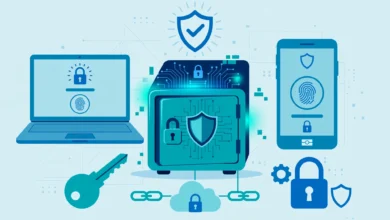
A proper backup is not complicated. It means having more than one copy of your important files, in more than one place, and knowing that you can actually restore them. Phones and laptops already include most of the tools you need, from Google One and iCloud to Windows Backup and Time Machine. The hard part is setting them up correctly and checking them now and then.
There is also a security side that most guides skip. Backups hold your most private data, which makes them a target. Hackers have broken into cloud accounts to steal personal photos, repair technicians have copied customer files, and ransomware gangs routinely try to destroy backups before demanding payment. Several of those cases ended in prison sentences and multimillion-dollar settlements.
This guide walks you through a simple data backup strategy, step-by-step instructions for Android, iPhone, Windows, and Mac, and the real-world mistakes that turned lost or stolen data into lasting damage. By the end, you will have a backup routine that is both reliable and secure.
Why You Need to Back Up Your Phone and Laptop Properly
Data rarely disappears in dramatic ways. Usually it is one ordinary event, and the person affected had no real backup when it happened.
Common Ways People Lose Data
- Theft and snatching: a phone taken at a signal or a laptop stolen from a car.
- Hardware failure: laptop drives and SSDs can fail without warning, and phones can stop booting after water damage or a bad update.
- Accidental deletion: deleting the wrong folder, or clearing a chat app to free space.
- Factory resets: some repairs and software fixes wipe the device completely.
- Ransomware and malware: malicious software that encrypts or deletes files and demands payment.
- Account lockouts: losing access to the Google, Apple, or Microsoft account where your cloud backup lives.
Sync Is Not the Same as Backup
This is the most common misunderstanding. Cloud sync, like Google Photos, iCloud Drive, or OneDrive folder sync, keeps the same files on all your devices. That is useful, but if you delete or corrupt a file on one device, the change often syncs everywhere. A true backup keeps a separate copy, ideally with older versions, so you can go back in time.
Most people need both: sync for convenience, and backup for recovery.
The 3-2-1 Backup Rule Explained
The 3-2-1 backup rule is the simplest strategy that actually works, and it is widely recommended by IT professionals:


- 3 copies of your important data: the original plus two backups.
- 2 different types of storage, such as cloud storage and an external drive.
- 1 copy kept offsite or offline, so a single theft, fire, or ransomware attack cannot destroy everything.
For most people, a practical version looks like this: files on your phone or laptop, an automatic cloud backup, and an encrypted external drive you update once a month and keep unplugged.
Decide What Actually Needs Backing Up
Not everything needs the same care. Prioritize what you cannot replace:
- Photos and videos.
- Documents, degrees, ID scans, and work files.
- WhatsApp and other chat histories.
- Contacts, notes, and calendars.
- Passwords and two-factor authentication recovery codes.
- Business records, invoices, and client data.
Apps, music you can stream again, and system files are much less important, since they can be reinstalled.
7 Proven Steps to Back Up Your Phone and Laptop
The seven steps below cover the most common devices. Menu names can change slightly between versions and brands, so if something looks different on your device, search the setting by name.
Step 1: Back Up Your Android Phone
Android phones back up to your Google account through Google One.
- Open Settings and search for Backup.
- Turn on Backup by Google One (sometimes shown as Google backup).
- Make sure apps and app data, call history, contacts, device settings, and SMS are included.
- Open Google Photos, tap your profile picture, and turn on Backup for photos and videos.
- Tap Back up now to run the first backup on Wi-Fi.
Keep in mind: a free Google account includes 15 GB of storage shared across Gmail, Drive, and Photos. If you have years of photos, you may need a paid Google One plan or a second backup on a computer or external drive. Some phone brands, such as Samsung, also offer their own cloud and PC backup tools.
Step 2: Back Up Your iPhone
iPhones can back up to iCloud, to a computer, or both.
iCloud backup:
- Open Settings, tap your name, then iCloud.
- Tap iCloud Backup and turn it on.
- Tap Back Up Now while connected to Wi-Fi.
- Turn on iCloud Photos if you want photos stored and synced in iCloud.
Computer backup:
- Connect your iPhone to a Mac and open Finder, or to a Windows PC and open the Apple Devices app.
- Choose to back up all data to this computer.
- Tick Encrypt local backup and set a password you will remember. Encrypted backups also include saved passwords and health data.
Keep in mind: free iCloud storage is only 5 GB, which fills quickly. A computer backup is a free way to add a second copy.
Step 3: Back Up WhatsApp and Other Chat Apps
WhatsApp chats are not stored on WhatsApp’s servers long term, so they need their own backup. This is where many people lose years of messages.
- Open WhatsApp, then Settings > Chats > Chat backup.
- Choose Google Drive (Android) or iCloud (iPhone) as the destination.
- Set backup frequency to Daily.
- Turn on End-to-end encrypted backup and store the password or key safely. Without it, the backup cannot be restored.
- Include videos only if you have enough cloud storage.
Apps like Telegram store chats in the cloud by default, while Signal has its own backup and transfer options. Check each app you rely on, rather than assuming it is covered by your phone backup.
Step 4: Back Up Your Windows Laptop
Windows offers two built-in options, and using both gives you better protection.
Cloud backup with Windows Backup and OneDrive:
- Open the Windows Backup app or go to Settings > Accounts > Windows backup.
- Turn on folder backup for Desktop, Documents, Pictures, and other key folders, which sends them to OneDrive.
- Check your OneDrive storage. The free plan is small, so large photo libraries may need a paid plan or a local backup.
Local backup with File History:
- Connect an external drive.
- Search File History in the Start menu, open it, and turn it on for that drive.
- File History keeps older versions of your files, so you can restore a document from last week even after editing it.
For a complete copy of everything, including installed programs and settings, some users also create a full system image with third-party backup software. That makes recovery after a drive failure much faster.
Step 5: Back Up Your MacBook
Macs include Time Machine, one of the easiest backup tools available.
- Connect an external drive with enough space, ideally at least twice the size of the data you want to protect.
- Open System Settings > General > Time Machine.
- Click Add Backup Disk, choose the drive, and turn on Encrypt backup.
- Time Machine then backs up automatically every hour while the drive is connected and keeps older versions.
Use iCloud Drive and iCloud Photos alongside Time Machine for an offsite copy of your most important files.
Step 6: Keep One Offline or Offsite Copy
This step completes the 3-2-1 rule and protects you from ransomware, theft, and account lockouts.
- Copy your most important folders to an encrypted external drive at least once a month.
- Unplug the drive after the backup. A drive that is always connected can be encrypted by ransomware along with your laptop.
- Store the drive somewhere separate from your laptop, such as at home if the laptop travels with you, or with a trusted family member.
- For business data, consider a second cloud service or a backup service with versioning and deletion protection.
Step 7: Test Your Backups
A backup you have never restored is only a hope. Every few months:
- Restore a random file from each backup and open it.
- Check that photos from the last few weeks are present in the cloud.
- Confirm you can still sign in to every backup account, including two-factor authentication.
- When you get a new phone, use the restore process. It is the best real-world test.
Backup Tools at a Glance
| Device | Built-in cloud backup | Local backup option | Free cloud storage |
|---|---|---|---|
| Android | Google One backup, Google Photos | Copy to PC or external drive, brand tools | 15 GB shared |
| iPhone | iCloud Backup, iCloud Photos | Finder (Mac) or Apple Devices (Windows) | 5 GB |
| Windows laptop | Windows Backup with OneDrive | File History, system image | 5 GB OneDrive |
| MacBook | iCloud Drive and Photos | Time Machine | 5 GB iCloud |
Reality Check: When Backups and Personal Data Were Stolen or Destroyed
When you back up your phone and laptop, you create extra copies of your most private data. That is exactly why criminals target backups, cloud accounts, and devices in repair. These cases show what went wrong and what each one teaches.
Celebgate: Cloud Backups Stolen Through Phishing
In 2014, private photos of many celebrities were leaked online in what became known as “Celebgate.” The investigation led to several convictions. One of them, Ryan Collins, admitted to a phishing scheme that sent fake emails pretending to be from Apple and Google to collect usernames and passwords.
According to the Justice Department case as reported by the Anchorage Daily News, Collins gained access to more than a hundred iCloud and Gmail accounts and sometimes used software to download victims’ entire iCloud backups. He was sentenced to 18 months in federal prison in 2016. Investigators said they found no evidence that he was the one who leaked the photos, and other men were convicted separately in connection with the hacks.
The lesson: Apple’s servers were not “hacked” in the usual sense. The attackers tricked people into giving away their passwords. Your cloud backup is only as secure as your account, so strong passwords and two-factor authentication matter as much as the backup itself.
Repair Technicians Who Stole a Customer’s Photos
In 2016, an Oregon college student sent her iPhone to Apple for repair. It was handled at a facility in Sacramento run by Apple contractor Pegatron. Two technicians there posted explicit photos and a video from her phone to her own Facebook account, making it look as if she had uploaded them herself. The incident became public in 2021, when The Register reported that Apple had paid her a multimillion-dollar settlement. The technicians were fired.
The lesson: before any repair, back up your device and, where possible, wipe it or remove sensitive files. Use repair modes and guest accounts when your device offers them, and never hand over passwords unless the repair truly requires it.
A Journalist Who Lost Everything in One Hour
In 2012, technology journalist Mat Honan wrote about how attackers took over his Apple and other accounts by tricking customer support, then remotely wiped his iPhone, iPad, and MacBook. He lost years of photos, including pictures of his young daughter, because they had never been backed up anywhere else. His story became one of the best-known warnings about relying on a single account and device.
The lesson: an offline copy, like an external drive in a drawer, cannot be wiped remotely.
Ransomware Gangs That Target Backups First
Modern ransomware groups know that a good backup means the victim will not pay. Many attacks now try to find and delete or encrypt connected backup drives and cloud sync folders before locking the main system. Businesses and individuals with backups that were always connected have often lost both their data and their backups at the same time.
The lesson: keep at least one backup offline or protected with versioning, so it cannot be changed by malware on your device.
What These Cases Teach
- A backup is only as safe as the account that holds it.
- Phishing, not technical hacking, is the most common way cloud backups are stolen.
- Devices in repair can expose your data, so back up and clean them first.
- One device and one account is not a backup plan.
- An offline copy protects you from remote wipes and ransomware.
How to Keep Your Backups Secure
Backing up your data solves the loss problem. Securing those backups solves the theft problem. Both matter.
Lock Down Your Backup Accounts
- Use a unique, strong password for your Google, Apple, and Microsoft accounts. Never reuse it on other sites.
- Turn on two-factor authentication, preferably with an authenticator app or passkey rather than SMS alone.
- Save recovery codes in a safe place, such as a password manager or a printed copy at home.
- Check recovery email and phone number so you can get back in if you lose your phone.
- Review connected devices regularly and remove any you do not recognize.
Encrypt Local Backups
Encrypt external drives and computer backups so a lost or stolen drive does not expose your files. Time Machine and iPhone computer backups have built-in encryption options, and Windows Pro editions include BitLocker. Store the encryption password somewhere safe. Without it, even you cannot restore the backup.
Watch for Phishing
The Celebgate case shows how often accounts are lost through fake emails and messages. Be suspicious of any message asking you to “verify” your iCloud, Google, or Microsoft account. Go to the official website or app yourself instead of clicking links. The US Cybersecurity and Infrastructure Security Agency’s guidance on phishing gives a clear checklist of warning signs.
Prepare Devices Before Repair or Sale
- Make a full, fresh backup.
- Sign out of cloud accounts and disable device-finding features only if the repair center requires it.
- Remove SIM and memory cards.
- Use a repair or maintenance mode if your phone has one, which hides your personal data from technicians.
- For selling or donating, factory reset after the backup, and confirm the device no longer appears in your account.
Ethical Rules for Handling Other People’s Data
Backups often include data that does not belong only to you: group chats, shared photos, client files, and work documents. Handling them responsibly is part of doing backups properly.
- Do not copy data from devices you do not own without clear permission, even if you are fixing them for a friend.
- Repair shops and IT staff should never open, copy, or keep customer files beyond what the job requires.
- Work and client data should be backed up only to locations your employer or client approves.
- Delete old backups securely when you no longer need them, especially on shared or sold drives.
- Respect privacy laws. Many countries, including Pakistan under its cybercrime law, treat unauthorized access to or sharing of someone’s personal data as a criminal offense.
FAQs: How to Back Up Your Phone and Laptop
How often should I back up my phone and laptop?
Set cloud backups to run automatically every day. Make an offline copy to an external drive at least once a month, and before any repair, update, or trip.
Is cloud backup enough on its own?
Not really. Cloud backup is convenient, but it depends on your account staying secure and accessible. Adding an offline copy follows the 3-2-1 rule and protects you from account lockouts and ransomware.
What is the best way to back up WhatsApp chats?
Use WhatsApp’s built-in chat backup to Google Drive or iCloud, set it to daily, and turn on end-to-end encrypted backup. Store the password or key safely.
Should I encrypt my backups?
Yes, especially external drives and computer backups. Encryption keeps your data private if the drive is lost or stolen.
What should I do before giving my phone for repair?
Make a fresh backup, remove sensitive files or use a repair mode if available, take out your SIM and memory card, and avoid sharing passwords unless they are truly needed.
Conclusion
Learning to back up your phone and laptop properly comes down to a few habits: follow the 3-2-1 rule with three copies on two types of storage and one kept offline, turn on automatic cloud backups through Google One, iCloud, Windows Backup, or OneDrive, add local backups with File History, Time Machine, or an encrypted computer backup, protect chat apps like WhatsApp separately, and test your restores every few months. The cases covered here, from the Celebgate phishing scheme that sent a hacker to prison for stealing iCloud backups and the repair technicians whose misuse of a customer’s photos led to a multimillion-dollar settlement to the journalist who lost years of family photos in a remote wipe and the ransomware gangs that destroy connected backups, all show that a backup must be both complete and secure. Set it up once, secure your accounts, keep one copy offline, and respect other people’s data, and a stolen phone or failed drive becomes an inconvenience instead of a disaster.