How to Choose Between Windows and Linux for Everyday Use
Windows vs Linux for everyday use, compared on cost, apps, gaming, security, and privacy, plus the piracy and licensing mistakes worth avoiding.
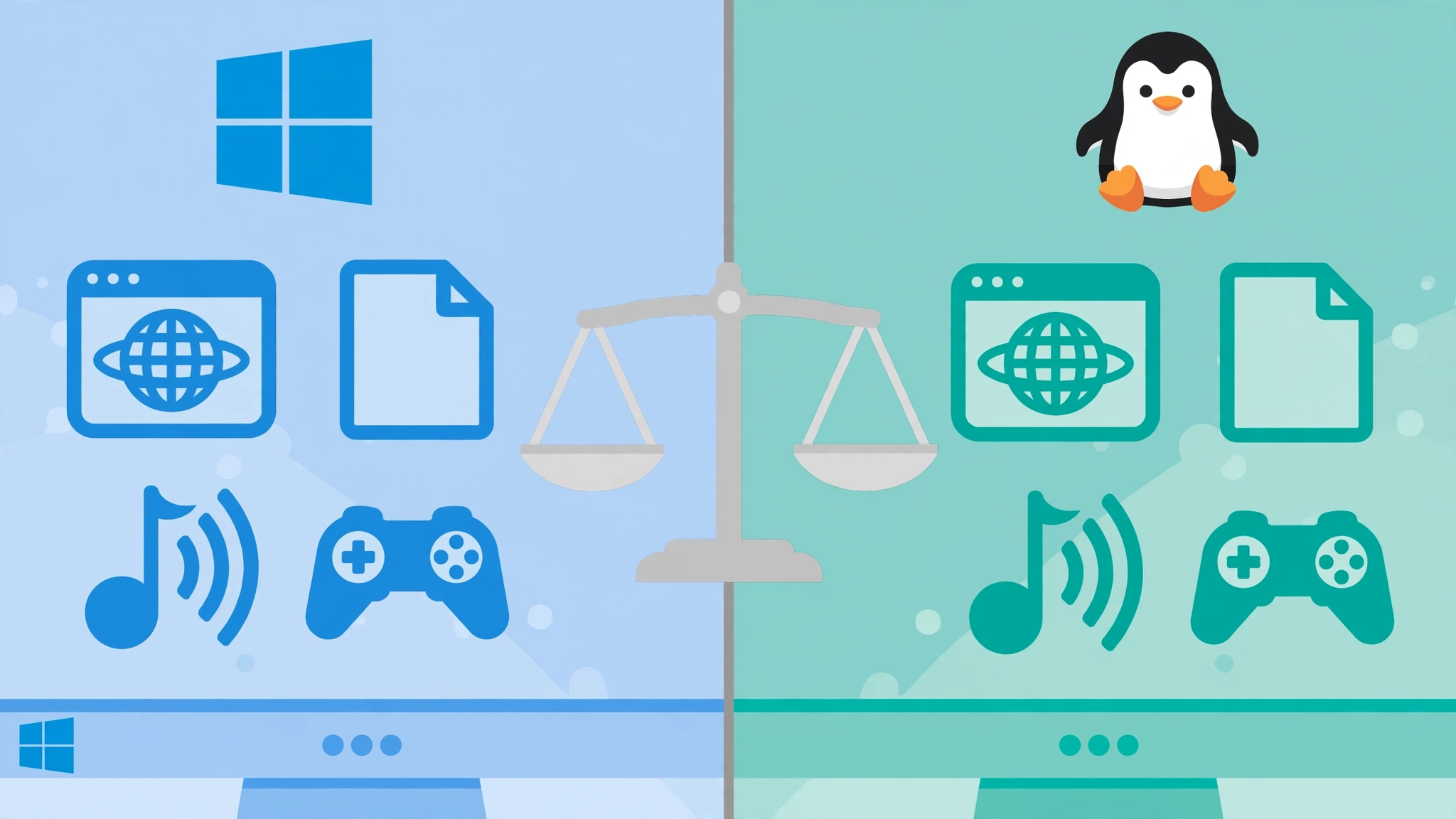
Windows vs Linux: 7 Essential Factors to Pick the Best OS for Everyday Use in 2026
Introduction
Windows vs Linux used to be a debate mostly for programmers and system administrators. Not anymore. With Windows 10 past its end of support, Windows 11 refusing to run on plenty of perfectly good computers, and Linux distributions getting friendlier every year, regular users are asking a fair question: which one actually makes sense for everyday use?
The honest answer is that it depends on what you do. Someone who lives in Microsoft Office, plays competitive online games, or relies on specific school or office software will often be happier on Windows. Someone who mostly browses, writes, streams, and wants an older laptop to feel fast again may be surprised by how well Linux fits.
This guide compares the two operating systems on the things that matter day to day: cost, hardware, software, gaming, ease of use, security, and privacy. It also covers the realities people tend to skip, like the risks of pirated Windows activators, fake license keys sold online, and the companies that broke Linux’s own license rules and ended up in court.
There is no tribal winner here. The goal is to help you pick the best operating system for everyday use based on your own habits, budget, and hardware, and to do it legally. If you finish this article and decide to stay on Windows, that is a perfectly good outcome. If you decide to try Linux, you will know exactly how to test it without risking your files.
Windows vs Linux in 2026: The Basics You Need to Know
Before comparing features, it helps to understand what each system actually is and where things stand right now.
What Windows Is
Windows is Microsoft’s commercial operating system and still runs on the large majority of desktop and laptop computers worldwide. Most PCs come with it preinstalled, and the license cost is built into the price of the machine. Windows 11 is the current version, and it has stricter hardware requirements than Windows 10, including TPM 2.0 and a relatively recent processor.
What Linux Is
Linux is a free and open-source operating system kernel. What people install is a Linux distribution, or distro, which bundles the kernel with a desktop, apps, and tools. Popular desktop distros include Ubuntu, Linux Mint, Fedora, Zorin OS, and Pop!_OS. Most are free to download, use, and share, and the same open-source model also powers Android, most web servers, and most of the world’s supercomputers.
Where Windows 10 Stands Now
This matters for a lot of everyday users. Windows 10 reached end of support in October 2025, and Microsoft offered a consumer Extended Security Updates (ESU) program to keep eligible PCs patched. In June 2026, Microsoft quietly extended consumer ESU until October 12, 2027, according to Help Net Security. Eligible PCs need Windows 10 version 22H2 and must be enrolled.
In practical terms, if your PC cannot run Windows 11, you now have roughly a year to decide between buying new hardware, staying on Windows 10 with ESU, or moving that computer to Linux. That decision is exactly what the rest of this Windows vs Linux comparison is meant to help with.


Windows vs Linux for Everyday Use: 7 Essential Factors
These are the seven factors that decide whether a system fits your daily life. Go through them honestly, and the right choice usually becomes obvious.
1. Cost and Licensing
Windows is paid software. Most people never notice because the license comes with a new PC, but building your own computer or replacing an old license means buying a Windows key. Upgrading from a valid Windows 10 license to Windows 11 is free on eligible hardware.
Most Linux distributions cost nothing, legally, forever. You can install them on as many machines as you like. For students, small businesses, and families with several computers, that adds up.
Verdict: Linux wins on cost, but only if the apps you need also run on it.
2. Hardware Compatibility and Older PCs
Windows 11 has strict requirements, and millions of working computers do not meet them. Linux, on the other hand, runs well on most hardware from the last decade, and lightweight distros can bring very old laptops back to life.
That said, Windows still has the edge on brand-new hardware. Printers, scanners, fingerprint readers, and some Wi-Fi cards come with Windows drivers first, while Linux support can lag or depend on community work.
Verdict: Linux is the better choice for older PCs. Windows is safer for very new or unusual devices.
3. Software and App Availability
This is the deciding factor for most people. Windows runs almost every desktop program ever made, including Microsoft Office desktop apps, Adobe Creative Cloud, many accounting tools, and industry-specific software.
Linux has excellent free alternatives, such as LibreOffice, GIMP, Kdenlive, and Thunderbird, and many popular apps run natively, including Chrome, Firefox, Spotify, Zoom, Slack, and VS Code. Web versions of Microsoft 365 and Google Workspace also work fine in a Linux browser. But if your job depends on Photoshop, desktop Excel macros, or a specific Windows-only program, Linux will create friction.
Verdict: Windows wins on software. Check your must-have apps before switching.
4. Gaming
Gaming on Linux has improved a lot thanks to Valve’s Proton compatibility layer, which lets thousands of Windows games on Steam run on Linux. The Steam Deck itself runs a Linux-based system.
The main problem is anti-cheat. Several popular competitive online games use anti-cheat systems that block Linux entirely. Before switching, check each game you play on a compatibility tracker like ProtonDB.
Verdict: Windows for competitive online gamers. Linux is now fine for many single-player and casual gamers.
5. Ease of Use and Learning Curve
Windows feels familiar to most people because they have used it at school and work for years. Linux distros like Linux Mint and Zorin OS are designed to look and feel similar, with a taskbar, start menu, and app store. Day-to-day tasks like browsing, email, and documents need no command line at all.
The learning curve shows up when something breaks or when you need a niche driver. Linux troubleshooting often means searching forums and sometimes typing commands.
Verdict: Windows is easier for most beginners. Beginner-friendly Linux distros close much of the gap.
6. Security
No operating system is immune to attacks. Windows is the bigger target because it has the most users, which is why most consumer malware is written for it. Microsoft’s built-in Defender and regular updates make a modern, patched Windows PC reasonably secure.
Linux benefits from strict user permissions, software installed mainly from trusted repositories, and a much smaller desktop malware ecosystem. Its weak point is the user: installing random scripts from the internet or running everything as root undoes those advantages.
Verdict: both are secure when updated and used sensibly. Linux has a lower everyday malware risk.
7. Privacy and Control
Windows collects diagnostic data, pushes Microsoft account sign-in during setup, and shows recommendations and ads in some parts of the interface. Features like Recall, which saves snapshots of on-screen activity, drew criticism from privacy researchers before Microsoft made it opt-in.
Most Linux distributions collect little or no telemetry, and you control what gets installed and updated. For privacy-focused users, that difference alone often decides it.
Verdict: Linux wins on privacy and control.
Windows vs Linux at a Glance
| Factor | Windows | Linux |
|---|---|---|
| Cost | Paid license, often bundled with PC | Free for most distros |
| Older hardware | Windows 11 often unsupported | Runs well on most older PCs |
| Software | Widest app support | Strong free alternatives, gaps in pro apps |
| Gaming | Full support, including anti-cheat | Good via Proton, anti-cheat gaps |
| Ease of use | Familiar for most people | Easy on beginner distros, harder to troubleshoot |
| Security | Secure when patched, bigger malware target | Lower everyday malware risk |
| Privacy | Telemetry and account prompts | Minimal telemetry, full control |
Who Should Choose Windows and Who Should Choose Linux?
The factors above point to fairly clear profiles. Most people will recognize themselves in one of these lists.
Stay With Windows If You:
- Rely on Microsoft Office desktop apps, Adobe Creative Cloud, or industry software like certain accounting, CAD, or engineering tools.
- Play competitive online games that use kernel-level anti-cheat.
- Need guaranteed support for specific printers, scanners, or school and office devices.
- Want the least troubleshooting and the most familiar experience.
- Work somewhere that requires Windows for security or IT management.
Consider Linux If You:
- Mostly browse, stream, write documents, and use web apps.
- Have an older PC that cannot run Windows 11 and do not want to replace it.
- Care strongly about privacy and want fewer prompts, ads, and background data collection.
- Are a student or developer learning programming, servers, or cybersecurity.
- Want a free, legal system for several family computers.
The Best Linux Distros for Windows Users
If Linux fits your profile, the distro you start with makes a big difference. These are the friendliest choices for people coming from Windows:
- Linux Mint: the most common recommendation for beginners. Its Cinnamon desktop looks and works a lot like Windows, and it runs well on older machines.
- Zorin OS: designed specifically for Windows switchers, with layouts that copy the Windows look closely.
- Ubuntu: the most widely used desktop distro, with huge community support and long-term support releases.
- Fedora: up-to-date software and a polished desktop, good for users who want newer features.
- Pop!_OS: a good option for gamers and people with NVIDIA graphics cards.
The Middle Ground: Use Both
You do not have to pick only one. Many people dual boot, keeping Windows for games or one specific app and using Linux for everything else. Another option is Windows Subsystem for Linux (WSL), which lets Windows users run Linux tools inside Windows, a popular choice for students and developers.
Reality Check: Illegal Shortcuts on Both Sides of Windows vs Linux
Any honest Windows vs Linux comparison has to talk about the shortcuts people take, because they often decide whether a computer ends up safe or compromised. These examples cover users, sellers, and even large companies.
Pirated Windows and “Activators”
In many countries, the most common way people avoid paying for Windows is a cracked copy or an unofficial activation tool. Programs passed around under names like KMS activators and “Windows loaders” have a long track record of carrying trojans, password stealers, and crypto miners, partly because users are told to disable antivirus before running them.
The risks go beyond the law:
- Activators often change system files and security settings in ways you cannot easily see.
- Pirated ISO files downloaded from random sites may contain pre-installed malware.
- Businesses caught using unlicensed Windows can face software audits and settlement costs.
- Some pirated setups block Windows Update to avoid detection, which leaves the PC unpatched.
That last point is the real danger. In 2017, the WannaCry ransomware spread across more than 150 countries largely by exploiting Windows machines that had not installed an available security patch. Hospitals in the UK’s National Health Service were among the hardest hit. Unpatched systems, including pirated ones that avoid updates, are exactly what attacks like this feed on.
Too-Cheap Windows License Keys
Online marketplaces are full of Windows keys selling for a few dollars. Some are legitimate volume or OEM keys resold in ways Microsoft does not allow, some are bought with stolen credit cards, and some are simply fake. Microsoft has taken legal action against sellers of counterfeit software and misused product keys over the years, and keys bought this way can be deactivated later, leaving the buyer with an unactivated PC and no refund.
If Windows is the right choice for you, buy it from Microsoft, a known retailer, or with a new PC. If the price looks too good to be true, it usually is.
Companies Breaking Linux’s Own License
Linux is free, but it is not license-free. Much of it is released under the GNU General Public License (GPL), which requires anyone distributing the software in devices to share the source code. Some companies have ignored that.
- In 2007, the Software Freedom Law Center filed the first US lawsuit to enforce the GPL, over the BusyBox utilities embedded in consumer devices, followed by suits against other vendors.
- In 2021, the Software Freedom Conservancy sued Vizio, claiming its smart TVs used GPL software including Linux without providing the full source code. According to legal analysis on JD Supra, a judge ruled in February 2026 that the case must go to trial, which was scheduled for August 2026.
These cases matter for everyday users because they show that “free software” still comes with rules, and that the rights to inspect and modify the code are real.
Supply-Chain Attacks on Open Source
Linux is not magically immune to wrongdoing either. In March 2024, a Microsoft engineer named Andres Freund noticed a tiny slowdown in SSH logins and uncovered a backdoor hidden in the xz Utils compression library, a component used by many Linux distributions. The malicious code had been slipped in by a contributor who spent years building trust in the project. It was caught before reaching most stable releases, but it showed that open source depends on careful maintainers and users who install updates from official sources.
What These Cases Teach
- Pirated Windows is not just illegal. It often comes with malware and disabled updates.
- Unpatched systems, pirated or not, are the easiest targets for ransomware.
- Cheap gray-market keys can be revoked and leave you with nothing.
- Linux is free, but its licenses are legally binding on companies that ship it.
- On any system, installing software from official sources and keeping it updated is the best protection.
How to Try Linux Safely Before You Switch
The nice thing about this decision is that you can test Linux without touching your current Windows setup. Here is a safe, step-by-step way to do it.
Step-by-Step: Testing Linux Without Risk
- List your must-have apps and games. For each one, check whether it runs on Linux natively, through a web version, or through Proton or Wine. If something essential is missing, you have your answer already.
- Back up your files. Copy documents, photos, and anything important to an external drive or cloud storage before experimenting.
- Download a distro from its official website only. Use the distro’s own site, such as linuxmint.com or ubuntu.com, and verify the checksum if the site provides one.
- Create a bootable USB. Free tools like Rufus or balenaEtcher write the ISO file to a USB drive.
- Boot into “live” mode. Restart from the USB and choose the try-without-installing option. Linux runs from the USB, and nothing on your hard drive changes.
- Test the basics. Check Wi-Fi, sound, display, webcam, printer, and battery behavior. These are the things most likely to cause problems.
- Use it for a few days. Try your normal routine: browsing, documents, video calls, and streaming.
- Decide how to install. If everything works, choose between a full install, dual booting alongside Windows, or installing on a spare drive.
Tips for a Smoother Switch
- Install software from the distro’s software center or official repositories first, and avoid random scripts from forums unless you understand them.
- Keep automatic updates on, just as you would on Windows.
- Learn a handful of basic terminal commands. You will not need them daily, but they help when troubleshooting.
- Join the distro’s official forum. The Linux Mint and Ubuntu communities are especially helpful to beginners.
If You Stay on Windows, Do It Right
Choosing Windows is perfectly reasonable. Just make sure your copy is genuine, keep Windows Update turned on, and if you are still on Windows 10, enroll in ESU or plan your move to Windows 11. Microsoft’s Windows 11 system requirements page tells you whether your PC can upgrade for free.
FAQs: Windows vs Linux for Everyday Users
Is Linux better than Windows for everyday use?
It depends on your apps. For browsing, documents, streaming, and older hardware, Linux is often as good or better. For Microsoft Office desktop apps, Adobe software, and competitive online games, Windows is usually the better fit.
Is Linux really free and legal to use?
Yes. Most Linux distributions are free to download, install, and share legally. Companies that ship Linux in products must still follow its open-source licenses.
Can I run Microsoft Office on Linux?
The desktop apps do not run natively, but the web versions of Microsoft 365 work in a Linux browser. LibreOffice and OnlyOffice also open and save Office files.
Is Linux safer than Windows?
Linux faces far less everyday desktop malware, but both systems are secure when kept updated and used carefully.
What should I do if my PC cannot run Windows 11?
You can enroll in Windows 10 ESU, which now runs until October 12, 2027 for eligible consumer PCs, replace the computer, or switch it to a beginner-friendly Linux distro like Linux Mint.
Conclusion
Choosing between Windows vs Linux for everyday use comes down to seven practical factors: cost, hardware, software, gaming, ease of use, security, and privacy. Windows remains the safer bet if you depend on Microsoft Office desktop apps, Adobe tools, specialized work software, or competitive online games, while Linux is a strong, free, and private option for browsing, documents, media, programming, and older computers that cannot run Windows 11. The examples covered here, from malware-laden Windows activators and revoked gray-market keys to WannaCry’s spread through unpatched PCs, companies taken to court for breaking the GPL, and the xz Utils backdoor, all lead to the same rule: whichever system you choose, get it from an official source, keep it updated, and test before you commit. Try Linux from a USB first, keep your files backed up, and let your daily habits, not hype from either side, decide.