How to Remove Bloatware From a New Windows Laptop
Remove bloatware from a new Windows laptop safely with built-in tools, brand-specific tips and real cases of preinstalled apps that put users at risk.
How to Remove Bloatware From a New Windows Laptop
Introduction
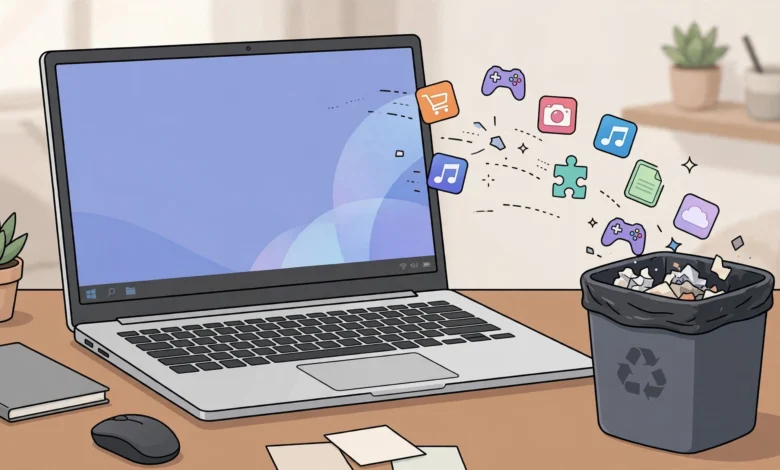
Remove bloatware from a new Windows laptop, and you’ll often notice the difference within a day. Startup gets faster, fewer pop-ups beg you to renew an antivirus trial, and the fan stops spinning up for no clear reason. But there’s a catch. Some of that preinstalled software is junk, some is harmless clutter, and some quietly keeps your laptop running properly. Delete the wrong thing and you can lose battery management, function keys or driver updates.
This guide is about doing it carefully. It explains what counts as bloatware, how to tell it apart from the software your hardware actually needs, and the safest built-in ways to clean up a new HP, Dell, Lenovo, Asus or Acer laptop running Windows 11.
It also looks at why this matters beyond speed. Preinstalled software has caused real legal trouble. Lenovo settled with the US Federal Trade Commission and 32 states after shipping laptops with adware that weakened web security, and Avast was ordered to pay $16.5 million after the FTC said it sold users’ browsing data. These cases show that what comes “free” on a new machine isn’t always on your side.
You won’t need shady “one-click optimisers” or cracked tools to finish the job. Everything here uses Windows features or official manufacturer options, so you can remove bloatware without breaking your laptop or your warranty.
What Is Bloatware and Why Should You Remove Bloatware?
Bloatware is software you didn’t choose that comes preinstalled on a new device. Manufacturers include it because software companies pay to be there, because it promotes the brand’s own services, or because it seems useful to some buyers. On a new Windows laptop, it usually falls into three groups.
Third-party trials and promotions
These include antivirus trials such as McAfee or Norton, game shortcuts, streaming apps, photo editors and “special offer” links. They’re the easiest place to start when you remove bloatware, because Windows Security already gives you solid built-in protection, and two antivirus programs running together can slow your system and conflict with each other.
Manufacturer utilities
Think HP Smart, MyDell, Lenovo Vantage, MyASUS or Acer Care Center. Some duplicate Windows features and nag you with notifications. Others handle real jobs like battery charge limits, keyboard backlight, fan profiles and firmware updates. These need judgment, not a blanket uninstall.
Microsoft’s own preinstalled apps
Windows 11 itself adds apps and shortcuts you may never use, such as news widgets, some games and promoted Store apps. Many can be uninstalled normally. A few core components can’t, and forcing them out with scripts often causes problems later.
Why it’s worth the effort
- Faster startup: many preinstalled apps launch at boot and run in the background.
- Fewer interruptions: trial software is designed to push you toward paid renewals.
- Better privacy: some bundled apps collect usage data you never knowingly agreed to share.
- Smaller attack surface: every extra program is something that can have a security flaw, as the cases in the next section show.
The point isn’t to strip Windows down to nothing. The goal is to remove bloatware that adds risk or annoyance while keeping the software your hardware depends on.

Real Cases: When Preinstalled Software Crossed the Line
It’s easy to think of bloatware as just annoying. These cases show it has also created legal liability and genuine security holes for ordinary buyers.
Lenovo and Superfish (2014 to 2017)
From August 2014 to early 2015, Lenovo shipped consumer laptops with VisualDiscovery, ad-injecting software made by a company called Superfish. To insert ads into shopping pages, including secure HTTPS pages, it installed its own root certificate and acted as a “man-in-the-middle” between the browser and websites. Security researchers found the certificate’s password was weak, which meant attackers could potentially use it to impersonate trusted sites.
In 2017, Lenovo settled with the FTC and 32 state attorneys general, paying $3.5 million to the states. The FTC order requires Lenovo to get consumers’ affirmative consent before preinstalling similar ad software and to run a software security program, with third-party audits, for 20 years (SecurityWeek). Lenovo disputed the FTC’s allegations but agreed to the settlement.
Dell’s eDellRoot certificate (2015)
Later in 2015, researchers found that some Dell laptops shipped with a root certificate called eDellRoot, installed by a Dell support tool, with its private key included on the machine. That combination could let attackers create fake certificates trusted by those laptops. Dell apologised and released a removal tool. No fine followed, but it was the same class of mistake as Superfish, coming from software meant to help users.
Avast and Jumpshot (2014 to 2024)
Antivirus trials are among the most common bloatware. In 2024, the FTC ordered Avast to pay $16.5 million and banned it from selling browsing data for advertising. The FTC alleged that from 2014 to 2020, Avast’s subsidiary Jumpshot sold browsing information collected through Avast’s antivirus software and browser extensions to more than 100 third parties, despite marketing those products as privacy protection (FTC press release).
What these cases teach
- Preinstalled doesn’t mean vetted. Even major brands have shipped software they didn’t fully understand.
- “Security” and “helper” tools can create the very risks they claim to prevent.
- Regulators acted after the damage was done, so the practical defence is to review what’s on your laptop on day one and remove bloatware you don’t need.
Before You Remove Bloatware: 4 Safety Steps
Ten minutes of preparation saves hours of fixing. Do these before you remove bloatware from any new laptop.
1. Run Windows Update and the manufacturer’s update tool first
Install all pending Windows updates, then let the brand’s own updater (HP Support Assistant, Dell Command Update, Lenovo Vantage, MyASUS) install the latest drivers and BIOS. Once your drivers are current, you can decide whether to keep the updater at all.
2. Create a restore point
Search for “Create a restore point” in the Start menu, make sure protection is turned on for your C: drive, and create one named something like “Before debloat.” If an uninstall breaks something, you can roll back in minutes.
3. Note your activation and licences
Go to Settings > System > Activation and confirm Windows is activated. If your laptop came with Microsoft 365 or Office, sign in and link it to your Microsoft account before removing anything Office-related.
4. Know what not to remove
Leave these alone unless you know exactly what you’re doing:
- Audio, graphics, touchpad, Wi-Fi and Bluetooth drivers (Realtek, Intel, AMD, NVIDIA, Synaptics, Elan).
- Microsoft Visual C++ Redistributables and .NET runtimes, which other programs depend on.
- Hotkey and power management utilities that make your brightness, volume and battery features work.
- Windows Security, which should stay as your antivirus if you uninstall a third-party trial.
When in doubt, search the program’s exact name with your laptop model before uninstalling.
How to Remove Bloatware From a New Windows Laptop: 5 Methods
Start with the gentlest method and only move down the list if you need to. Together with the four safety steps above, these make up the nine-step process.
5. Uninstall apps from Settings
This is the official, safest way to remove bloatware on Windows 11, as described in Microsoft’s guide to uninstalling apps and programs in Windows.
- Open Settings > Apps > Installed apps.
- Sort the list by Install date. On a new laptop, most bloatware shares the factory date.
- Click the three dots next to an unwanted app and choose Uninstall.
- Restart after removing antivirus trials, so Windows Security takes over cleanly.
You can also right-click an app in the Start menu’s All apps list and choose Uninstall.
6. Use Control Panel for older desktop programs
Some manufacturer tools and trial programs don’t appear properly in Settings. Search for Control Panel, open Programs > Programs and Features, right-click the program and choose Uninstall. Antivirus suites sometimes need their vendor’s official removal tool to clear leftovers completely.
7. Disable startup apps you want to keep
Not every program needs deleting. If you want to keep a manufacturer utility but stop it slowing boot, open Task Manager (Ctrl + Shift + Esc), go to Startup apps, and disable anything with a high startup impact that you don’t need immediately. You can also do this from Settings > Apps > Startup.
8. Use winget for faster, cleaner removal
Windows includes winget, Microsoft’s command-line package manager. It’s useful when you want to see exactly what’s installed and remove apps in one go. Open Terminal and run:
winget list
winget uninstall --id "App.ID.Here"
Copy the exact ID from the winget list output. Avoid pasting long removal scripts from forums unless you understand every line. Many of them also remove system components you may need later.
9. Reset Windows without the preinstalled apps
If your laptop is heavily loaded, a reset can be cleaner than uninstalling dozens of programs. Go to Settings > System > Recovery > Reset this PC, choose your options, and under Change settings set Restore preinstalled apps to No (on laptops where that option appears). This keeps Windows and your licence but skips most manufacturer extras.
After the reset, install only the drivers and utilities you need from your manufacturer’s official support page. A full clean install using Microsoft’s official installation media is also an option, but it’s rarely necessary on a brand-new laptop.
Brand-by-Brand Guide: What to Keep and What to Remove
Every manufacturer bundles different software, and names change between models. Use the table below as a starting point, then check your exact model on the brand’s support site.
| Brand | Usually safe to remove | Usually worth keeping |
|---|---|---|
| HP | McAfee trial, HP promotional offers, HP Smart if you have no HP printer | HP Hotkey Support, audio control app, HP Support Assistant (or install drivers manually) |
| Dell | McAfee trial, partner offers, MyDell if unused | Dell Command Update or SupportAssist for drivers, power management tools |
| Lenovo | McAfee trial, Lenovo Now, partner apps | Lenovo Vantage (battery conservation, firmware updates), hotkey drivers |
| Asus | McAfee or Norton trial, promotional games | MyASUS (battery care, fan modes), Armoury Crate on gaming models |
| Acer | Norton trial, Acer offers and shortcuts | Acer Care Center or Acer Purified utilities that control audio and power |
HP
HP Smart is genuinely useful only if you own an HP printer. Keep HP’s hotkey and audio components, because removing them can break function keys and speaker tuning. Worth remembering: in 2017, researchers found a debugging feature in a Conexant audio driver on some HP laptops that logged keystrokes to a file. HP patched it, which is another reason to keep drivers updated rather than frozen at factory versions.
Dell
Dell’s support tools have improved since the 2015 eDellRoot incident, but SupportAssist has also needed security patches over the years. If you keep it, update it. If you prefer, uninstall it and use Dell Command Update or download drivers from Dell’s site yourself.
Lenovo
Lenovo Vantage is one manufacturer app most people should keep. It controls battery conservation mode, which limits charging to extend battery life, plus firmware updates. Remove partner trials and promotional apps around it.
Asus
MyASUS handles battery health charging and fan profiles. On ROG and TUF gaming laptops, Armoury Crate controls performance modes and lighting, so removing it can leave your fans stuck on default behaviour.
Acer
Acer machines often include Norton trials, shortcut bundles and “recommended” apps. Remove those, but keep Acer’s power and audio utilities on models that rely on them.
Risky Shortcuts to Avoid When You Remove Bloatware
The internet is full of tools promising to clean, speed up or “debloat” Windows in one click. Some are fine, many are pointless, and a few are outright scams. Here’s what to avoid when you remove bloatware.
Fake “PC optimiser” and scan software
In 2024, Restoro and Reimage agreed to pay $26 million to settle FTC charges. The FTC said the companies used fake Windows-style pop-ups to scare people into running “scans” that reported serious problems, then charged $27 to $58 for software and pushed technician services costing $199 to $499 more. The companies settled without admitting wrongdoing (FTC consumer alert). The lesson is simple: installing a “cleaner” to fix bloatware often just adds more bloatware, or worse.
Registry cleaners
Registry cleaners claim to speed up Windows by deleting “errors.” Microsoft doesn’t support them, the speed gains are negligible, and a bad cleanup can stop programs or Windows features from working.
Unknown debloat scripts
Open-source debloat scripts exist and some are well maintained, but random scripts shared on forums or YouTube can remove Microsoft Store, Windows Update components or security features. Some fake “debloaters” bundle malware. If you use a script, get it from its official repository, read what it changes, and create a restore point first.
Pirated Windows and “pre-activated” images
Some people wipe a new laptop and install a “lite” or pre-activated copy of Windows downloaded from a torrent. That’s software piracy, and those images can include hidden backdoors or disabled security updates. Your new laptop already includes a genuine Windows licence tied to its hardware, so there’s no reason to take that risk.
Disabling Windows Security permanently
Some guides tell you to turn off Defender to “free up resources.” On a modern laptop, the performance cost is small and the protection matters, especially after you uninstall a third-party antivirus trial.
Frequently Asked Questions
Is it safe to remove bloatware from a new laptop?
Yes, if you stick to trials, promotions and apps you recognise as unnecessary, and create a restore point first. The risk comes from removing drivers or manufacturer utilities that control hardware features.
Will removing preinstalled apps void my warranty?
No. Uninstalling software doesn’t affect your hardware warranty. Manufacturers may ask you to reinstall their support tools during a support call, which you can do from their official website.
Should I uninstall McAfee or Norton from a new laptop?
For most home users, yes. Windows Security provides built-in antivirus and firewall protection, and running two antivirus programs at once can slow your laptop. Just make sure Windows Security switches on after the trial is removed.
Can I remove Microsoft Edge?
Edge is part of Windows and can’t be fully removed through normal settings in most regions. You can install another browser and set it as your default under Settings > Apps > Default apps.
Will bloatware come back after Windows updates?
Occasionally, a major Windows update reinstalls promoted apps or shortcuts. A quick check of Installed apps after big updates lets you remove bloatware again in a minute or two.
Conclusion
The safest way to remove bloatware from a new Windows laptop is to work slowly and use the tools Windows already gives you: update drivers first, create a restore point, uninstall trials and promotional apps from Settings or Control Panel, disable startup clutter you want to keep, use winget for precise removals, and reset without preinstalled apps if the machine is badly overloaded. Keep the drivers, hotkey tools and battery utilities your hardware depends on, and leave Windows Security switched on. Cases like Lenovo’s Superfish settlement, Dell’s eDellRoot certificate, Avast’s $16.5 million FTC order and the $26 million Restoro and Reimage settlement show that both preinstalled software and “cleanup” tools can put users at risk, so the best way to remove bloatware is the official, careful one, without optimisers, cracked images or unknown scripts.