Top Signs You Need to Replace Your Laptop This Year
Replace your laptop or repair it? These 12 warning signs, from Windows 10 support ending to battery failure, help you decide before spending money.
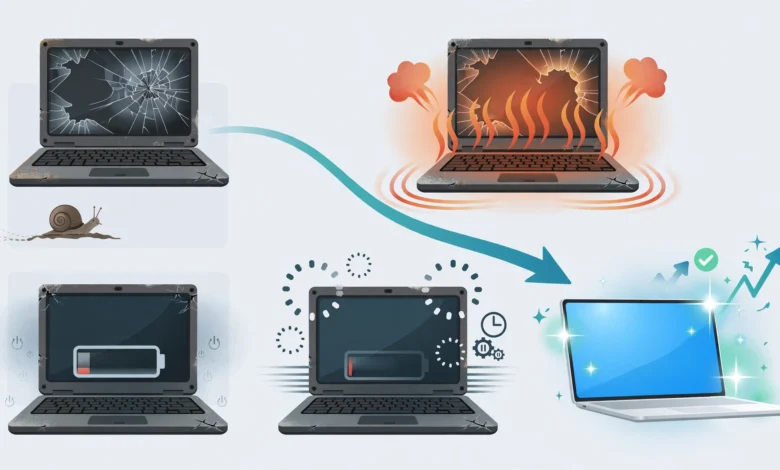
Top Signs You Need to Replace Your Laptop This Year
Deciding whether to replace your laptop is rarely simple. It usually starts small. The machine takes longer to boot, the fan runs constantly, the battery drops from 60 to 15 percent during a single meeting, or an update notice tells you your system is no longer supported. You put up with it for a while, then wonder whether you’re wasting time on a dying machine or about to waste money on one you don’t need.
This year adds a big reason to think about it. Microsoft’s free and paid consumer Extended Security Updates for Windows 10 ended on October 13, 2026. Millions of older laptops that can’t upgrade to Windows 11 are now running without security patches, which makes them easier targets for malware and data theft.
At the same time, not every slow laptop needs replacing. A cheap SSD, more RAM, a new battery, or a clean Windows install can bring an older machine back to life for a fraction of the cost. And plenty of companies profit by convincing people their computers are broken when they aren’t.
This guide covers 12 clear warning signs that it’s time to replace your laptop, along with fixes worth trying first. It also looks at real cases where companies were penalized for scaring customers with fake problems or slowing devices through updates. Knowing those realities helps you make an honest decision based on facts, not pressure.
How Long Should a Laptop Last?
Before looking at the warning signs, it helps to know what’s normal.
Typical Laptop Lifespan
- Budget laptops: around 3 to 4 years
- Mid-range laptops: around 4 to 6 years
- Premium and business laptops (MacBooks, ThinkPads, Dell Latitude, HP EliteBook): often 5 to 8 years
These numbers depend heavily on how you use the laptop, how well it’s maintained, and whether its software is still supported. A well-kept business laptop can easily outlast a cheap consumer model bought the same year.
Age Alone Isn’t the Answer
A five-year-old laptop with an SSD and 16GB of RAM may run better than a two-year-old budget model with 8GB and slow storage. So instead of deciding purely by age, look at the signs below.
12 Signs You Need to Replace Your Laptop
1. It Can’t Run a Supported Operating System
This is the most important sign this year.
For Windows users: Windows 10 reached end of support in October 2025, and the extra year of consumer Extended Security Updates has now ended too. Microsoft’s documentation confirms that October 13, 2026, was both the last day to enroll and the last day security updates were provided under the consumer ESU program.


What that means in practice: a PC still on Windows 10 keeps working, but it stops getting fixes for newly discovered vulnerabilities.
If your laptop meets Windows 11’s requirements (including TPM 2.0 and a supported processor, generally Intel 8th generation or AMD Ryzen 2000 series and newer), upgrading from a valid Windows 10 licence is free. If it doesn’t meet them, that’s a strong reason to replace your laptop. You can check details on Microsoft’s Windows 10 consumer ESU support page.
For Mac users: Apple has said macOS Tahoe is the last major macOS version that supports Intel-based Macs. Apple usually continues security updates for older macOS versions for a while, but Intel Macs are clearly near the end of their software life.
2. It No Longer Gets Security, Driver, or BIOS Updates
Even if the operating system is supported, check whether your laptop maker still releases BIOS updates and drivers for your model. When a manufacturer stops updating firmware, security holes in the hardware layer stay open forever.
Visit your brand’s support page and look up your model. If the last update was several years ago, the laptop is effectively retired from the maker’s point of view.
3. It’s Painfully Slow Even After Cleanup
A slow laptop is the most common complaint, but it’s also the most fixable. Before deciding to replace your laptop for speed alone, try:
- Removing startup programs and unused apps
- Running a malware scan
- Upgrading from a hard drive (HDD) to an SSD upgrade
- Adding RAM if slots are available
- Doing a clean install of the operating system
If you’ve done all of that and the laptop still struggles with everyday tasks like browsing, video calls, and documents, the processor is likely the bottleneck, and processors in laptops can’t be upgraded.
4. The Battery Is Swollen or Worn Out
Check your battery health:
- Windows: run
powercfg /batteryreportin Command Prompt and compare Design Capacity with Full Charge Capacity. - Mac: go to System Settings > Battery > Battery Health, or hold Option and click the Apple menu, then System Information > Power to see the cycle count.
A worn battery alone isn’t a reason to replace your laptop. Batteries are often replaceable. But it becomes a sign when:
- The battery is swollen. You’ll notice an uneven bottom panel, a lifting keyboard, or a trackpad that clicks poorly. Stop using it and get it checked immediately, since swollen lithium-ion batteries are a fire risk.
- Replacement batteries are no longer available from the manufacturer or trusted sources.
- A battery replacement costs a large share of the laptop’s value.
5. It Overheats or Shuts Down Under Normal Use
An overheating laptop that shuts down during light tasks has a problem. First try:
- Cleaning dust from the fans and vents
- Replacing dried thermal paste
- Using it on hard, flat surfaces
- Checking for malware running in the background
If overheating continues after a proper cleaning, the cooling system or motherboard may be failing, which is often a sign to replace your laptop rather than repair it.
6. Repair Costs Exceed Half Its Value
A simple rule many technicians use: if a repair costs more than 50 percent of the laptop’s current value, replacement usually makes more sense. Motherboard failures, screen replacements on premium laptops, and liquid damage often cross that line.
Get a written quote and compare it with the price of a comparable newer laptop.
7. Physical Damage Is Getting Worse
Some damage is cosmetic. Some is a countdown. Watch for:
- Cracked or loose hinges, which can eventually damage the screen cable
- Broken charging ports that only work at certain angles
- Screen lines, flickering, or dead areas
- A cracked body that exposes internal parts
Fixing one issue is reasonable. When several appear at once, it’s usually time to replace your laptop.
8. It Can’t Run the Software You Need
Software keeps getting heavier. You may notice:
- Apps refusing to install because your OS is too old
- Video calls lagging when you share your screen
- Design, coding, or editing tools running out of memory
- New AI features in apps like Windows, Office, or Adobe not available on your hardware
If your work or studies depend on software your laptop can’t run properly, upgrading is a practical decision.
9. Storage Is Failing
A failing hard drive or SSD puts your files at risk. Warning signs include:
- Clicking or grinding sounds (on HDDs)
- Files disappearing or becoming corrupted
- Very slow file access
- SMART warnings in tools like CrystalDiskInfo
Back up your data immediately. Replacing the drive is often cheap and worthwhile. But if the laptop has soldered storage, as many thin laptops and all recent MacBooks do, a failing drive can mean a costly motherboard replacement.
10. Frequent Crashes and Blue Screens
Occasional crashes happen. Frequent crashes, blue screen errors, or random restarts, especially with hardware-related error codes, can point to failing RAM, storage, or motherboard components.
Run built-in diagnostics:
- Windows: Windows Memory Diagnostic, plus your manufacturer’s hardware test (often accessible by pressing F12 or a similar key at startup)
- Mac: Apple Diagnostics (hold D during startup on Intel Macs, or hold the power button on Apple silicon Macs and press Command-D)
11. It’s Missing Features You Now Need
Older laptops may lack:
- Wi-Fi 6 or newer, which matters in crowded networks
- USB-C charging and display output
- A decent webcam for remote work
- Fingerprint or face login
- Enough ports for your accessories
Adapters can fill some gaps, but if you rely on several workarounds every day, it might be time.
12. Your Needs Have Changed
Sometimes the laptop isn’t failing. Your life just moved on. A student starting an engineering degree, a freelancer taking on video editing, or someone traveling more often may need a different machine. That’s a perfectly valid reason to replace your laptop, as long as you’re honest with yourself about what you actually need.
Upgrade or Replace Your Laptop? Fixes Worth Trying First
Not every warning sign means you need a new machine. These fixes can add years to an older laptop.
Low-Cost Fixes
- Clean install the operating system to remove years of clutter.
- Upgrade to an SSD if your laptop still uses a hard drive. This is often the single biggest speed boost.
- Add RAM if your laptop has free or socketed slots. Going from 8GB to 16GB helps a lot with modern browsers.
- Replace the battery with a genuine or high-quality part.
- Clean fans and replace thermal paste to fix heat problems.
- Use a lightweight operating system like a Linux distribution or ChromeOS Flex on older hardware that can’t run Windows 11.
When Fixes Make Sense
- The laptop is otherwise solid and well-built
- Total repair or upgrade costs stay well below the price of a new laptop
- The operating system is still supported (or you’re comfortable switching to Linux or ChromeOS Flex)
When Replacement Makes More Sense
- The processor is too weak for your daily tasks
- The OS is unsupported and the hardware can’t upgrade
- Multiple components are failing at once
- Repair costs exceed half the laptop’s value
The Reality Check: When “Your Laptop Is Broken” Is a Sales Tactic
Some companies profit when you believe your laptop is worse than it is. Real enforcement actions show why you should verify problems yourself before you replace your laptop.
Scareware That Invented Problems (Restoro and Reimage, 2024)
In 2024, the U.S. Federal Trade Commission ordered two related software companies, Restoro and Reimage, to pay $26 million over allegations that they used fake system scans and deceptive pop-ups to scare people into believing their computers were infected or damaged. According to the FTC, the scans flagged problems regardless of the actual condition of the computer, then telemarketers pushed costly “repair” services.
Lesson: don’t trust pop-ups or free “PC health scans” that claim your laptop is in critical condition. Use built-in tools and reputable diagnostics instead.
Tech Support Scams
Scammers frequently pose as Microsoft, Apple, or “certified technicians” and claim your computer has serious problems. They may push expensive fake repairs or even convince you to buy a new device through them. Microsoft does not call people out of the blue about their computers. The FTC explains how these scams work and how to report them on its consumer advice website.
Updates That Slowed Devices (Italy and France)
Tech giants have also been penalized for slowing devices. In 2018, Italy’s competition authority fined Apple €10 million and Samsung €5 million, saying certain software updates slowed older phones and pushed customers toward replacements. In 2020, France fined Apple €25 million for not telling iPhone users that updates could slow older devices with aging batteries. These cases involved phones, but the principle applies to laptops too: a slowdown after an update doesn’t always mean the hardware is dying. Sometimes a battery replacement or settings change fixes it.
Pressure to Buy From Unofficial Sellers
When people decide to replace their laptop, some turn to unofficial sellers offering “new” laptops at unusually low prices. Some of these are refurbished units sold as new, devices with tampered serial numbers, or stolen machines. In many countries, knowingly buying stolen goods is illegal, and these laptops rarely come with valid warranties.
What This Means for You
- Verify problems with built-in diagnostics before paying for repairs or a new laptop.
- Get a second opinion from a different technician for expensive repairs.
- Buy from authorized sellers with valid warranties.
- Be skeptical of urgency. Legitimate companies don’t need to scare you into buying.
Right to Repair: A Positive Change for Laptop Owners
There’s good news on the repair side. Several governments have passed right to repair laws that make it easier to fix devices instead of replacing them.
- New York passed its Digital Fair Repair Act, which requires many electronics makers to provide parts, tools, and repair information.
- Minnesota and California have passed their own repair laws covering consumer electronics.
- The European Union adopted a Right to Repair directive in 2024 that pushes manufacturers to offer repair options for many products.
Manufacturers like Lenovo, Dell, HP, Framework, and Apple now offer more official repair parts and guides than they did a few years ago. Before deciding to replace your laptop, check whether official parts are available for your model.
What to Do With Your Old Laptop
When you do replace your laptop, handle the old one responsibly.
- Back up your files and test the backup.
- Sign out of Microsoft, Apple, Google, and app accounts.
- Factory reset the laptop and choose the option to clean the drive.
- Sell or donate it if it still works. Many schools and charities accept used laptops.
- Recycle it properly if it’s broken. The U.S. Environmental Protection Agency has a helpful guide on electronics donation and recycling.
Careless disposal has led to real data leaks. Morgan Stanley was fined a combined $95 million by U.S. regulators after devices containing customer data were resold without proper wiping. If a major bank can make that mistake, so can anyone.
How to Choose Your Next Laptop
If it’s time to replace your laptop, these basics help you avoid regret.
- Processor: Intel Core Ultra, AMD Ryzen 5 or 7 (recent generations), Snapdragon X, or Apple M-series
- RAM: at least 16GB for most people
- Storage: 512GB SSD minimum, 1TB if you store media
- Battery: check independent test results, not just brand claims
- Software support: buy a model with plenty of years of OS and firmware updates ahead
- Repairability: upgradeable RAM and storage add years of life
- Warranty: at least one year, ideally with local service centers
Quick Decision Checklist
| Situation | Repair or Upgrade | Replace |
|---|---|---|
| Slow but on a hard drive | ✅ SSD upgrade | |
| Can’t run Windows 11 and needs security | ✅ | |
| Worn battery, parts available | ✅ New battery | |
| Swollen battery, no parts | ✅ | |
| Overheating, never cleaned | ✅ Cleaning and paste | |
| Repair costs over 50% of value | ✅ | |
| Multiple failing parts | ✅ | |
| Needs changed significantly | ✅ |
Conclusion
Knowing when to replace your laptop comes down to separating real hardware and software limits from problems that a simple fix can solve. The strongest signs this year are an unsupported operating system, especially now that consumer Windows 10 security updates ended on October 13, 2026, along with missing firmware updates, a processor too slow for everyday tasks even after cleanup, a swollen or irreplaceable battery, persistent overheating, failing storage, frequent crashes, worsening physical damage, and repair costs above half the laptop’s value. Before buying new, try an SSD upgrade, more RAM, a battery replacement, a fan cleaning, or a clean OS install, and use built-in diagnostics rather than pop-up scans, since cases like the FTC’s $26 million action against Restoro and Reimage and the fines against Apple and Samsung in Europe show that fear and hidden slowdowns have been used to push unnecessary replacements. When it truly is time, buy from authorized sellers, choose a model with years of software support ahead, and wipe, sell, donate, or recycle your old laptop responsibly.