Best Laptops for Architecture and Engineering Students
Laptop for architecture or engineering school? Compare 10 picks for AutoCAD, Revit, and SolidWorks, plus the specs that matter and mistakes to avoid.
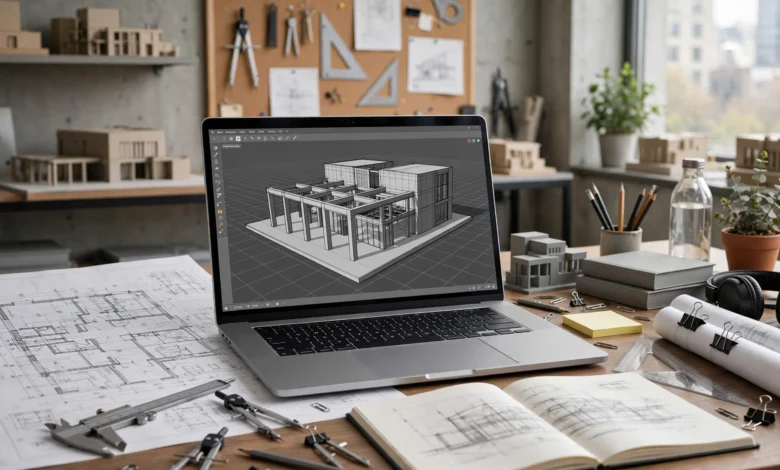
Best Laptops for Architecture and Engineering Students
Picking a laptop for architecture or engineering school is a bigger decision than buying a normal student laptop. A machine that handles notes, emails, and Netflix perfectly can freeze the moment you open a Revit model, orbit a detailed SketchUp scene, or run a SolidWorks simulation. And since you’ll probably use this laptop for four or five years of studio deadlines, late-night renders, and final presentations, a bad choice follows you for a long time.
The confusing part is that many laptops look powerful on paper. Big processor names, flashy RGB keyboards, and “AI-ready” stickers don’t tell you whether a machine will run AutoCAD smoothly or overheat halfway through a Lumion render. Some popular laptops can’t even run key engineering software at all, because that software only works on Windows.
This guide breaks down what architecture and engineering students actually need: the right processor, a dedicated GPU, enough RAM, a good display, and software compatibility for your specific course. Then it covers 10 laptops worth considering at different budgets, from value gaming laptops to certified mobile workstations.
There’s also an honest section on the realities students face, including cracked software that spreads malware, piracy enforcement against unlicensed CAD users, and the legal crackdown on paid assignment services. Most of the expensive software you need is available free or cheaply through student programs, so there’s no reason to take those risks.
What Makes a Good Laptop for Architecture and Engineering?
Architecture and engineering software leans heavily on certain parts of a laptop. Here’s what matters and why.
Processor (CPU)
The processor handles modeling, calculations, and most everyday tasks.
- Intel Core Ultra 7 or 9 (H or HX series)
- AMD Ryzen 7 or 9 (HS or HX series)
- Apple M-series Pro or Max chips for Mac users
Retail guides agree on the basics here. Currys notes that Intel Core Ultra 7/9 or AMD Ryzen 7/9 processors offer the best balance of power and efficiency for architecture workflows.
One detail many students miss: programs like AutoCAD, Revit, and SolidWorks rely heavily on single-core speed for everyday modeling. A chip with high boost clocks often feels faster than one with more cores but lower speeds. Multi-core power matters more for rendering and simulations.
Graphics Card (GPU)
This is where a laptop for architecture differs most from a regular student laptop. 3D modeling, real-time rendering (Enscape, Lumion, Twinmotion, D5 Render), and visualization all depend on the GPU.


- Entry level: NVIDIA RTX 5050 or RTX 4050 laptop GPU
- Sweet spot: RTX 5060 or RTX 5070 laptop GPU with 8GB of VRAM
- Heavy rendering: RTX 5070 Ti, 5080, or professional RTX cards
A specialist Rhino community guide puts it bluntly: avoid laptops that only have integrated graphics like Intel Iris Xe or AMD Radeon. Integrated graphics might survive first-year drafting, but you’ll outgrow them fast.
RAM
RAM decides how many large files and programs you can keep open at once.
- 16GB: the bare minimum for first and second year
- 32GB: the recommended target for most students
- 64GB: useful for heavy simulations, large BIM models, or professional use
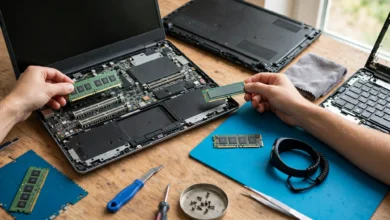
Make sure the RAM is upgradeable if you start with 16GB. Many thin laptops and all MacBooks have soldered memory you can never change.
Storage
Software suites, project files, render outputs, and textures eat space fast. Get at least a 1TB NVMe SSD. A second M.2 slot is a big plus for adding storage later.
Display
You’ll stare at this screen for thousands of hours, and you’ll judge colors, materials, and line weights on it.
- Size: 15 to 16 inches is ideal for CAD. 14 inches works if you’ll use an external monitor.
- Resolution: 2.5K (2560 x 1600) or higher
- Color accuracy: 100% sRGB minimum, DCI-P3 coverage for visualization work
- Matte finish helps in bright studios
Cooling, Battery, and Weight
Powerful laptops get hot. Good cooling prevents thermal throttling during long renders. At the same time, you’ll be carrying this laptop to studios, site visits, and juries, so weight matters. Battery life is usually short on GPU-heavy laptops, so expect to carry the charger.
Mac vs Windows: Which Laptop for Architecture and Engineering?
This is the most important decision before you look at any specific model.
When Windows Is the Safer Choice
Many essential programs only run on Windows:
- Revit (Autodesk’s main BIM software)
- SolidWorks
- ANSYS
- ETABS, SAP2000, and STAAD.Pro (structural engineering)
- AutoCAD Civil 3D
- Many university-specific tools
If you’re studying civil, mechanical, or structural engineering, or your architecture school teaches Revit, Windows is almost always the right choice.
When a Mac Works Well
Macs run several architecture tools natively, including Rhino, SketchUp, ArchiCAD, Vectorworks, Twinmotion, Blender, and Adobe apps. AutoCAD for Mac exists but has fewer features than the Windows version.
Retailers point out the tradeoff clearly: some Windows-only architecture apps don’t run natively on Mac. Virtualization tools like Parallels can help, but performance and compatibility aren’t guaranteed, especially for GPU-heavy software.
The Simple Rule
Check your university’s software list before you buy. Many schools publish recommended specs. Ask senior students what they actually use in studio. That one step saves more money than any discount.
Laptop for Engineering Students: Requirements by Branch
Engineering covers a wide range of needs. Here’s a quick breakdown.
Civil and Structural Engineering
You’ll use AutoCAD, Civil 3D, ETABS, SAP2000, STAAD.Pro, and Revit Structure. Prioritize a Windows laptop with a dedicated GPU, 16 to 32GB RAM, and strong single-core performance.
Mechanical and Aerospace Engineering
SolidWorks, ANSYS, CATIA, Fusion, and MATLAB are common. Simulations benefit from more CPU cores and 32GB RAM. A SolidWorks laptop should ideally have an NVIDIA GPU, and Dassault publishes its official SolidWorks system requirements with tested graphics cards.
Electrical and Electronics Engineering
MATLAB, Simulink, LTspice, PCB design tools, and programming environments. Needs are lighter. A strong CPU and 16GB RAM usually work fine, and a dedicated GPU is optional.
Computer and Software Engineering
Coding, virtual machines, and data work. A fast CPU, 16 to 32GB RAM, and good battery life matter more than a big GPU. A MacBook is a strong option here.
10 Best Laptops for Architecture and Engineering Students
Prices change constantly and vary by country, so treat these as a shortlist and compare current local prices. Configurations matter a lot: the same model can come with very different GPUs and RAM.
1. Apple MacBook Pro 14 or 16 (M5 Pro): Best Laptop for Architecture on Mac
If your course is Rhino, SketchUp, ArchiCAD, and Adobe-heavy, the MacBook Pro is outstanding. It’s fast, quiet, and has one of the best screens available. Currys calls the MacBook Pro with an M5 Pro or M5 Max chip the strongest Mac choice for architecture students, thanks to its speed, color-accurate display, and long battery life.
Pros: superb display, long battery life, excellent build quality, quiet under load
Cons: no native Revit or SolidWorks, expensive, RAM and storage can’t be upgraded later
Best for: architecture and design students whose schools don’t require Windows-only software.
2. Lenovo ThinkPad P1 (Gen 8): Best Mobile Workstation for Professional Software
The ThinkPad P1 is a thin mobile workstation with ISV certification, meaning software makers like Autodesk and Dassault have tested it for stability. One review site ranks it best for professional architecture software.
Pros: certified stability, excellent keyboard, professional build, strong support
Cons: expensive, professional GPUs cost more than gaming equivalents
Best for: students with larger budgets or scholarships, and those planning to use the laptop into early professional practice.
3. HP ZBook Fury G11: Best for Heavy Engineering Workloads
This is a serious workstation for heavy simulations, large BIM models, and complex rendering. It’s listed as best for heavy workloads in architecture laptop roundups.
Pros: top-tier performance, upgradeable, workstation-grade components
Cons: heavy, pricey, short battery life
Best for: final-year and postgraduate students doing intensive simulation or visualization work.
4. ASUS ProArt P16: Best Value Creator Laptop
The ProArt P16 combines strong RTX graphics with a color-accurate OLED screen. The How To Rhino guide notes that for students and independent architects, the ProArt P16 offers exceptional value for money.
Pros: stunning display, strong GPU, stylus support on some models
Cons: OLED screens can show burn-in with static toolbars over long periods
Best for: architecture students who care about presentation quality and rendering.
5. Lenovo Legion 5 or Legion Pro 5 (RTX 5060/5070): Best Value Windows Laptop
Gaming laptops often give the most GPU power for the money. The Legion series is known for good cooling, solid keyboards, and upgradeable RAM and storage.
Pros: excellent price to performance, good thermals, upgradeable
Cons: heavier than workstations, gaming styling, mediocre battery life
Best for: most architecture and engineering students on a realistic budget.
6. ASUS TUF Gaming A16 or F16: Best Budget Laptop for Architecture
If money is tight, a TUF model with an RTX 5050 or 5060 gives you a real dedicated GPU at a lower price. Upgrade the RAM to 32GB later if it ships with 16GB.
Pros: affordable, dedicated GPU, durable build
Cons: displays on lower configurations may have weaker color accuracy
Best for: first and second year students and anyone on a strict budget.
7. MSI Vector 16 HX AI: Best Gaming and Creator Hybrid
The Vector 16 offers HX processors and strong RTX GPUs, making it a powerful option for rendering and simulation at a price below workstations. It appears in student guides as the best gaming and creator hybrid.
Pros: very powerful, good port selection
Cons: loud fans under load, heavy
Best for: students who render often and want desktop-like power.
8. Razer Blade 16: Best Thin and Powerful Premium Option
The Razer Blade 16 packs high-end graphics into a slim aluminum body, making it one of the most portable powerful laptops available.
Pros: premium build, thin, strong performance
Cons: expensive, runs hot, pricey repairs
Best for: students who want top performance without carrying a bulky machine.
9. Dell Pro Max 16: Best Dell Workstation
Dell has replaced its Precision workstation name with the Pro Max line. These laptops offer ISV-certified configurations, strong support options, and professional NVIDIA GPUs.
Pros: reliable support, business-grade build, certified drivers
Cons: configurations get expensive quickly
Best for: students whose universities have Dell education partnerships or discounts.
10. Apple MacBook Air (M4): Best for Early Years and Lighter Work
The MacBook Air is not a rendering machine, but it’s excellent for first-year design, Adobe work, writing, research, and light SketchUp or Rhino use. It’s light, silent, and lasts all day.
Pros: great battery life, very portable, affordable for a Mac
Cons: no fan for long heavy workloads, no Windows-only software
Best for: students in design-focused early years, or as a second machine alongside a desktop or lab computer.
Quick Comparison Table
| Laptop | OS | Best For | Budget Level |
|---|---|---|---|
| MacBook Pro (M5 Pro) | macOS | Mac-friendly architecture | High |
| ThinkPad P1 Gen 8 | Windows | Certified professional use | High |
| HP ZBook Fury G11 | Windows | Heavy simulations | Very high |
| ASUS ProArt P16 | Windows | Visualization and display quality | Mid to high |
| Lenovo Legion 5 / Pro 5 | Windows | Best overall value | Mid |
| ASUS TUF A16/F16 | Windows | Budget students | Low to mid |
| MSI Vector 16 HX AI | Windows | Rendering power | Mid to high |
| Razer Blade 16 | Windows | Thin and powerful | High |
| Dell Pro Max 16 | Windows | Workstation reliability | High |
| MacBook Air (M4) | macOS | Early years, light work | Mid |
Workstation vs Gaming Laptop for Architecture Students
Students often wonder whether they need an expensive workstation.
Mobile Workstations
- ISV-certified for CAD and BIM software
- Professional NVIDIA RTX GPUs with certified drivers
- Better build quality and business support
- Much higher prices
Gaming Laptops
- Consumer RTX GPUs that often perform similarly in student workloads
- Much better price to performance
- Louder, heavier, and flashier
- Not officially certified, though most software runs well
For most students, a well-chosen gaming laptop is the smartest laptop for architecture and engineering coursework. Workstations make more sense for professional practice, very large models, or if your school specifically recommends them.
How to Save Money Legally on Laptops and Software
Engineering and architecture are expensive degrees. These tips help without cutting corners.
Use Student Discounts
Apple, Dell, HP, Lenovo, ASUS, and Microsoft all run education stores or student discount programs. Seasonal back-to-school offers can include extra savings or free accessories.
Get Software Free Through Education Programs
This is the biggest money-saver, and many students don’t know about it.
- Autodesk offers eligible students free access to AutoCAD, Revit, Fusion, 3ds Max, and more through its Autodesk Education program.
- SolidWorks is often provided by universities, and a low-cost student edition is available.
- Rhino has heavily discounted education licenses.
- SketchUp offers education plans.
- Blender and FreeCAD are free and open source.
- Microsoft 365 is often free with a university email.
Consider Certified Refurbished Laptops
Manufacturer-certified refurbished laptops come with warranties and can save a lot. Avoid unknown sellers offering “like new” workstations at suspiciously low prices.
Use University Labs for Heavy Renders
Many students do final renders on lab machines or render farms. If your school has strong lab facilities, you may not need the most expensive laptop.
The Reality Check: Illegal Shortcuts Students Should Avoid
Architecture and engineering software is expensive, and the pressure of deadlines is real. That’s why some students take risky shortcuts. Here’s what actually happens.
Cracked Software and Malware
Pirated copies of AutoCAD, Revit, SolidWorks, Lumion, and Adobe programs are widely shared online, and criminals know students search for them. Security researchers have repeatedly reported campaigns that hide password-stealing malware, known as infostealers, inside fake “cracks” and “keygens” for popular software. Once installed, these programs can steal saved browser passwords, banking details, crypto wallets, and login sessions for email and social media.
The irony is painful: a student trying to save money on software can end up losing far more through stolen accounts. Since much of this software is legally free for students, the risk makes no sense.
Piracy Enforcement Against CAD Users
Software companies don’t ignore unlicensed use. Major CAD vendors have well-documented programs that detect pirated installations and send license compliance demands to the businesses using them, often asking for large payments to settle. Industry groups like the BSA (The Software Alliance) have also pursued settlements with architecture, engineering, and design firms caught using unlicensed software. Students who build habits around cracked software may carry those risks into internships and jobs, where the legal exposure falls on their employer and sometimes on them.
Paid Assignment and Contract Cheating Services
Some students pay others to complete CAD drawings, models, or design projects. Governments have started treating this seriously. England made it a criminal offense to provide or advertise essay mill and contract cheating services under the Skills and Post-16 Education Act 2022, and Australia passed similar laws in 2020. Universities also expel students caught submitting work they didn’t produce. In architecture and engineering, where your portfolio and skills decide your career, outsourcing your work hurts you more than anyone.
Stolen and Fake Laptops
High-end laptops are frequent theft targets on campuses and in public transport. Stolen machines often resurface on online marketplaces at tempting prices. Buying one can mean losing both the laptop and your money if it’s traced, and in many countries knowingly buying stolen goods is a crime.
What to do:
- Buy from authorized sellers or certified refurbishers.
- Check that the serial number matches the box and warranty records.
- Be wary of high-end laptops priced far below market rates.
Tips to Make Your Laptop Last Through Your Degree
A laptop for architecture or engineering works hard. These habits keep it running for years.
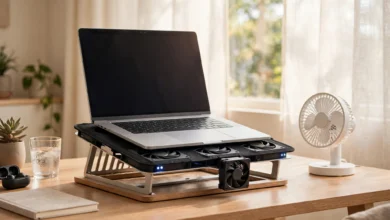
- Use a cooling pad or stand during long renders.
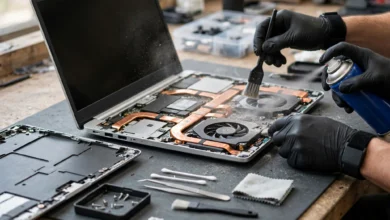
- Clean the fans every six to twelve months, especially in dusty environments.
- Keep GPU drivers updated using NVIDIA Studio drivers, which are tuned for creative software.
- Back up projects to cloud storage and an external drive. Losing a final project the night before a jury is a real nightmare.
- Use a laptop sleeve or padded bag for studio commutes.
- Upgrade RAM and storage instead of replacing the whole laptop when it starts to feel slow.
- Enable full-disk encryption and a strong password in case the laptop is stolen.
Conclusion
The best laptop for architecture and engineering students is the one that runs your course software smoothly, survives four or five years of studio work, and fits your budget, so start by checking your university’s software list and deciding between Windows and Mac before comparing models. Aim for an Intel Core Ultra 7/9, AMD Ryzen 7/9, or Apple M-series Pro chip, a dedicated RTX GPU with at least 8GB of VRAM, 32GB of RAM if possible, a 1TB SSD, and a color-accurate 15 to 16-inch display. MacBook Pro models suit Mac-friendly architecture courses, while Windows options like the Lenovo Legion 5, ASUS TUF, ASUS ProArt P16, MSI Vector 16, and Razer Blade 16 offer strong value, and workstations like the ThinkPad P1, HP ZBook Fury, and Dell Pro Max 16 bring certified stability for heavier work. Save money through student discounts, certified refurbished units, and free education licenses from Autodesk and others rather than cracked software, which has been used to spread password-stealing malware, invites piracy enforcement, and sits alongside contract cheating and stolen laptops as shortcuts that can cost far more than they save.