How to Choose a Good Webcam for Online Meetings
How to choose a good webcam for online meetings: resolution, low light, mics, privacy shutters, and real webcam hacking cases every buyer should know.
How to Choose a Good Webcam for Online Meetings
Introduction
Knowing how to choose a good webcam matters more than ever now that so much of work, school, and family life happens on a screen. Your webcam is how clients judge your professionalism, how interviewers form a first impression, and how relatives far away see you. Yet most people either put up with a grainy laptop camera or buy the most expensive 4K model they can find, assuming more pixels means better calls.
Neither approach works well. Zoom, Microsoft Teams, and Google Meet compress your video heavily, so a 4K camera often looks no sharper than a good 1080p one on a typical call. What actually makes the difference is sensor quality, low-light handling, reliable autofocus, and, above all, decent lighting in your room.
There is also a side of webcams that buying guides rarely mention: privacy. A camera pointed at your face all day is an attractive target. In 2014, police in many countries arrested around 100 people linked to Blackshades, malware that let criminals switch on victims’ webcams silently. One user had spied on Miss Teen USA and other women and went to prison for extortion. A Pennsylvania school district paid $610,000 after its laptops captured tens of thousands of webcam images of students.
This guide covers both sides. You will get 10 clear tips for picking the right camera, recommendations at every budget, and simple habits to keep your webcam working for you, not against you.
How to Choose a Good Webcam: 10 Tips That Actually Matter
Webcam boxes are covered in numbers, but only some of them change how you look on a call. These 10 tips cover what matters, roughly in order of importance for everyday meetings.
1. Treat 1080p as the Sweet Spot
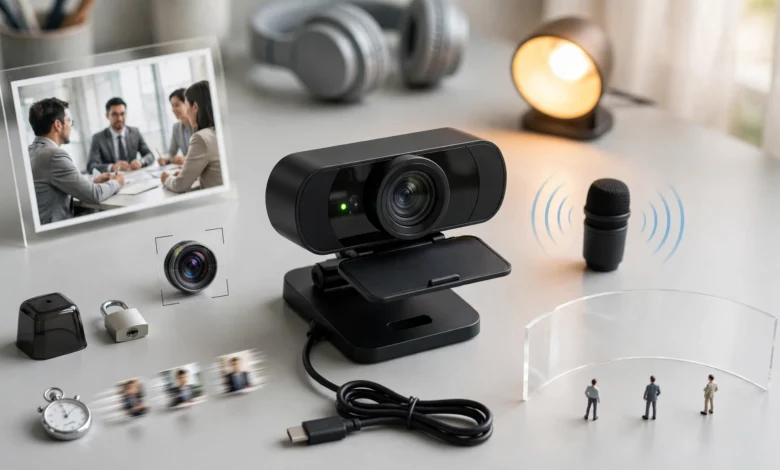
For most people, a 1080p webcam is the right choice. Video platforms usually send meeting video at 720p or 1080p, and they compress it heavily, so extra resolution often disappears before it reaches the other side. A 4K webcam still has real uses: you can crop and zoom digitally without losing sharpness, it helps when recording videos or presentations, and it future-proofs your setup. But if your budget is limited, spend it on a better 1080p camera rather than a cheap 4K one.
2. Choose 30 or 60 Frames per Second
Frame rate is how smooth motion looks. 30 fps is perfectly fine for talking heads in meetings. 60 fps looks smoother if you move around a lot, teach with your hands, or stream. Be aware that many webcams drop to a lower frame rate automatically in dim light, so a 60 fps rating means little in a dark room.
3. Look for a Bigger Sensor and Good Low-Light Performance
This is the spec that separates good cameras from average ones. A larger image sensor gathers more light, which means less grain and truer colors in typical home offices. Premium models now advertise sensors of 1/2 inch or larger, and some 2026 picks go bigger still. Look for HDR support and reviews that specifically test low-light performance, because few people take calls in a perfectly lit studio.
4. Pick the Right Field of View
Field of view (FOV) decides how much of the room the camera sees:
- 65 to 78 degrees: best for one person at a desk. Frames your face and hides the mess behind you.
- 78 to 90 degrees: good if you share the frame or like a little more background.
- 90 degrees and wider: for small meeting rooms or several people around a table.
Many webcams let you adjust FOV in software, which is a useful bonus.
5. Prefer Reliable Autofocus
Autofocus keeps you sharp when you lean in or hold up a document. Cheap fixed-focus cameras keep only one distance sharp. Some autofocus systems “hunt” constantly, pulsing in and out of focus, so read reviews for complaints about focus breathing.
6. Do Not Rely on the Built-In Microphone
Most webcams include a built-in microphone, and some newer models use noise reduction that works reasonably well. But a mic sitting on your monitor, a meter from your mouth, will always sound more distant than a headset or a desk microphone. Treat the webcam mic as a backup. If people often ask you to repeat yourself, upgrade your audio before your video.
7. Insist on a Privacy Shutter
A webcam with privacy shutter gives you a physical way to block the lens when you are not on a call. Software indicators can be bypassed by malware, as the cases later in this guide show, but a closed shutter cannot be. Also check whether the activity light is hardwired to the camera, so it always turns on when the camera does.
8. Check the Connection and Compatibility
Most webcams use USB-A or USB-C. Make sure the cable is long enough for your desk and that it fits your laptop without an extra dongle. Check that the camera works with your operating system. Most are plug-and-play on Windows and macOS, but advanced features often need the maker’s software. If you use Linux or a Chromebook, confirm support before buying.
9. Check the Mount and Adjustability
A good clip should hold steady on a thin laptop lid and a thick monitor. A tripod thread adds flexibility for positioning the camera at eye level. Tilt matters too. If you cannot angle the camera properly, you end up showing the ceiling or your chin.
10. Consider the Software and the Brand Behind It
The companion app controls exposure, color, zoom, and framing, and good software can make a mid-range camera look much better. Look for webcams certified for Zoom and Teams if you work in a corporate setting. Also check how the brand handles firmware updates and data. Some AI framing features process video in the cloud, while others work locally, and local is better for privacy.
A Quick Alternative: Your Phone
Modern phones have better cameras than most webcams. Apple’s Continuity Camera on Mac, and phone-as-webcam features on Windows and Android, can give excellent results for free. You will need a mount and you lose your phone during calls, but it is worth trying before you buy anything.
Best Webcam for Online Meetings at Every Budget
These picks reflect what independent reviewers consistently recommended in 2026. They are grouped by budget and use, not ranked against each other. Check current prices, and confirm features like privacy shutters on the exact model you buy, since similar names can hide different specs.
| Webcam | Max video | Best for |
|---|---|---|
| Logitech C270 | 720p | Occasional calls on a tight budget |
| Logitech C920x | 1080p 30 fps | Best value for most people |
| Anker PowerConf C200 | 2K | Budget remote workers |
| Elgato Facecam Neo | 1080p | Budget pick with good software |
| Logitech Brio 500 | 1080p | Everyday work calls |
| Logitech MX Brio | 4K | Business users and presenters |
| Insta360 Link 2C / Link 2C Pro | 4K | Premium image and low light |
| Obsbot Tiny 3 | 4K 30 fps / 1080p 120 fps | Creators and tracking features |
Budget Webcams
Logitech C270
The C270 is the cheapest webcam most reviewers still consider worth buying. It is only 720p and has fixed focus, but for a few calls a week it is a clear step up from a poor laptop camera. Pair it with a headset for audio.
Logitech C920x
The C920 family has been the default recommendation for over a decade, and the C920x still holds up. Expect sharp 1080p video, accurate colors, reliable autofocus, and automatic light correction. One reviewer called it the best choice for people who take a few calls a week and want to stay under about $60. The main complaint is that it runs warm on long calls.
Anker PowerConf C200 and Elgato Facecam Neo
Both are strong alternatives to the C920x. The Anker C200 offers 2K resolution at a budget price, and the Elgato Facecam Neo benefits from Elgato’s well-regarded camera software.
Mid-Range Webcams for Work
Logitech Brio 500
The Brio 500 is built for office use, with good 1080p video, light correction, a built-in privacy shutter, and USB-C. Several 2026 guides name it the best all-around choice for ordinary video calls.
Logitech MX Brio
The MX Brio is a 4K business webcam with a larger sensor, better low-light handling, and polished software. It suits managers, presenters, and anyone who records video as well as joining meetings.
Premium Webcams
Insta360 Link 2C and Link 2C Pro
Tom’s Guide’s webcam testing picked the Insta360 Link 2C as its best overall webcam, praising its image quality and portable build. The Link 2C Pro steps up with a 1/1.3-inch sensor, 4K at 30 fps, 1080p at 60 fps, an 83.9-degree field of view, and dual microphones. That large sensor makes a visible difference in dim rooms.
Obsbot Tiny 3
The Tiny 3 offers 4K at 30 fps or 1080p at up to 120 fps, AI subject tracking, and outstanding image quality in bright and dim light. Tom’s Guide noted it is among the most expensive webcams it has tested, so it makes most sense for creators and teachers who move around.
Which One Should You Buy?
- A few calls a week: Logitech C920x.
- Daily work calls: Logitech Brio 500.
- Presenting, recording, or a dim room: Logitech MX Brio or Insta360 Link 2C Pro.
- Teaching or moving around: Obsbot Tiny 3.
The Reality Check: Real Webcam Hacking and Privacy Cases
A webcam is one of the most personal devices you own. It sees your face, your home, and sometimes your family. The cases below are not hypothetical; they are documented crimes and lawsuits that shaped how security experts talk about webcams today. Newest first:
| When | Case | What happened |
|---|---|---|
| November 2020 | FTC and Zoom | The FTC alleged Zoom had overstated the strength of its meeting encryption and settled with an order requiring a stronger security program. |
| 2016 | Blackshades co-creator sentenced | Alex Yücel, the Swedish co-creator of Blackshades, was sentenced to 57 months in U.S. federal prison (Bitdefender report). |
| May 2014 | Global Blackshades crackdown | The FBI and agencies in more than a dozen other countries made around 100 arrests and hundreds of searches. The malware sold for as little as $40, infected more than 500,000 computers, and could switch on webcams secretly (Threatpost coverage). |
| March 2014 | Miss Teen USA sextortion case | A 20-year-old computer science student who used Blackshades to secretly take webcam images of Miss Teen USA 2013 and other women, then demand more, was sentenced to 18 months after pleading guilty to extortion and unauthorized computer access. |
| October 2010 | Lower Merion School District | A Pennsylvania district paid $610,000 to settle lawsuits after its anti-theft software captured at least 56,000 webcam photos and screenshots from student laptops, sometimes for months after a laptop was found (NBC News report). |
Lesson 1: Malware, Not the Camera, Is Usually the Way In
Blackshades worked by tricking people into installing it through infected downloads, links, or attachments. Once installed, it gave the attacker remote control: files, passwords, keystrokes, and the webcam. The camera hardware itself was not the weak point; the computer was. That is why safe browsing habits, updates, and antivirus protection matter as much as which webcam you buy.
Lesson 2: The Indicator Light Is Not a Guarantee
In many webcam-spying cases, victims did not realize the camera was on. Some cameras let software control the activity light separately from the sensor. A physical privacy shutter or a lens cover is the only protection that malware cannot override. It costs almost nothing, and it is the single most effective habit in this guide.
Lesson 3: Sextortion Thrives on Silence
The Miss Teen USA case ended with a conviction because the victim went to the authorities instead of giving in to the demands. Investigators later found the attacker had control of more than 150 computers. If anyone ever threatens to release images unless you pay or send more, do not engage, keep the messages as evidence, and report it to the police or your country’s cybercrime agency.
Lesson 4: Organizations Can Misuse Cameras Too
The Lower Merion case did not involve criminal hackers. The district said the software was meant to find lost laptops, and no criminal charges were filed. But families had not been told that cameras could be switched on remotely, and the images included students in their homes. The settlement is a reminder to ask what monitoring software is installed on any work or school device, and to keep personal activities off company or school laptops.
Lesson 5: Meeting Platforms Have Security Gaps
The FTC’s Zoom case was about the gap between security claims and reality. Meeting platforms have also faced “Zoombombing,” where uninvited people join calls through shared links. Your webcam choice does not fix platform problems, so use meeting passwords, waiting rooms, and unique links for sensitive calls.
Webcam Security Habits That Keep You Safe
Good webcam security takes a few minutes to set up and almost no effort after that. These habits close the gaps the real cases above exploited.
On Your Computer
- Close the shutter or unplug the camera when you are not on a call. For laptop cameras without a shutter, use a slim sliding cover. Make sure it does not interfere with closing the lid.
- Check camera permissions. On Windows (Settings > Privacy & security > Camera) and macOS (System Settings > Privacy & Security > Camera), see which apps can use your camera. Remove anything you do not recognize or no longer use.
- Keep everything updated. Install operating system, browser, and webcam firmware updates promptly. Remote access Trojans rely on old, unpatched software.
- Do not open unexpected attachments or downloads. Blackshades spread through exactly these. Be especially careful with “cracked” software and files from strangers.
- Run reputable security software and scan your system if your camera light turns on unexpectedly or your computer behaves strangely.
On Your Calls
- Use waiting rooms and meeting passwords for sensitive meetings, and do not post meeting links publicly.
- Check your background before joining. Documents, family photos, and screens behind you can reveal more than you think. Use background blur when in doubt.
- Remember that meetings can be recorded. Avoid sharing anything on camera you would not want saved.
On Work and School Devices
- Ask what monitoring or tracking software is installed.
- Keep personal browsing and personal video calls on your own devices.
- If you share a computer with children, set up separate accounts and talk to them about never turning on their camera for strangers online.
Setup Tips: Get the Most From a Good Webcam
Even the best camera looks bad in poor conditions. These setup steps cost little and often make a bigger difference than upgrading the camera itself.
Lighting Comes First
- Face a window or a light source. Light in front of you, not behind you, keeps your face bright and natural.
- Avoid strong backlight. A bright window behind you turns you into a silhouette.
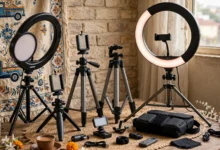
- Add a soft lamp or ring light at about eye level, slightly off to one side, for evening calls.
- Avoid mixed colors of light where possible. Warm room lamps plus cool daylight can make skin tones look odd.
Framing and Position
- Place the camera at eye level or slightly above. A camera looking up from a laptop on a desk is the least flattering angle.
- Sit about an arm’s length away, with your head and shoulders filling the frame and a little space above your head.
- Look at the camera, not your own image, when making an important point.
- Keep the background simple and tidy, or use blur.
Software Settings
- Open the webcam’s companion app and turn on auto exposure and white balance, or adjust them manually if colors look off.
- In Zoom, Teams, or Meet, choose the external webcam and an external microphone if you have one.
- Turn on HD video in your meeting app settings where available.
- Test with a quick recording before important calls such as interviews.
Conclusion
Learning how to choose a good webcam for online meetings comes down to focusing on what video platforms actually show: a good 1080p camera with a decent sensor, solid low-light performance, reliable autofocus, a sensible field of view, and a physical privacy shutter will serve most people better than a cheap 4K model, while premium cameras like the Logitech MX Brio, Insta360 Link 2C Pro, or Obsbot Tiny 3 make sense for presenters, creators, and dim rooms. Good lighting, eye-level placement, and a proper microphone often matter more than the camera itself. The Blackshades crackdown, the Miss Teen USA sextortion conviction, the Lower Merion settlement, and the FTC’s action against Zoom all show that webcams carry real privacy risks, so close the shutter when you are not on a call, review camera permissions, keep software updated, avoid suspicious downloads, and report any threats to the authorities rather than staying silent.